
Polarlander Android 8.1 Car Stereo Instruction Manual
Model: SP-7069
1. Product Overview
The Polarlander SP-7069 is a 1-DIN Android 8.1 car stereo featuring a 6.9-inch IPS LCD Full HD capacitive touch screen. It integrates GPS navigation, FM radio, Bluetooth 5.1, Wi-Fi, and supports Apple CarPlay and Android Auto for enhanced connectivity and entertainment in your vehicle.
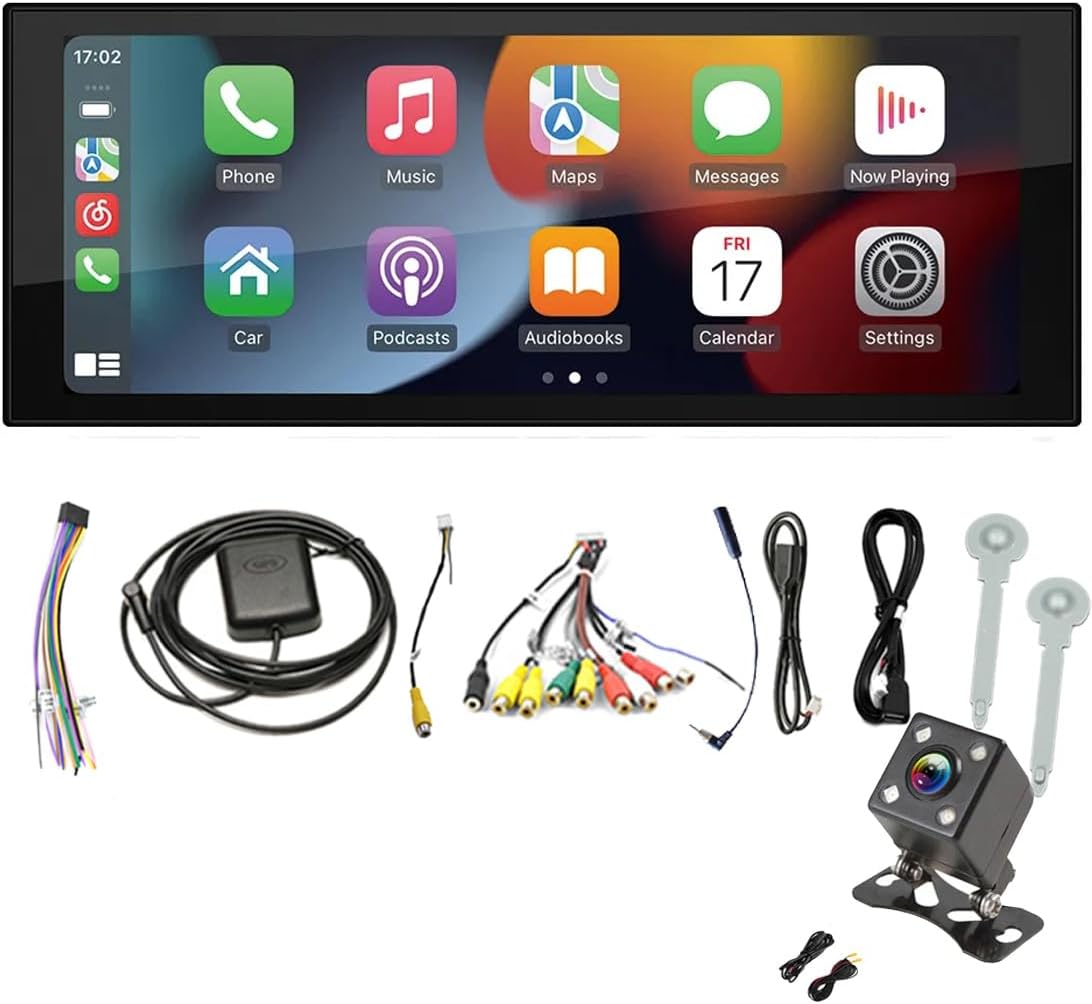
Image 1: Polarlander SP-7069 Car Stereo with main components.
2. Package Contents
Verify that all items are present in the package:
- Host Unit (Car Stereo) x1
- USB Cable x2
- Antenna x1
- GPS Cable x1
- RCA Audio Cable x1
- Rear View Camera (if included in package) x1
- 16P Power Cord x1
- Disassembly Key x2
- Instruction Manual x1

Image 2: Rear view of the car stereo and various connection cables.
3. Installation
This is a standard single DIN car radio with a manual pull-out screen. Installation may require a wiring kit and mounting kit specific to your vehicle model for a perfect fit. Professional installation is recommended.
Key Installation Notes:
- Ensure proper wiring connections for power, speakers, and accessories.
- Connect the cable that includes the video input for the camera, even if not installing a camera, as this cable also contains the Wi-Fi and Bluetooth antennas.
- The GPS antenna should be placed in a location with a clear view of the sky for optimal signal reception.
- The two USB female cables allow for mobile charging, USB music playback, or connecting your phone for Android Auto/CarPlay.
4. Operating Instructions
4.1. User Interface Overview
The unit features a 6.9-inch capacitive touch screen with an intuitive Android interface. Navigate through applications and settings by tapping and swiping. The main screen provides quick access to core functions like Navigation, Music, Radio, and Bluetooth.

Image 3: Multiple views of the car stereo's user interface.
4.2. Radio Operation
The built-in FM tuner offers high-quality reception with 18 preset stations. You can manually tune or automatically search for channels. Access the equalizer settings to adjust audio output for radio playback.
4.3. Media Playback (Music & Video)
The unit supports various media formats including MP3, AAC, FLAC, MP4, MP5, MKV, and JPEG. Play music and videos from connected USB devices or internal storage. The versatile full-screen touch allows for easy control of playback, volume, and track selection.
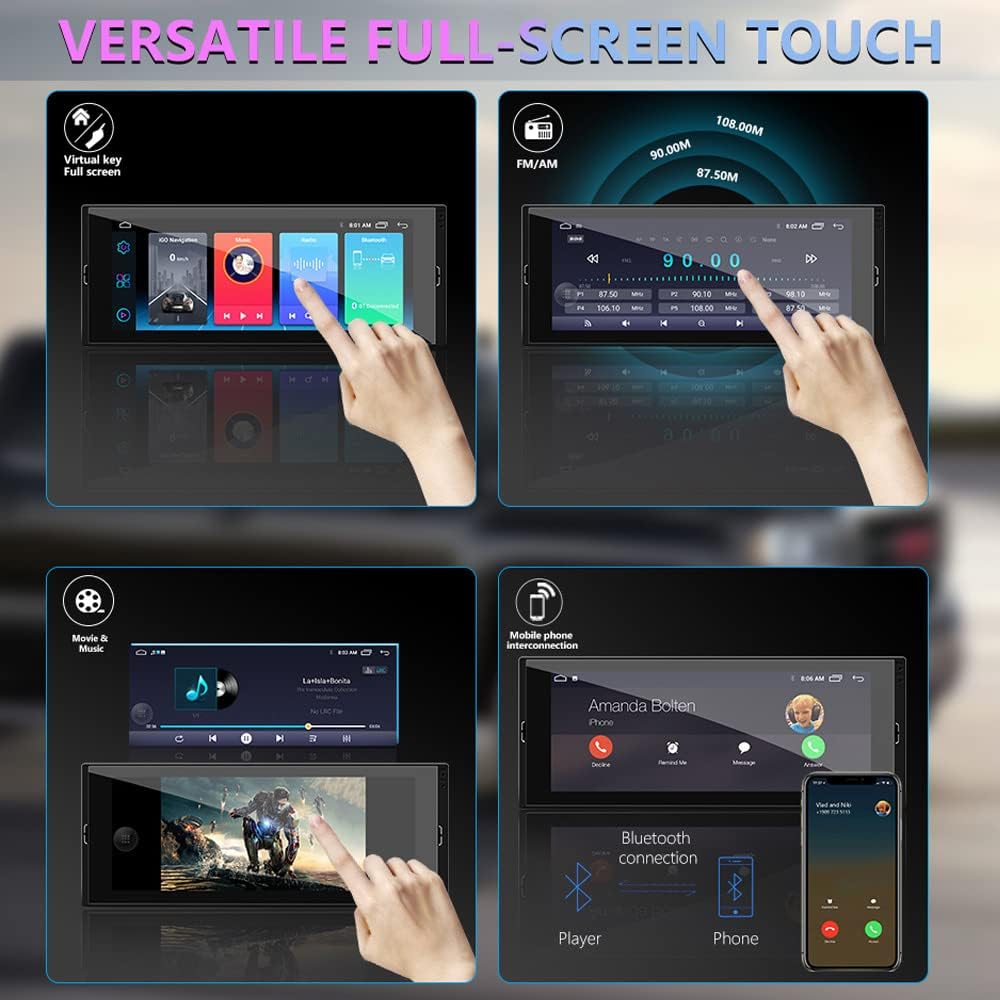
Image 4: Demonstrates music, radio, and phone interconnection on the touch screen.
4.4. Bluetooth Connectivity
With Bluetooth 5.1, you can connect your smartphone for hands-free calling and Bluetooth music streaming. This feature enhances driving safety by allowing you to manage calls without distraction.
4.5. Apple CarPlay and Android Auto (Mirror Link)
The car stereo is compatible with Apple CarPlay and Android Auto, allowing you to seamlessly integrate your smartphone. This enables access to navigation, music, messages, and other apps directly from the car stereo's display. It supports both wired and wireless connections for Android phones (two-way connection) and Apple phones (one-way connection).
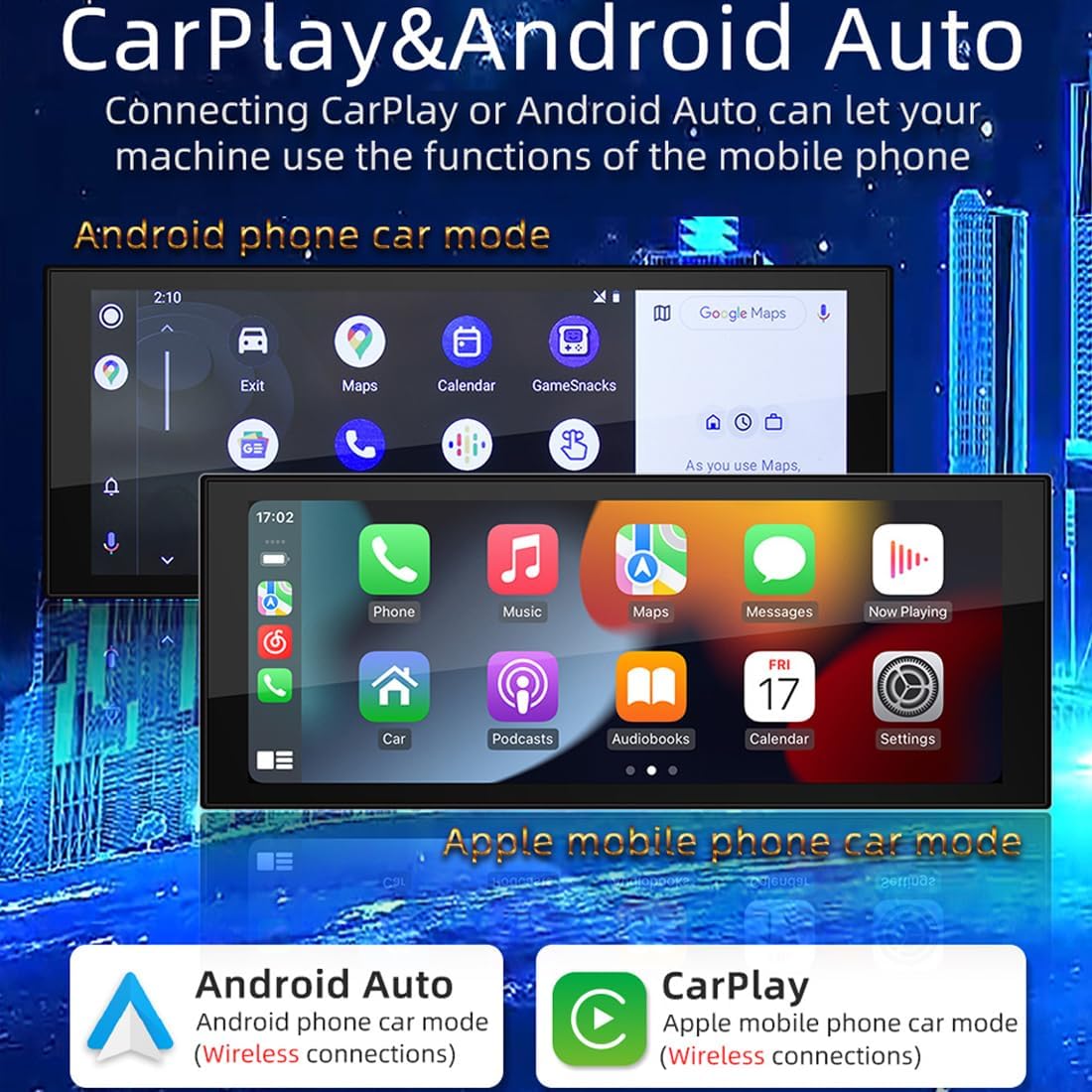
Image 5: Apple CarPlay and Android Auto interfaces shown on the car stereo.
4.6. GPS Navigation
The unit includes GPS navigation with European data. It supports real-time traffic, offline maps, route planning, and searching for nearby points of interest. The system provides clear visual and audio guidance for your journeys.

Image 6: GPS navigation features including real-time traffic and 3D view.
4.7. Wi-Fi Connectivity
Connect to a Wi-Fi network to download applications, browse the internet, and access online services directly from your car stereo.

Image 7: Wi-Fi internet access on the car stereo.
4.8. Rear View Camera
The system supports an AHD rear view camera (included in some packages). When connected, the display automatically switches to the rear view when reversing, providing parking assistance with guidelines.

Image 8: AHD rear view camera display.
4.9. Sound Settings and Equalizer
Adjust audio settings, including treble, bass, and balance, to customize your listening experience. The equalizer offers various preset modes (e.g., Pop, Jazz, Rock) and a user-defined mode.
Video 1: Demonstration of the car stereo's user interface, radio tuning, music playback, equalizer settings, Bluetooth pairing, and various system settings.
5. Troubleshooting
5.1. Screen Orientation Adjustment
If the screen orientation is incorrect (horizontal/vertical), follow these steps:
- Drop down the menu from the top of the screen.
- Go to Settings > More > Display > Application.
- Select the desired screen orientation (horizontal).
- Exit the settings and restart the unit from the drop-down menu.
6. Specifications
| Feature | Detail |
|---|---|
| Product Model | SP-7069 |
| Resolution | 1280*480 |
| Product Size | 17 x 12.5 x 7.4 cm (6.69 x 4.92 x 2.91 inches) |
| CPU | Quad-core Cortex-A7 1.3GHz |
| Screen Type | IPS 1280 x 480 LCD Full HD, Smart Capacitive Touch Screen |
| Memory (RAM) | 1GB DDR3 |
| Storage (ROM) | 16GB |
| Android Version | 8.1/10.0 Api27 |
| Display Support | Only supports MIPI screens |
| USB Compatibility | MP3/AAC, FLAC, MP4, MP5, MKV, JPEG |
| Connectivity | Bluetooth 5.1, GPS, Wi-Fi, FM Tuner, Dual USB, RCA |
| Special Features | Built-in CarPlay, Mobile Phone Interconnection (Mirror Link), AHD Rear View, Virtual Button, Support for external devices (DVR/Camera/DAB/CarPlay/TPMS/OBD II) |
| Operating System | Android |
| Item Weight | 0.564 ounces (16 Grams) |
| Dimensions | 8.66 x 3.94 x 6.1 inches |
7. Maintenance
To ensure optimal performance and longevity of your car stereo, consider the following maintenance tips:
- Regularly clean the touch screen with a soft, lint-free cloth. Avoid abrasive cleaners.
- Keep the unit free from dust and debris.
- Ensure proper ventilation around the unit to prevent overheating.
- Periodically check for software updates to improve functionality and security.
8. Warranty and Support
For warranty information, technical support, or any questions regarding your Polarlander SP-7069 car stereo, please refer to the contact details provided with your purchase or visit the official Polarlander website. Keep your proof of purchase for warranty claims.


