1. Introduction
This manual provides essential information for the safe and efficient use of your Black Shark 5 Pro gaming smartphone. Please read this guide thoroughly before operating the device to ensure optimal performance and longevity. Keep this manual for future reference.
2. Device Overview
Familiarize yourself with the physical components of your Black Shark 5 Pro.
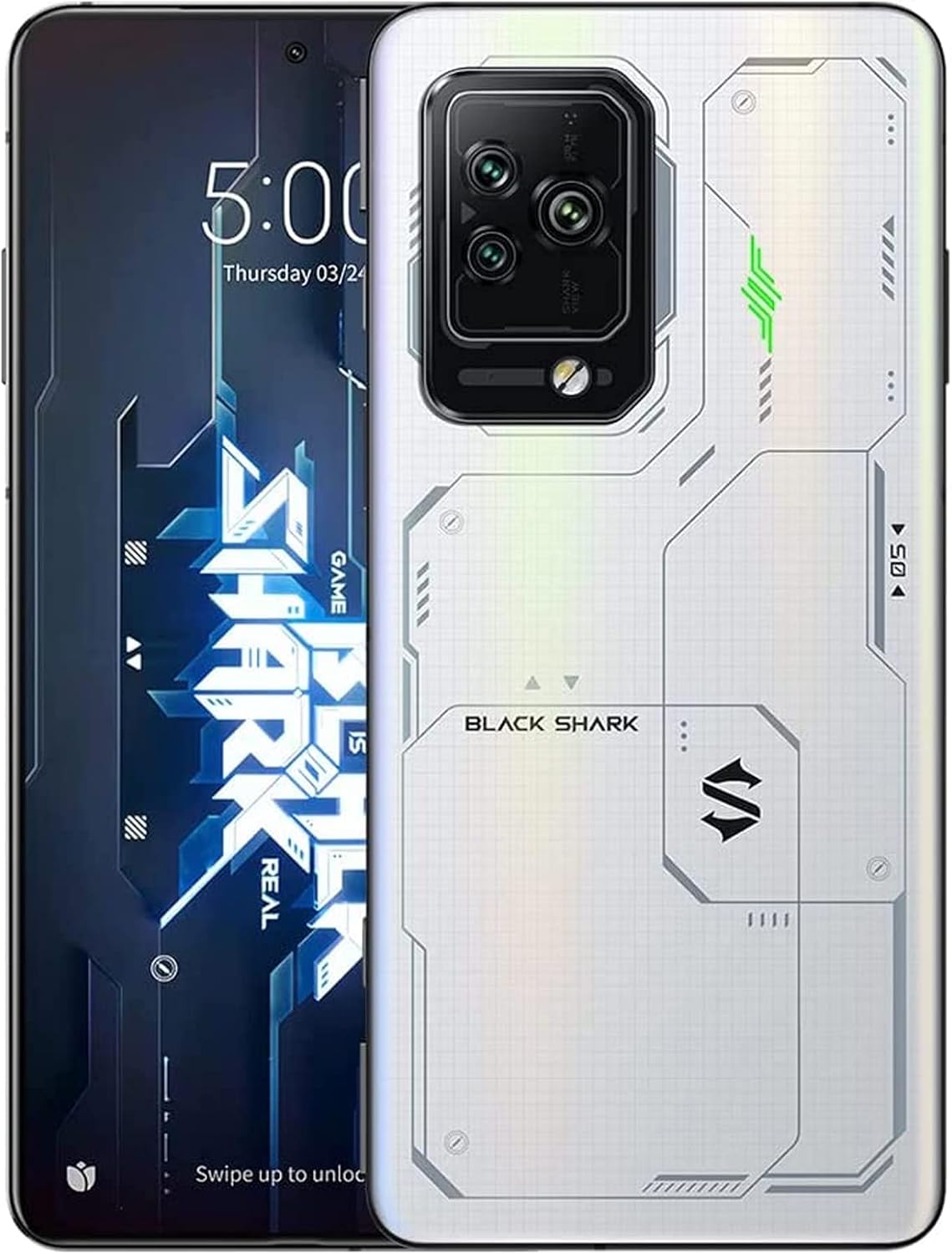
Figure 2.1: Black Shark 5 Pro Front and Rear View. This image displays the smartphone from both the front, highlighting its display, and the back, showcasing the camera array and the distinctive white design.
2.1 Physical Components
- Display: Front screen for interaction and content viewing.
- Rear Camera Module: Located on the back, housing multiple camera lenses and flash.
- Power Button: Typically on the side, used to power on/off and lock/unlock the screen.
- Volume Buttons: Located on the side, for adjusting audio levels.
- Magnetic Pop-Up Triggers: Retractable shoulder buttons for enhanced gaming control.
- USB-C Port: For charging and data transfer.
- SIM Card Tray: Slot for inserting SIM cards.
3. Setup
3.1 Unboxing and Initial Inspection
Carefully remove all items from the packaging. Verify that the following components are present:
- Black Shark 5 Pro Smartphone
- USB-C Cable
- Power Adapter (120W)
- SIM Eject Tool
- Quick Start Guide (if included)
Inspect the device for any visible damage. If any components are missing or damaged, contact customer support.
3.2 SIM Card Installation
- Locate the SIM card tray on the side of the device.
- Insert the SIM eject tool into the small hole next to the tray and press gently until the tray pops out.
- Place your Nano-SIM card(s) into the tray with the gold contacts facing down.
- Carefully reinsert the tray into the device until it clicks into place.
3.3 Initial Power On and Setup
- Press and hold the Power button until the Black Shark logo appears.
- Follow the on-screen instructions to complete the initial setup, including language selection, Wi-Fi connection, Google account setup, and security settings.
3.4 Charging the Device
The Black Shark 5 Pro supports 120W Hyper Charge technology for rapid charging.

Figure 3.1: 120W Hyper Charge. This image illustrates the rapid charging capability of the Black Shark 5 Pro, indicating a full charge can be achieved in approximately 15 minutes.
- Connect the USB-C cable to the phone's charging port and the other end to the 120W power adapter.
- Plug the power adapter into a wall outlet.
- The device can reach a full charge in approximately 15 minutes using Ultimate Mode or 24 minutes in Even Mode.
- Use only the official Black Shark 120W charger and cable for optimal charging speed and safety.
4. Operating Instructions
4.1 Display Features
The Black Shark 5 Pro features a 6.67-inch OLED E4 display designed for gaming and multimedia.

Figure 4.1: 144Hz E-Sports Display. This image highlights the key features of the Black Shark 5 Pro's display, including its 144Hz refresh rate, 10-bit color depth, and HDR 10+ support.
- Refresh Rate: Supports up to 144Hz for smooth visuals. Adjust in Display Settings.
- Touch Sampling Rate: 720Hz for highly responsive touch input, crucial for gaming.
- Color Accuracy: 10-bit color depth, DCI-P3 color gamut, and HDR 10+ for vivid and accurate colors.
- Eye Care: SGS eyecare protection is integrated to reduce eye strain.
4.2 Magnetic Pop-Up Triggers
The device includes physical shoulder triggers for enhanced gaming control.
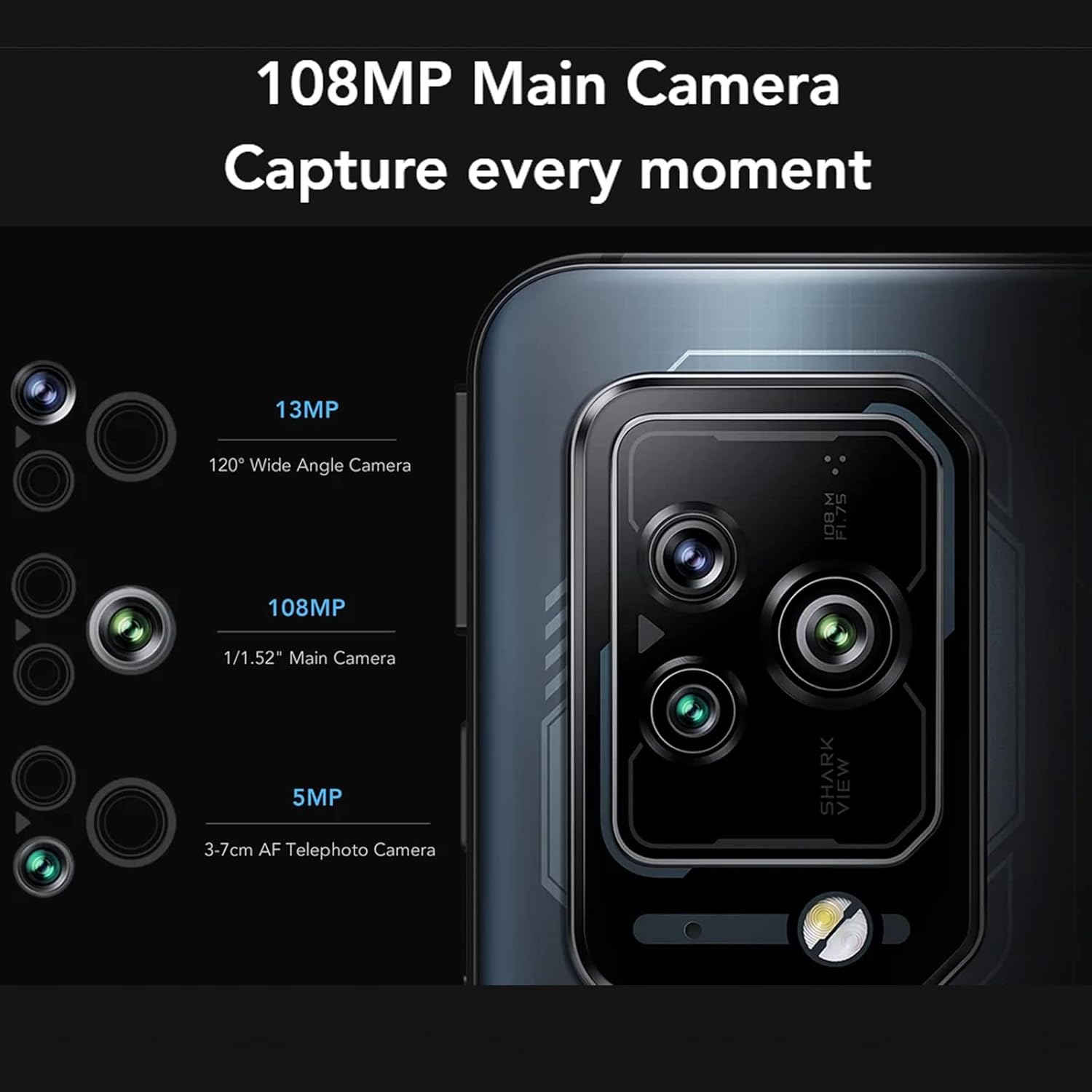
Figure 4.2: Magnetic Pop-Up Triggers. This image displays the side of the Black Shark 5 Pro, highlighting the physical switches used to activate the retractable shoulder triggers.
- Activation: Flick the side-mounted switches to extend or retract the triggers.
- Customization: Triggers can be mapped to in-game actions or customized for other functions like flashlight activation or screenshots via the device settings.
4.3 Camera Operation
The Black Shark 5 Pro is equipped with a versatile camera system.
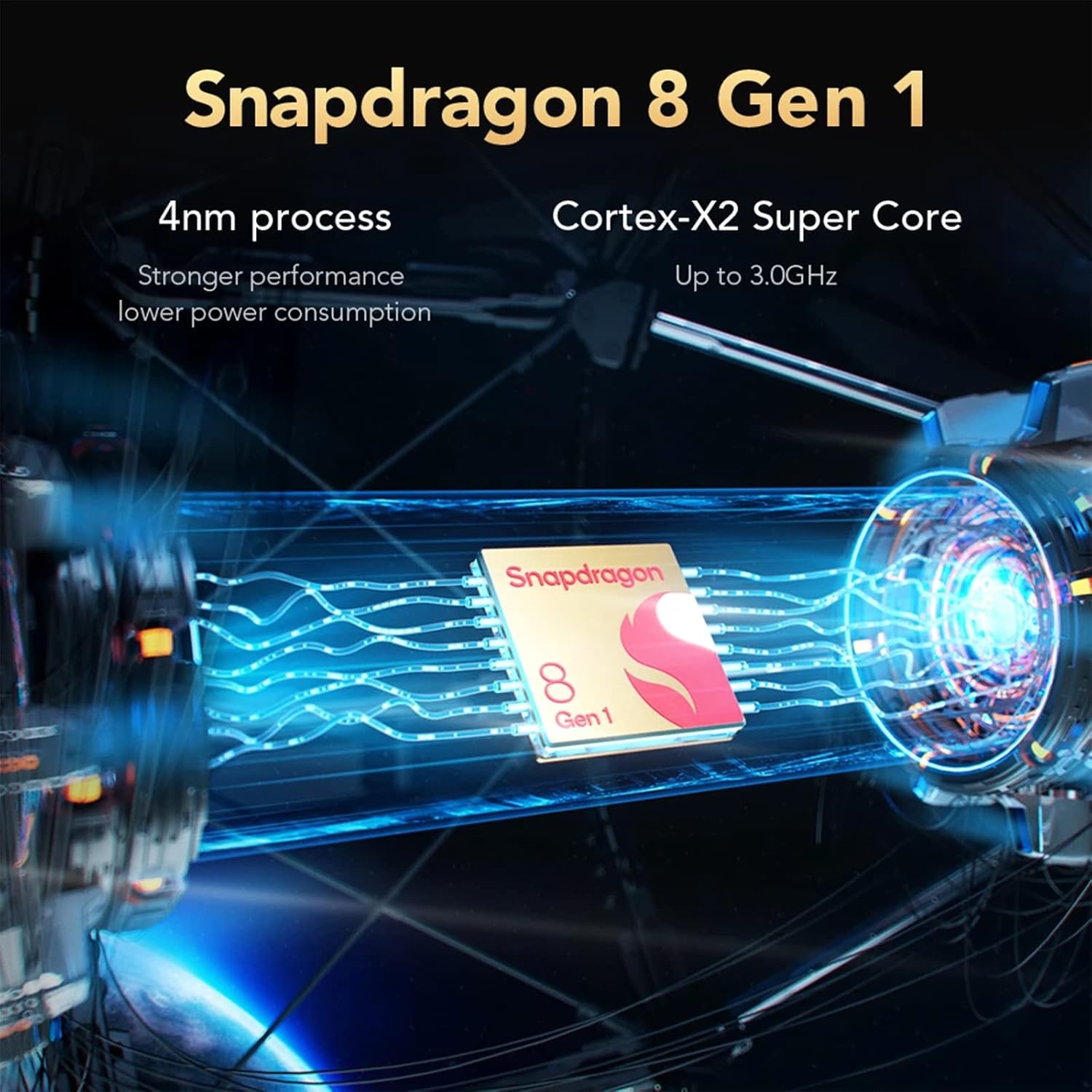
Figure 4.3: Camera Module. This image details the Black Shark 5 Pro's triple camera setup, including a 108MP main sensor, a 13MP 120° wide-angle lens, and a 5MP 3-7cm AF telephoto macro lens.
- Main Camera: 108MP sensor for high-resolution photos.
- Wide-Angle Camera: 13MP 120° lens for capturing broader scenes.
- Telephoto Camera: 5MP 3-7cm AF lens for close-up and detailed shots.
- Open the Camera app from the home screen or app drawer.
- Select desired modes (Photo, Video, Portrait, Pro, etc.) and tap the shutter button to capture.
4.4 Performance and Cooling
The device is powered by a high-performance processor and advanced cooling system.

Figure 4.4: Snapdragon 8 Gen 1. This image illustrates the Snapdragon 8 Gen 1 processor, emphasizing its 4nm process technology and Cortex-X2 Super Core for powerful performance.
- Processor: Snapdragon 8 Gen 1 5G mobile platform for fast processing and graphics.
- Memory & Storage: 12GB LPDDR5 RAM and 256GB UFS 3.1 storage ensure smooth multitasking and quick app loading.
- Cooling System: Anti-gravity Dual VC Liquid Cooling with a combined area of 5320mm² helps maintain stable performance during intensive use by efficiently dissipating heat.
5. Maintenance
5.1 Cleaning the Device
- Use a soft, lint-free cloth to wipe the screen and body.
- Avoid using harsh chemicals, abrasive materials, or aerosol sprays.
- Do not expose the device to excessive moisture.
5.2 Software Updates
Regularly check for and install software updates to ensure optimal performance, security, and access to new features.
- Navigate to Settings > About phone > System update to check for available updates.
- Ensure your device has sufficient battery and a stable internet connection before starting an update.
5.3 Storage Management
To maintain device performance, periodically manage your storage.
- Delete unnecessary files, apps, and media.
- Utilize cloud storage services for backups.
- Check storage usage in Settings > Storage.
6. Troubleshooting
This section addresses common issues you might encounter with your Black Shark 5 Pro.
6.1 Device Not Powering On
- Ensure the battery is charged. Connect the device to the charger for at least 15 minutes.
- Press and hold the Power button for 10-15 seconds to force a restart.
6.2 Charging Issues
- Verify that the charger and USB-C cable are securely connected to both the device and the power outlet.
- Use the original Black Shark 120W charger and cable.
- Try a different power outlet.
- Inspect the charging port for any debris or damage.
6.3 Performance Slowdown
- Close unused background applications.
- Clear cache data from apps and system settings.
- Ensure sufficient storage space is available.
- Restart the device periodically.
6.4 Network Connectivity Problems
- Wi-Fi: Restart your router. Forget and reconnect to the Wi-Fi network on your phone.
- Mobile Data: Ensure your SIM card is properly installed and your mobile data plan is active. Check network settings.
- Bluetooth: Ensure both devices are in pairing mode and within range.
6.5 Factory Reset (Last Resort)
If issues persist, a factory reset may resolve them. Warning: This will erase all data on your device. Back up important data before proceeding.
- Go to Settings > System > Reset options > Erase all data (factory reset).
- Follow the on-screen prompts to confirm the reset.
7. Specifications
Key technical specifications for the Black Shark 5 Pro smartphone.
| Feature | Detail |
|---|---|
| Model Name | Black Shark 5 Pro (SHARK KTUS-H0) |
| Processor | Qualcomm Snapdragon 8 Gen 1 (4nm) |
| RAM | 12 GB LPDDR5 |
| Internal Storage | 256 GB UFS 3.1 |
| Display | 6.67" OLED E4, 144Hz Refresh Rate, 720Hz Touch Sampling Rate, 10-bit Color, HDR 10+ |
| Rear Camera | 108MP Main, 13MP Ultra-Wide, 5MP Telephoto Macro |
| Battery Capacity | 4650 mAh (Lithium-Polymer) |
| Charging | 120W Hyper Charge |
| Operating System | Android (version may vary) |
| Connectivity | 5G, Wi-Fi, Bluetooth |
| Dimensions | 19.3 x 15.2 x 6.2 cm (Package); 730 g (Package) |
| Special Features | Magnetic Pop-Up Triggers, Anti-gravity Dual VC Liquid Cooling |
8. Safety Information
- Battery Safety: Do not attempt to replace the battery yourself. Use only authorized service centers. Avoid exposing the battery to extreme temperatures or direct sunlight.
- Water Resistance: This device is not waterproof. Avoid exposure to liquids. Liquid damage is not covered under warranty.
- Operating Temperature: Operate the device within recommended temperature ranges (typically 0°C to 35°C).
- Disposal: Dispose of the device and its battery responsibly according to local regulations. Do not dispose of in household waste.
- Driving Safety: Do not use your phone while driving. Always prioritize road safety.
9. Warranty and Support
For warranty information, please refer to the warranty card included with your product or visit the official Black Shark website. For technical support, troubleshooting assistance, or service inquiries, please contact Black Shark customer service through their official channels.
Note: Warranty terms and conditions may vary by region.


