
1. Product Overview
The Changing F10S is a versatile 10.1-inch All-in-one Smart Display designed for both desktop and wall-mount use. It features an anti-glare HD touchscreen with full-lamination technology, providing a paper-like texture and reduced reflection. Running on ChangingOS, based on Android 14, the F10S integrates seamlessly with Google services like Google Calendar and Google Photos, and allows installation of various apps from the Google Play Store. It functions as a digital calendar, picture frame, music player, portable TV, drawing board, and smart home hub with voice control capabilities.
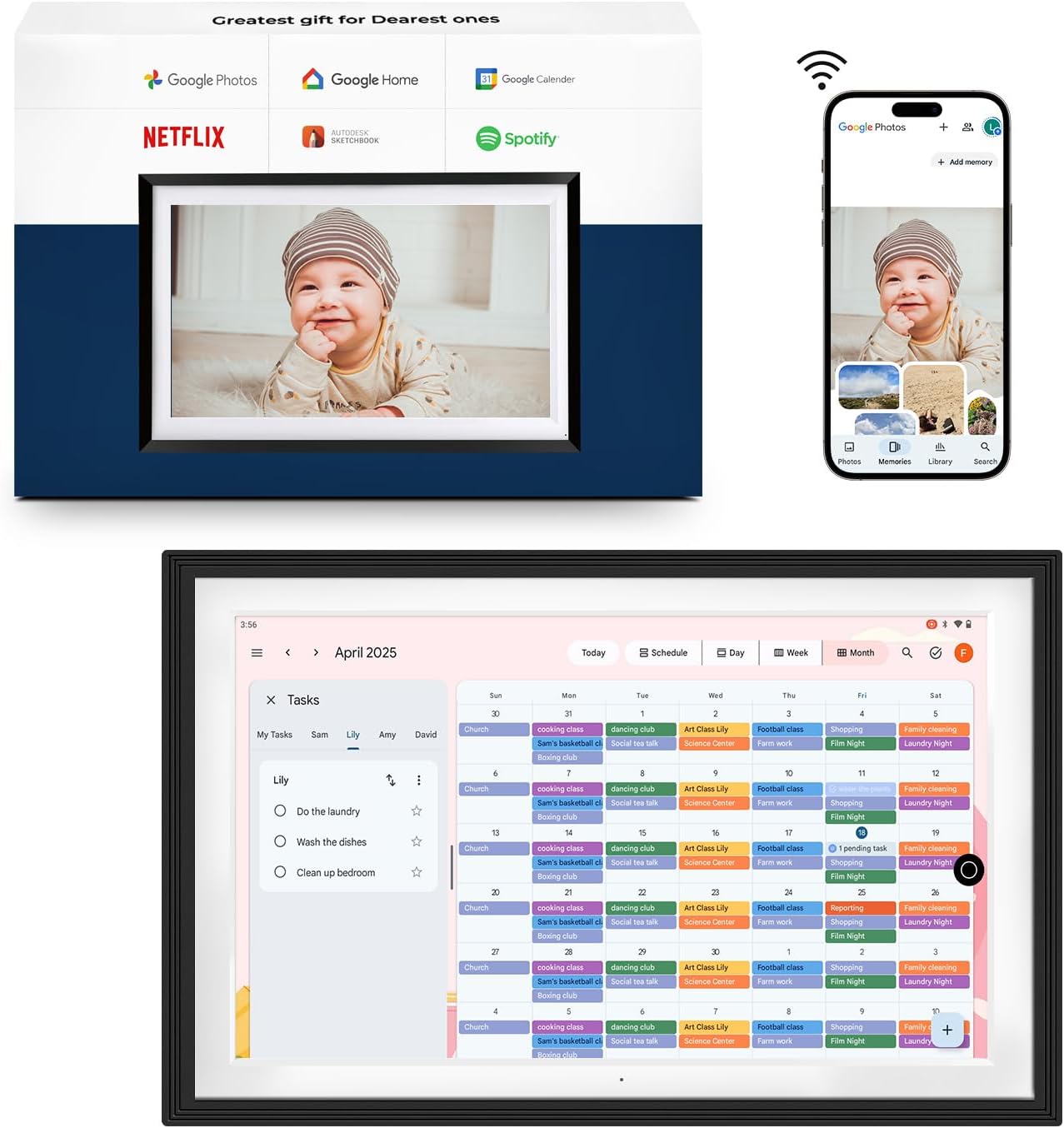
Figure 1: The Changing F10S Smart Display, highlighting its multi-functional capabilities as a digital calendar, picture frame, and smart home hub.
2. Setup Guide
2.1 Unboxing and Initial Power On
Carefully remove the F10S Smart Display and all accessories from the packaging. Connect the provided power adapter to the device and a power outlet. The device will automatically power on. If not, press and hold the power button located on the back of the device.
2.2 Network Connection (Wi-Fi)
- On the initial setup screen, select your preferred language.
- Choose your Wi-Fi network from the list of available networks.
- Enter your Wi-Fi password and tap "Connect". Ensure a stable internet connection for optimal performance.
2.3 Google Account Setup
To utilize features like Google Calendar and Google Photos, you will need to log in with your Google account. Follow the on-screen prompts to enter your Google email address and password. This will sync your calendars and photos to the device.
2.4 Physical Placement
The F10S can be used on a desktop or mounted on a wall. The integrated desk stand allows for easy switching between horizontal and vertical orientations. For wall mounting, use appropriate hardware (not included) and ensure the mounting surface can support the device's weight.
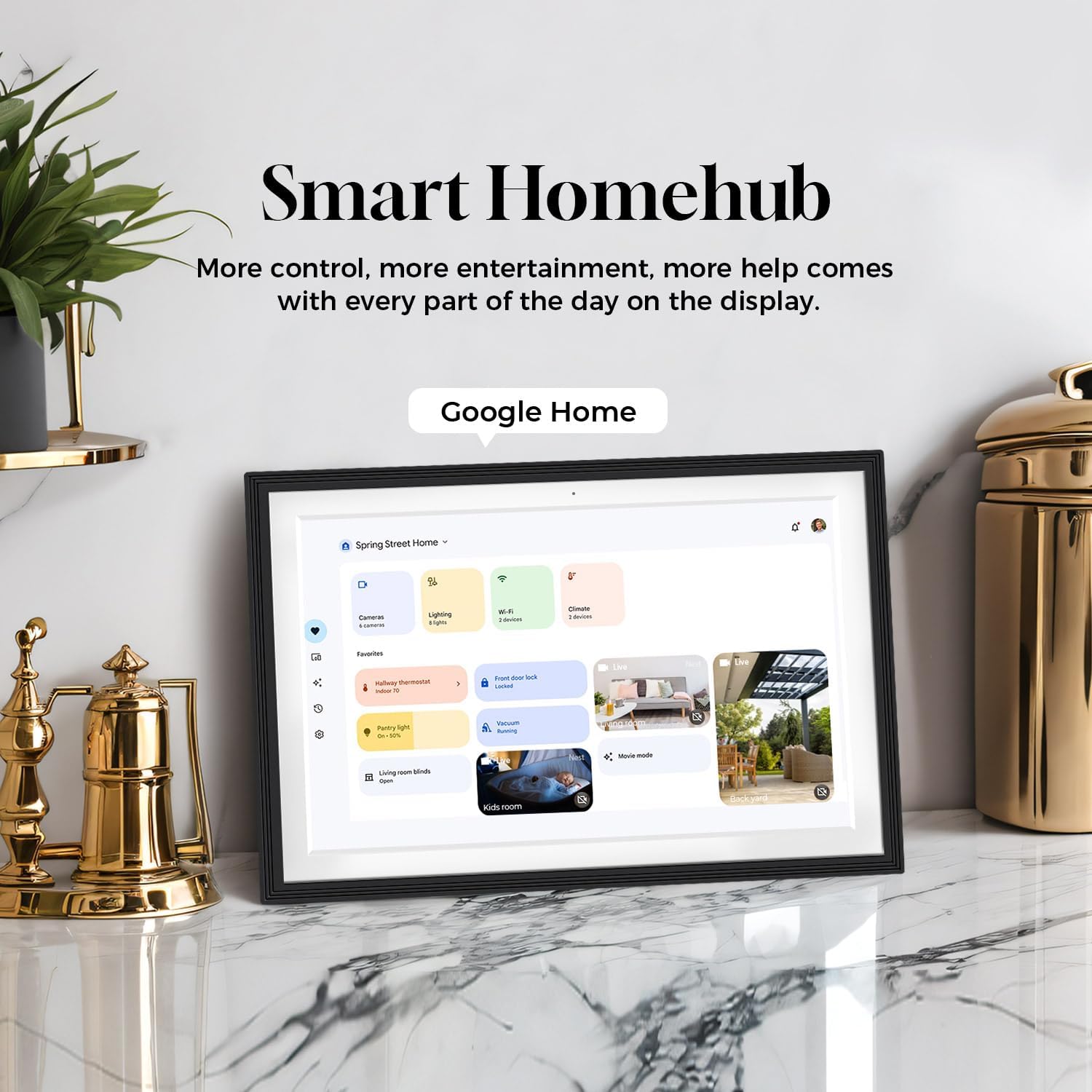
Figure 2: The F10S Smart Display can be used on a desk or mounted on a wall, supporting both horizontal and vertical display modes.
3. Operating Instructions
3.1 Navigating ChangingOS
The F10S runs on ChangingOS, an Android 14-based system with a unique user interface. Use the touchscreen to swipe, tap, and pinch to navigate through menus, applications, and content. The home screen provides quick access to frequently used apps and widgets.
3.2 Google Calendar Integration
The built-in Google Calendar app allows you to view and manage your schedules. Once your Google account is synced, all your calendar events will automatically appear. You can switch between month, week, and day views. For iPhone users, download the Google Calendars app on your phone and log in with the same account to sync.

Figure 3: The Google Calendar interface on the F10S, displaying scheduled events and tasks.
3.3 Google Photos Functionality
The Google Photos app on the F10S allows you to display your photo and video collections. Share photos and videos from your Google Photos account directly to the display. The AI processing capabilities enhance image presentation. You can set the device to function as a digital picture frame, cycling through selected albums.

Figure 4: The Google Photos application on the F10S, showcasing a collection of images.
3.4 Installing Apps from Google Play Store
Access the Google Play Store to download and install a wide variety of applications, including music players, streaming services, games, and productivity tools. This expands the functionality of your F10S significantly.

Figure 5: The Google Play Store on the F10S, enabling access to a vast library of applications.
3.5 Smart Home Control and Voice Assistant
The F10S can serve as a central hub for your smart home devices. With Google Home integration, you can manage compatible smart devices connected to your network. Use voice commands to control lights, thermostats, and other smart appliances.

Figure 6: The Google Home interface on the F10S, providing centralized control for smart home devices.
3.6 Multimedia Functions
- Music Player: Stream music from various apps downloaded from the Play Store. The device offers two-channel sound quality.
- Portable TV: Connect via Wi-Fi to watch movies and TV shows from streaming applications.
- Drawing Board/Gaming: The touchscreen is responsive for digital drawing and playing various puzzle games, fostering creativity.

Figure 7: The F10S functioning as a music player, displaying a music streaming app.
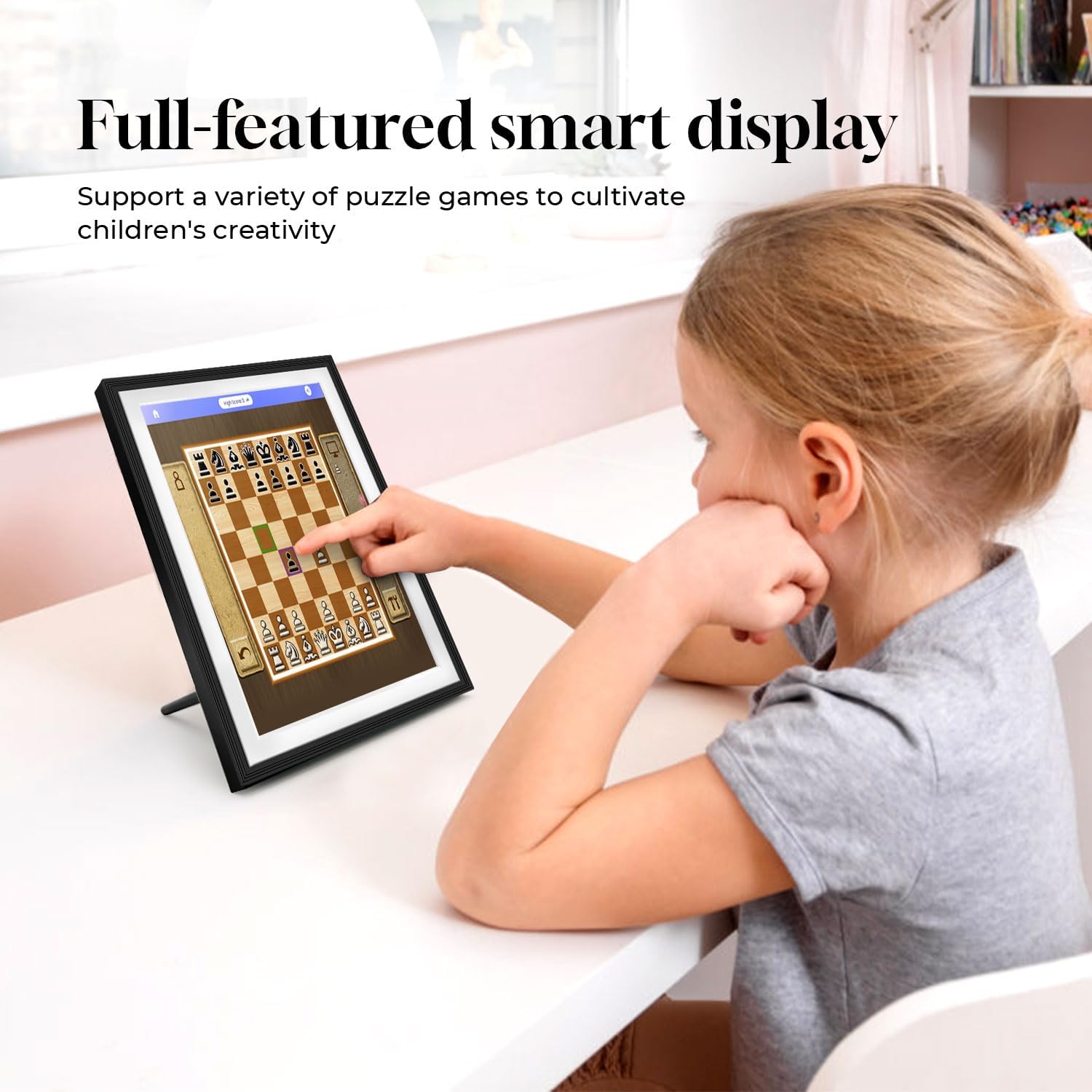
Figure 8: The F10S being used for interactive gaming, demonstrating its versatility.
4. Maintenance
4.1 Cleaning the Screen
To clean the anti-glare touchscreen, gently wipe it with a soft, lint-free cloth. For stubborn smudges, slightly dampen the cloth with water or a screen-safe cleaning solution. Avoid using harsh chemicals, abrasive materials, or excessive moisture, as these can damage the screen.
4.2 Software Updates
The F10S will periodically receive software updates to improve performance, add new features, and enhance security. Ensure your device is connected to Wi-Fi and has sufficient battery charge or is plugged in during updates. You will typically receive a notification when an update is available. Follow the on-screen instructions to install.
4.3 Battery Care
The F10S includes a built-in Li-Battery. To prolong battery life, avoid extreme temperatures and do not allow the battery to fully discharge frequently. For long-term storage, charge the battery to approximately 50% and store the device in a cool, dry place.
5. Troubleshooting
| Problem | Possible Cause | Solution |
|---|---|---|
| Device does not power on. | No power, low battery, or power adapter issue. | Ensure power adapter is securely connected and outlet is functional. Charge the device for at least 30 minutes before attempting to power on again. |
| Wi-Fi connection issues. | Incorrect password, out of range, or router issue. | Verify Wi-Fi password. Move the device closer to the router. Restart your Wi-Fi router. |
| Apps freezing or slow performance. | Too many apps running, low storage, or software glitch. | Close unused apps. Clear app caches. Restart the device. If issues persist, consider a factory reset (backup data first). |
| Google Calendar/Photos not syncing. | Incorrect Google account, network issue, or app permissions. | Verify your Google account login. Check Wi-Fi connection. Ensure Google Calendar/Photos apps have necessary permissions in device settings. |
5.1 Factory Reset
If troubleshooting steps do not resolve the issue, a factory reset may be necessary. This will erase all data on the device and restore it to its original factory settings. Navigate to Settings > System > Reset options > Erase all data (factory reset). Confirm your choice. Warning: This action is irreversible and will delete all personal data.
6. Product Specifications
| Feature | Detail |
|---|---|
| Product Dimensions | 10 x 7.7 x 0.99 inches |
| Item Weight | 2.48 pounds |
| Screen Size | 10.1 Inches |
| Resolution | WXGA |
| Display Type | Anti-Glare HD Touchscreen with Full-Lamination Technology |
| Operating System | ChangingOS (based on Android 14) |
| Internal Memory | 32GB (expandable via SD card and USB drive) |
| Battery | 1 Product Specific battery (included) |
| Compatible Devices | Personal Computer, Smartphone, Tablet |
| Color | Black |
| Manufacturer | Changing |
7. Warranty and Support
7.1 Product Warranty
This Changing F10S Smart Display comes with a standard manufacturer's warranty. Please refer to the warranty card included in your product packaging for specific terms, conditions, and duration. Keep your proof of purchase for warranty claims.
7.2 Customer Support
For technical assistance, troubleshooting not covered in this manual, or warranty inquiries, please contact Changing customer support. Visit the official Changing website for contact information, including email, phone, or online chat options. When contacting support, please have your product model (F10S) and purchase details ready.
You can also visit the Changing Store on Amazon for additional resources and FAQs.


