
Changing Oak Wood
User Manual for Changing 15.6" All-in-one Smart Display
Model: Oak Wood | Brand: Changing
Introduction
The Changing 15.6" All-in-one Smart Display is a versatile device designed to enhance your home environment. It functions as an anti-glare touchscreen digital calendar, a Google Picture Frame, a voice assistant, and a home hub. Running on ChangingOS (based on Android 14), it allows you to install various applications from the Google Play Store, making it adaptable for multiple uses such as a music player, portable TV, drawing board, or game table.
Important Safety Information
- Read all instructions carefully before using the device.
- Do not expose the device to water, moisture, or extreme temperatures.
- Use only the provided power adapter to prevent damage and ensure safety.
- Keep the device away from direct sunlight and heat sources.
- Avoid dropping or subjecting the device to strong impacts.
- Do not attempt to disassemble or repair the device yourself. Contact qualified service personnel.
- Ensure proper ventilation around the device during operation.
Package Contents
Please check the box for the following items:
- Changing 15.6" All-in-one Smart Display (Oak Wood Model)
- Power Adapter
- User Manual
Product Overview
The Changing Smart Display features a 15.6-inch anti-glare FHD (1920x1080) touchscreen with full-lamination technology for reduced reflection and a paper-like texture. It is designed for both desktop and wall-mount use.
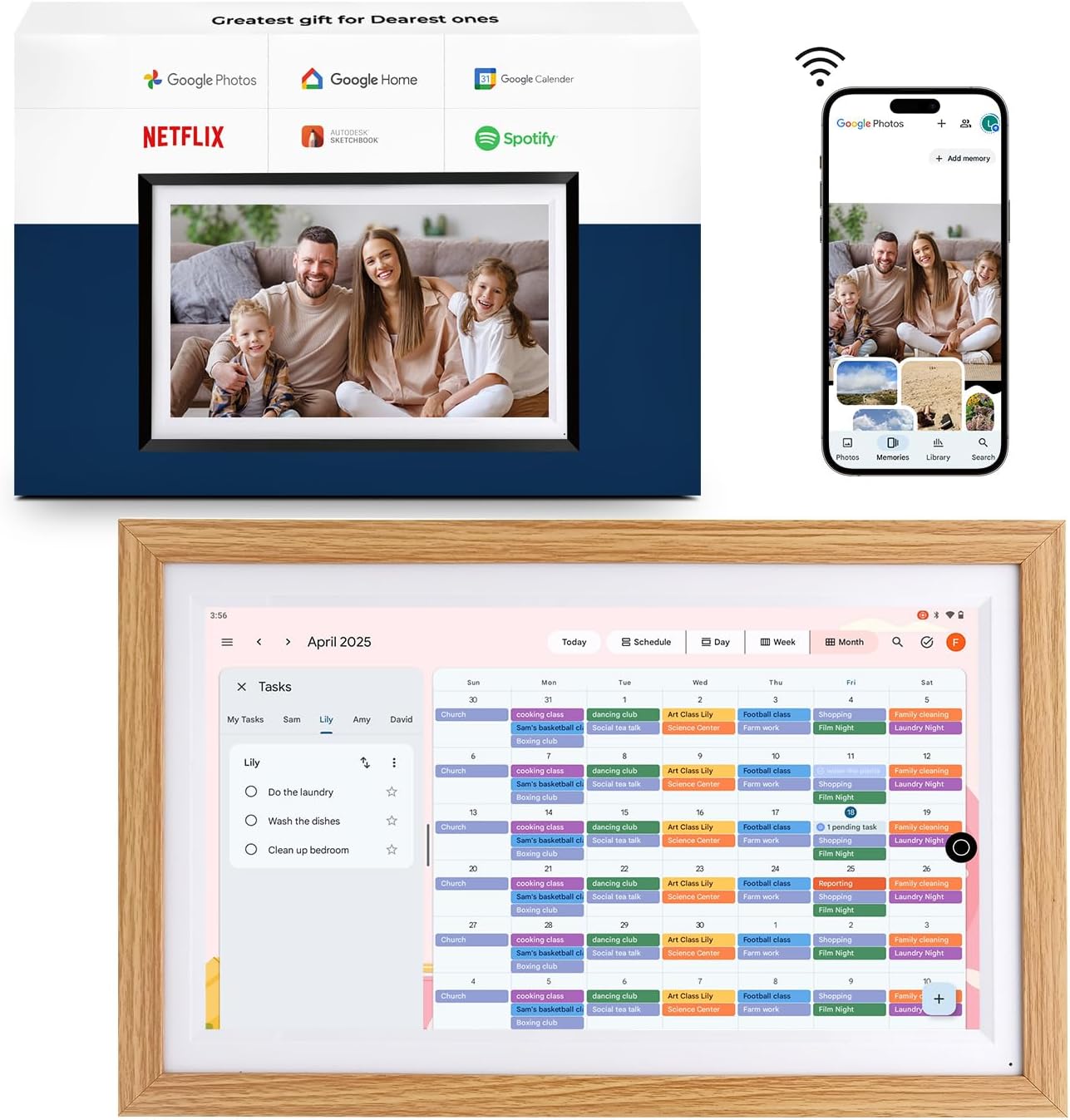
Figure 1: The Changing Smart Display and its packaging, highlighting integrated Google services and entertainment apps.

Figure 2: An overview of the device's multi-functional capabilities, including entertainment and productivity features.

Figure 3: Demonstration of the anti-glare touchscreen, designed to reduce eye strain and improve viewing experience by minimizing reflections.

Figure 4: The Smart Display is available in various frame styles and sizes to complement different home decors.
Setup Guide
- Powering On:
Connect the provided power adapter to the DC-in port on the back of the Smart Display and plug it into a power outlet. The device will automatically power on or you may need to press the power button.
- Initial Configuration:
Upon first use, follow the on-screen prompts to select your language, region, and agree to the terms of service. This process will guide you through the initial setup of the ChangingOS.
- Network Connection:
Connect the device to your Wi-Fi network. Go to Settings > Network & Internet > Wi-Fi, select your network, and enter the password. A stable internet connection is required for most smart features.
- Google Account Setup:
Sign in with your Google account to access Google Photos, Google Calendar, Google Home, and the Google Play Store. This step is crucial for utilizing the full range of smart features.
Operating the Smart Display
Digital Picture Frame Functionality
The Smart Display excels as a digital picture frame, allowing you to relive cherished moments. It integrates seamlessly with Google Photos, enabling easy sharing and display of your photo and video collections.
- Google Photos Sync: Download the Google Photos app on your phone and log in with the same Google account as on the Smart Display. Photos and videos can be shared directly from your phone to the display.
- Display Modes: Switch between Clock Mode, Photo Frame Mode (plays selected photos one by one), and Photo Table Mode (displays multiple photos on one screen).

Figure 5: The device can display photos in both portrait and landscape orientations, offering flexibility for content viewing.

Figure 6: Different display modes available, including a clock, single photo display, and a collage of photos.
Smart Family Calendar
Keep your family organized with the built-in Google Calendar integration. All your schedules can be synced and viewed on the large display.
- Syncing Calendars: Log in with your Google account. The device automatically syncs with Google Calendar. It is also compatible with iCloud Calendar, Outlook Calendar, Cozi, and Yahoo (requires downloading respective apps from Google Play).
- Viewing Options: Quickly switch between month, week, and day views. Events from Gmail can be automatically added to your calendar.

Figure 7: The Smart Display's calendar interface, providing a clear overview of daily and monthly schedules.
Smart Home Hub
The Smart Display can serve as a central hub for your smart home devices, offering convenient control and integration with Google Home.
- Google Home Integration: Use the Google Home app on the display to manage connected smart devices.
- Voice Control: Utilize voice commands to control smart home devices connected to your network.

Figure 8: The Google Home interface on the Smart Display, allowing centralized control of smart home devices.
Installing Applications
Expand the functionality of your Smart Display by installing your favorite applications from the Google Play Store.
- Google Play Store: Access the Google Play Store directly from the device to download apps for entertainment, productivity, and more.

Figure 9: The Google Play Store on the Smart Display, offering access to a wide range of Android applications.
Multimedia Playback
Enjoy music and videos on your Smart Display, transforming it into a portable entertainment center.
- Music Player: With immersive stereo sound and dual speakers, the device is ideal for playing music from apps like Spotify.
- Portable TV: Connect via Wi-Fi to stream movies and shows, making it a convenient portable TV for any room.

Figure 10: The Smart Display functioning as a music player, providing immersive stereo sound.

Figure 11: The Smart Display as a portable TV, displaying a selection of streaming content.
Digital Drawing Tablet
Unleash creativity with the Smart Display's digital drawing capabilities, especially when paired with a compatible stylus.
- Stylus Support: The device supports MPP active stylus pens for a better writing and drawing experience. (Stylus sold separately).

Figure 12: The Smart Display used as a digital drawing tablet, demonstrating its touch and stylus capabilities.
Care and Maintenance
- Cleaning the Screen: Use a soft, lint-free cloth slightly dampened with water or a screen cleaner. Avoid harsh chemicals or abrasive materials.
- Cleaning the Frame: Wipe the frame with a dry or slightly damp soft cloth.
- Storage: When not in use for extended periods, store the device in a cool, dry place away from direct sunlight.
- Battery Care: For models with a built-in battery, avoid fully discharging the battery frequently. Charge it regularly to maintain battery health.
Troubleshooting
| Issue | Possible Cause | Solution |
|---|---|---|
| Device does not power on. | Power adapter not connected or faulty; device battery depleted. | Ensure power adapter is securely connected and plugged into a working outlet. Charge the device for at least 30 minutes. |
| Wi-Fi connection issues. | Incorrect password; out of range; router issue. | Double-check Wi-Fi password. Move device closer to router. Restart router and device. |
| Apps not downloading/installing. | Insufficient storage; poor internet connection; Google Play Store cache issue. | Check available storage. Ensure stable internet. Clear Google Play Store cache and data in Settings > Apps. |
| Screen is unresponsive. | Temporary software glitch; physical damage. | Restart the device. If issue persists, contact customer support. |
| Photos not syncing. | Incorrect Google account; app permissions; internet connection. | Verify Google account on both devices. Check Google Photos app permissions. Ensure stable internet connection. |
Technical Specifications
| Feature | Detail |
|---|---|
| Product Dimensions | 16 x 10 x 0.99 inches |
| Item Weight | 4.94 pounds |
| ASIN | B09ZKXQ52G |
| Item Model Number | Oak Wood |
| Batteries | 1 Product Specific batteries required. (included) |
| Brand | Changing |
| Color | Oak Wood, Black |
| Resolution | 1080p (FHD 1920x1080) |
| Compatible Devices | iPhone, Personal Computer, Smartphone, Tablet |
| Screen Size | 15.6 Inches |
| Operating System | ChangingOS (based on Android 14) |
| Internal Memory | 32GB (expandable via SD card and USB drive) |
Warranty and Customer Support
This Changing Smart Display comes with a standard manufacturer's warranty. For detailed warranty information, please refer to the warranty card included in your package or visit the official Changing website. If you encounter any issues or require technical assistance, please contact Changing customer support through their official channels. Keep your purchase receipt and product serial number handy when contacting support.
For further assistance, you may visit the Changing Store on Amazon.
Related documentsOak Wood


Ask a question about this manual
Ask about setup, troubleshooting, compatibility, parts, safety, or missing instructions. Manuals+ will review the question and use this page’s manual context to help answer it.