
1. Introduction
The ThruNite TN12 Pro is a high-performance, USB-C rechargeable Everyday Carry (EDC) flashlight designed for versatility and reliability. It features a powerful SFT40 LED, delivering up to 1900 lumens, and offers a maximum beam distance of 380 meters. Its dual-switch interface provides intuitive control, making it suitable for various applications from daily tasks to tactical use.

Figure 1.1: The ThruNite TN12 Pro Flashlight, showcasing its compact design and pocket clip.
Constructed from durable aluminum alloy with a scratch-resistant anodized finish, the TN12 Pro is built to withstand challenging conditions. It is also waterproof with an IPX-8 rating, ensuring performance even when submerged up to 2 meters. The integrated USB-C charging port allows for convenient and fast recharging without removing the battery.
2. Setup
2.1 Package Contents
Before first use, please verify that all items are present in the package:
- ThruNite TN12 Pro Flashlight
- 1x Lithium Ion Battery (included)
- USB-C Charging Cable
- Holster
- Lanyard
- Spare O-rings
- Spare USB Port Cover

Figure 2.1: All components included in the ThruNite TN12 Pro product package.
2.2 Battery Installation & Initial Charging
The TN12 Pro comes with a pre-installed Lithium Ion battery. Ensure the battery is properly seated before first use. For optimal performance, fully charge the flashlight before its initial operation.
- Unscrew the tail cap of the flashlight.
- Ensure the included 18650 Lithium Ion battery is inserted with the positive (+) terminal facing towards the head of the flashlight.
- Screw the tail cap back on securely.
- Connect the provided USB-C cable to the flashlight's charging port and to a USB power source (e.g., wall adapter, computer USB port).
- The indicator light on the side switch will show the charging status:
- Red: Charging
- Blue: Fully charged
- Purple: Abnormal charging
- Once fully charged, disconnect the USB-C cable and replace the port cover to maintain water resistance.

Figure 2.2: Illustration of the USB-C charging port and the color-coded charging indicator on the side switch.

Figure 2.3: Detailed view of the power indicator on the side switch, showing battery level ranges.
3. Operation
3.1 General Functions
- Lock/Unlock: When the flashlight is off, press and hold the side switch to enter Firefly mode. From Firefly mode, press and hold the side switch again to access lockout mode. To unlock, press and hold the side switch.
- Turn ON/OFF: After the light is unlocked, press the side switch to turn the light ON/OFF. The light will turn on in the last mode used, except for Firefly, Turbo, and Strobe.
- Change Modes: Single-click the side switch to activate the last used mode. Then, press and hold the side switch to cycle through Low, Medium, and High modes.
3.2 Special Modes
- Shortcut to Firefly: When the light is off, press and hold the side switch to directly access Firefly mode.
- Direct Access to Turbo (Side Switch): Double-click the side switch quickly from any mode to activate Turbo mode.
- Direct Access to Turbo (Tail Switch): When the flashlight is unlocked, single-click the tactical tail switch to access Turbo mode directly.
- Strobe: Triple-click the side switch quickly from any mode to activate Strobe mode.

Figure 3.1: Demonstrates holding the TN12 Pro and its versatility for everyday carry, including clipping to a pocket or bag.
4. Maintenance
4.1 General Care
- Keep the flashlight clean, especially the threads and O-rings. Lubricate O-rings periodically with silicone grease to maintain water resistance.
- Avoid dropping the flashlight or subjecting it to severe impacts.
- Store the flashlight in a cool, dry place when not in use for extended periods.
- If the flashlight will not be used for a long time, it is recommended to remove the battery to prevent potential leakage.
4.2 Waterproofing
The TN12 Pro is rated IPX-8 waterproof, meaning it can be continuously submerged in water up to 2 meters. To ensure this rating is maintained:
- Ensure the tail cap is fully tightened.
- Ensure the USB-C charging port cover is securely closed.
- Regularly inspect and replace O-rings if they appear damaged or worn.
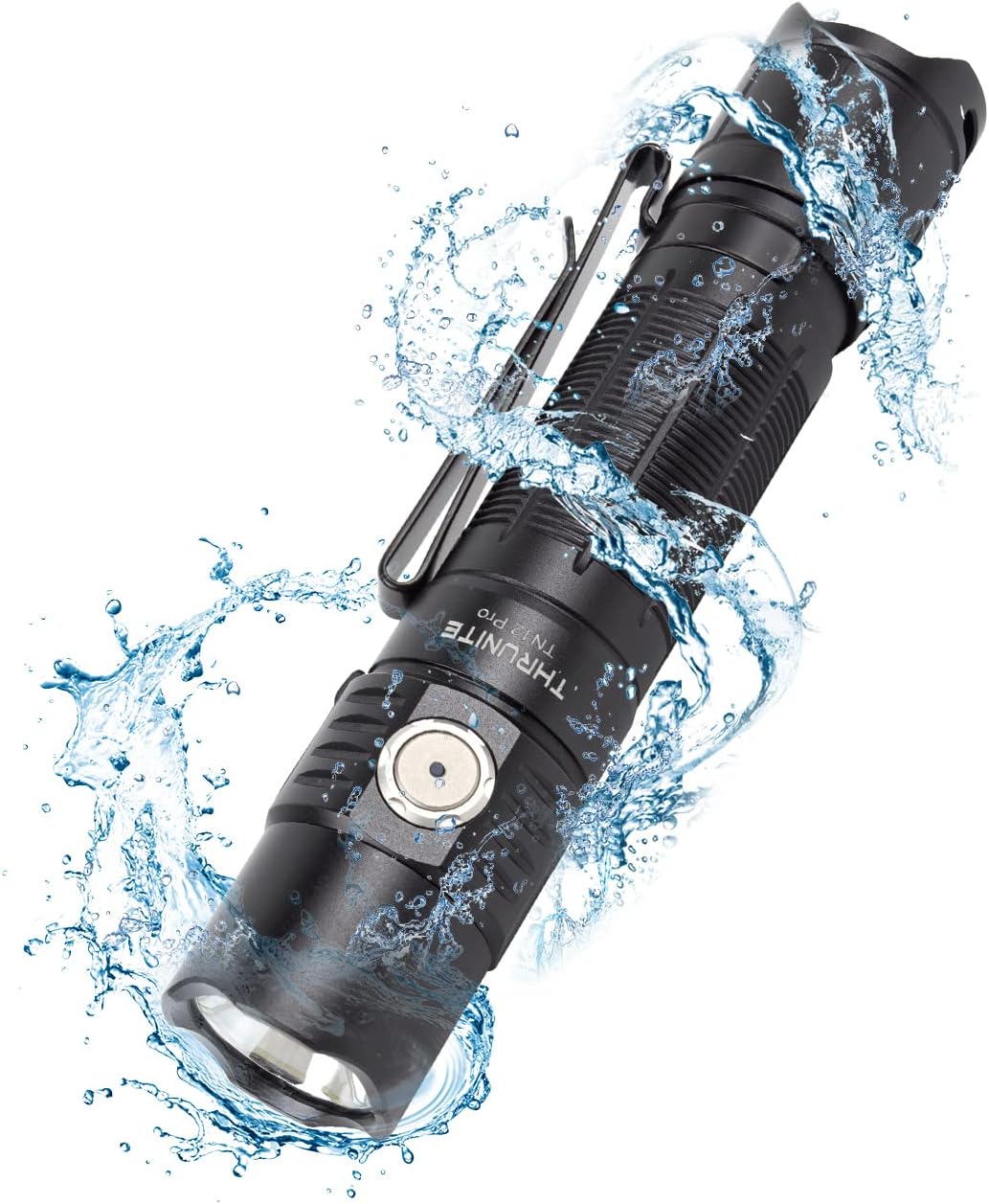
Figure 4.1: The TN12 Pro demonstrating its IPX-8 waterproof capability, suitable for use in wet conditions.
5. Specifications
Below are the detailed specifications for the ThruNite TN12 Pro Flashlight:
| Feature | Detail |
|---|---|
| Model | TN12 Pro cw |
| Brand | ThruNite |
| Light Source | SFT40 LED |
| Max Output | 1900 Lumens |
| Max Beam Distance | 380 Meters |
| Power Source | 1x Lithium Ion Battery (included) |
| Charging | USB-C Fast Charging |
| Material | Aluminum Alloy |
| Water Resistance | IPX-8 (2 meters submersible) |
| Impact Resistance | 1.5 Meters |
| Dimensions | 131.5mm (Length) x 27mm (Head Diameter) x 25.5mm (Body Diameter) |
| Weight | 85g (battery excluded) |
| Light Modes | Firefly, Low, Medium, High, Turbo, Strobe |
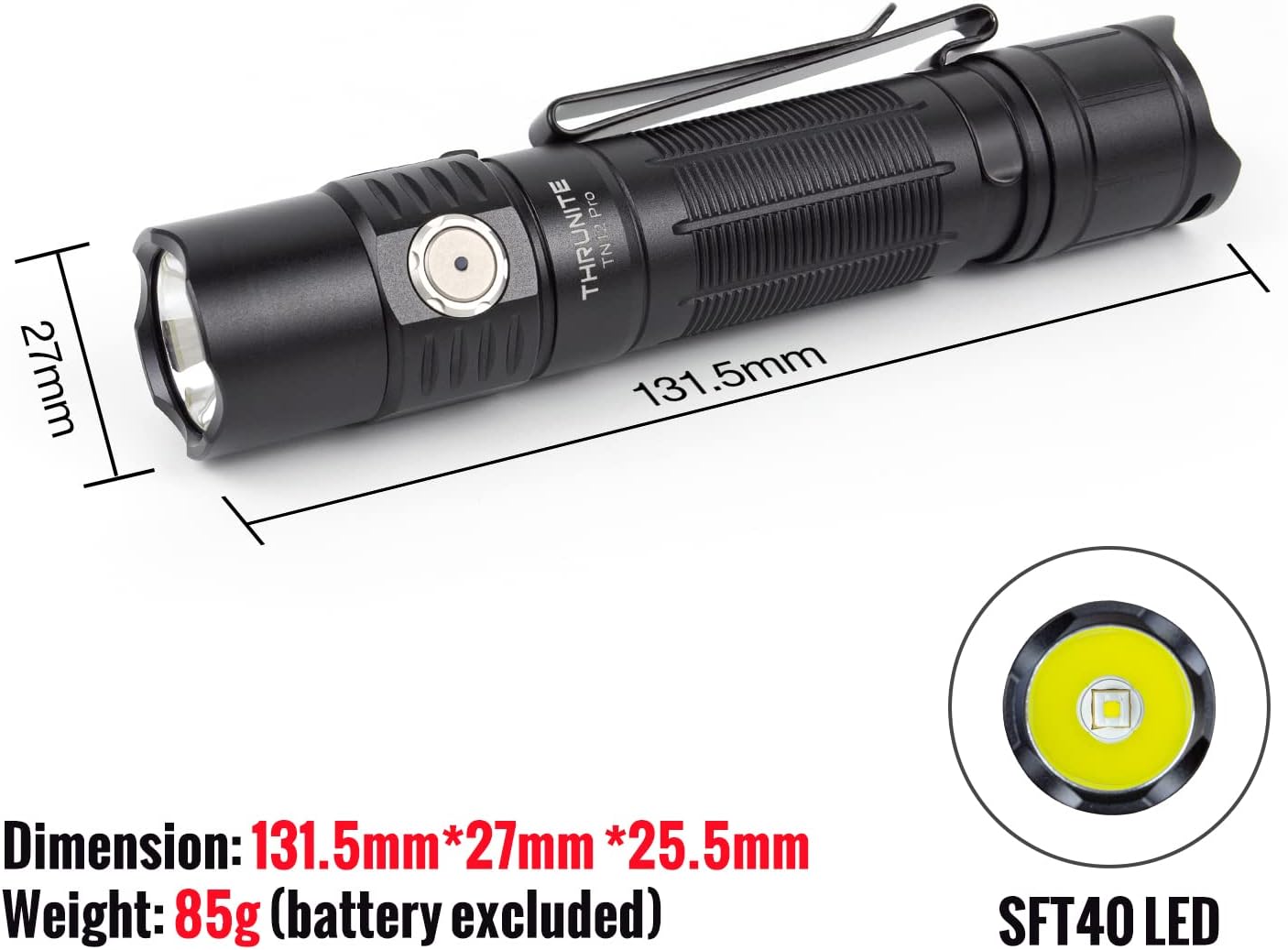
Figure 5.1: Physical dimensions and the SFT40 LED of the TN12 Pro flashlight.

Figure 5.2: Key performance metrics including max output, runtime, beam distance, waterproof rating, and impact resistance.
6. Troubleshooting
If you encounter issues with your ThruNite TN12 Pro, please refer to the following common solutions:
- Flashlight not turning on:
- Ensure the battery is correctly inserted with the positive (+) terminal facing the head.
- Check if the battery is charged. Recharge if necessary.
- Make sure the tail cap is fully tightened. A loose tail cap can prevent electrical contact.
- Check if the flashlight is in lockout mode. Press and hold the side switch to unlock.
- Light output is dim or flickering:
- The battery may be low. Recharge the battery.
- Clean the battery contacts and flashlight threads with a clean cloth.
- Flashlight gets hot during use:
- High output modes (e.g., Turbo) generate significant heat. This is normal. The flashlight has thermal regulation to prevent overheating.
- If it becomes uncomfortably hot, switch to a lower mode.
- Charging not working:
- Ensure the USB-C cable is properly connected to both the flashlight and the power source.
- Try a different USB-C cable or power adapter.
- Check the charging indicator light for status (Red for charging, Blue for full, Purple for abnormal).
7. Warranty & Support
7.1 Warranty Information
For detailed warranty information regarding your ThruNite TN12 Pro flashlight, please refer to the official ThruNite website or the warranty card included with your product. ThruNite typically offers a limited warranty covering manufacturing defects.
7.2 Customer Support
If you require further assistance, have questions not covered in this manual, or need to report a defect, please contact ThruNite customer support through their official website or the contact information provided in your product packaging. Please have your model number (TN12 Pro cw) and purchase date ready when contacting support.
Note: No official product videos were available in the provided data for embedding.


