
Formuler Z10
Formuler Z10 Android 10 4K Streaming Media Player User Manual
Model: Z10
1. Introduction
Thank you for choosing the Formuler Z10 Android 10 4K Streaming Media Player. This device is designed to provide a high-quality streaming experience with its powerful hardware and user-friendly Android 10 operating system. The Z10 supports 4K resolution, HDR10, and features dual-band 5G Wi-Fi for stable and fast connectivity. This manual will guide you through the setup, operation, and maintenance of your new device.
2. What's in the Box
Please check the contents of your Formuler Z10 package. If any items are missing or damaged, please contact your retailer.
- Formuler Z10 Streaming Media Player
- IR1 Remote Control
- Power Adapter
- HDMI Cable
- 2 x AAA Batteries (for remote control)
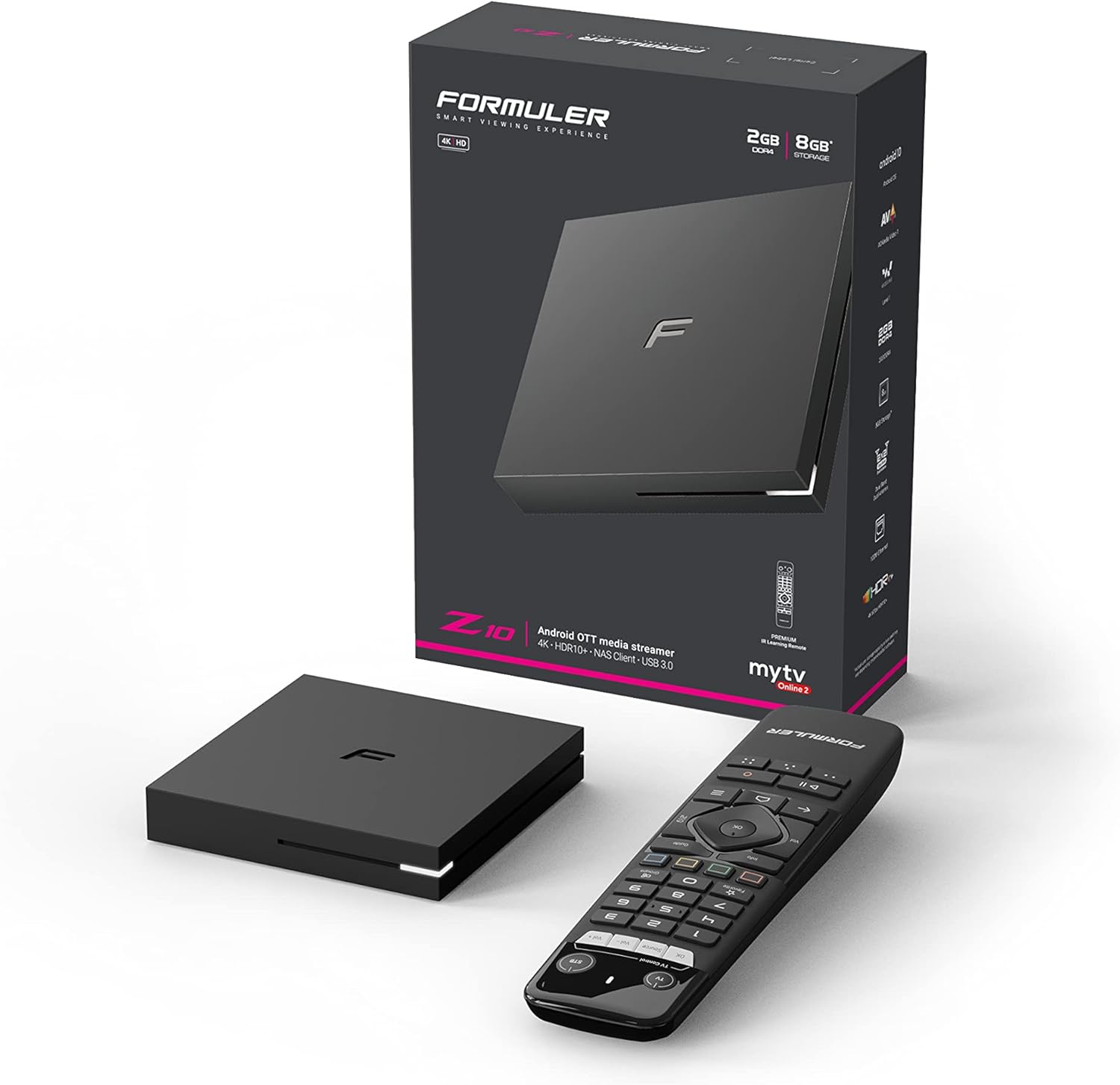
Image: Formuler Z10 retail box, the streaming device, and its remote control.

Image: The Formuler Z10 device and its remote control, showcasing their design.

Image: A top-down view of the Formuler Z10 streaming device, highlighting its compact form factor.
3. Setup Guide
3.1 Connecting the Device
- Connect to Power: Insert the power adapter into the DC 12V/1A port on the back of the Formuler Z10 and plug the adapter into a wall outlet.
- Connect to TV: Use the provided HDMI cable to connect the HDMI port on the Formuler Z10 to an available HDMI input on your television.
- Connect to Network (Optional): For a wired internet connection, connect an Ethernet cable from your router to the LAN port on the Formuler Z10. For wireless connection, you will set this up during initial software configuration.

Image: Rear view of the Formuler Z10 showing the power input, USB 3.0 port, LAN port, HDMI port, and reset button.
3.2 Initial Software Configuration
- Power On: Turn on your TV and select the correct HDMI input. The Formuler Z10 will power on automatically when connected to power.
- Language Selection: Follow the on-screen prompts to select your preferred language.
- Network Connection: If you are using Wi-Fi, select your network from the list and enter the password. If using Ethernet, the connection should be established automatically.
- Google Account: Sign in with your Google account to access the Google Play Store and other Google services. If you don't have one, you can create one.
- System Updates: The device may prompt you to download and install the latest firmware updates. It is recommended to perform these updates for optimal performance and security.
4. Operating Instructions
4.1 Remote Control Overview (IR1)
The IR1 remote control provides full functionality for navigating your Formuler Z10. Insert the two AAA batteries into the remote control before use.

Image: Detailed diagram of the Formuler IR1 remote control, indicating the function of each button.
- Power Button (TV/STB): Press once to put TV/STB into standby mode. Press and hold for Learning mode (TV Control).
- TV Control (OK, Source, Vol-, Vol+): Buttons for controlling your television (requires learning mode setup).
- Number Pad (0-9): Direct channel number input.
- Favorite Button: Show/set favorite channels.
- Groups Button: Show channel or VOD categories.
- Colored Hotkeys (Red, Green, Yellow, Blue): Configurable hotkeys, follow on-screen instructions.
- Info Button: Press twice to show detailed information.
- Guide Button: Show grid EPG (Electronic Program Guide).
- Navigation Pad (Up, Down, Left, Right, OK): Move cursor, channel list navigation, select items.
- Vol +/-: Adjust STB volume.
- Ch +/-: Change channels, Page Up/Down.
- Back Button: Go back to the previous menu.
- Home Button: Go to System Home screen.
- Menu Button: Show Main Menu.
- Play/Pause Button: Timeshift/Resume, Pause playback.
- Record Button: Start recording.
4.2 Navigating the Interface
The Formuler Z10 runs on Android 10, providing a familiar and intuitive interface. Use the navigation pad and OK button on your remote to move through menus and select options.
- Home Screen: Provides quick access to your favorite apps, recommended content, and system settings.
- Apps: Access installed applications like Netflix, Hulu, Amazon Prime Video, and others downloaded from the Google Play Store.
- Settings: Located on the home screen or accessible via the Menu button, this section allows you to configure network settings, display options, sound, storage, and more.
4.3 Media Playback
The Formuler Z10 is capable of playing 4K content at 60 frames per second with HDR10 support, offering a vibrant viewing experience.
- Streaming Services: Launch your preferred streaming applications from the home screen or app drawer. Ensure you have an active subscription for paid services.
- Local Media: You can play media files from connected USB drives using a compatible media player app.
5. Maintenance
- Cleaning: Use a soft, dry cloth to clean the exterior of the device. Do not use liquid cleaners or abrasive materials.
- Software Updates: Regularly check for and install system updates to ensure your device has the latest features, security patches, and performance improvements. Navigate to Settings > About > System update.
- Factory Reset: If you encounter persistent issues, a factory reset can resolve them. Be aware that this will erase all data and settings on the device. Navigate to Settings > Device Preferences > Reset.
6. Troubleshooting
This section addresses common issues you might encounter with your Formuler Z10.
- No Power:
- Ensure the power adapter is securely connected to the device and a working power outlet.
- Check if the power outlet is functional by plugging in another device.
- No Video/Audio Output:
- Verify the HDMI cable is securely connected to both the Formuler Z10 and your TV.
- Ensure your TV is set to the correct HDMI input source.
- Try a different HDMI cable or HDMI port on your TV.
- Network Connection Issues:
- For Wi-Fi, ensure the correct password is entered and the device is within range of your router.
- For Ethernet, check the cable connection and ensure your router is functioning correctly.
- Restart your router and the Formuler Z10.
- Remote Control Not Responding:
- Replace the AAA batteries in the remote control.
- Ensure there are no obstructions between the remote and the device's IR receiver.
- Applications Crashing or Freezing:
- Close and restart the application.
- Clear the app's cache (Settings > Apps > [App Name] > Clear cache).
- Ensure the device's firmware is up to date.
- If issues persist, consider a factory reset (see Maintenance section).
7. Specifications
Detailed technical specifications for the Formuler Z10:
| Feature | Specification |
|---|---|
| Output Resolution | 4K (3840 x 2160) |
| CPU | RealTek |
| GPU | ARM G31 MP2 |
| RAM | 2GB DDR @2400MHz |
| Storage | 8GB eMMC |
| Operating System | Android 10 |
| Wireless Connectivity | Dual-Band 2x2 AC Wireless |
| Bluetooth | 5.0 |
| Ethernet | 100M |
| Dimensions (L x W x T) | 94mm x 94mm x 16.5mm (3.7 x 3.7 x 0.65 inches) |
| Item Weight | 1.21 pounds |
| Ports | 1 x Power Input, 1 x USB 3.0, 1 x HDMI, 1 x LAN |
| Remote Batteries | 2 x AAA (included) |
8. Warranty and Support
Formuler products are manufactured to the highest quality standards. For information regarding warranty coverage, technical support, and service, please refer to the warranty card included with your product or visit the official Formuler website. Keep your proof of purchase for warranty claims.
For further assistance, you may also contact your retailer or the Formuler customer support team directly.
Related documentsZ10


Ask a question about this manual
Ask about setup, troubleshooting, compatibility, parts, safety, or missing instructions. Manuals+ will review the question and use this page’s manual context to help answer it.