
1. Introduction
This manual provides essential information for the proper installation, configuration, and maintenance of the Dell OptiPlex 7070 MT Series Motherboard, part number NRKPK. This motherboard is designed for desktop systems, featuring an Intel Q370 chipset and an LGA1151 socket, supporting DDR4 memory. Please read this manual thoroughly before proceeding with installation or operation to ensure optimal performance and system stability.
2. Safety Information
Always observe the following safety precautions when handling computer components:
- Ensure the power supply is disconnected from the wall outlet before installing or removing any components.
- Wear an anti-static wrist strap or frequently touch a grounded metal object to discharge static electricity.
- Handle the motherboard by its edges to avoid touching sensitive components.
- Keep components away from liquids and extreme temperatures.
- Refer to your computer case manual for specific installation instructions related to your chassis.
3. Package Contents
Verify that your package contains the following items:
- Dell OptiPlex 7070 MT Series Motherboard (Part Number: NRKPK, 0NRKPK, or CN-0NRKPK)
- Any additional accessories, such as an I/O shield or SATA cables, should be included if specified by your vendor.
4. Setup and Installation
4.1. Preparation
- Gather necessary tools: Phillips-head screwdriver, anti-static wrist strap, thermal paste.
- Ensure a clean, well-lit workspace.
4.2. Motherboard Installation
Carefully align the motherboard with the standoffs in your computer case. Gently lower the motherboard into place, ensuring all screw holes align. Secure the motherboard with screws, but do not overtighten.

Figure 1: Rear view of the Dell OptiPlex 7070 MT Series Motherboard, illustrating the PCB layout and mounting points for case installation.
4.3. CPU Installation (LGA1151 Socket)
- Open the CPU socket lever and lift the metal load plate.
- Carefully align the CPU with the socket, matching the gold triangle on the CPU to the triangle on the socket. Do not force the CPU into place.
- Lower the load plate and secure it with the lever.
- Apply a small amount of thermal paste to the center of the CPU and install the CPU cooler according to its manufacturer's instructions.
4.4. RAM Installation (DDR4)
This motherboard supports up to 64GB of DDR4 SDRAM across 4 memory slots.
- Open the clips at both ends of the DIMM slot.
- Align the notch on the DDR4 memory module with the key in the DIMM slot.
- Press down firmly on both ends of the memory module until the clips snap into place.
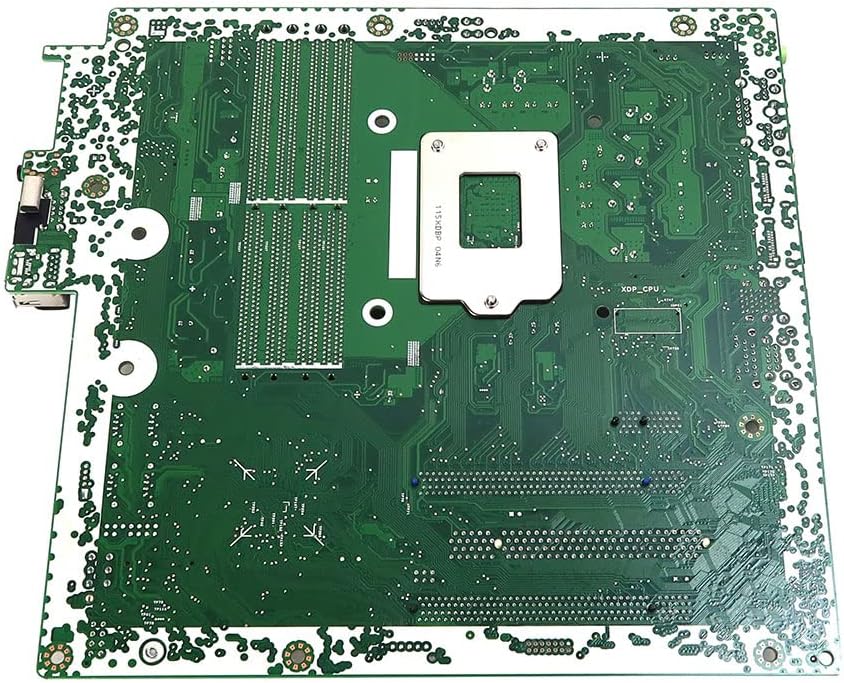
Figure 2: Front view of the Dell OptiPlex 7070 MT Series Motherboard, highlighting the LGA1151 CPU socket and four DDR4 memory slots for component installation.
4.5. Storage Device Installation
Connect SATA storage devices (HDDs/SSDs) to the available SATA ports on the motherboard using SATA data cables. Ensure power cables from the power supply are also connected to the drives.
4.6. Expansion Card Installation
Insert PCI Express expansion cards (e.g., graphics cards, network cards) into the appropriate PCIe slots. Secure them with the case's retention mechanism or screws.
4.7. Power Connections
- Connect the 24-pin ATX main power connector from your power supply to the corresponding port on the motherboard.
- Connect the 4-pin or 8-pin CPU power connector (EPS12V) to the port near the CPU socket.
4.8. Front Panel Connectors
Connect the front panel cables from your computer case (power button, reset button, USB ports, audio jacks, power LED, HDD activity LED) to the corresponding headers on the motherboard. Refer to the motherboard's silkscreen labels for correct pin alignment.
5. Operating Your System
After completing all hardware installations, connect your monitor, keyboard, and mouse. Connect the power cable to the power supply and press the power button on your computer case.
- First Boot: The system may perform initial hardware detection.
- BIOS/UEFI Access: To enter the BIOS/UEFI setup utility, press the designated key (commonly F2, F12, or DEL) during the initial boot sequence. Consult your system's documentation for the exact key.
- Operating System Installation: Install your preferred operating system from a bootable USB drive or optical media.
6. Maintenance
- Dust Cleaning: Regularly clean dust from inside your computer case, especially around fans and heatsinks, using compressed air. Ensure the system is powered off and unplugged before cleaning.
- BIOS/UEFI Updates: Periodically check the Dell support website for BIOS/UEFI updates for your OptiPlex 7070 MT system. Updates can improve stability, performance, and compatibility. Follow Dell's specific instructions for BIOS updates carefully.
- Component Checks: Periodically inspect cable connections to ensure they are secure.
7. Troubleshooting
- No Power: Ensure all power cables (24-pin ATX, CPU power) are securely connected to the motherboard and power supply. Verify the power supply switch is on and the wall outlet is functional.
- No Display: Check that the monitor is connected to the correct graphics output (either integrated or discrete GPU). Reseat the graphics card and RAM modules.
- System Beeps: A series of beeps during startup (POST codes) indicates a hardware issue. Consult Dell's documentation for beep code interpretations specific to the OptiPlex 7070 MT. Common issues include RAM or graphics card problems.
- System Instability/Crashes: Check CPU and GPU temperatures. Ensure all drivers are up to date. Test memory modules individually.
- Peripheral Not Detected: Verify the peripheral is properly connected and its drivers are installed. Test with another port or device if possible.
8. Specifications
| Feature | Specification |
|---|---|
| Part Numbers | NRKPK, 0NRKPK, CN-0NRKPK |
| Compatible Part Numbers | 5CGWM, 5CGW7, 17509-3, 05CGWM, 05CGW7, CN-05CGWM, CN-05CGW7 |
| Compatible Models | Dell OptiPlex 7070 MT Series |
| Chipset | Intel Q370 (SR404) |
| CPU Socket | Intel LGA1151 |
| Max Supported Memory | 64GB |
| Number of Memory Slots | 4 |
| Memory Type | DDR4 SDRAM |
| Main Power Connector | 24-Pin |
| Graphics Card Interface | PCI Express |
| System Bus Standard Supported | SATA 3 |
| Total SATA Ports | 1 (Note: This specification might be incomplete, typically motherboards have multiple SATA ports. Refer to physical board for exact count.) |
| Total PCIe Ports | 24 (This likely refers to total PCIe lanes, not physical slots. Refer to physical board for slot count.) |
9. Warranty and Support
For warranty information and technical support, please refer to the documentation provided by your point of purchase or contact the seller directly. As this is a replacement part, warranty terms may vary. For general system support related to the Dell OptiPlex 7070 MT, visit the official Dell support website.


