
1. Introduction
Welcome to the user manual for the MSI PRO B660M-P DDR4 ProSeries Motherboard. This document provides comprehensive information to help you set up, operate, and maintain your motherboard, ensuring optimal performance and longevity. The PRO series is designed to deliver an efficient and productive experience with stable functionality and high-quality assembly.
Please read this manual thoroughly before installation and use to prevent damage and ensure proper functionality.
2. Product Overview and Features
The MSI PRO B660M-P DDR4 motherboard is built to support the latest Intel processors and provide a robust foundation for your computing needs. Key features include:
- Supports 12th Gen Intel Core, Pentium Gold and Celeron processors for LGA 1700 socket.
- Supports DDR4 Memory, up to 4600+(OC) MHz.
- Core Boost: Premium layout and digital power design for enhanced multi-core performance.
- Memory Boost: Advanced technology for pure data signals, ensuring best performance, stability, and compatibility.
- Lightning Fast Experience: Features PCIe 4.0 and Lightning Gen4 x4 M.2 slots for high-speed storage and expansion.
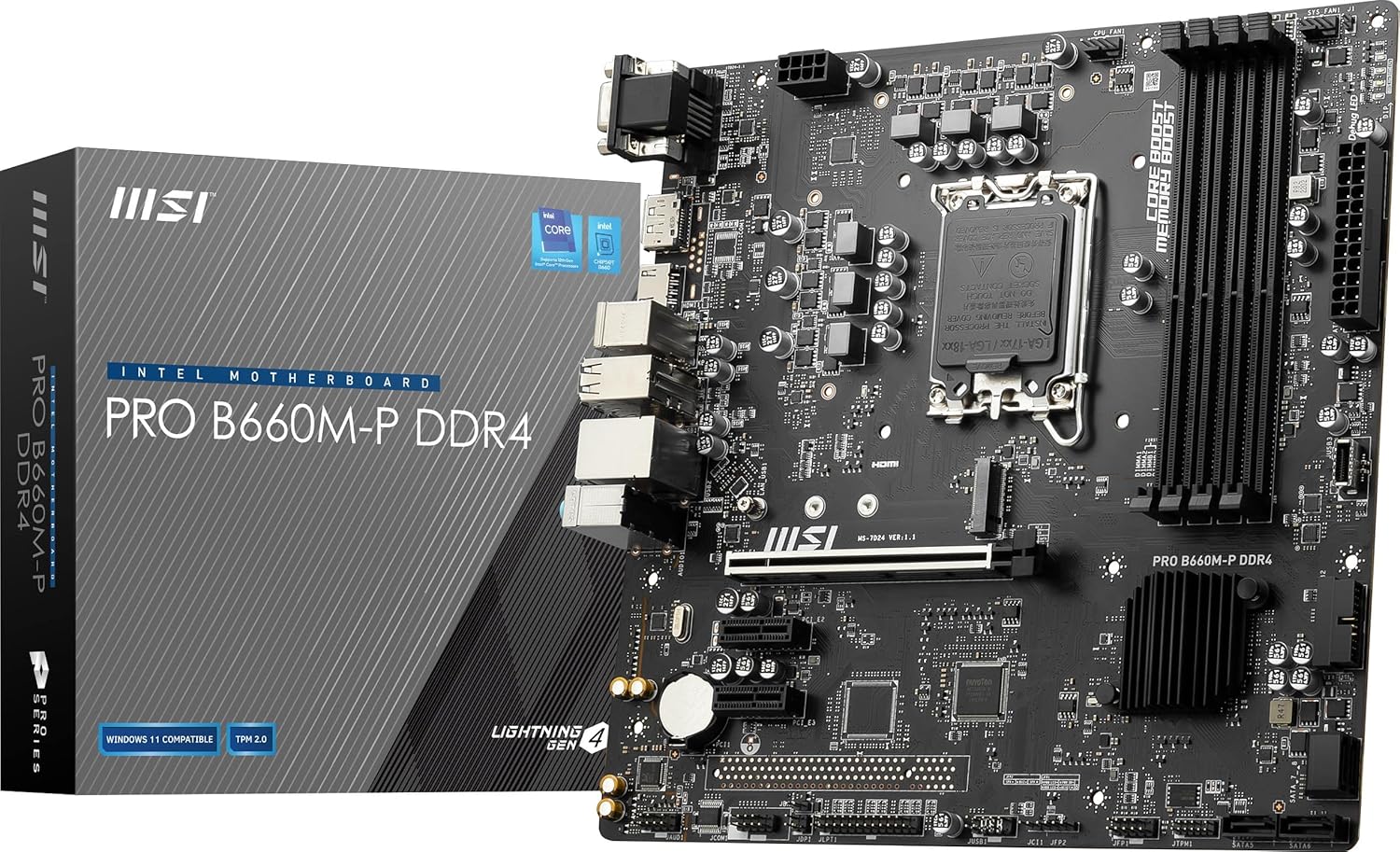
Image: MSI PRO B660M-P DDR4 Motherboard with its retail packaging.

Image: Detail showing support for Intel 12th Gen Core processors and the Intel B660 chipset.

Image: Depiction of the DDR4 memory slots supporting speeds up to 4600 MHz with Memory Boost technology.

Image: Overview of the PCIe 4.0 slots, providing high-speed connectivity for graphics cards and other expansion cards.

Image: The Lightning Gen4 x4 M.2 slot, designed for ultra-fast NVMe SSDs.
3. Package Contents
Upon opening your MSI PRO B660M-P DDR4 motherboard package, please verify that all the following items are included:
- MSI PRO B660M-P DDR4 Motherboard
- Quick Installation Guide
- Product Registration Card
- M.2 Clip
- 2 x SATA Cables
- I/O Shield
- Driver DVD
- MSI Case Badge

Image: All items included in the MSI PRO B660M-P DDR4 motherboard package.
4. Setup and Installation
Proper installation is crucial for the stable operation of your motherboard. Always ensure your system is powered off and unplugged before handling components. It is recommended to wear an anti-static wrist strap to prevent electrostatic discharge (ESD) damage.
4.1. Pre-Installation Checklist
- Ensure you have a compatible CPU (12th Gen Intel Core, Pentium Gold, Celeron for LGA 1700 socket).
- Verify your RAM modules are DDR4.
- Prepare your PC case and power supply.
- Gather necessary tools (screwdriver, thermal paste).
4.2. Installation Steps
- Install CPU: Carefully open the CPU socket lever, align the CPU with the triangle marker, place it gently into the socket, and close the lever.
- Install CPU Cooler: Apply thermal paste (if not pre-applied) and secure the CPU cooler according to its instructions. Connect the CPU fan cable to the motherboard's CPU_FAN header.
- Install RAM: Open the clips on the DIMM slots, align the RAM modules with the notch, and press firmly until the clips snap into place. Refer to the motherboard manual for recommended slot population for dual-channel memory.
- Install M.2 SSD (Optional): Insert the M.2 SSD into the M.2 slot at an angle, then push it down and secure it with the provided M.2 clip or screw.
- Mount Motherboard: Install the I/O shield into your PC case. Carefully place the motherboard into the case, aligning it with the standoffs. Secure the motherboard with screws.
- Connect Power Cables: Connect the 24-pin ATX power cable and the 8-pin (or 4+4-pin) CPU power cable from your power supply to the motherboard.
- Connect Front Panel Cables: Connect the power button, reset button, USB ports, audio jacks, and LED indicators from your case to the corresponding headers on the motherboard. Refer to the motherboard's detailed manual for exact pin layouts.
- Install Graphics Card (Optional): Insert your graphics card into the primary PCIe x16 slot and secure it. Connect any necessary PCIe power cables from your power supply.
- Connect SATA Devices (Optional): Connect SATA data cables from your storage drives (HDDs/SSDs) to the SATA ports on the motherboard, and connect power cables from your power supply to the drives.
For detailed visual instructions, please refer to the included Quick Installation Guide.
5. Operating Instructions
Once all components are installed and connected, you can proceed with initial system boot-up.
5.1. First Boot and BIOS/UEFI Setup
- Connect your monitor, keyboard, and mouse.
- Power on your system.
- During boot, repeatedly press the Del key (or F2 depending on BIOS version) to enter the BIOS/UEFI setup utility.
- In the BIOS/UEFI, you can configure boot order, enable/disable features, monitor system status, and update firmware.
- Save changes and exit BIOS/UEFI to continue booting.
5.2. Operating System Installation
Insert your operating system installation media (USB drive or DVD) and follow the on-screen prompts to install your preferred OS (e.g., Windows 11, Linux). Ensure you install the necessary drivers from the included Driver DVD or download the latest versions from the MSI website for optimal performance.
6. Maintenance
Regular maintenance helps ensure the longevity and stable performance of your motherboard and system.
- Dust Removal: Periodically clean dust from inside your PC case, especially from fans and heatsinks, using compressed air. Ensure the system is powered off and unplugged.
- Cable Management: Ensure all cables are neatly routed and not obstructing airflow.
- BIOS/UEFI Updates: Check the official MSI website for the latest BIOS/UEFI firmware updates. Follow the update instructions carefully to avoid system instability.
- Driver Updates: Keep your device drivers (chipset, LAN, audio, graphics) updated to the latest versions for best compatibility and performance.
7. Troubleshooting
If you encounter issues with your motherboard, consider the following common troubleshooting steps:
- No Power/No Boot:
- Check all power connections (24-pin ATX, 8-pin CPU, PCIe power for GPU).
- Ensure the power supply is switched on.
- Test with a different power supply if possible.
- No Display:
- Ensure the monitor is connected to the correct display output (motherboard integrated graphics or discrete GPU).
- Reseat the graphics card and RAM modules.
- Try booting with only one RAM stick.
- System Instability/Crashes:
- Check CPU and GPU temperatures.
- Run memory diagnostic tools to check RAM integrity.
- Ensure all drivers are correctly installed and updated.
- Reset BIOS to default settings.
- Peripheral Issues:
- Ensure USB devices are connected to functional ports.
- Install the latest chipset and USB drivers.
If the problem persists, consult the detailed motherboard manual available on the MSI website or contact MSI technical support.
8. Specifications
Below are the key technical specifications for the MSI PRO B660M-P DDR4 Motherboard:
| Feature | Specification |
|---|---|
| Brand | MSI |
| Series | PRO B660M-P DDR4 |
| Model Number | 9B13-144-544 |
| CPU Socket | LGA 1700 |
| Compatible Processors | 12th Gen Intel Core, Pentium Gold, Celeron |
| Chipset | Intel B660 |
| RAM Memory Technology | DDR4 |
| Memory Speed | Up to 4600 MHz (OC) |
| Product Dimensions | 9.6 x 9.6 x 2.5 inches |
| Item Weight | 1.95 pounds |
| PCIe Slots | PCIe 4.0 x16, PCIe 3.0 x1 |
| M.2 Slots | Lightning Gen4 x4 M.2 |
| LAN | 2.5G LAN |
| USB | USB 3.2 Gen 1, USB 2.0 |
| Compatible Devices | Personal Computer |
| Platform | Windows 11 |
9. Warranty and Support
MSI provides warranty coverage for its products. For detailed warranty terms and conditions, please refer to the warranty card included in your package or visit the official MSI website. Keep your proof of purchase for warranty claims.
9.1. Product Registration
Registering your product helps you receive better service and support. You can register your MSI product online at: http://register.msi.com
9.2. Technical Support
For technical assistance, driver downloads, BIOS updates, or further inquiries, please visit the official MSI support website. You can find FAQs, troubleshooting guides, and contact information for customer service.