
1. Introduction
This user manual provides comprehensive instructions for operating your new PTHTECHUS X32GMW Smart Watch. Designed specifically for children aged 4-12, this watch offers a wide array of features including entertainment, educational tools, and practical functions. Please read this manual carefully to ensure proper use and maintenance of the device.

Figure 1: PTHTECHUS X32GMW Smart Watch Overview
2. What's in the Box
Upon opening your product package, you should find the following items:
- 1 x PTHTECHUS X32GMW Smart Watch
- 1 x USB Charging Cable
- 1 x User Manual (this document)
3. Setup
3.1 Initial Charging
Before first use, it is recommended to fully charge the smart watch. The watch contains a built-in 500 mAh lithium polymer battery.
- Connect the provided USB charging cable to the charging port on the watch.
- Connect the other end of the USB cable to a standard USB power adapter (not included) or a computer's USB port.
- Allow the watch to charge for approximately 2 hours for a full charge.
Note: The watch does not require a SIM card or connection to a mobile phone app to function.
3.2 Powering On/Off
To power on the watch, press and hold the power button (usually located on the side) for 5-10 seconds until the screen illuminates. To power off, press and hold the power button again and follow the on-screen prompts.
4. Operating Instructions
The PTHTECHUS Smart Watch features a touch screen interface for easy navigation. Swipe left or right to browse through the various applications and tap an icon to open it.
4.1 Dual Cameras
The watch is equipped with dual cameras, allowing for both front-facing selfies and outward-facing photos and videos. Children can capture precious moments and add fun emoji stickers to their selfies.

Figure 2: Dual Camera Functionality
To use the camera:
- From the main screen, swipe to find and tap the "Camera" icon.
- Tap the screen to take a photo.
- Use the on-screen arrows to switch between front and side cameras or apply filters/stickers.
4.2 Video Player & Recorder
The watch supports video recording and playback. Recorded videos are saved to the built-in micro SD card.
- Tap the "Video" icon to access the video recorder.
- Tap the record button to start/stop recording.
- To play videos, tap the "Player" icon and select a video from the list.
4.3 MP3 Music Player
Enjoy music on the go. You can transfer MP3 files from your computer to the watch's "My Music" folder via the USB cable.
- Connect the watch to your computer using the USB cable.
- Locate the watch's storage drive on your computer.
- Drag and drop MP3 format music files into the "My Music" folder.
- On the watch, tap the "Music" icon to open the player and select your desired song.

Figure 3: Pedometer, Calculator, Alarm, and Music Player
4.4 Games
The watch comes with 24 built-in fun games designed to enhance hand-eye coordination and imagination. Parents can set time limits for game play.
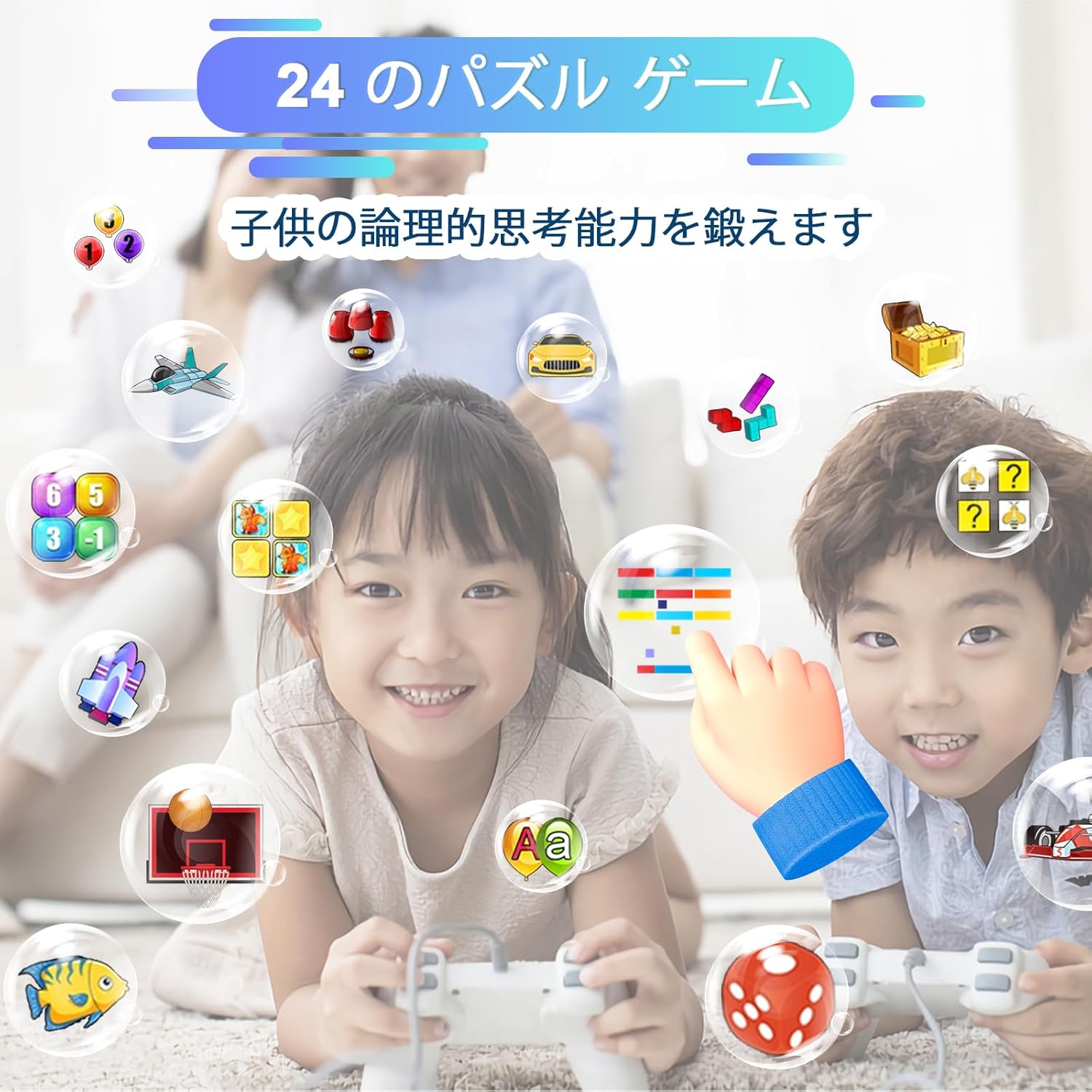
Figure 4: Built-in Games
To play games:
- Tap the "Games" icon.
- Select a game from the list to start playing.
Parental Control: To limit daily game time, navigate to "Settings" and look for "Anti-addiction mode" or "Game time limit" options.
4.5 Pedometer
The built-in pedometer automatically records your child's daily steps and calories burned, encouraging physical activity.
To view pedometer data:
- Tap the "Pedometer" icon.
- The screen will display steps taken, distance walked, and calories burned.
4.6 Alarm Clock
Set multiple alarms for reminders throughout the day, such as wake-up times or class schedules.
To set an alarm:
- Tap the "Alarm" icon.
- Select an alarm slot and tap "Edit".
- Set the time, repeat days, and status (on/off).
- Tap "Save" to confirm.
4.7 Calculator
A basic calculator is included for quick arithmetic calculations.
To use the calculator:
- Tap the "Calculator" icon.
- Use the on-screen number pad and operators to perform calculations.
4.8 Flashlight
The watch includes a bright flashlight for use in dark environments.
To turn on/off the flashlight:
- Tap the "Flashlight" icon.
- Tap "ON" to activate and "OFF" to deactivate.
4.9 Other Functions & Settings
The watch also includes a voice recorder, calendar, stopwatch, and various settings to customize the device.
- Time and Date: Adjust the current time and date in the "Settings" menu.
- Silent Mode/School Mode: This feature allows parents to set specific times during which the watch will be in silent mode, preventing distractions during school hours. Access this in "Settings".
- Wallpapers: Customize the watch face by setting a photo as wallpaper.
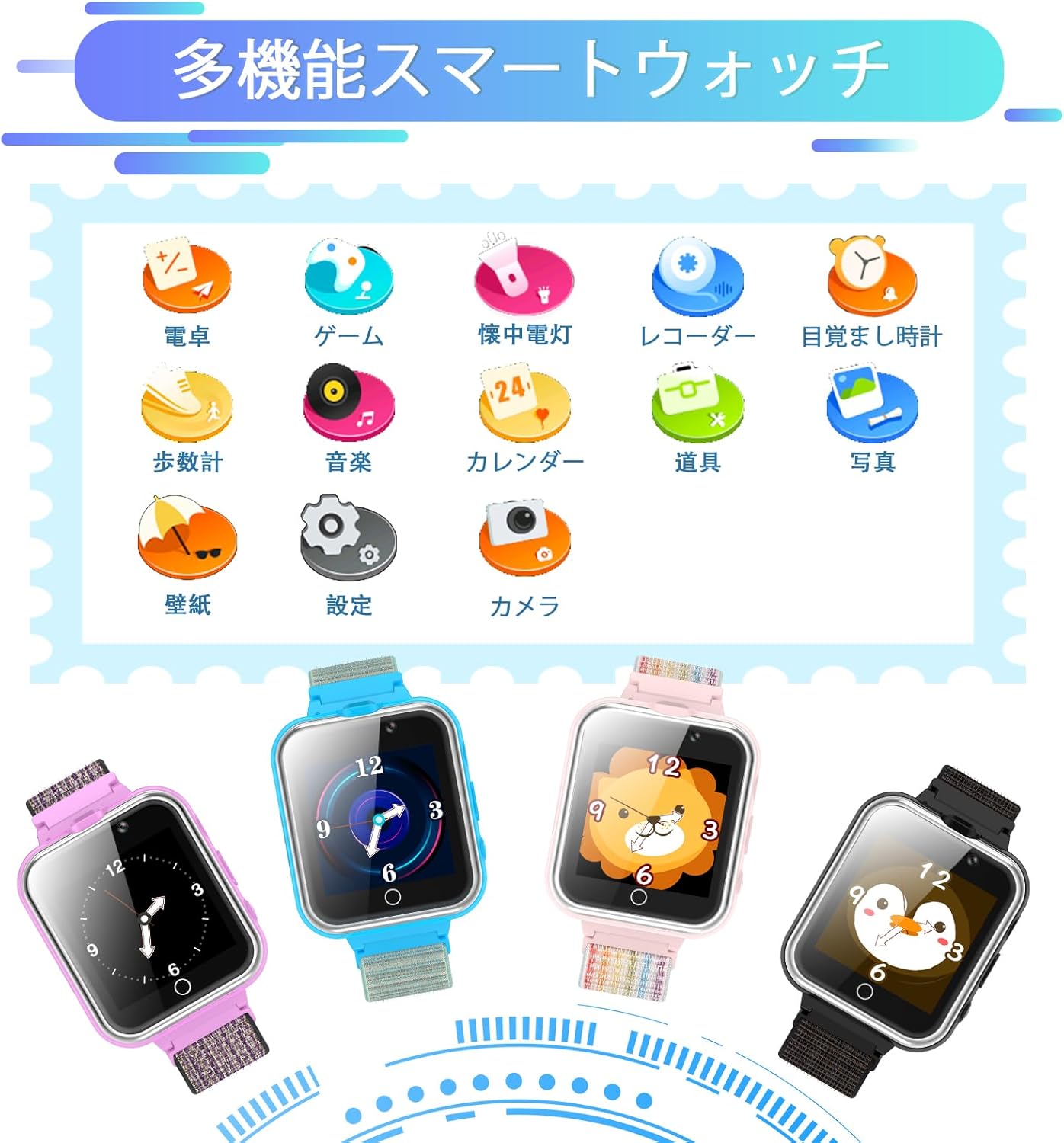
Figure 5: Multifunction Watch Icons
4.10 Video Demonstration
For a visual guide on operating the PTHTECHUS Smart Watch and its various features, please watch the official demonstration video below.
Video 1: X32 Smart Watch Operation Display. This video demonstrates how to navigate the watch's interface, use the camera, video player, music player, calculator, calendar, alarm, flashlight, pedometer, games, and adjust settings.
5. Maintenance
5.1 Cleaning
To keep your smart watch clean, gently wipe the screen and strap with a soft, dry cloth. Avoid using harsh chemicals or abrasive materials.

Figure 6: Watch Strap Features
5.2 Battery Care
The watch uses a built-in lithium polymer battery. For optimal battery life:
- Charge the watch fully before first use.
- Avoid completely draining the battery frequently.
- Do not expose the watch to extreme temperatures.
6. Troubleshooting
| Problem | Possible Cause | Solution |
|---|---|---|
| Watch does not turn on. | Low battery. | Charge the watch for at least 2 hours. |
| Cannot play music/video. | Incorrect file format or no files. | Ensure files are in MP3 format for music. Transfer files to the correct folder ("My Music" for music). |
| Battery drains quickly. | Frequent use of power-intensive features (games, video recording). | Reduce usage of power-intensive features. Ensure watch is fully charged. |
| Screen unresponsive. | Temporary software glitch. | Restart the watch by holding the power button. |
7. Specifications
| Feature | Detail |
|---|---|
| Model Number | X32GMW |
| Screen Size | 1.54 Inches |
| Product Dimensions | 8.66 x 1.18 x 0.39 inches |
| Item Weight | 1.76 ounces (50 Grams) |
| Battery Type | Lithium Polymer (500 mAh) |
| Memory Storage Capacity | 500 MB (for media files) |
| Connectivity Technology | USB |
| Special Features | Dual Cameras, MP3 Player, Video Player, 24 Games, Recorder, Pedometer, Alarm Clock, Calculator, Flashlight, Calendar |
8. Warranty and Support
PTHTECHUS is committed to providing quality products. If you encounter any issues or have questions regarding your smart watch, please contact our customer support team through the platform where you purchased the product. Please refer to your purchase documentation for specific warranty details.
For more information about PTHTECHUS products, you can visit the official PTHTECHUS Store: PTHTECHUS Store


