
1. Introduction
This manual provides essential information for the safe and efficient operation of your Dual DL-32HD-008 LED TV. Please read these instructions carefully before using the television and retain them for future reference. This 32-inch (81 cm) HD LED TV features a 1366 x 768 resolution, multiple connectivity options including HDMI and USB, and an integrated DVB-T/C/S2 tuner.

Image 1.1: The Dual DL-32HD-008 LED TV.
2. Safety Information
Always follow basic safety precautions when using this television to reduce the risk of fire, electric shock, and injury.
- Do not expose the TV to rain or moisture.
- Do not open the TV casing; refer all servicing to qualified personnel.
- Ensure proper ventilation around the TV.
- Keep the TV away from direct sunlight, heat sources, and strong magnetic fields.
- Unplug the TV during lightning storms or when unused for long periods.
3. Package Contents
Verify that all items are present in the box:
- Dual DL-32HD-008 LED TV
- Stand Feet (2 pieces)
- Remote Control
- User Manual (this document)
4. Setup
4.1. Stand Installation
To install the stand feet:
- Carefully place the TV face down on a soft, flat surface to prevent screen damage.
- Align each stand foot with the corresponding slots on the bottom of the TV.
- Secure the feet using the provided screws.

Image 4.1: TV with stand feet installed.
4.2. Wall Mounting
The TV supports VESA 100 x 100 mm wall mounts. A wall mount kit is not supplied. Please consult a professional for wall mounting to ensure safety and proper installation.
4.3. Connecting External Devices
The TV offers various ports for connecting external devices:
- HDMI Ports: Connect Blu-ray players, game consoles, or set-top boxes. This model includes 1 HDMI 1.4 port and 1 HDMI ARC port.
- USB 2.0 Port: For media playback or PVR (Personal Video Recorder) functionality.
- Antenna Input: Connect your terrestrial, cable, or satellite antenna for DVB-T/C/S2 reception.
- CI+ Slot: For Conditional Access Modules (CAM) to decrypt encrypted channels.

Image 4.2: Rear panel with connectivity ports.
4.4. Power Connection and First-Time Setup
- Connect the power cord to the TV and then to a wall outlet.
- Press the Power button on the remote control or on the TV.
- Follow the on-screen instructions for the initial setup, including language selection, channel scanning, and network configuration (if applicable).
5. Operating
5.1. Remote Control Overview
Familiarize yourself with the remote control buttons for optimal TV operation.

Image 5.1: Remote Control.
5.2. Basic TV Functions
- Power: Press the POWER button to turn the TV on or off.
- Volume: Use the VOL +/- buttons to adjust the volume.
- Channel: Use the CH +/- buttons to change channels.
- Input: Press the INPUT button to select different input sources (HDMI, USB, TV).
- Menu: Press the MENU button to access the main menu for settings adjustments.
5.3. Tuner Operation
Your TV supports DVB-T (terrestrial), DVB-C (cable), and DVB-S2 (satellite) signal formats. After initial setup, channels will be scanned and stored. Use the EPG button to view the Electronic Program Guide.
5.4. USB PVR Function
Connect a USB storage device to the USB 2.0 port to record TV programs. Refer to the on-screen menu for PVR setup and operation instructions.
6. Maintenance
6.1. Cleaning the Screen
Gently wipe the screen with a soft, lint-free cloth. For stubborn marks, slightly dampen the cloth with water or a specialized screen cleaner. Never spray liquid directly onto the screen.
6.2. Cleaning the Casing
Use a soft, dry cloth to clean the TV casing. Avoid using abrasive cleaners or solvents.
7. Troubleshooting
If you encounter issues, refer to the following common problems and solutions:
| Problem | Possible Cause | Solution |
|---|---|---|
| No power | Power cord disconnected; no power from outlet. | Check power cord connection; test outlet with another device. |
| No picture, but sound is present | Incorrect input source selected; faulty cable. | Press INPUT to select correct source; check HDMI/AV cable connections. |
| No sound, but picture is present | Volume muted or too low; external audio system issue. | Unmute or increase volume; check external audio connections. |
| Remote control not working | Batteries depleted or incorrectly inserted; obstruction. | Replace batteries (CR2032 type); ensure clear path to TV's IR sensor. |
| Poor picture quality | Weak signal; incorrect picture settings. | Check antenna connection; adjust picture settings in the menu. |
8. Specifications
Detailed technical specifications for the Dual DL-32HD-008 LED TV:
| Feature | Specification |
|---|---|
| Model Name | DL-32HD |
| Screen Size | 32 Inches (81 cm) |
| Display Technology | LED |
| Resolution | 720p (1366 x 768) |
| Refresh Rate | 60 Hz |
| Aspect Ratio | 16:9 |
| Contrast Ratio | 1200:1 |
| Maximum Brightness | 180 Candelas per square meter |
| Response Time | 8 milliseconds |
| Viewing Angle | 178 Degrees |
| Audio Output Mode | Surround |
| Speaker Description | 2 x 8 Watts Speakers |
| Total HDMI Ports | 2 (1x HDMI 1.4, 1x HDMI ARC) |
| Total USB Ports | 2 (USB 2.0) |
| Tuner Type | DVB-T, DVB-C, DVB-S2 |
| VESA Mount Standard | 100 x 100 mm |
| Power Consumption | 65 Watts (On), 0.5 Watts (Standby) |
| Line Voltage | 100-240 V AC 50-60 Hz |
| Item Dimensions (D x W x H) | 19P x 73.2W x 47.8H cm |
| Item Weight (without stand) | 3.5 Kilograms |
| Item Weight (with stand) | 4.5 Kilograms |
| Remote Control Battery Type | CR2032 |
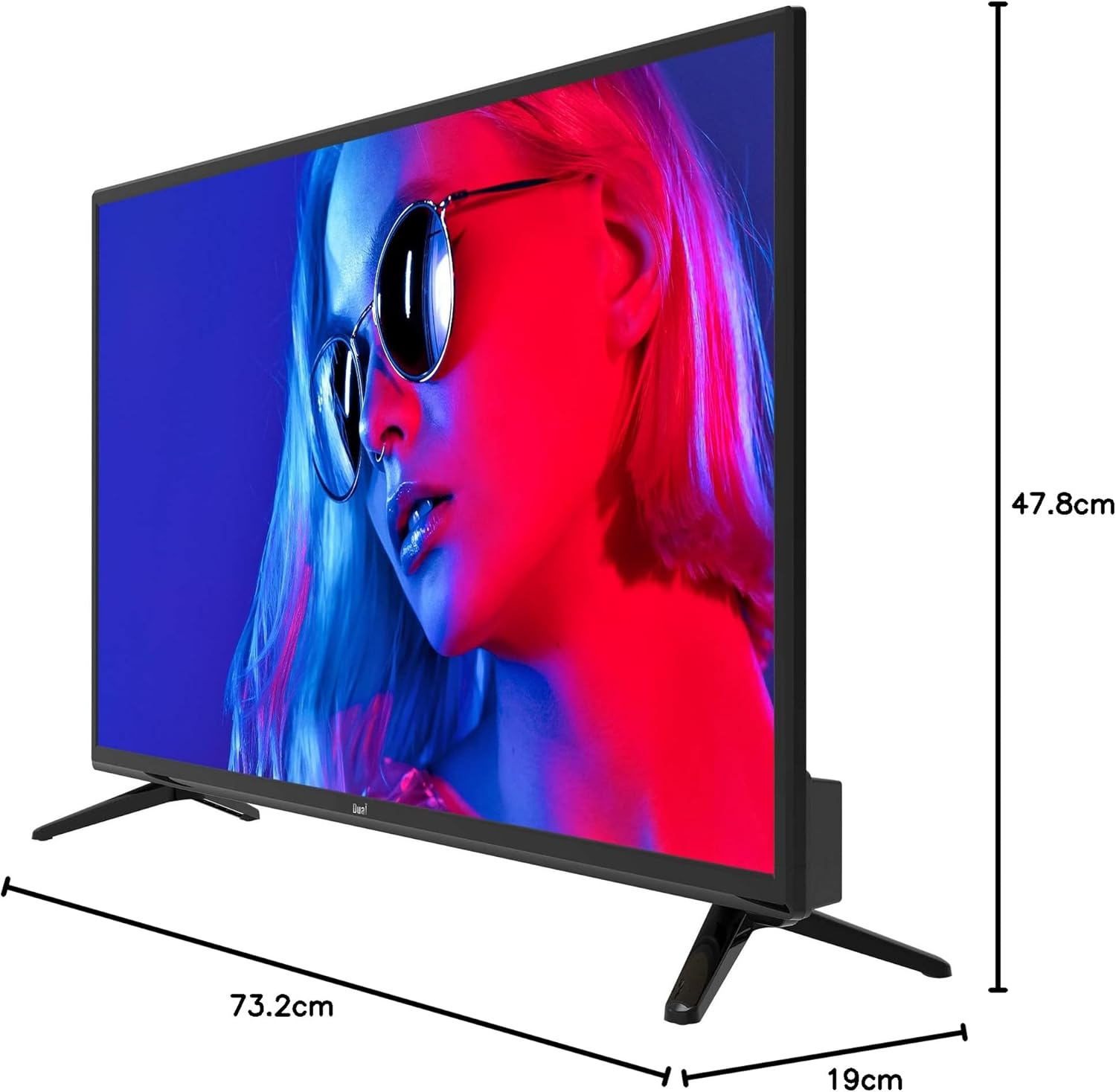
Image 8.1: TV dimensions.
8.1. Energy Label

Image 8.2: EU Energy Label. For more details, visit the official EPREL database: EPREL Product Page
9. Warranty and Support
9.1. Warranty Information
This product comes with a Limited Warranty. Please refer to the warranty card included in your package for specific terms and conditions.
9.2. Spare Parts and Software Updates
Information regarding the availability of spare parts and guaranteed software updates for this model is currently not available. Please contact your retailer or the manufacturer for further inquiries.
9.3. Customer Support
For technical assistance or customer service, please contact your point of purchase or visit the official Dual website for support resources.


