
CP PLUS CP-XR-DN211-S
CP PLUS 4G Sim Card Router User Manual
Model: CP-XR-DN211-S
Introduction
This manual provides comprehensive instructions for the setup, operation, and maintenance of your CP PLUS 4G Sim Card Router (Model: CP-XR-DN211-S). This device is designed to provide high-speed internet connectivity using a 4G SIM card, offering Wi-Fi 2.4G with MIMO technology and speeds up to 300Mbps. It also supports WPS for easy connection.
Key Features:
- Compatible with WCDMA, FDD-LTE, TDD-LTE Default 802.11b/g/n
- LTE Bands: B1/3/5/7/8/20/38/40/41; WCDMA Bands: B1/5/8
- Supports Wi-Fi 2.4G, Wi-Fi 2x2 MIMO, 802.11 b/g/n
- Equipped with Internal antenna
- Supports Reset and WPS functions
- Data Transfer Rate: 300 Megabits Per Second
Product Overview

Figure 1: Front view of the CP PLUS 4G Sim Card Router. Shows the device's compact white design with indicator lights for power, Wi-Fi, signal strength, and network status, along with the "CP PLUS 4G LTE Router" branding.
The CP PLUS 4G Sim Card Router is a compact and portable device designed for easy deployment. The front panel features LED indicators for power, Wi-Fi status, network signal strength, and internet connectivity. These indicators provide quick visual feedback on the router's operational status.

Figure 2: Rear view of the CP PLUS 4G Sim Card Router. This image highlights the 10/100 Mbps Ethernet port, which can function as either a WAN or LAN port, along with the power input and reset/WPS button.
The rear panel of the router includes essential ports and buttons. It features a 10/100 Mbps Ethernet port, which offers flexibility to be used as either a WAN (Wide Area Network) port for connecting to an external modem or as a LAN (Local Area Network) port for connecting wired devices. Additionally, there is a power input port and a combined Reset/WPS button for device management and easy Wi-Fi setup.
Setup
1. Package Contents:
- CP PLUS 4G Sim Card Router
- LAN Cable
- Power Adaptor
- User Manual
2. Inserting the SIM Card:
Locate the SIM card slot on the router. Gently insert your standard-sized 4G SIM card into the slot until it clicks into place. Ensure the SIM card is inserted in the correct orientation as indicated on the device.
3. Connecting Power:
Connect the provided power adaptor to the router's power input port and then plug the adaptor into a standard electrical outlet. The power indicator light on the router's front panel should illuminate.
4. Initial Setup (Web GUI):

Figure 3: Easy Setup via the router's intuitive User-Friendly web GUI. This image shows a laptop screen displaying the router's management interface, including sections for connection status, network settings, and connected devices.
- Connect your computer or mobile device to the router's Wi-Fi network (SSID and password are usually found on a sticker on the router).
- Open a web browser and enter the default IP address (e.g., 192.168.0.1 or 192.168.1.1) into the address bar. This IP address is typically found on the same sticker as the Wi-Fi credentials.
- Log in using the default username and password (e.g., admin/admin).
- Follow the on-screen wizard for initial configuration, including setting up your Wi-Fi name (SSID) and password, and configuring internet settings if necessary. The router is designed for plug-and-play operation with most 4G SIM cards.
Operating the Router
1. Connecting Devices:
- Wi-Fi Connection: Search for your router's Wi-Fi network name (SSID) on your device and enter the Wi-Fi password to connect.
- LAN Connection: Use an Ethernet cable to connect a device (e.g., computer, gaming console) to the Ethernet port on the router's rear panel.
2. WPS (Wi-Fi Protected Setup):

Figure 4: WPS-Push & Connect feature. This image illustrates a finger pressing the WPS button on the router's back panel, simplifying the process of connecting Wi-Fi devices without manually entering passwords.
The WPS function allows for easy and secure connection of Wi-Fi devices without needing to enter the Wi-Fi password manually. Press the WPS button on the router (often combined with the Reset button, requiring a short press) and then activate WPS on your client device within two minutes. The devices will automatically connect.
3. Supported Operating Modes:
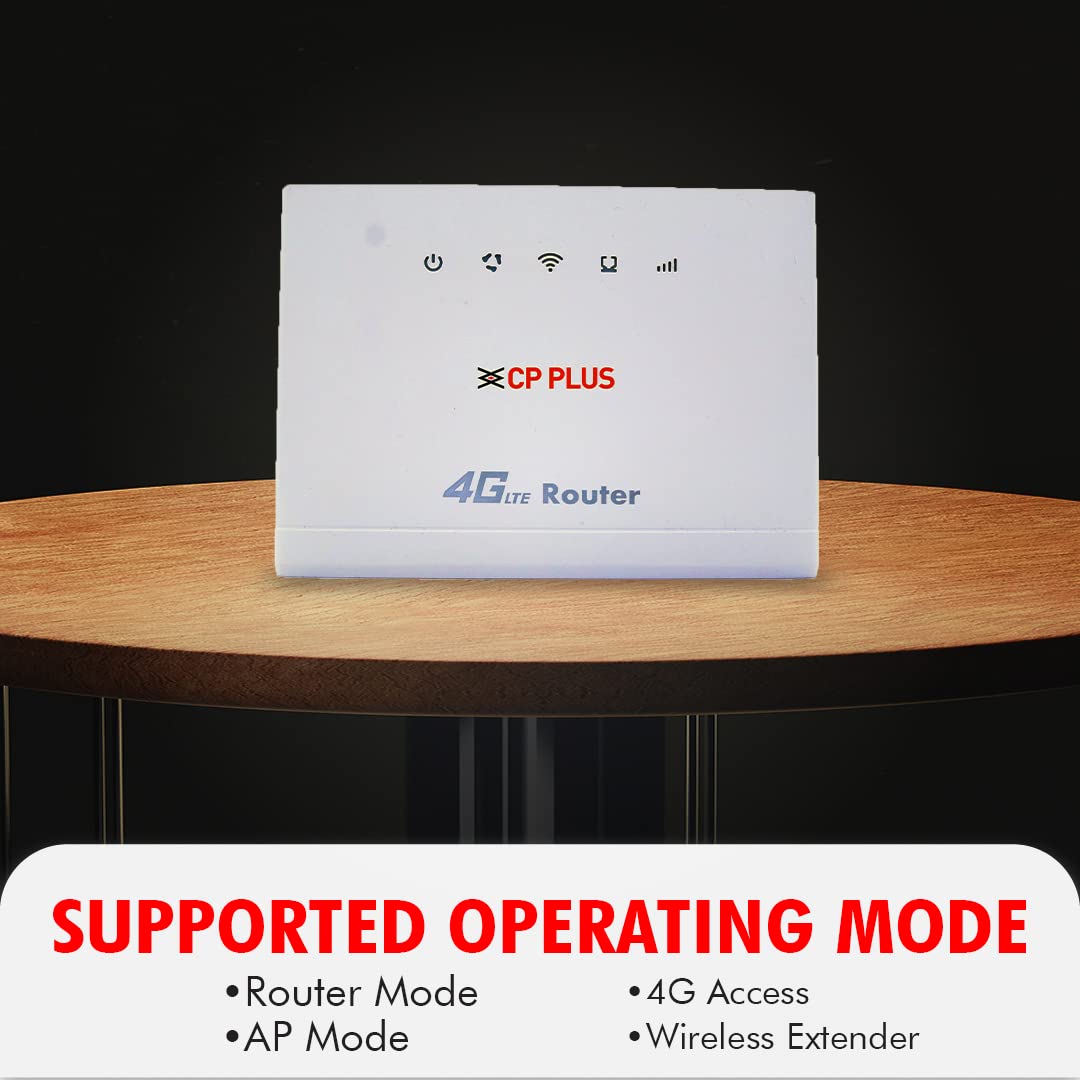
Figure 5: Supported Operating Modes. This image lists the versatile modes of operation for the router, including Router Mode, AP Mode, 4G Access, and Wireless Extender, indicating its adaptability to different network setups.
- Router Mode: The default mode, where the device acts as a primary router, providing internet access via 4G SIM and distributing it via Wi-Fi and LAN.
- AP Mode (Access Point): Converts a wired network connection into a wireless one, extending an existing network's Wi-Fi coverage.
- 4G Access: Specifically utilizes the 4G SIM card for internet connectivity.
- Wireless Extender: Extends the range of an existing Wi-Fi network.
Maintenance
1. Firmware Upgrade (OTA - Over the Air):

Figure 6: Upgrade Firmware from OTA (Over the Air). This image depicts a laptop connected to the router, with a cloud icon indicating that firmware updates can be downloaded and installed wirelessly, ensuring the device stays up-to-date.
To ensure optimal performance and security, it is recommended to keep your router's firmware updated. The CP PLUS router supports Over-the-Air (OTA) firmware upgrades. Access the router's web management interface, navigate to the system or firmware upgrade section, and check for available updates. Follow the on-screen instructions to perform the upgrade. Do not power off the device during the upgrade process.
2. Resetting the Device:
If you encounter persistent issues or wish to restore the router to its factory default settings, you can perform a reset. With the router powered on, use a pin or a straightened paperclip to press and hold the Reset button (often combined with the WPS button) for approximately 5-10 seconds until the indicator lights flash. Release the button, and the router will restart with factory settings. Note that this will erase all custom configurations, including Wi-Fi name and password.
Troubleshooting
Common Issues and Solutions:
- No Internet Connection:
- Ensure the SIM card is correctly inserted and active.
- Check the signal strength indicator on the router.
- Verify APN settings in the web management interface (usually auto-detected).
- Restart the router and your connected device.
- Slow Wi-Fi Speed:
- Ensure the router is placed in a central location, away from obstructions and interference sources.
- Check for too many connected devices.
- Verify your 4G signal strength.
- Consider changing Wi-Fi channels in the router settings.
- Cannot Access Web Management Interface:
- Ensure your device is connected to the router's Wi-Fi or via LAN cable.
- Verify you are entering the correct IP address (e.g., 192.168.0.1).
- Try clearing your browser's cache or using a different browser.
Advanced Features for Diagnostics:

Figure 7: Advanced Features. This image highlights additional capabilities of the router, including Local Management, DHCP Server, Supports Virtual Servers, and IPv4 Support, which can be useful for advanced network configurations and troubleshooting.
The router includes advanced features accessible via the web management interface that can assist in troubleshooting and network optimization:
- Local Management: Allows for direct configuration and monitoring of the router.
- DHCP Server: Manages IP address assignment to devices on your network.
- Supports Virtual Servers: Enables port forwarding for specific applications or services.
- IPv4 Support: Ensures compatibility with standard internet protocols.
- Advanced Security: Supports WEP, WEA-PSK, WPA2-PSK, WPA/WPA2 with Firewall for robust network protection.
Specifications
| Feature | Detail |
|---|---|
| Brand | CP PLUS |
| Model | CP-XR-DN211-S |
| Model Name | Wi-Fi 4G Router |
| Product Dimensions | 20.5 x 20.5 x 15.6 cm |
| Item Weight | 400 g |
| Data Transfer Rate | 300 Megabits Per Second |
| Wireless Type | 802.11bgn |
| GSM Frequencies | 2.4 GHz |
| Number of Ports | 1 (Ethernet, WAN/LAN capable) |
| Special Features | WPS, Local Management, DHCP Server, Virtual Servers, IPv4 Support |
| Compatible Devices | Tablet (and other Wi-Fi/Ethernet enabled devices) |
| Operating System Compatibility | Windows (Web GUI accessible from any OS with a browser) |
Warranty and Support
Warranty Information:
The CP PLUS 4G Sim Card Router comes with a 1 Year Warranty from the date of purchase. Please retain your purchase receipt as proof of warranty. The warranty covers manufacturing defects and malfunctions under normal use conditions. It does not cover damage caused by misuse, accidents, unauthorized modifications, or natural disasters.
Customer Support:
For technical assistance, troubleshooting, or warranty claims, please contact the manufacturer:
Manufacturer: Aditya Infotech Ltd
Address: Aditya Infotech, Block A, A-12, Amaltash Marg, Block A, Sector 4, Noida, Uttar Pradesh 201301
Please visit the official CP PLUS website or refer to the contact information provided with your product packaging for the most up-to-date support details.
Related documentsCP-XR-DN211-S


Ask a question about this manual
Ask about setup, troubleshooting, compatibility, parts, safety, or missing instructions. Manuals+ will review the question and use this page’s manual context to help answer it.