
Introduction
The ZEBRONICS Zeb FIT1020CH is a smart fitness band designed to help you monitor your health and fitness activities. This manual provides detailed instructions on how to set up, operate, and maintain your device to ensure optimal performance.

Image: The ZEBRONICS Zeb FIT1020CH Smart Fitness Band, featuring a black strap and a square display showing time, date, weather, and health metrics.
Key Features
The Zeb FIT1020CH offers a range of features to support your fitness and daily life:
- Health Monitoring: Blood oxygen saturation (SpO2), real-time blood pressure, heart rate, and sleep tracking.
- Activity Tracking: Pedometer, calorie burnt, distance tracking, and multi-sport modes.
- Smart Notifications: Caller ID, message display, alarm clock, and sedentary reminders.
- Convenience Features: Remote camera shutter, music control, stopwatch, and 'find phone' function.
- Customization: Over 100 pre-built watch faces and personalized watch face options.
- Durability: IP67 water and dustproof rating.
- Battery Life: Up to 30 days of standby time.

Image: A grid of icons representing key features of the fitness band, including Step Pedometer, Calorie Burnt, Distance Track, Sleep Monitor, Caller ID, Alarm Clock, Sedentary Reminder, Remote Camera Shutter, and Music Control.
Setup Guide
1. Charging the Device
Before initial use, fully charge your Zeb FIT1020CH. Connect the provided clip-type charger to the charging contacts on the back of the fitness band and plug the USB end into a power source (e.g., computer USB port or a 5V/1A USB adapter). The charging indicator will appear on the screen. A full charge typically takes approximately 2 hours.
2. Downloading the Companion App
To unlock the full potential of your fitness band, download the dedicated companion application on your smartphone. Search for "Zeb-Fit" or refer to the QR code in the quick start guide (if provided) in your device's app store (Google Play Store for Android or Apple App Store for iOS).
3. Pairing with Your Smartphone
- Ensure Bluetooth is enabled on your smartphone.
- Open the Zeb-Fit companion app.
- Follow the on-screen instructions in the app to search for and connect to your Zeb FIT1020CH. The app will guide you through the pairing process.
- Once paired, the time and date on your fitness band will automatically synchronize with your phone.
Operating Instructions
Navigating the Interface
The Zeb FIT1020CH features a touch-sensitive display and a side button for navigation.
- Swipe Up/Down: Scroll through menus and notifications.
- Swipe Left/Right: Access quick functions or different data screens.
- Tap: Select an item or confirm an action.
- Side Button: Press to wake the screen, return to the home screen, or go back in menus.
Health Monitoring
Your fitness band continuously monitors various health metrics.
- Heart Rate: Access the heart rate interface on the band to view your current heart rate. For continuous monitoring, enable it in the app settings.
- Blood Pressure: Navigate to the blood pressure measurement screen. Keep your arm still during measurement. Results will be displayed on the band and synced to the app.
- SpO2 (Blood Oxygen): Similar to blood pressure, access the SpO2 screen and remain still for accurate readings.
- Sleep Tracking: Wear the band to sleep, and it will automatically track your sleep patterns (deep sleep, light sleep, awake time). View detailed analysis in the app.
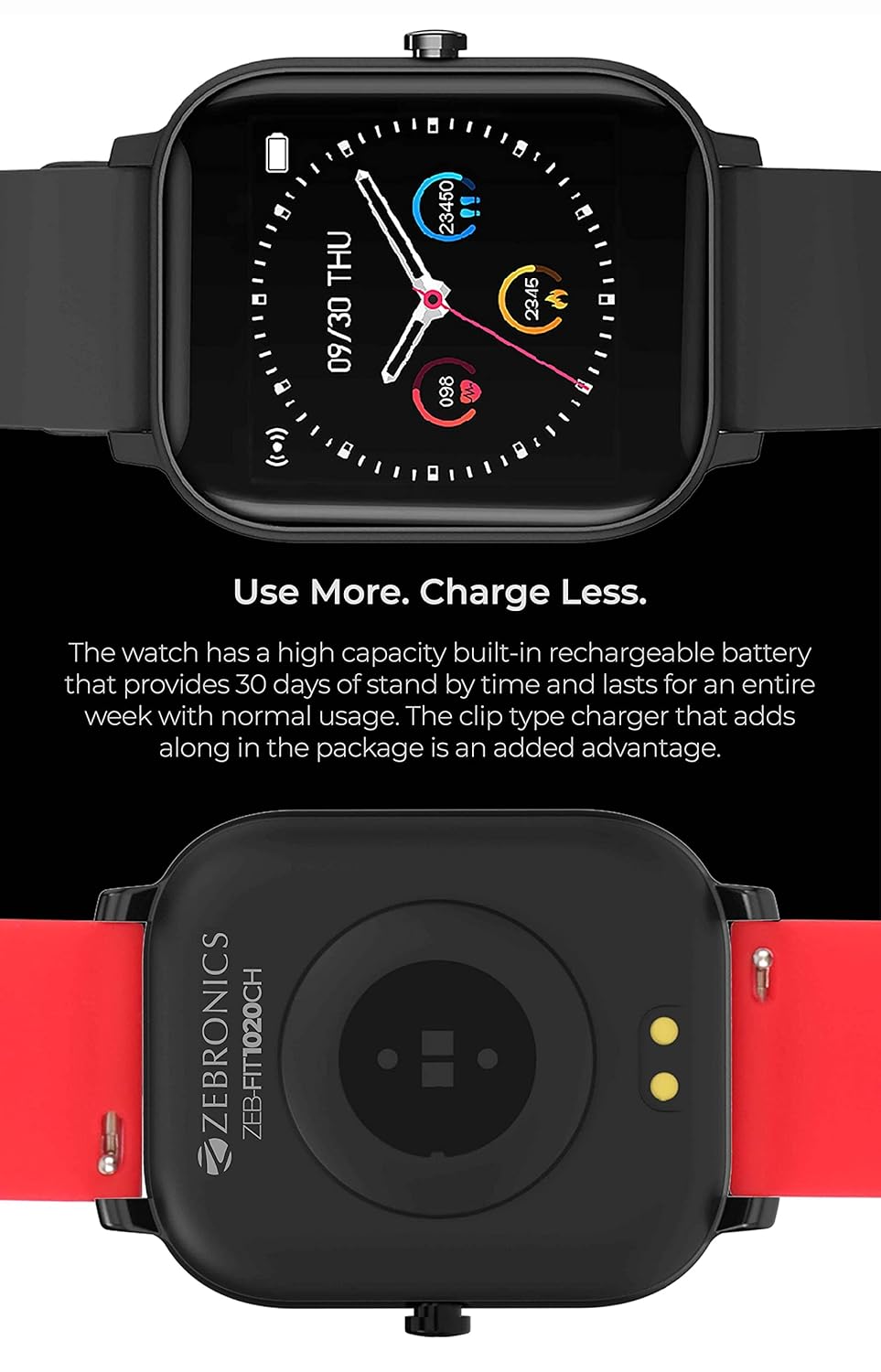
Image: The fitness band displaying blood pressure readings (e.g., 126/84 mmHg) and a smartphone screen showing a detailed blood pressure graph and measurement history.
Activity Tracking and Multi-Sport Modes
The band tracks your daily steps, calories, and distance. For specific workouts:
- Navigate to the "Sports" or "Workout" menu on your band.
- Select your desired activity (e.g., Walking, Running, Cycling, Badminton, Football, Skipping, Basketball).
- Tap to start the activity. The band will record duration, heart rate, calories, and other relevant metrics.
- Tap again or long-press the side button to pause or end the activity.

Image: The fitness band displaying various sport modes like Walking, Running, and Cycling, alongside illustrations of individuals engaging in activities such as Badminton, Skipping, Basketball, and Football, with the band tracking their progress.
Smart Notifications
Once paired with your phone, the band can display notifications for calls, messages, and app alerts.
- Call Notifications: Incoming calls will display the caller ID. You can choose to reject calls directly from the band.
- Message Alerts: View incoming SMS and app messages directly on your band's screen.
- Enable or disable specific app notifications through the companion app settings.

Image: The fitness band displaying an incoming message from "Jack" with the text "WHERE YOU BEEN?", shown alongside a smartphone screen with the same message.
Customizing Watch Faces
Personalize your fitness band's appearance:
- Open the companion app and navigate to the "Watch Face" or "Dial Settings" section.
- Choose from over 100 pre-built watch faces.
- You can also upload your own photos to create personalized watch faces.
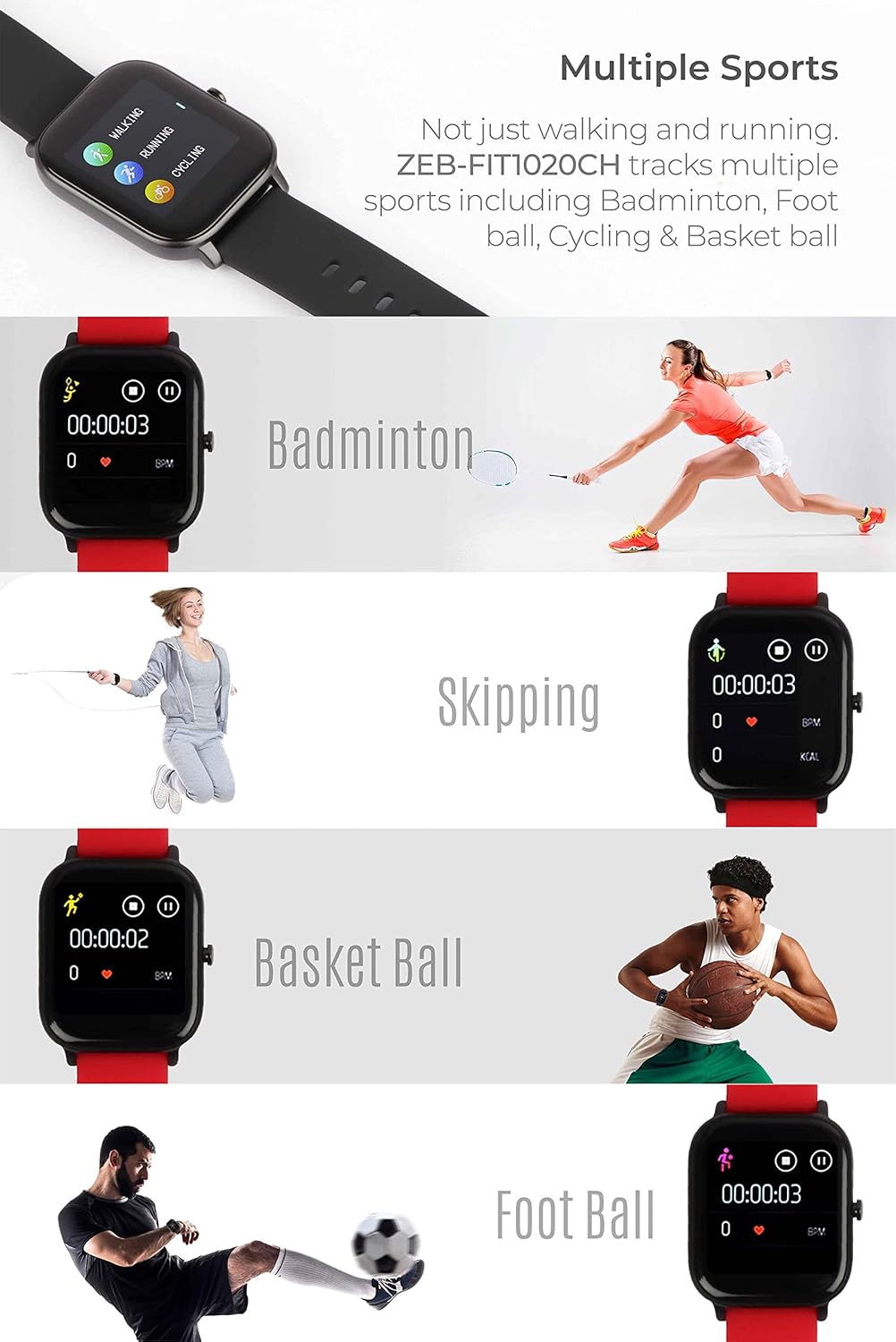
Image: A collage of various digital watch faces displayed on the Zeb FIT1020CH, including options with time, date, health metrics, and custom background images, one featuring a person's face.
Other Functions
- Sedentary Reminder: Set reminders in the app to encourage movement after periods of inactivity.
- Alarm Clock: Set alarms through the app, and the band will vibrate to alert you.
- Remote Camera Shutter: Use your band as a remote control for your phone's camera.
- Music Control: Control music playback on your phone (play, pause, skip tracks) directly from the band.
- Find Phone: Activate this feature on the band to make your phone ring (if within Bluetooth range).
Maintenance and Care
- Cleaning: Regularly clean your fitness band and strap with a soft, dry cloth. If necessary, use a slightly damp cloth and mild soap, then rinse and dry thoroughly.
- Water Resistance: The band is IP67 water and dustproof, meaning it can withstand splashes, rain, and brief immersion in shallow water. Avoid hot water, steam, or prolonged submersion. Do not press buttons underwater.
- Storage: Store the device in a cool, dry place when not in use.
- Avoid Chemicals: Do not expose the band to strong chemicals, solvents, or detergents, as these can damage the materials.
Troubleshooting
- Device not turning on:
- Ensure the device is fully charged. Connect it to the charger for at least 30 minutes.
- Cannot pair with smartphone:
- Ensure Bluetooth is enabled on your phone.
- Make sure the band is charged and within Bluetooth range of your phone.
- Restart both your phone and the fitness band.
- Try unpairing and re-pairing the device through the app.
- Check if the app has necessary permissions (location, Bluetooth).
- Inaccurate health data:
- Ensure the band is worn snugly on your wrist, about one finger's width from your wrist bone.
- Keep still during measurements for blood pressure and SpO2.
- Clean the sensor on the back of the band.
- Note that fitness bands are not medical devices and readings are for reference only.
- Notifications not appearing:
- Verify that the band is successfully paired with your phone.
- Check app settings to ensure notifications are enabled for the desired applications.
- Ensure your phone's notification settings allow the companion app to display alerts.
- Keep the app running in the background.
Specifications
| Feature | Specification |
|---|---|
| Model Name | FIT1020CH |
| Brand | ZEBRONICS |
| Operating System | Smartwatch OS |
| Display Type | LED |
| Water Resistance Level | IP67 Waterproof |
| Battery Average Life | 30 Days (Standby) |
| Human Interface Input | Buttons, Touch Control |
| Case Material Type | Ceramic |
| Supported Application | Fitness Tracker (via companion app) |
| Compatible Devices | Smartphone (ALL SMARTPHONES) |
Warranty and Support
For warranty information, please refer to the warranty card included in your product packaging or visit the official ZEBRONICS website. For technical support, product inquiries, or service requests, please contact ZEBRONICS customer support through their official channels. Keep your purchase receipt as proof of purchase for warranty claims.
Official Website: www.zebronics.com


