
DCOLOR H.264 DVB-S/S2

Dcolor DVB-S/S2 Sat Receiver TV Stick
User Manual
1. Introduction
Thank you for purchasing the Dcolor DVB-S/S2 Sat Receiver TV Stick. This compact and versatile device allows you to receive DVB-S/S2 satellite channels in Full HD 1080P, record your favorite shows, and play multimedia files. Its discreet design allows it to be hidden behind your TV, providing a clean setup. This manual provides essential information for setting up, operating, maintaining, and troubleshooting your new device.
What's in the Box:
- DVB-S2 HDMI TV Stick
- Remote Control
- IR Receiver
- DC 12V Power Cable
- User Manual

Figure 1.1: Dcolor DVB-S/S2 Sat Receiver TV Stick and included remote control.

Figure 1.2: The Dcolor Sat Receiver provides Full HD 1080P and can be discreetly hidden behind your television.
2. Setup
Follow these steps to set up your Dcolor DVB-S/S2 Sat Receiver TV Stick:
- Connect to TV: Plug the HDMI connector of the TV Stick directly into an available HDMI port on your television. The device is designed to be hidden behind the TV.
- Connect IR Receiver: Plug the IR receiver cable into the 'IR' port on the TV Stick. Position the IR receiver in a location where it has a clear line of sight to your remote control.
- Connect Power: Connect the DC 12V power cable to the 'DC' port on the TV Stick and plug the other end into a power outlet.
- Connect Antenna: Connect your satellite antenna cable to the DVB-S/S2 tuner port on the TV Stick.
- Select Input: Turn on your TV and select the correct HDMI input source to which the Dcolor TV Stick is connected.
- Initial Scan: Upon first use, the device may prompt you to perform an initial channel scan. Follow the on-screen instructions to scan for available satellite channels. The device comes with Astra and Hotbird signals pre-installed for convenience.
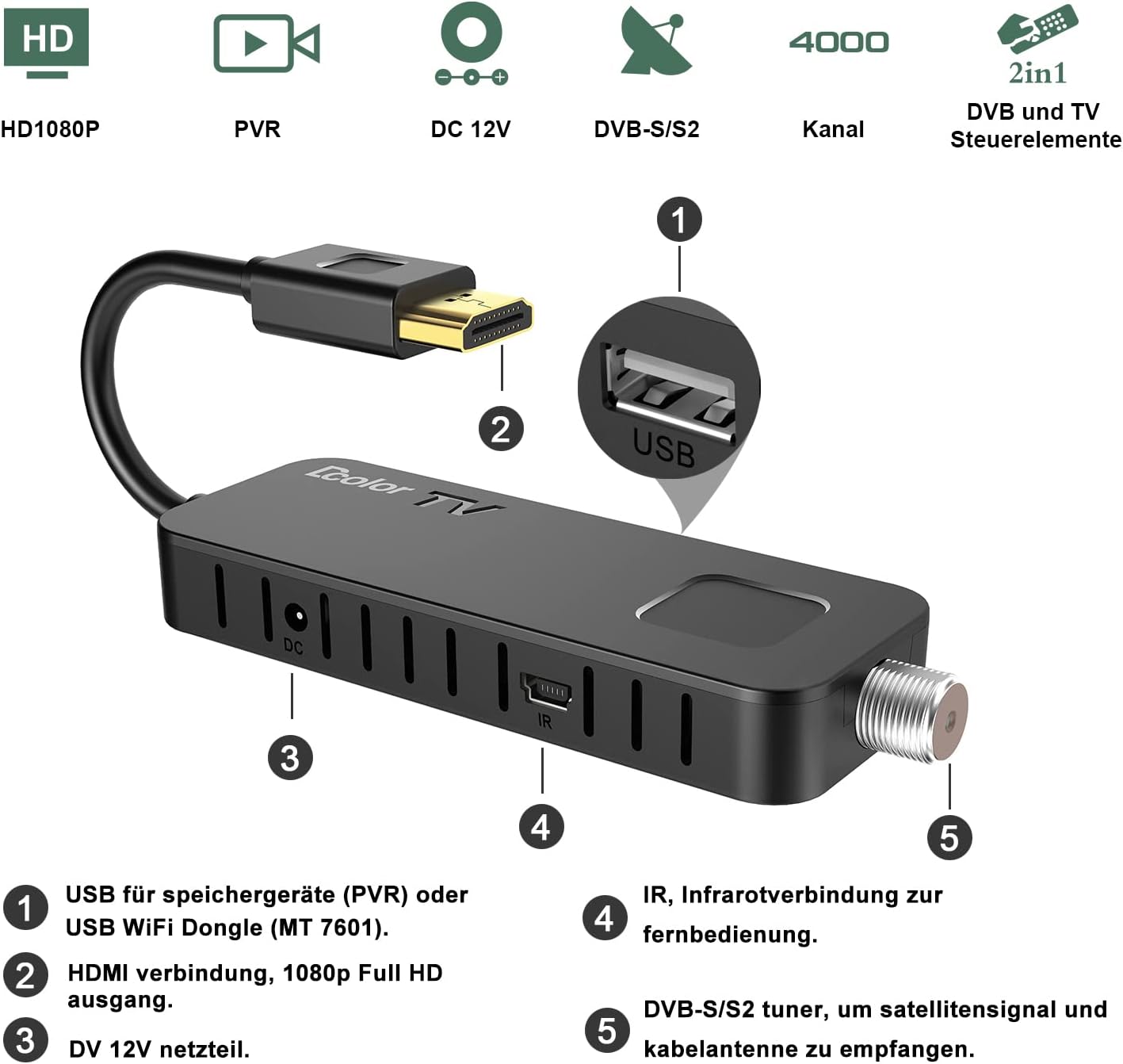
Figure 2.1: Overview of the Dcolor TV Stick's ports: USB, HDMI, DC 12V, IR, and DVB-S/S2 tuner.

Figure 2.2: The compact design allows the TV Stick to be discreetly installed behind your television.

Figure 2.3: Step-by-step guide for connecting the Dcolor TV Stick to your HDTV, power, IR receiver, and antenna.
3. Operating Instructions
3.1 Basic Functions
- Power On/Off: Press the Power button on the remote control.
- Channel Navigation: Use the CH+/CH- buttons to change channels. You can also enter channel numbers directly using the numeric keypad.
- Volume Control: Use the VOL+/VOL- buttons to adjust the volume.
- Menu: Press the MENU button to access the main menu for settings, channel management, and other features.
- OK: Press the OK button to confirm selections or view channel information.
3.2 PVR Function (Recording)
The Dcolor TV Stick supports PVR (Personal Video Recorder) functionality, allowing you to record live TV shows. A USB storage device (up to 4TB, formatted as FAT32) is required for recording.
- Connect USB Storage: Insert a FAT32 formatted USB hard drive or flash drive into the USB 2.0 port on the TV Stick.
- Instant Recording: While watching a channel, press the REC button on the remote control to start recording immediately. Press STOP to end the recording.
- Scheduled Recording (Timer): Access the menu, navigate to the 'Timer' or 'PVR' section, and set a schedule for future recordings. You can specify the channel, start time, end time, and frequency.
- Access Recordings: Recorded files can be found and played back through the 'Media Player' or 'PVR' section in the main menu.
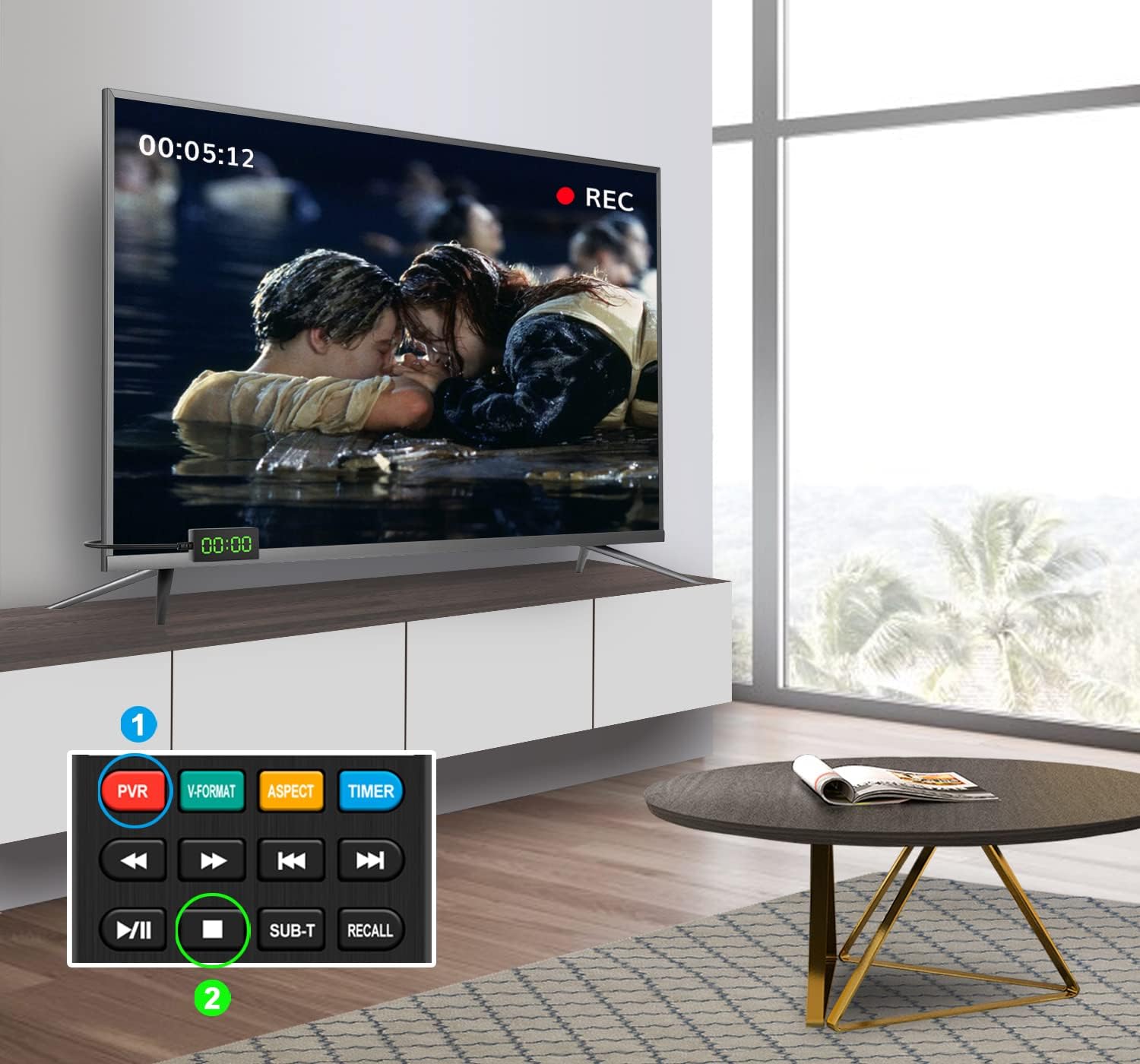
Figure 3.1: Illustrates the PVR recording function, allowing you to capture live television content.
3.3 USB 2.0 Media Player
The built-in USB 2.0 Media Player allows you to enjoy various multimedia files (MP4 video, MP3 music, JPG images) from your USB storage device.
- Connect USB Storage: Ensure your USB device is connected to the USB 2.0 port.
- Access Media Player: From the main menu, select the 'Media Player' option.
- Browse Files: Navigate through your USB device's folders to find the desired video, music, or image files.
- Playback: Select a file and press OK to start playback. Use the remote control's playback buttons (Play, Pause, Stop, Fast Forward, Rewind) as needed.

Figure 3.2: The Dcolor TV Stick supports USB multimedia playback, allowing you to enjoy various media files.
3.4 Remote Control Features
The included 2-in-1 remote control is designed for both the Dcolor TV Stick and basic TV functions. It features self-learning capabilities for TV control.

Figure 3.3: Detailed layout of the Dcolor TV Stick remote control, highlighting key function buttons.

Figure 3.4: The 2-in-1 self-learning remote control can be programmed to operate both the receiver and your TV.
For detailed instructions on programming the self-learning functions (e.g., TV Power, TV/AV, Volume +/-), please refer to the specific section in the full user manual or contact customer support.
4. Maintenance
To ensure the longevity and optimal performance of your Dcolor DVB-S/S2 Sat Receiver TV Stick, follow these maintenance guidelines:
- Cleaning: Use a soft, dry cloth to clean the device. Do not use liquid cleaners or aerosols, as they may damage the components.
- Ventilation: Ensure the device has adequate ventilation. Do not cover the ventilation holes or place it in an enclosed space that could lead to overheating.
- Power Off When Not in Use: If you plan not to use the device for an extended period, it is advisable to unplug it from the power outlet.
- Software Updates: Periodically check the manufacturer's website for any available software or firmware updates. Updates can improve performance, add new features, or fix bugs.
5. Troubleshooting
If you encounter issues with your Dcolor DVB-S/S2 Sat Receiver TV Stick, refer to the following common problems and solutions:
| Problem | Possible Cause | Solution |
|---|---|---|
| No picture or sound | Incorrect TV input selected; Loose HDMI connection; No power to device. | Ensure your TV is on the correct HDMI input. Check that the HDMI cable is securely connected. Verify the power cable is properly connected and the device is powered on. |
| Cannot find channels | Antenna not connected or misaligned; Incorrect satellite settings; Signal strength too low. | Check your satellite antenna connection and ensure it is properly aligned. Verify the correct satellite (e.g., Astra, Hotbird) is selected in the settings. Perform a new channel scan. |
| Remote control not working | Batteries are dead or inserted incorrectly; IR receiver is blocked or not connected. | Replace batteries with new ones, ensuring correct polarity. Check that the IR receiver is securely plugged into the TV Stick and has a clear line of sight to the remote. |
| PVR recording not working | USB drive not connected or not FAT32 formatted; Insufficient storage space. | Ensure the USB drive is connected and formatted to FAT32. Check for available storage space on the USB drive. |
If the problem persists after trying these solutions, please contact Dcolor customer support for further assistance.
6. Specifications
| Feature | Detail |
|---|---|
| Model Number | H.264 DVB-S/S2 |
| Product Dimensions | 10.6 x 3.8 x 1.5 cm; 270 Grams |
| Manufacturer | DCOLOR |
| Connectivity Technology | HDMI |
| Total USB Ports | 1 |
| Audio Output Mode | Surround |
| Storage Capacity (USB) | Up to 4 TB (FAT32 format recommended) |
| Country of Origin | China |
| Available on Amazon.de since | 28 April 2022 |
7. Warranty and Support
Dcolor products are designed for reliability and performance. For any questions, technical support, or warranty inquiries, please refer to the contact information provided with your purchase or visit the official Dcolor support website.
If you cannot find the user manual or require further assistance, please do not hesitate to contact Dcolor customer service. They are available to help with setup, operation, and troubleshooting.
Please retain your proof of purchase for warranty purposes.
Ask a question about this manual
Ask about setup, troubleshooting, compatibility, parts, safety, or missing instructions. Manuals+ will review the question and use this page’s manual context to help answer it.