
Introduction
This manual provides comprehensive instructions for the Linkidea USB-C to 3.5mm Audio Cable, Model LI5260. This cable is designed to facilitate audio connectivity between devices equipped with a USB-C port and headphones or other audio equipment featuring a 3.5mm audio jack. Please read this manual thoroughly to ensure proper usage and optimal performance.

Figure 1: Linkidea USB-C to 3.5mm Audio Cables (2-pack)
This image displays two black Linkidea USB-C to 3.5mm audio cables. Each cable features a gold-plated 3.5mm connector on one end and a black USB-C connector on the other, highlighting the product's primary components.
Product Features
- High-Quality Material: Constructed with oxygen-free copper wire for stable signal transmission, heat resistance, and corrosion resistance, ensuring extended service life.
- Durable Design: Features a soft and flexible PVC protective layer, enhancing heat and cold resistance for increased durability.
- Universal Compatibility: Designed for broad compatibility with USB-C enabled devices and 3.5mm audio jack headphones.
- Length: Each cable measures 3.3 feet (1 meter).
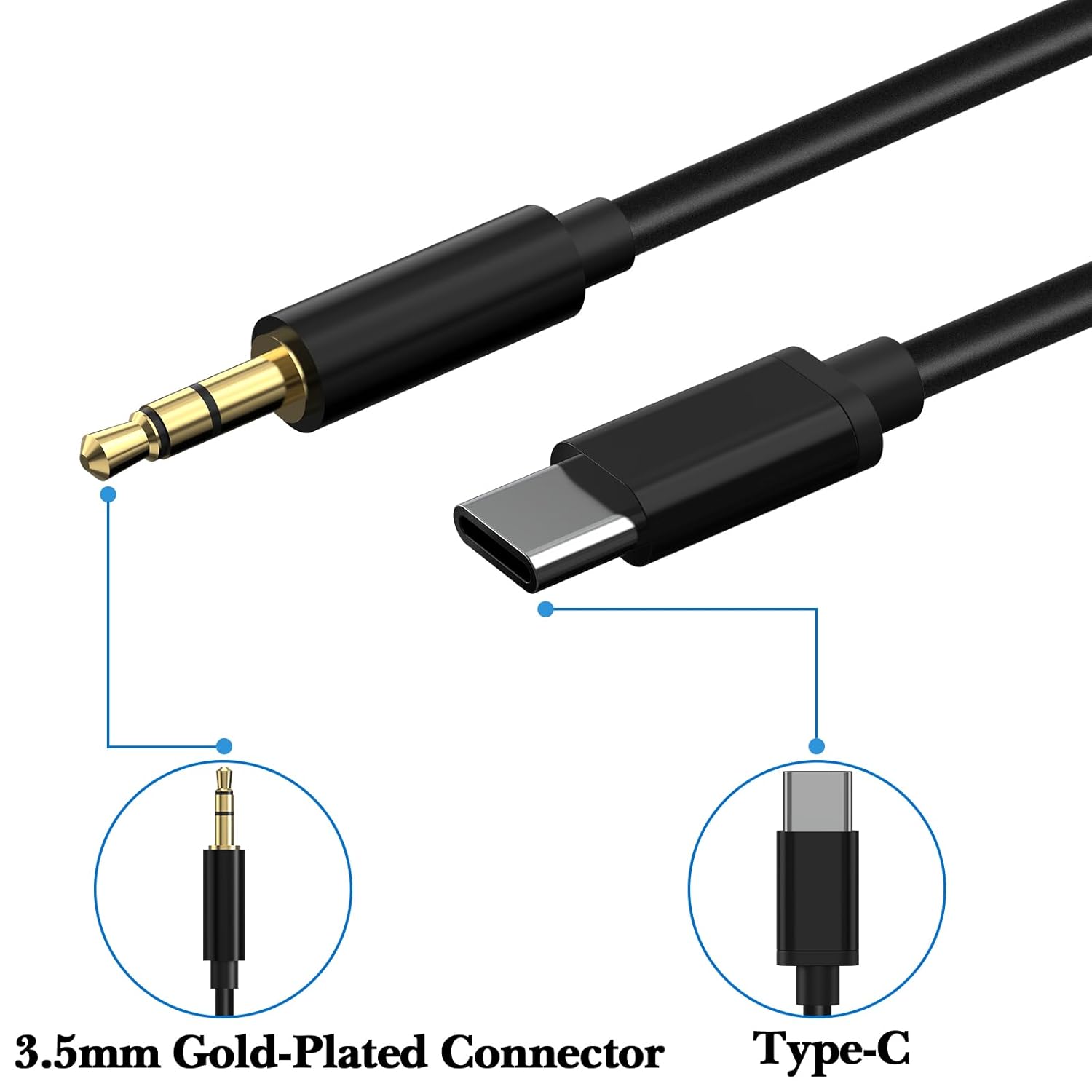
Figure 2: Connector Details
This image provides a detailed view of both ends of the audio cable. It clearly labels the 3.5mm gold-plated connector and the Type-C connector, illustrating the two distinct connection types.
Setup and Connection
Follow these steps to connect your Linkidea USB-C to 3.5mm Audio Cable:
- Identify Ports: Locate the USB-C port on your audio source device (e.g., smartphone, tablet, laptop) and the 3.5mm audio jack on your headphones or speaker system.
- Connect USB-C End: Insert the USB-C connector of the cable firmly into the USB-C port of your audio source device.
- Connect 3.5mm End: Insert the 3.5mm connector of the cable firmly into the 3.5mm audio jack of your headphones or speaker system.
- Verify Connection: Ensure both ends are securely connected to prevent audio interruptions or poor sound quality.

Figure 3: Connection Diagram
This diagram illustrates the connection process. It shows a smartphone with a USB-C port and a pair of headphones with a 3.5mm jack, with the Linkidea cable connecting the two devices, demonstrating a typical setup.
Operating Instructions
Once the cable is connected, your audio source device should automatically recognize the external audio output. No additional drivers or software are typically required.
- Audio Playback: Begin playing audio on your USB-C device. Sound should now be routed through the connected headphones or speakers.
- Volume Control: Adjust the volume directly from your audio source device or through the controls on your headphones/speakers, if available.
- Disconnection: To disconnect, gently pull the connectors straight out from both the device and the headphones. Avoid pulling on the cable itself to prevent damage.
Compatibility
The Linkidea USB-C to 3.5mm Audio Cable is compatible with a wide range of devices. Below is a list of tested and compatible headphones and USB-C source devices:
Compatible Headphones (3.5mm Jack):
- Soundcore Space One Pro
- Soundcore Space One
- Soundcore Q45
- Soundcore Q11i
- Soundcore H30i
- Soundcore Life Q35
- Soundcore Life Q30
- Soundcore Life Q20
- Soundcore Life Q10
- Soundcore Life 2 Neo
- Soundcore Space NC
- Soundcore Life Tune XR
- Soundcore Vortex
- Most other headphones with a standard 3.5mm audio input.
Compatible USB-C Source Devices:
- Apple iPhone 16/16 Pro/16 Plus/16 Pro Max
- Apple iPhone 15/15 Pro/15 Plus/15 Pro Max
- Apple iPad Pro (USB-C models)
- Samsung Galaxy S24/S24+/S24 Ultra
- Samsung Galaxy S23/S23+/S23 Ultra
- Samsung Galaxy S22/S22+/S22 Ultra
- Samsung Galaxy S21/S21+/S21 Ultra
- Google Pixel 8/7/6 Pro
- Huawei Mate 70/Mate 60/Mate 50
- Huawei P70/P60/P50
- Other devices with a functional USB-C audio output port.

Figure 4: Compatible Soundcore Headphone Models
This image visually confirms compatibility with several Soundcore headphone models, including H30i, Space One, Q20i, Q35, Q30, and Q45, each shown with a checkmark.
Maintenance and Care
Proper care will extend the life and maintain the performance of your audio cable:
- Cleaning: Use a soft, dry cloth to wipe the cable and connectors. Avoid using harsh chemicals or abrasive materials.
- Storage: Store the cable in a cool, dry place, away from direct sunlight and extreme temperatures. Avoid tightly coiling or bending the cable at sharp angles to prevent internal damage.
- Handling: Always grasp the connector housing when plugging or unplugging the cable. Do not pull on the cable itself.
Troubleshooting
If you encounter issues with your Linkidea USB-C to 3.5mm Audio Cable, refer to the following common problems and solutions:
| Problem | Possible Cause | Solution |
|---|---|---|
| No audio output |
|
|
| Intermittent audio |
|
|
| Poor sound quality (static, distortion) |
|
|
Specifications
| Feature | Detail |
|---|---|
| Model Number | LI5260 |
| Connector Type (Source) | USB-C Male |
| Connector Type (Output) | 3.5mm TRS Male (Gold-Plated) |
| Cable Type | AUX Audio Cable |
| Cable Material | Oxygen-Free Copper Wire with PVC Protective Layer |
| Length | 3.3 ft (1 meter) |
| Product Dimensions | 39.37 x 0.12 x 0.12 inches |
| Item Weight | 0.71 ounces |
| Package Contents | 2 x Linkidea USB-C to 3.5mm Audio Cable |

Figure 5: Cable Length Illustration
This image displays a single black audio cable coiled to demonstrate its full length, which is clearly labeled as 3.3 feet (100 cm).
Important Notes
- This product is an audio cable only. Headphones or other audio devices are not included.
- Ensure your USB-C device supports audio output through its USB-C port. Some USB-C ports are for charging or data transfer only.