
Ulefone US-ARM12-BK
Ulefone Armor 12 5G Rugged Smartphone
User Manual
Introduction
This manual provides comprehensive instructions for the setup, operation, maintenance, and troubleshooting of your Ulefone Armor 12 5G Rugged Smartphone. Please read this manual carefully to ensure proper use and to maximize the device's capabilities.
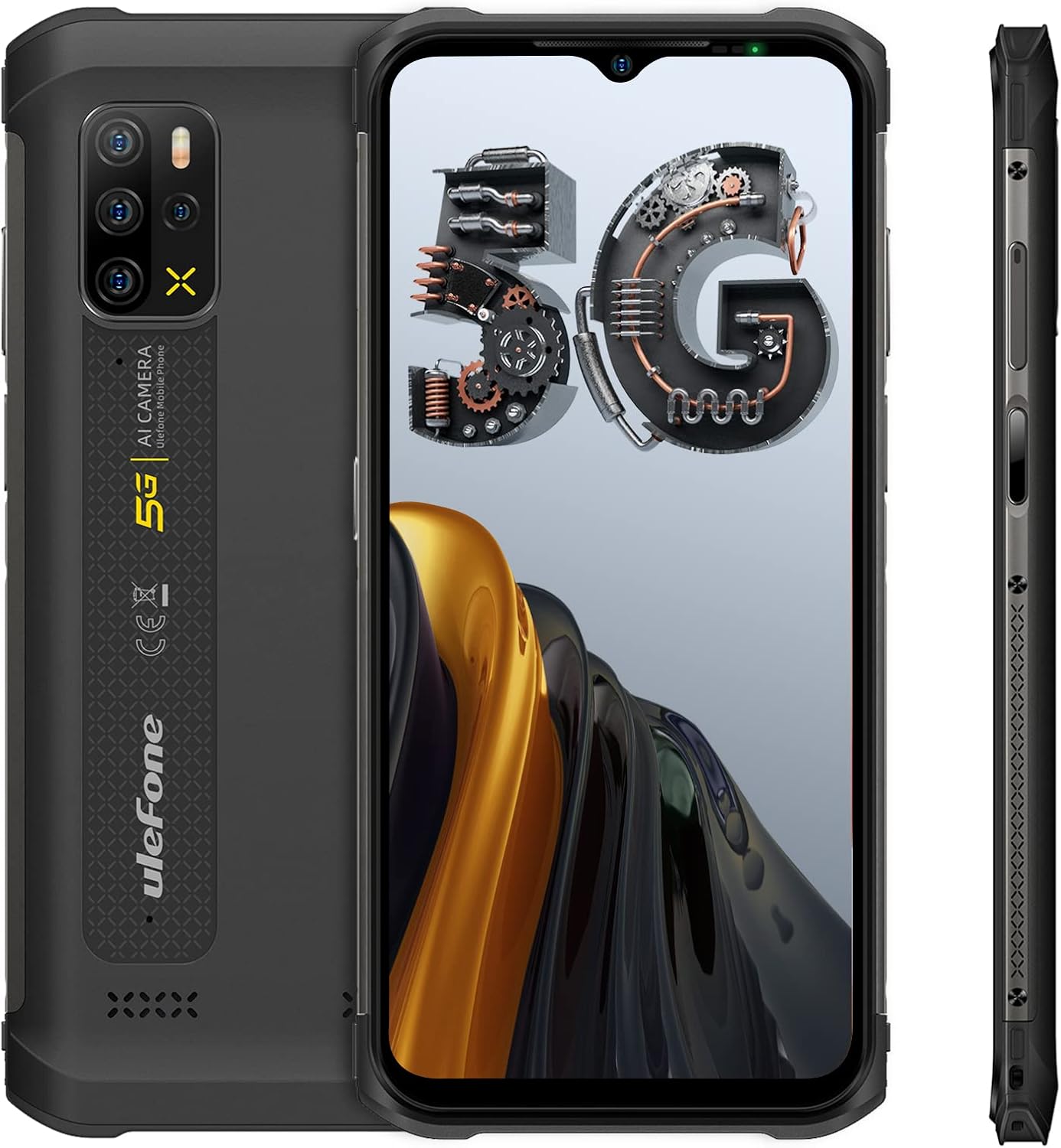
Figure 1: Front, back, and side views of the Ulefone Armor 12 5G Rugged Smartphone.
Package Contents
Upon opening the package, verify that all items listed below are present:
- 1 x Ulefone Armor 12 5G Rugged Smartphone
- 1 x AC power charger (US Plug)
- 1 x Type-C to 3.5mm Audio Adapter
- 1 x Tempered Glass Screen Protector
- 1 x SIM needle
- 1 x Sling
Setup
1. SIM Card and Storage Installation
To install your SIM card(s) and an optional microSD card for expanded storage:
- Locate the SIM tray on the side of the device.
- Insert the provided SIM needle into the small hole next to the tray to eject it.
- Place your Nano-SIM card(s) and/or microSD card into the designated slots on the tray. Ensure correct orientation.
- Carefully reinsert the tray into the device until it clicks into place.

Figure 2: The Ulefone Armor 12 5G features 8GB RAM and 128GB internal storage, expandable via microSD card.
2. Initial Power On and Setup
Press and hold the Power button located on the side of the device until the Ulefone logo appears. Follow the on-screen prompts to complete the initial setup, including language selection, Wi-Fi connection, and Google account sign-in.
3. Charging the Device
The Ulefone Armor 12 5G supports both wired and wireless charging.
- Wired Charging: Connect the provided AC power charger to the Type-C port at the bottom of the phone. The device supports 18W fast charging.
- Wireless Charging: Place the device on a compatible 15W wireless charging pad. Ensure the phone is centered on the pad for optimal charging.

Figure 3: The 5180mAh battery supports 15W wireless charging for convenience.

Figure 4: Visual representation of the 6.52-inch display and the 5180mAh battery's charging capabilities.
Operating Instructions
1. Display and Navigation
The device features a 6.52-inch HD+ waterdrop screen with 10-point multi-touch support. Navigate the interface using standard Android gestures: tap, swipe, pinch-to-zoom.
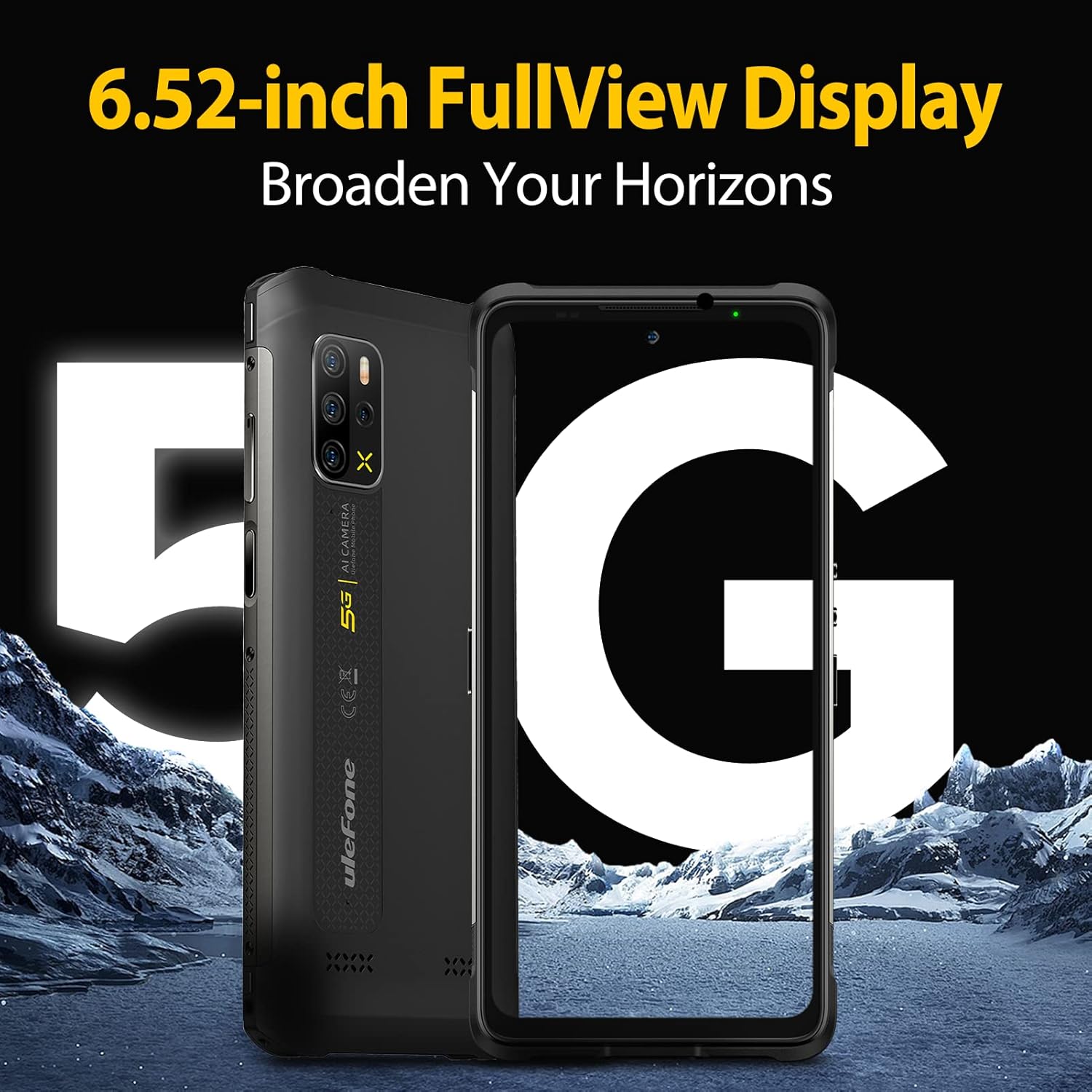
Figure 5: The 6.52-inch FullView Display provides an expansive viewing experience.
2. Camera System
The Ulefone Armor 12 5G is equipped with a versatile quad-camera system on the rear and a high-resolution front camera.
- Rear Cameras:
- 48MP Main Camera
- 8MP Wide-angle Camera
- 2MP Macro Lens
- 2MP Depth Sensor
- Front Camera: 16MP for selfies and video calls.
Open the Camera application from the home screen or app drawer to capture photos and videos. Various modes are available, including Night Mode and Macro Mode, to enhance your photography.
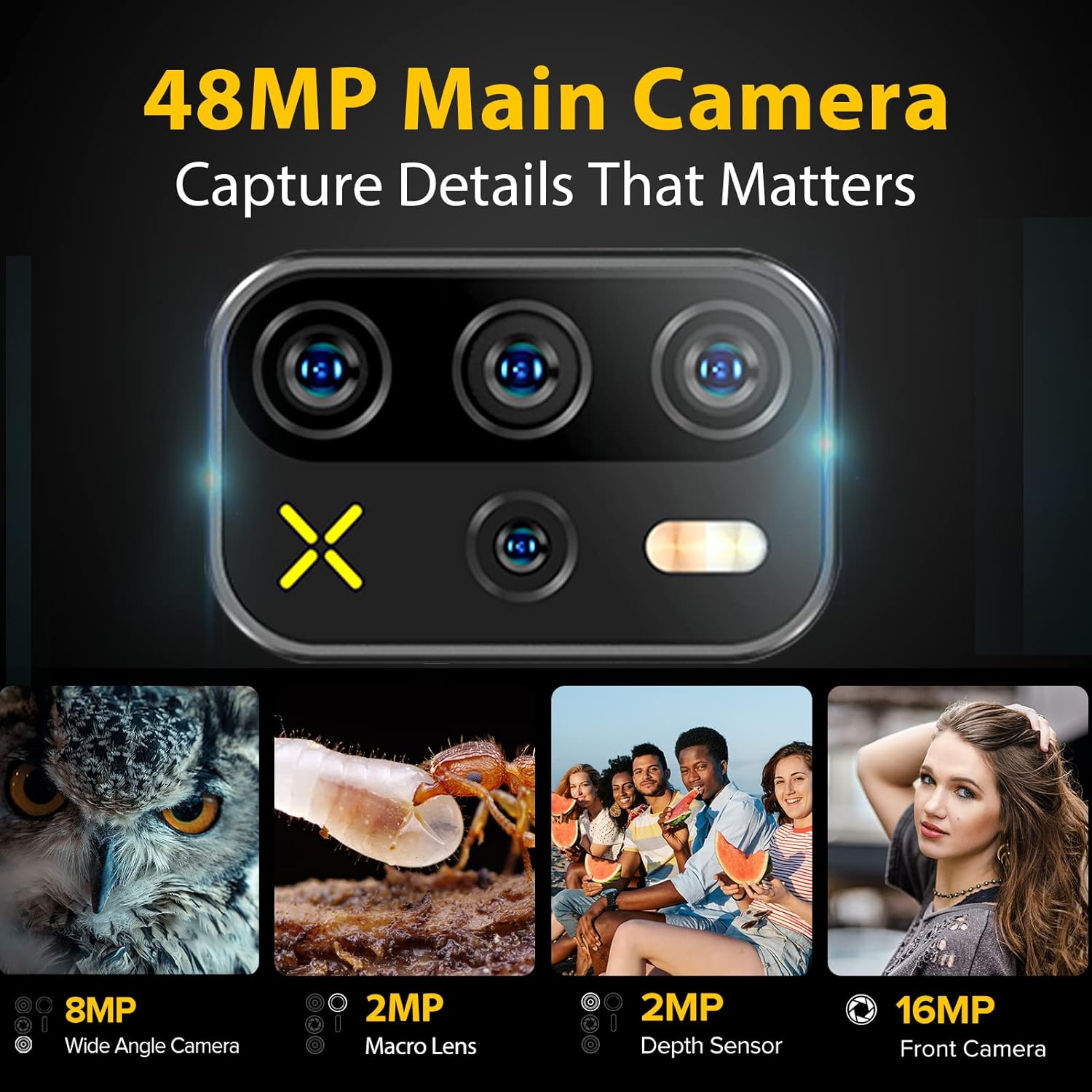
Figure 6: The 48MP Quad Rear Camera system captures detailed images in various scenarios.

Figure 7: Overview of the camera system, highlighting the main, wide-angle, macro, and depth sensors, along with the front camera.
3. FM Radio Functionality
The Ulefone Armor 12 5G features a headset-free FM radio, allowing you to listen to radio broadcasts without needing to plug in earphones as an antenna. This is enabled by the symmetrical dual 1216 super-linear speakers.
To access the FM Radio, open the FM Radio application. You can scan for stations and adjust the volume directly through the phone's interface.
Video 1: Demonstration of the Ulefone Armor 12's headset-free FM Radio feature, showing how to tune stations without external headphones.

Figure 8: The device runs on Android 11 and supports headset-free FM radio.
4. Connectivity Features
- 5G Network: Supports 5G NR bands N1/3/28/38/41/77/78. Compatible with Sprint (n41) and T-Mobile (n41) networks.
- Wi-Fi: Supports 2.4G and 5G Wi-Fi for high-speed internet access.
- Bluetooth: For connecting to wireless accessories.
- NFC & Google Pay: Enable contactless payments and data transfer.
- GPS: Integrated GPS, Glonass, Galileo, and Beidou for accurate navigation.

Figure 9: The device offers advanced navigation and security features.
5. Security and Customization
- Face Unlock & Fingerprint ID: Securely unlock your device using facial recognition or the side-mounted fingerprint sensor.
- Custom Key: A programmable physical button that can be assigned to quickly launch an app or function.

Figure 10: Features like NFC, Digital Toolkit, and Custom Key enhance usability.
Maintenance
1. Ruggedness and Durability
The Ulefone Armor 12 5G is designed to withstand harsh environments, certified with IP68/IP69K and Mil-STD-810G standards. This means it is:
- Waterproof: Submersible up to 1.5 meters for 30 minutes.
- Dust Resistant: Fully protected against dust ingress.
- Drop Resistant: Can withstand drops from up to 1.2 meters.
While rugged, avoid intentional abuse or exposing the device to extreme conditions beyond its specified limits. Ensure all port covers are securely closed before exposing the device to water or dust.

Figure 11: The Ulefone Armor 12 5G is built to IP68/IP69K standards for enhanced durability.


Figure 12: The device is designed to withstand water, dust, and drops, making it suitable for various environments.
2. Cleaning and Care
To clean your device, use a soft, lint-free cloth. For stubborn dirt or grime, a slightly damp cloth with mild soap can be used, ensuring all port covers are sealed. Avoid harsh chemicals or abrasive materials. The phone also features Composite Silver Ion for high antibacterial ability.

Figure 13: The Composite Silver Ion material provides enhanced antibacterial protection.
3. Battery Longevity
To prolong battery life, avoid fully discharging the battery frequently. Charge the device regularly, ideally before it drops below 20%. Avoid exposing the phone to extreme temperatures, as this can degrade battery performance over time.
Troubleshooting
If you encounter issues with your Ulefone Armor 12 5G, refer to the common solutions below:
| Problem | Possible Solution |
|---|---|
| Device not powering on | Ensure the battery is charged. Connect to the charger for at least 10 minutes before attempting to power on again. If unresponsive, try a forced restart by holding the Power button for 10-15 seconds. |
| Charging issues (flickering, slow) | Check the charging cable and adapter for damage. Ensure the Type-C port is clean and free of debris. Try a different charger or cable. For wireless charging, ensure proper alignment on the charging pad. |
| No network signal / Call issues | Verify SIM card is correctly inserted. Check network settings (APN, preferred network type). Restart the device. Contact your carrier to confirm service availability in your area. |
| Apps crashing or freezing | Clear the cache and data of the problematic app in Settings > Apps. Update the app to the latest version. If the issue persists, uninstall and reinstall the app. |
| Fingerprint reader not working | Ensure your finger is clean and dry. Re-register your fingerprints in Settings > Security. If the issue persists, a factory reset might be necessary (backup data first). |
Specifications
Key technical specifications for the Ulefone Armor 12 5G:
| Feature | Detail |
|---|---|
| Model Number | US-ARM12-BK |
| Dimensions | 6.92 x 3.23 x 0.56 inches |
| Weight | 1.37 pounds |
| Operating System | Android 11.0 |
| Processor | MediaTek Dimensity 700 5G (Octa Core up to 2.2GHz) |
| RAM | 8 GB |
| Internal Storage | 128 GB (expandable up to 1TB via SD card) |
| Display Size | 6.52 Inches |
| Display Resolution | 2K |
| Rear Camera System | 48MP Main, 8MP Wide-angle, 2MP Macro, 2MP Depth Sensor |
| Front Camera | 16MP |
| Battery Capacity | 5180 mAh |
| Wired Charging | 18W Fast Charging |
| Wireless Charging | 15W |
| Network Compatibility | 5G NR: N1/3/28/38/41/77/78 (Sprint(n41), T-Mobile(n41)) |
| Water/Dust/Drop Resistance | IP68/IP69K, Mil-STD-810G |
| Special Features | Dual HiFi Speakers, Headset-free FM Radio, NFC, Google Pay, Custom Key, Face & Fingerprint Unlock, GPS+Glonass+Galileo+Beidou |
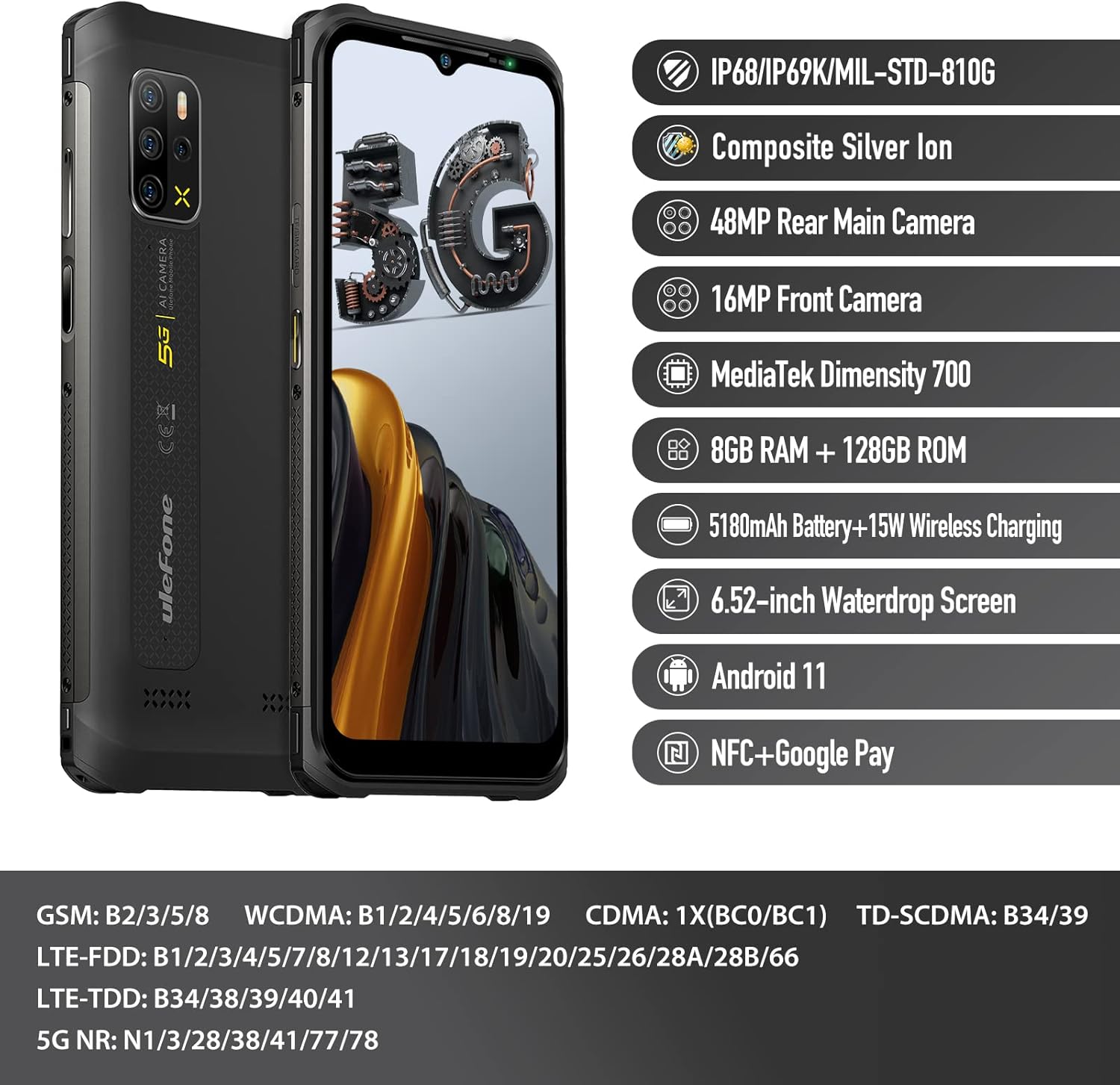
Figure 14: Key features and specifications of the Ulefone Armor 12 5G.

Figure 15: The MediaTek Dimensity 700 5G chipset powers the device with ample storage.
Warranty and Support
The Ulefone Armor 12 5G Rugged Smartphone comes with a 12-month warranty from the date of purchase. Please note that the screen is not covered under this warranty.
For technical support, warranty claims, or any inquiries, please contact Ulefone customer service at: amazon@ulefone.com.
Ask a question about this manual
Ask about setup, troubleshooting, compatibility, parts, safety, or missing instructions. Manuals+ will review the question and use this page’s manual context to help answer it.