
Nulea M502
Nulea Wireless Vertical Mouse User Manual
Model: M502
Introduction
Thank you for choosing the Nulea Wireless Vertical Mouse. This advanced ergonomic mouse is designed to reduce muscle strain and provide a comfortable user experience. With 2400 DPI, USB-C rechargeable battery, and the ability to connect to three devices via Bluetooth or USB, it offers versatile compatibility for PC, laptop, iPad, Mac, and Windows systems. This manual provides detailed instructions for setup, operation, maintenance, and troubleshooting to ensure optimal performance of your device.
Product Overview
Familiarize yourself with the components of your Nulea Wireless Vertical Mouse.
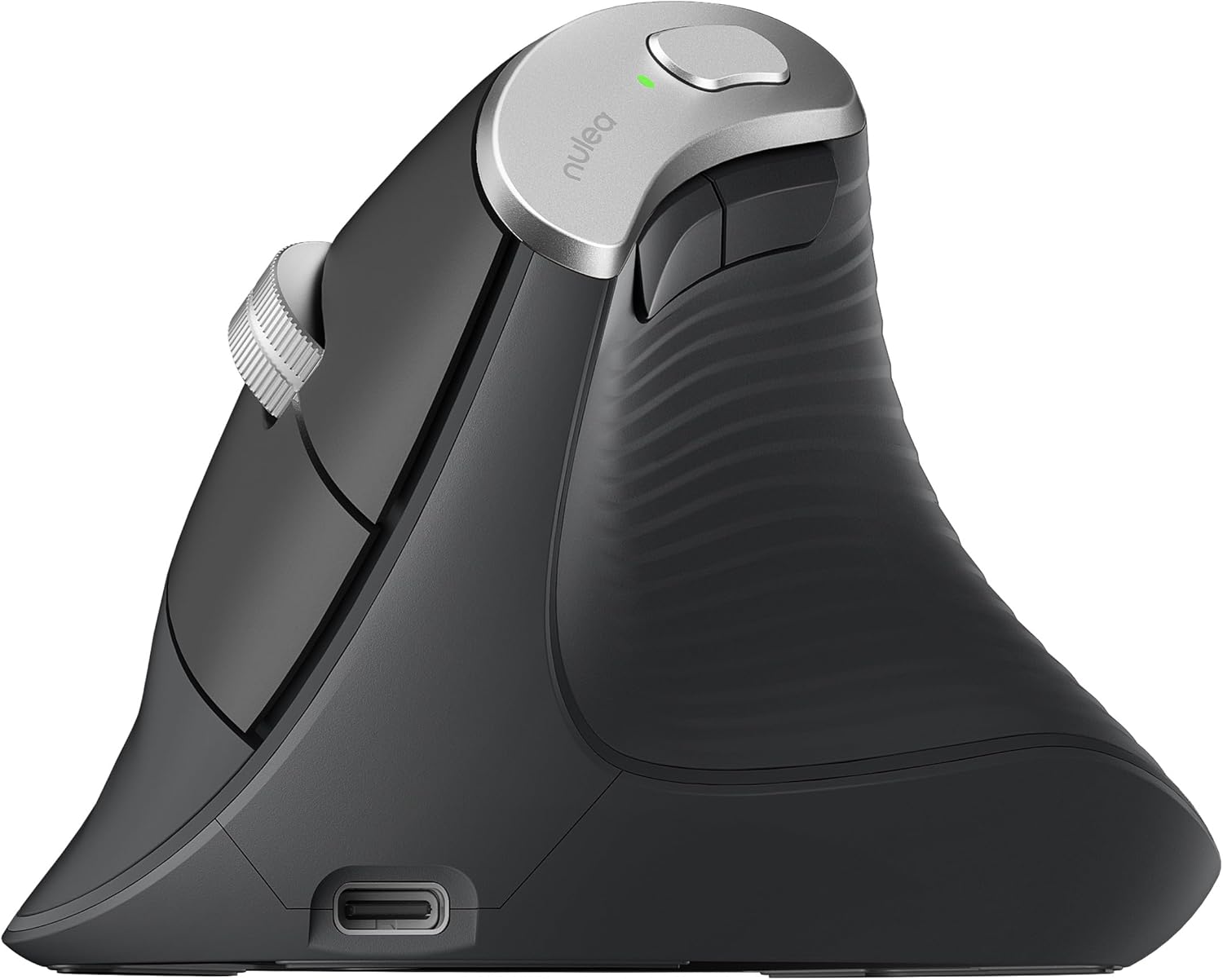
Image: Side view of the Nulea Wireless Vertical Mouse, showcasing its ergonomic design and USB-C charging port.
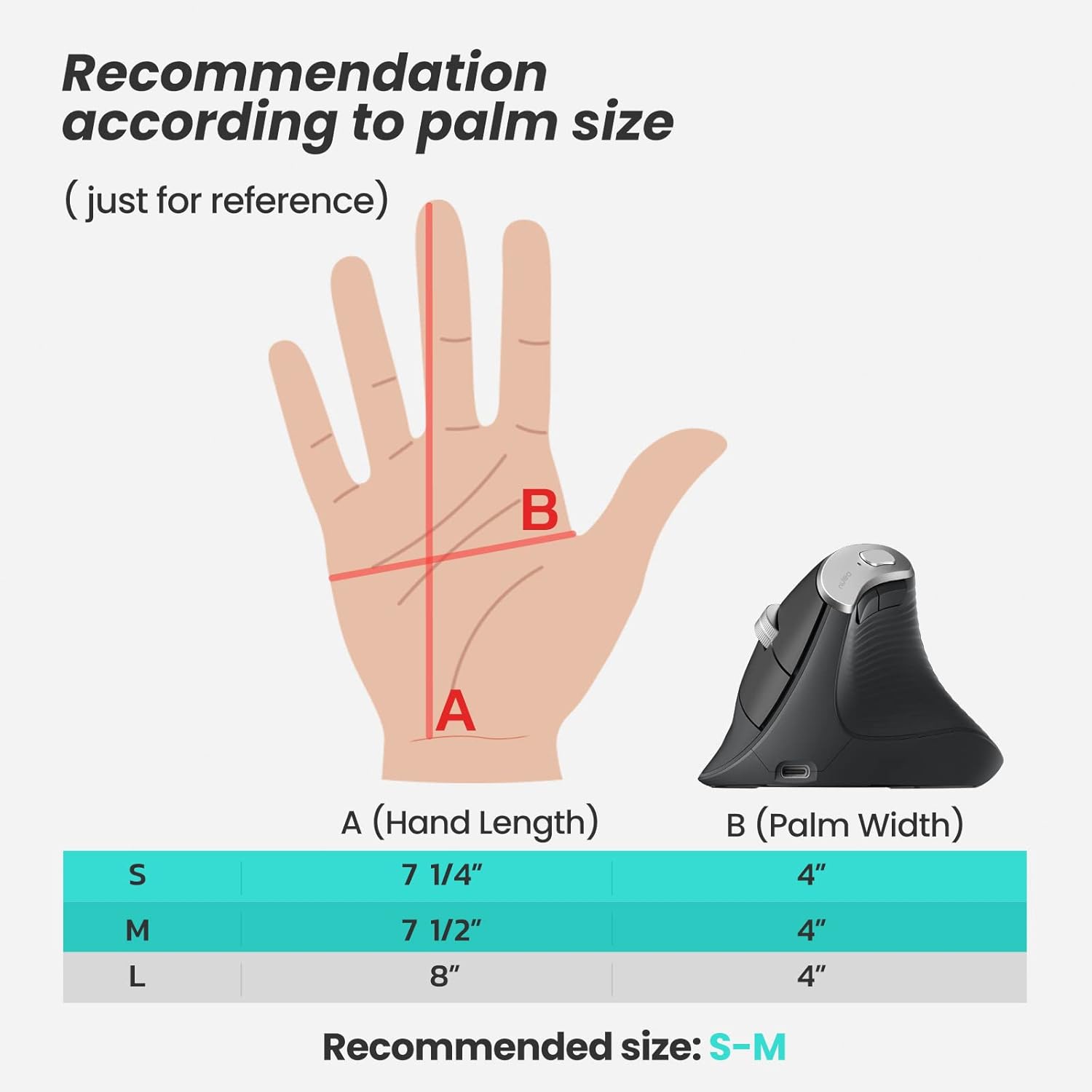
Image: Diagram of the Nulea Wireless Vertical Mouse with numbered labels indicating its various buttons and features.
- 1. Right Button: Standard right-click function.
- 2. Left Button: Standard left-click function.
- 3. Scroll Wheel: For vertical scrolling and middle-click.
- 4. DPI Switch: Adjusts mouse sensitivity (DPI levels).
- 5. Back to Desktop Button: Quickly minimizes all open windows to show the desktop.
- 6. Backward Button: Navigates back in web browsers or file explorers.
- 7. Forward Button: Navigates forward in web browsers or file explorers.
- 8. Charging Port: USB-C port for recharging the mouse.
Note: Forward/Backward/Desktop buttons are not compatible with MAC OS. All buttons are non-programmable.
Ergonomic Design Benefits
The Nulea Vertical Mouse is designed to promote a natural handshake position, reducing wrist and forearm pronation, which can alleviate muscle strain and discomfort associated with traditional mouse usage.

Image: A hand holding the Nulea Vertical Mouse, demonstrating the ergonomic natural grip in a handshake position.

Image: A visual comparison showing the wrist position with a traditional mouse (uncomfortable, red X) versus the natural, alleviated wrist position with a vertical mouse (comfortable, green checkmark).
For optimal comfort, consider the recommended palm size:

Image: A chart illustrating hand length (A) and palm width (B) measurements, with recommended mouse sizes (S, M, L) for different hand dimensions. The recommended size for this mouse is S-M.
Setup
Your Nulea Wireless Vertical Mouse offers flexible connectivity options: via USB dongle or Bluetooth. It can connect to up to three devices simultaneously.

Image: The bottom of the Nulea Vertical Mouse, showing the device switch (red button) and the storage compartment for the USB dongle, with illustrations of connecting to multiple devices via Bluetooth and USB.
Connecting via USB Dongle (2.4G Wireless)
- Locate the USB receiver (dongle) stored in the compartment at the bottom of the mouse.
- Plug the USB receiver into an available USB port on your computer.
- Turn on the mouse using the power switch located on the bottom. The mouse should automatically connect to your computer.
Connecting via Bluetooth
- Ensure the mouse is powered on.
- Press the device switch button on the bottom of the mouse to select one of the two Bluetooth channels (indicated by blue lights).
- Press and hold the device switch button for 3-5 seconds until the corresponding Bluetooth indicator light starts blinking rapidly, indicating pairing mode.
- On your computer or device, go to Bluetooth settings and search for new devices.
- Select "Nulea Mouse" (or similar name) from the list of available devices to complete the pairing process.
Switching Between Devices
To switch between connected devices (USB dongle, Bluetooth 1, Bluetooth 2), simply press the device switch button on the bottom of the mouse. The corresponding indicator light will illuminate to show the active connection.
Operating the Mouse
DPI Adjustment
The mouse features 3 adjustable DPI levels (1000, 1600, 2400) to suit your preference and task requirements. DPI (Dots Per Inch) determines how sensitive the mouse is to movement.

Image: The Nulea Vertical Mouse with an illuminated base, indicating the three adjustable DPI levels: 1000, 1600, and 2400.
- Press the DPI Switch button (labeled 4 in the Product Overview) located on the top of the mouse, near the scroll wheel, to cycle through the DPI settings.
- Each press will change the sensitivity, allowing you to find the optimal speed for your cursor.
Using Special Buttons
- Back to Desktop (Button 5): Press this button to instantly minimize all open windows and display your desktop.
- Backward (Button 6) & Forward (Button 7): These buttons are useful for navigating web pages or folders. Press 'Backward' to go to the previous page/folder, and 'Forward' to go to the next.
Maintenance
Proper care will extend the life of your Nulea Wireless Vertical Mouse.
- Cleaning: Use a soft, dry cloth to wipe the surface of the mouse. For stubborn dirt, slightly dampen the cloth with water. Avoid using harsh chemicals or abrasive cleaners.
- Charging: When the battery is low, connect the mouse to a power source using the provided USB-C cable. The charging port is located at the front base of the mouse. The mouse can be used while charging. A full charge typically lasts about 30 days with normal use.
- Storage: Store the mouse in a cool, dry place away from direct sunlight and extreme temperatures. If not in use for an extended period, turn off the mouse to conserve battery life.
Troubleshooting
If you encounter issues with your Nulea Wireless Vertical Mouse, please refer to the following common solutions:
| Problem | Possible Cause | Solution |
|---|---|---|
| Mouse not responding | Low battery; Incorrect connection mode; USB receiver not plugged in; Bluetooth not paired. | Charge the mouse. Ensure the correct connection mode (2.4G or Bluetooth) is selected. For 2.4G, ensure the USB receiver is securely plugged in. For Bluetooth, re-pair the mouse with your device. |
| Cursor movement is erratic or slow | Low DPI setting; Dirty optical sensor; Uneven surface. | Press the DPI switch button to increase sensitivity. Clean the optical sensor at the bottom of the mouse. Use the mouse on a clean, flat, opaque surface or a mouse pad. |
| Buttons not working | Software conflict; Mouse malfunction. | Restart your computer. Ensure no conflicting software is running. If the issue persists, contact customer support. Note that Forward/Backward/Desktop buttons are not compatible with MAC OS. |
| Bluetooth connection drops frequently | Interference; Distance from device; Low battery. | Ensure the mouse is within range (up to 10 meters) of your device. Minimize interference from other wireless devices. Charge the mouse. |
Specifications
| Feature | Detail |
|---|---|
| Model Number | M502 |
| Product Dimensions | 4 x 3.07 x 0.01 inches |
| Item Weight | 6.9 ounces |
| Batteries | 1 Lithium Metal battery (included) |
| Connectivity Technology | Bluetooth, USB (2.4G Wireless) |
| Movement Detection Technology | Optical |
| Number of Buttons | 6 |
| DPI Levels | 1000, 1600, 2400 |
| Color | Gray |
| Manufacturer | Nulea |
| Date First Available | July 13, 2022 |
Warranty and Support
Nulea products are designed for reliability and performance. For warranty information or technical support, please refer to the official Nulea website or contact their customer service directly. Keep your purchase receipt as proof of purchase for any warranty claims.
For further assistance, you may visit the Nulea Store on Amazon.
Related documentsM502


Ask a question about this manual
Ask about setup, troubleshooting, compatibility, parts, safety, or missing instructions. Manuals+ will review the question and use this page’s manual context to help answer it.