
1. Introduction
This manual provides detailed instructions for setting up, operating, and maintaining your TP-Link Archer AX55 AX3000 Smart WiFi 6 Router. The Archer AX55 is designed to deliver next-generation Gigabit Wi-Fi 6 speeds, offering enhanced performance for streaming, gaming, and smart home devices. This product is a professionally inspected and tested refurbished unit, ensuring it functions and appears like new.
2. Setup Guide
2.1 Package Contents
- TP-Link Archer AX55 AX3000 Smart WiFi 6 Router
- Power Adapter
- Ethernet Cable
- Quick Installation Guide
2.2 Physical Connections
- Power On: Connect the provided power adapter to the router's power port and plug it into a power outlet.
- Connect to Modem: Use an Ethernet cable to connect your modem's Ethernet port to the router's WAN/LAN Port.
- Connect Devices (Optional): For wired connections, use Ethernet cables to connect your computers or other network devices to the router's Gigabit LAN Ports.
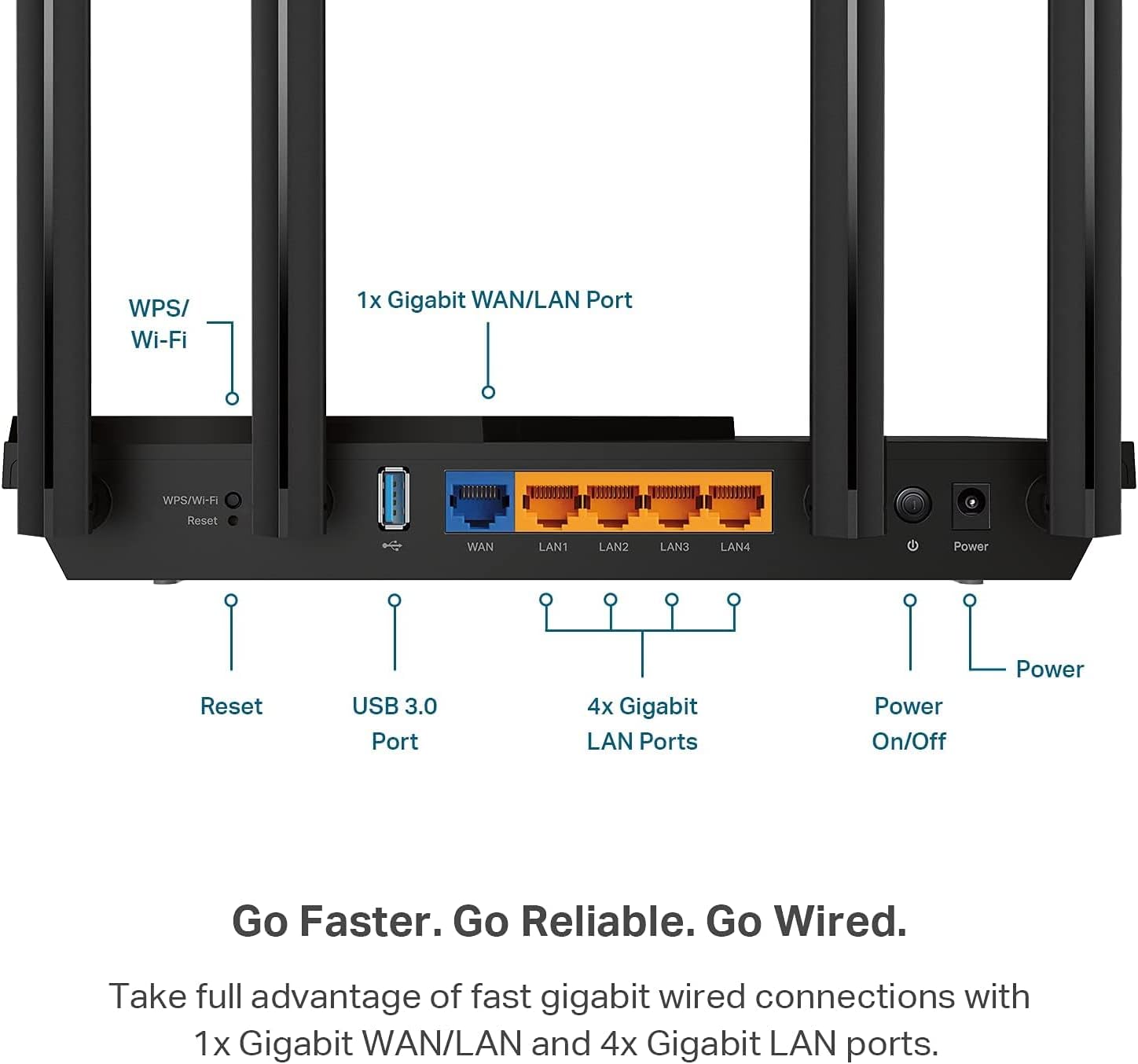
Figure 1: Router Rear Panel Connections. This image illustrates the rear panel of the TP-Link Archer AX55 router, showing the WPS/Wi-Fi button, Reset button, USB 3.0 Port, 1x Gigabit WAN/LAN Port, 4x Gigabit LAN Ports, and the Power On/Off button with the power input.
2.3 Initial Configuration
To configure your router, you can use the TP-Link Tether app on your mobile device or a web browser on a computer connected to the router.
- Connect to the Router's Wi-Fi: On your device, connect to the default Wi-Fi network (SSID) printed on the label at the bottom of your router. The default password (PIN) is also on this label.
- Access Management Interface: Open the TP-Link Tether app or a web browser and enter tplinkwifi.net in the address bar. Follow the on-screen instructions to create a new password for the router and complete the setup process.

Figure 2: Router Product Label. This image displays the product label located on the bottom of the TP-Link Archer AX55 router, which includes the default Wi-Fi network names (SSID: TP-Link_488C and TP-Link_488C_5G) and the Wireless Password/PIN (90490583). A QR code for easy connection is also visible. The MAC address B0A7B94F488C is also listed.
Quick Connect using QR Code: Scan the QR code on the product label with your smartphone to quickly connect to the default Wi-Fi network. The Wi-Fi details are: WIFI:T:WPA;S:TP-Link_488C;P:90490583;;
Note: A modem is required for most internet service providers. Ensure your modem is properly connected and functioning before setting up the router.
3. Operating Your Router
3.1 Next-Gen Gigabit Wi-Fi 6 Speeds
The Archer AX55 supports Wi-Fi 6 (802.11ax) technology, delivering speeds of up to 2402 Mbps on the 5 GHz band and 574 Mbps on the 2.4 GHz band. This ensures smoother streaming, faster downloads, and improved overall network performance. The router also supports VPN server and VPN client functionalities.
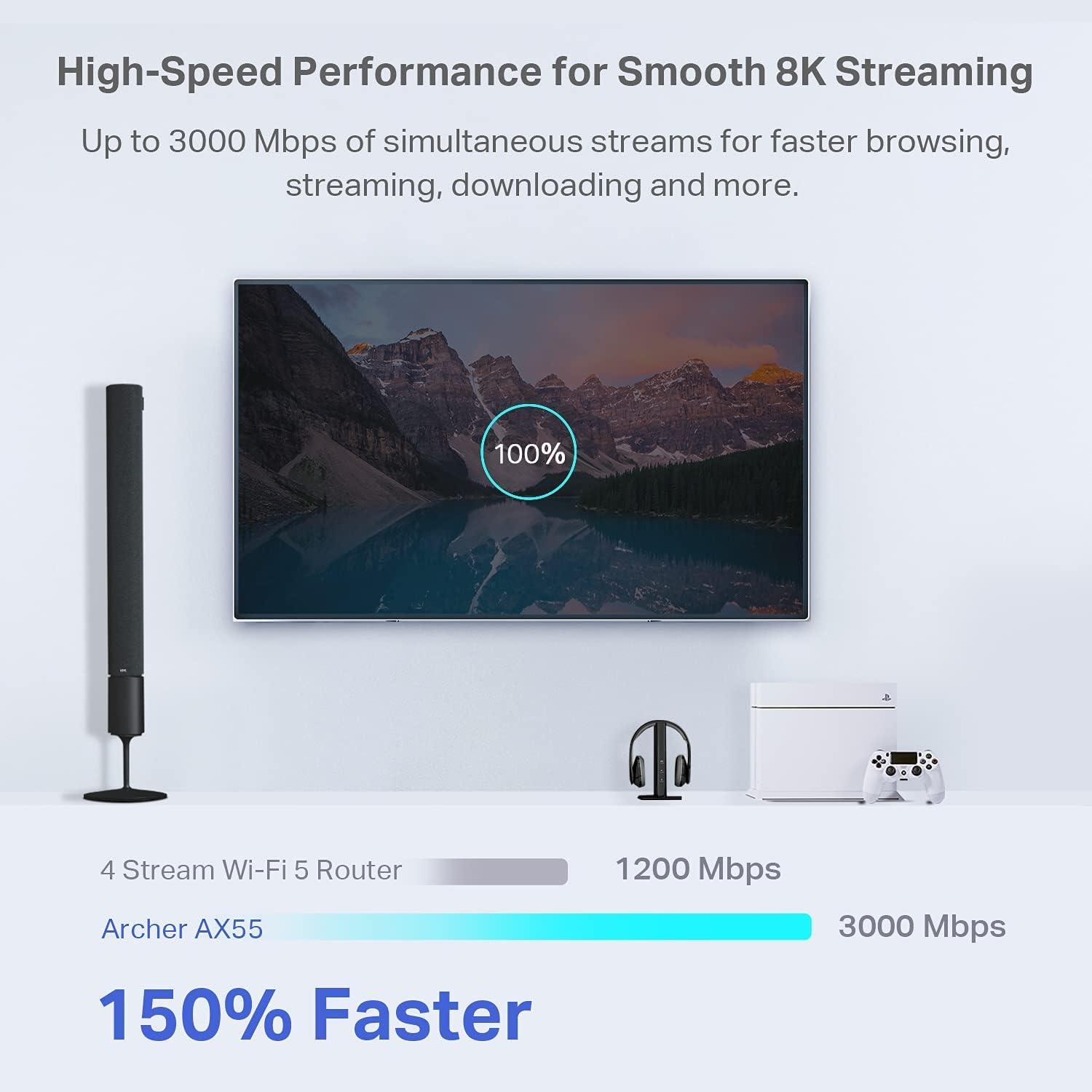
Figure 3: High-Speed Performance. This image compares the speed of a 4 Stream Wi-Fi 5 Router (1200 Mbps) with the Archer AX55 (3000 Mbps), highlighting that the Archer AX55 is 150% faster for smooth 8K streaming and faster browsing, streaming, and downloading.
3.2 Enhanced Connectivity with OFDMA and MU-MIMO
Enjoy a more responsive experience with OFDMA and 4-streams, allowing your router to communicate with multiple devices simultaneously. This technology reduces latency and jitter, providing smooth gaming, video streaming, and live feeds even with many connected devices.
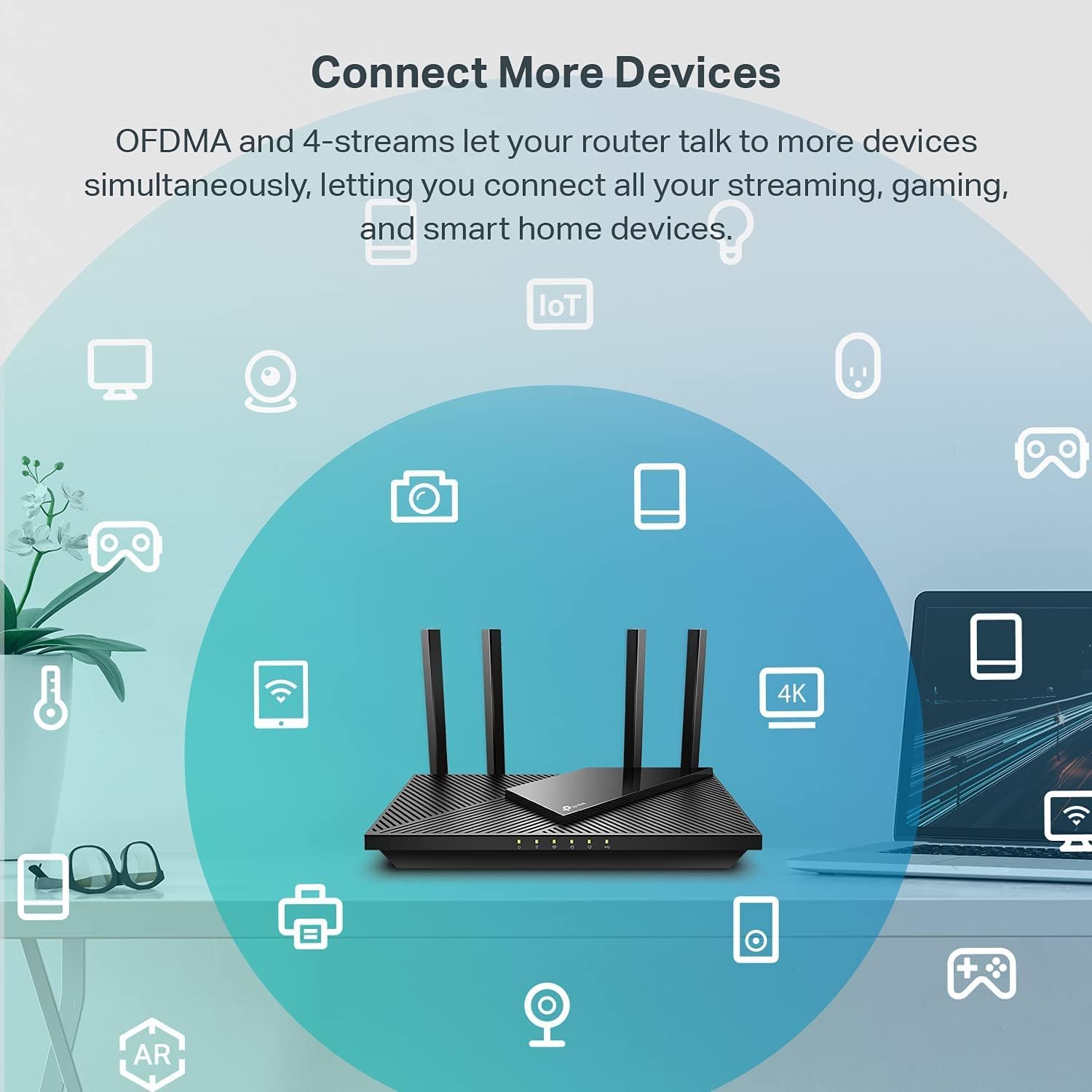
Figure 4: Connect More Devices. This image illustrates how OFDMA and 4-streams enable the Archer AX55 router to connect to more devices simultaneously, supporting all your streaming, gaming, and smart home devices.
3.3 Expanded Wi-Fi Coverage
Equipped with 4 high-gain external antennas and Beamforming technology, the Archer AX55 extends strong, reliable Wi-Fi throughout your home, minimizing dead zones.
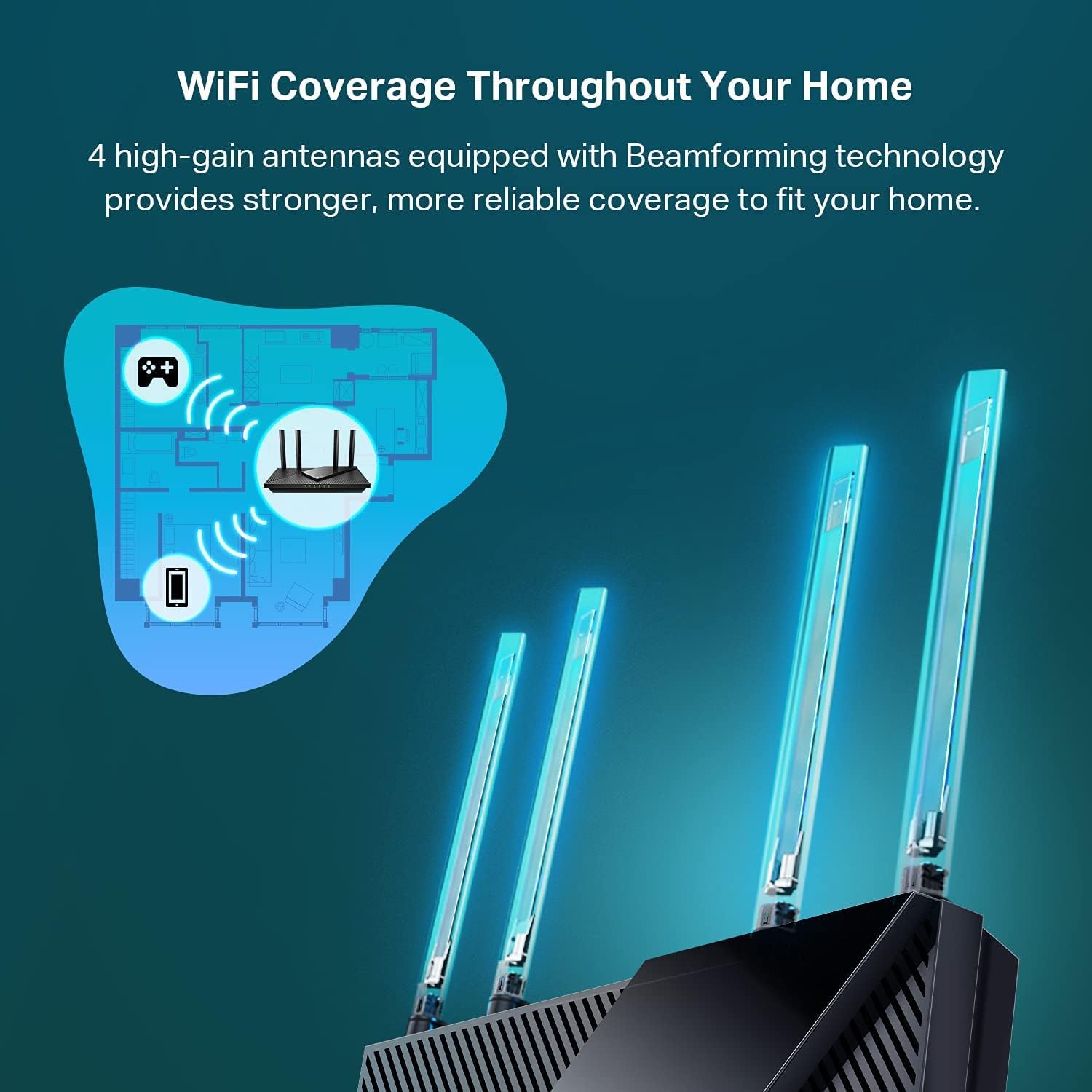
Figure 5: Wi-Fi Coverage Throughout Your Home. This image demonstrates the expanded Wi-Fi coverage provided by the Archer AX55, showing how its 4 high-gain antennas and Beamforming technology deliver stronger, more reliable signal throughout a home layout.
3.4 Additional Features
- Improved Battery Life: Target Wake Time (TWT) helps your devices communicate efficiently while consuming less power, extending battery life for mobile devices.
- Improved Cooling Design: A larger heat sink and redefined case design ensure the WiFi 6 system stays cool, preventing throttling and maintaining top speeds in various environments.
- Compatible with Alexa: Control your router via voice commands using Amazon Alexa for convenient management.
3.5 TP-Link HomeShield
TP-Link HomeShield is a premium security service that protects your home network with cutting-edge network and IoT protection. Free features include:
- Basic Network Security (Security Scan, IoT Device Identification)
- Basic Parental Controls
- Quality of Service (QoS)
- Basic Weekly/Monthly Reports
For advanced features like DDoS Attack Prevention, Advanced Parental Controls (including Time Rewards), and IoT Device Protection, you can upgrade to HomeShield Pro (subscription fees apply). A 1-Month Free Trial is often available.
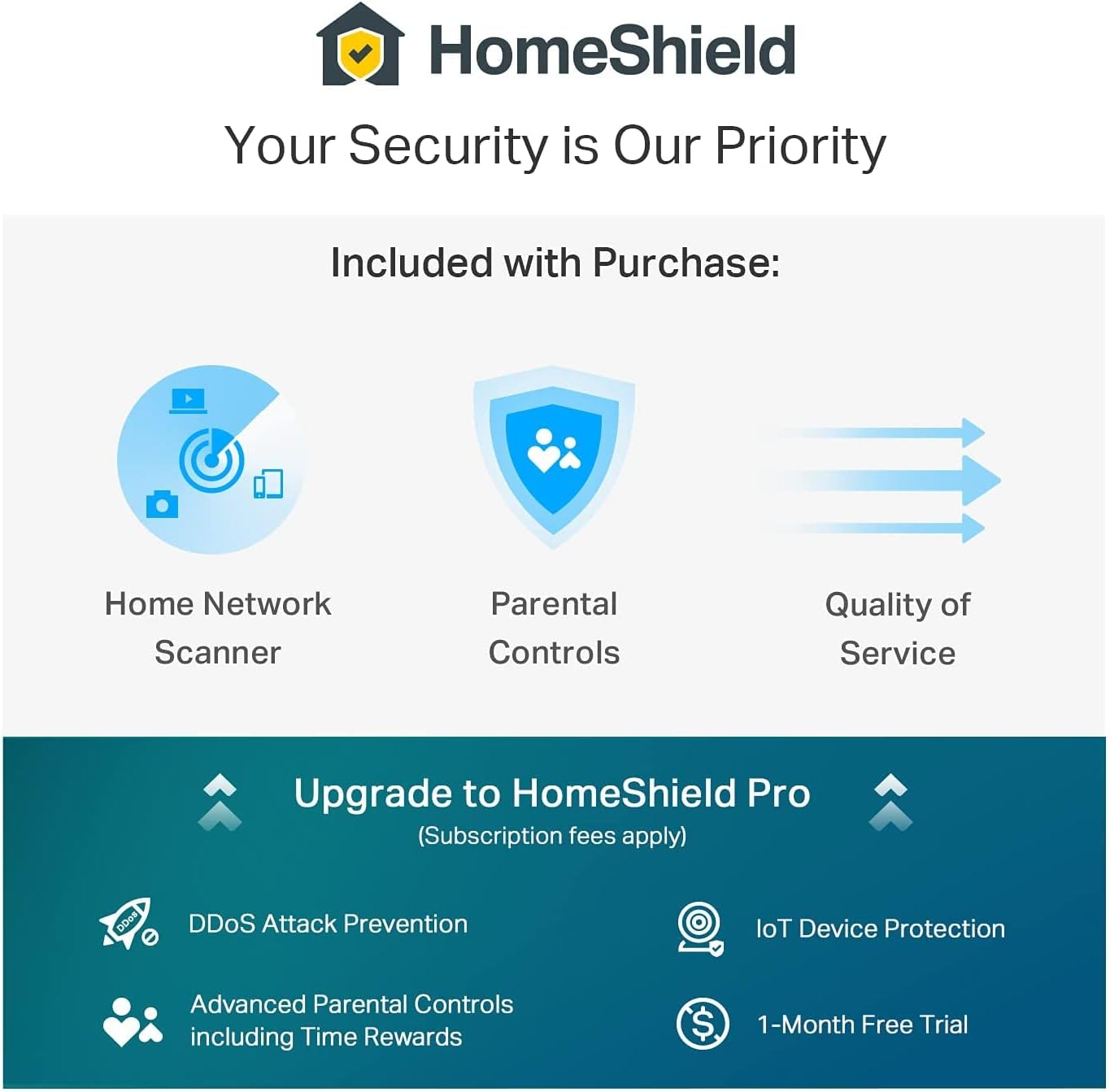
Figure 6: HomeShield Security Features. This image details the security features of TP-Link HomeShield, including Home Network Scanner, Parental Controls, and Quality of Service as included features, and options to upgrade to HomeShield Pro for DDoS Attack Prevention, IoT Device Protection, Advanced Parental Controls, and a 1-Month Free Trial.
4. Maintenance
To ensure optimal performance and longevity of your Archer AX55 router:
- Placement: Place the router in a central location, away from obstructions and sources of interference. Ensure adequate ventilation to utilize its improved cooling design.
- Firmware Updates: Regularly check for and install firmware updates through the TP-Link Tether app or web management interface. These updates often include security enhancements and performance improvements.
- Cleaning: Keep the router clean and free of dust. Use a soft, dry cloth for cleaning.
5. Troubleshooting
If you encounter issues with your router, consider the following troubleshooting steps:
- No Internet Access:
- Check if your modem is working correctly.
- Ensure all Ethernet cables are securely connected to the correct ports (WAN port from modem, LAN ports to devices).
- Restart both your modem and router by unplugging them for 30 seconds and then plugging them back in.
- Slow Wi-Fi Speed or Intermittent Connection:
- Ensure your devices are within the router's coverage area.
- Reduce interference by moving the router away from other electronic devices.
- Check for firmware updates.
- If experiencing issues with 2.4 GHz devices, ensure they are not too far from the router or experiencing significant interference.
- Cannot Access Router Management Page:
- Verify your device is connected to the router's Wi-Fi or via an Ethernet cable.
- Ensure you are typing tplinkwifi.net correctly in the browser.
- Try clearing your browser's cache or using a different browser.
For further assistance, refer to the support section below.
6. Specifications
| Feature | Specification |
|---|---|
| Brand | TP-Link |
| Model Name | AX55-CR |
| Wireless Communication Standard | 802.11ax (Wi-Fi 6) |
| Frequency Band Class | Dual-Band (2.4 GHz & 5 GHz) |
| Data Transfer Rate | 3 Gigabits Per Second (up to 2402 Mbps on 5 GHz, 574 Mbps on 2.4 GHz) |
| Number of Antennas | 4 (High-gain external) |
| Number of Ports | 5 (1x Gigabit WAN/LAN, 4x Gigabit LAN) |
| Security Protocol | WPA2 (and WPA3 with Wi-Fi 6) |
| Control Method | App Control (TP-Link Tether), Voice (Alexa) |
| Operating System | TP-Link OS |
| Item Weight | 16 ounces |
| Has Internet Connectivity | Yes |
| Is Modem Compatible | Yes |
| Has Security Updates | Yes |
7. Warranty and Support
7.1 Warranty Information
This TP-Link Archer AX55 router comes with a 90-day limited warranty. As an Amazon Renewed product, it is also eligible for replacement or refund under the Amazon Renewed Guarantee if you are not satisfied with your purchase.
7.2 Technical Support
For technical assistance or further troubleshooting, you can contact TP-Link support. A known support number is 866-225-8139. Please have your product model and any relevant details ready when contacting support.


