
1. Product Overview
The OUBANG Ares Elite PS4 Controller is a versatile wireless gamepad designed for an enhanced gaming experience across multiple platforms. It features advanced functionalities such as a Turbo function, programmable back paddles, dual motor vibration, and motion sensing.

Image: Front view of the OUBANG Ares Elite PS4 Controller, highlighting its ergonomic design and button layout.
2. Compatibility
This controller is compatible with a wide range of gaming platforms, including:
- PlayStation 4 (PS4, PS4 Slim, PS4 Pro)
- PlayStation 5 (PS5 - for PS4 games only)
- PC (Windows 7/8/10)
- Steam
- iOS
- Android

Image: Visual representation of the OUBANG Ares controller's compatibility with PS4, PS5, iOS/Android, PC/Windows, and Steam platforms.
3. Setup and Connection
3.1 Initial Connection
To connect the OUBANG Ares controller wirelessly via Bluetooth:
- Ensure the controller is charged.
- Turn on your gaming console or device.
- Press and hold the PS button and Share button simultaneously on the controller until the light bar flashes.
- On your device, navigate to Bluetooth settings and select "Wireless Controller" to pair.
3.2 Charging the Controller
The controller features a 1200mAh battery and charges via a Type-C interface. Connect the provided Type-C cable to the controller and a power source (e.g., console, PC, USB wall adapter). The LED indicator will show charging status.
4. Operating Instructions
4.1 Basic Controls
The OUBANG Ares controller features standard PlayStation button layouts, including action buttons (Triangle, Circle, Cross, Square), D-pad, L1/R1 bumpers, L2/R2 triggers, and dual analog sticks. It also includes a clickable multitouch touchpad and a 3.5mm audio jack for headsets.
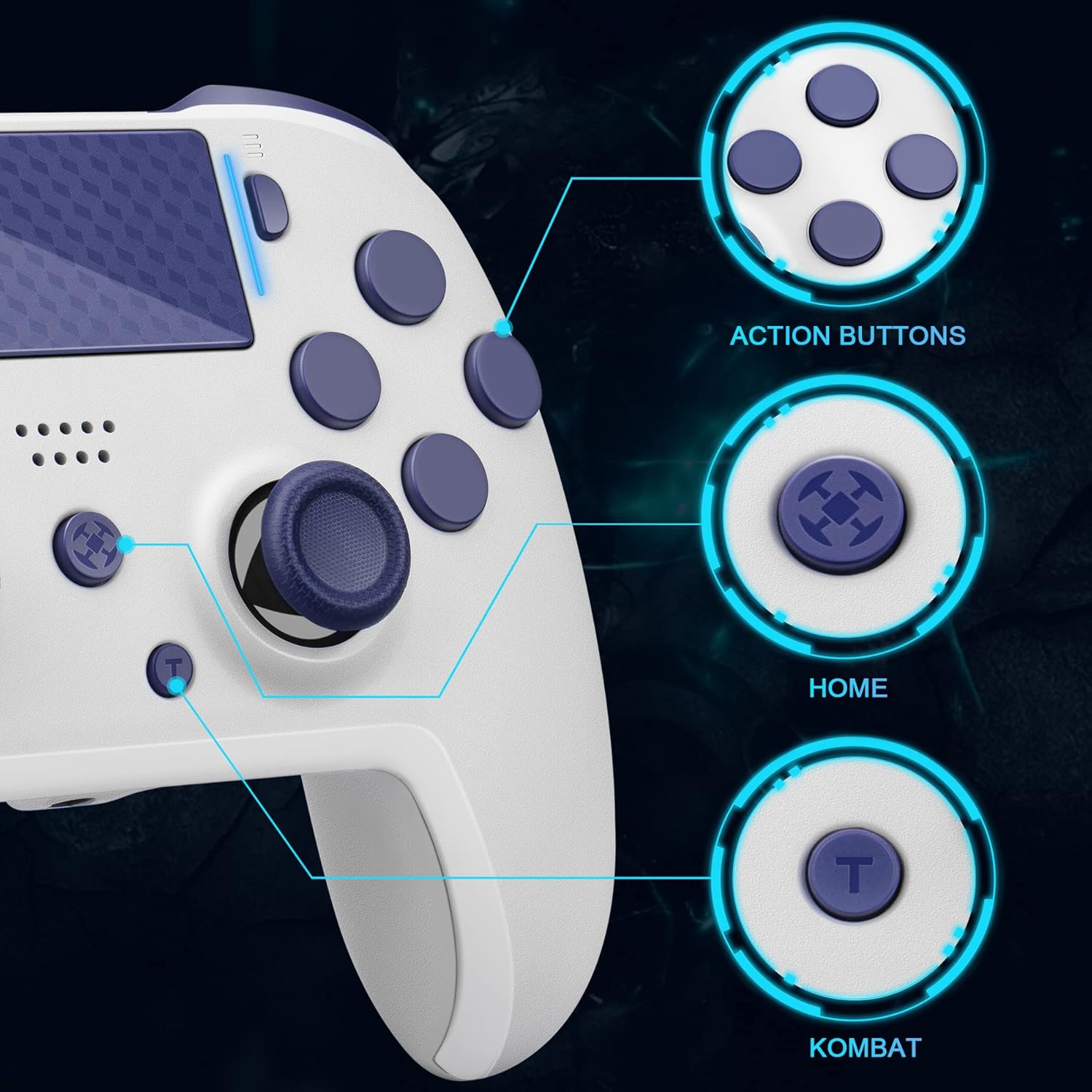
Image: Close-up view of the OUBANG Ares controller's face buttons, home button, and turbo button, with callouts for Action Buttons, Home, and Kombat (Turbo).

Image: Detailed diagram of the controller's features including Touchpad + LED Indicator, LB & LT, Turbo button, Programmable Paddles, Audio Jack, and overall size dimensions.
4.2 Turbo Function
The Turbo function allows for rapid, continuous input of a selected button. This can be set to various speeds for tactical advantages in games.
- Setting Turbo: Long press the "Turbo" button and the target function button (e.g., X, O, Square, Triangle) together for over 2 seconds. The RGB light will flash white 8 times to indicate successful setting.
- Adjusting Turbo Speed: While Turbo is active, press the "Turbo" button and a D-pad direction button simultaneously to cycle through speeds:
- Turbo + D-pad Up: 50Hz (Fastest Speed) - RGB flashes blue.
- Turbo + D-pad Right: 25Hz - RGB flashes green.
- Turbo + D-pad Down: 12.5Hz - RGB flashes red.
- Turbo + D-pad Left: 7Hz (Slowest Speed) - RGB flashes white.
Note: Ensure the Turbo function is open before adjusting speed.
- Canceling Turbo: Repeat the "Setting Turbo" steps. Long press the "Turbo" button and the target function button together for over 2 seconds. The Turbo function will be canceled.

Image: Visual guide on setting and canceling the Turbo function, and adjusting its speed using the D-pad combinations.
Video: Demonstrates how to set and adjust the Turbo function on the OUBANG Ares PS4 controller.
4.3 Programmable Back Paddles (M1/M2)
The controller features two multifunctional mappable back paddles (M1 and M2) that can be programmed to duplicate any of the 12 primary buttons (Triangle, Circle, Cross, Square, L1, R1, L2, R2, L3, R3, D-pad Up, D-pad Down, D-pad Left, D-pad Right).
- Entering Mapping Mode: Press and hold the "Turbo" button and the M1 or M2 paddle simultaneously for 2 seconds. The RGB light will turn green, indicating the controller is ready for mapping.
- Assigning a Button: While in mapping mode (RGB green), press the desired primary button you wish to map (e.g., X button). Then, press the "Turbo" button to confirm. The RGB light will turn red, indicating successful mapping.
- Canceling Mapping: To clear a mapped paddle, press and hold the "Turbo" button and the M1 or M2 paddle simultaneously for 2 seconds. The RGB light will flash green, then red, confirming the mapping has been canceled.
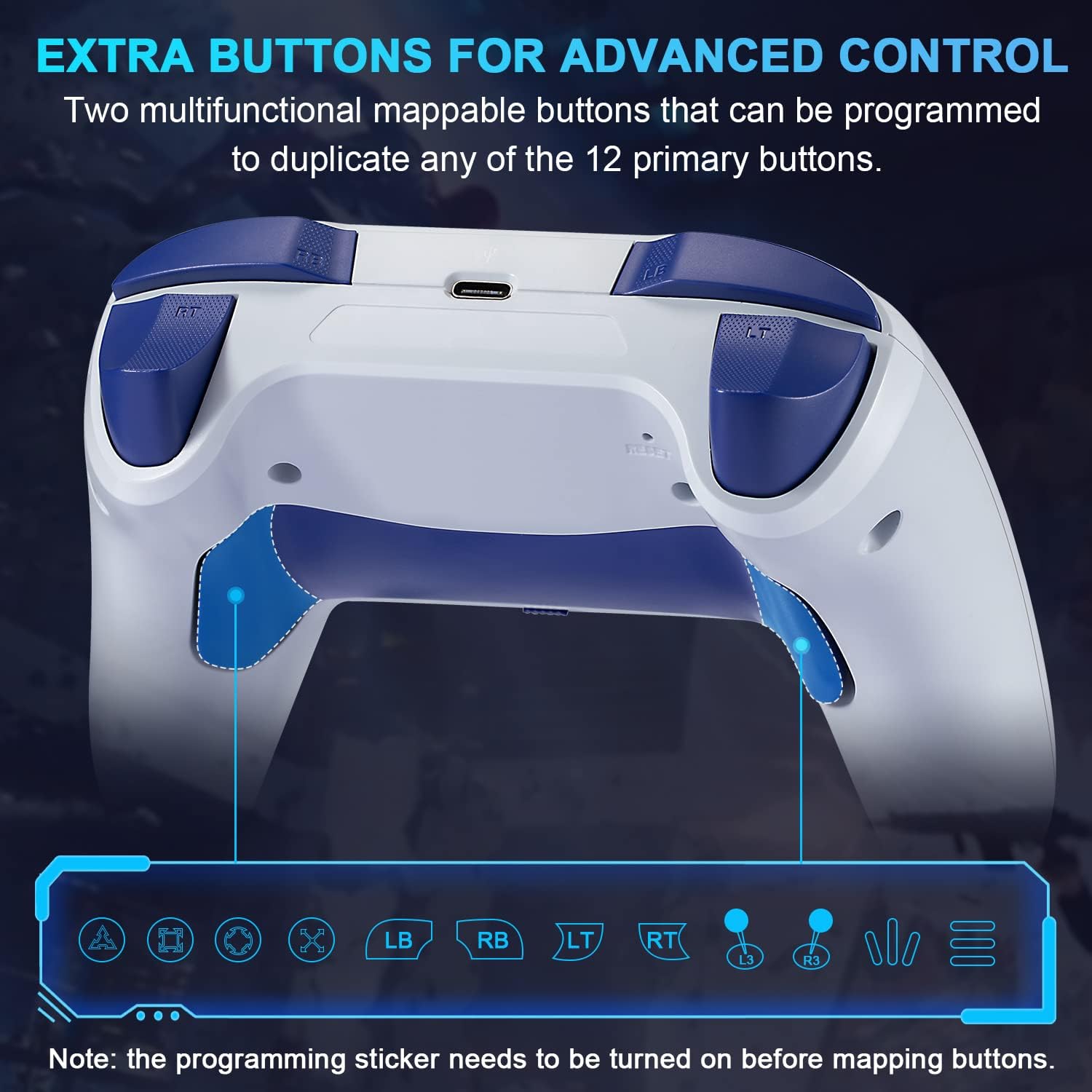
Image: Underside view of the OUBANG Ares controller, highlighting the two programmable back paddles (M1 and M2) and the buttons that can be mapped to them.
Video: Instructions on how to set and cancel the mapping mode for the back paddles on the OUBANG Ares PS4 controller.
5. Features and Enhancements
- Dual Motor Vibration: Provides realistic haptic feedback for an immersive gaming experience.
- Motion Sensor: Supports motion-sensing gameplay in compatible titles.
- 360° Analogue Sticks: Designed for accurate and precise control without dead zones or drift.
- Refined Triggers: Enhanced L2/R2 triggers for responsive input.
- Clickable Touchpad: A fully functional multitouch touchpad for navigation and interaction.

Image: Illustrates the dual motor vibration and motion sensor features, enhancing realistic game feeling.

Image: Highlights the accurate joystick for precise aiming and control in games.
6. Specifications
| Feature | Detail |
|---|---|
| Brand | OUBANG |
| Model Number | Ares |
| Connectivity Technology | Bluetooth |
| Compatible Devices | Android, iOS, PC, PlayStation 4, Windows |
| Controller Type | Gamepad |
| Special Features | Ergonomic, Wireless, Turbo Function, Programmable Paddles, Dual Vibration, Motion Sensor, Touchpad |
| Item Weight | 11.3 ounces |
| Battery Capacity | 1200 mAh |
| Charging Port | Type-C |
| Playing Time | 10-12 Hours (approx.) |

Image: Comparison table highlighting the upgraded features of the Elite Version (Ares) versus a normal version, including Turbo Function, Programmable Paddles, Touch Pad, Analog Sticks, Playing Time, Battery Capacity, Bluetooth Connection, and Charging Port.
7. Maintenance
To ensure the longevity and optimal performance of your OUBANG Ares controller:
- Keep the controller clean by wiping it with a soft, dry cloth.
- Avoid exposing the controller to extreme temperatures, humidity, or direct sunlight.
- Store the controller in a safe place to prevent physical damage.
- Do not attempt to disassemble the controller, as this may void the warranty.
8. Troubleshooting
If you encounter issues with your OUBANG Ares controller, try the following steps:
- Controller not connecting: Ensure the controller is charged. Try re-pairing the controller via your device's Bluetooth settings.
- Input lag or disconnection: Ensure there are no obstructions between the controller and the device. Move closer to the device. Check for interference from other wireless devices.
- Buttons not responding: Ensure the controller is properly connected. Try resetting the controller (if a reset button is available, typically a small pinhole on the back).
- Turbo/Mapping issues: Review the specific instructions in sections 4.2 and 4.3 to ensure correct setup procedures.
For further assistance, please contact OUBANG customer support.
9. Warranty and Support
OUBANG products come with a standard manufacturer's warranty. Please refer to the warranty card included with your product for specific terms and conditions. For technical support, warranty claims, or any other inquiries, please contact OUBANG Customer Service.
Customer Service Email: gamepad@oubang.com
OUBANG Official Website: Visit OUBANG Store on Amazon