
FALWEDI 14-in-1 Type C Hub Multiport Adapter Dongle
FALWEDI USB C Laptop Docking Station User Manual
Model: FALWEDI 14-in-1 Type C Hub Multiport Adapter Dongle
Introduction
This manual provides comprehensive instructions for the FALWEDI 14-in-1 USB C Laptop Docking Station. This versatile hub is designed to expand the connectivity of your USB-C enabled laptop, offering a wide array of ports for various peripherals, external displays, and network connections. Please read this manual carefully to ensure proper installation and operation.
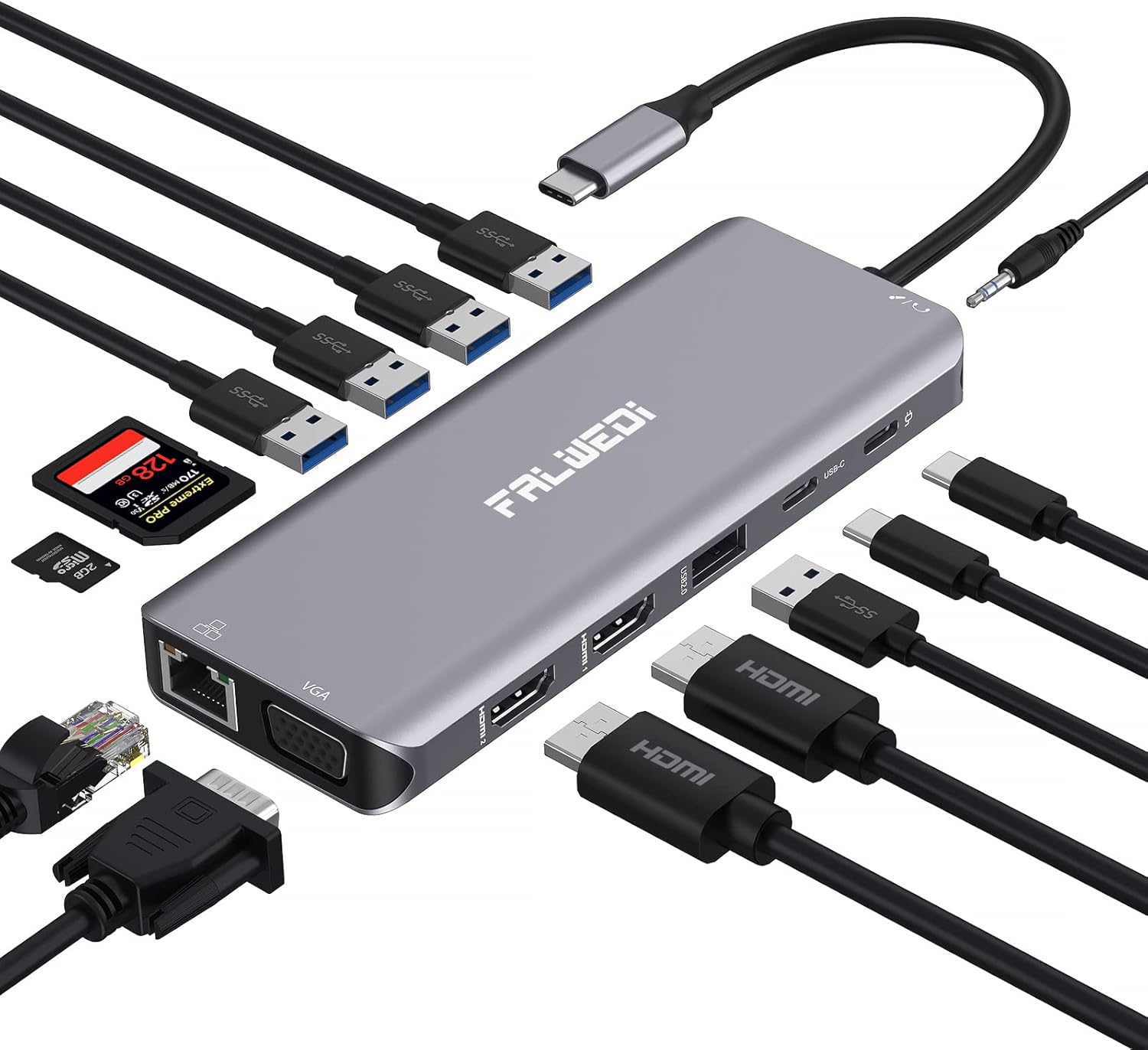
Image: The FALWEDI 14-in-1 USB C Laptop Docking Station, showcasing its compact design and multiple ports, including USB-A, USB-C, HDMI, VGA, Ethernet, and card reader slots, with various cables and devices connected.
Product Overview
The FALWEDI 14-in-1 USB C Docking Station integrates multiple essential ports into a single compact device, enhancing your laptop's capabilities. It features a comprehensive selection of ports to meet diverse connectivity needs.
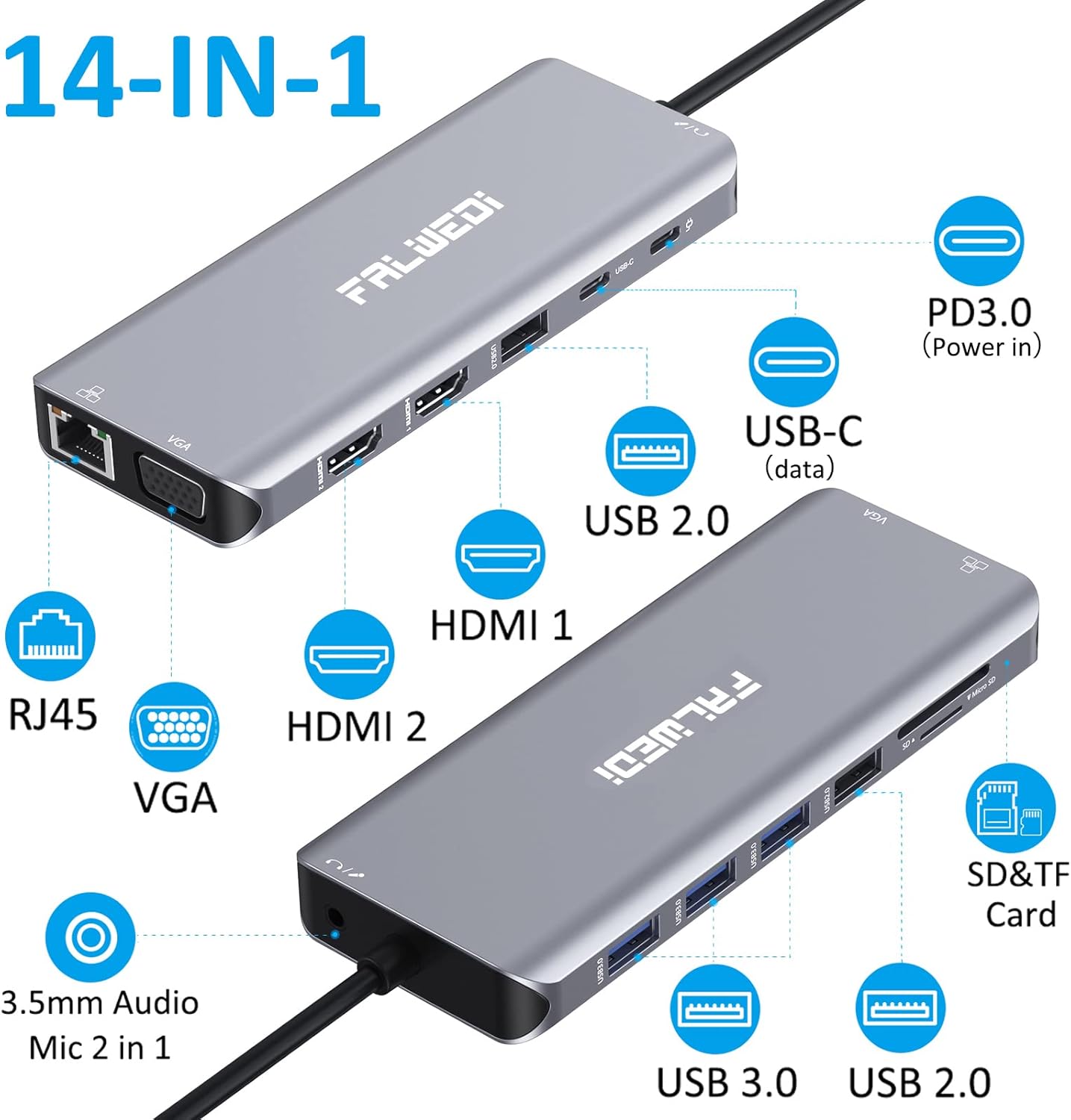
Image: A detailed diagram illustrating the FALWEDI 14-in-1 docking station from two angles, with callouts for each port: PD3.0 (Power in), USB-C (data), USB 2.0, HDMI 1, HDMI 2, RJ45, VGA, 3.5mm Audio/Mic 2 in 1, USB 3.0, and SD/TF Card slots.
Port Configuration:
- 2 x HDMI Ports: For high-definition video output, supporting up to 4K resolution.
- 1 x VGA Port: For video output, supporting up to 1080p resolution.
- 1 x PD 3.0 USB-C Port: For power delivery to your laptop, supporting up to 100W input.
- 1 x USB-C Data Port: For high-speed data transfer (up to 5Gbps).
- 3 x USB 3.0 Ports: For high-speed data transfer (up to 5Gbps) and connecting peripherals.
- 2 x USB 2.0 Ports: For connecting low-bandwidth devices like keyboards and mice.
- 1 x RJ45 Gigabit Ethernet Port: For stable and fast wired network connection (up to 1000Mbps).
- 1 x 3.5mm Audio/Mic Port: For connecting headphones or microphones.
- 1 x SD Card Slot: For reading SD memory cards.
- 1 x TF (Micro SD) Card Slot: For reading Micro SD memory cards.
Setup Instructions
Follow these steps to set up your FALWEDI docking station:
- Verify Laptop USB-C Port: Ensure your laptop's USB-C port is a "full function Type C" port that supports data transfer, video output (DisplayPort Alt Mode), and power delivery. Refer to your laptop's specifications or the compatibility section of this manual.

Image: An illustration detailing different types of USB-C ports on laptops, distinguishing between "Full Function," "Data Video Output," and "Data+Displayport Alt" (compatible) versus "Only Data Transfer," "Only Charging," and "M1 Chip" (potentially incompatible or limited functionality).
- Connect Docking Station to Laptop: Plug the integrated USB-C cable from the docking station into the compatible USB-C port on your laptop.
- Connect Power Adapter (Recommended): For optimal performance and to ensure stable power to all connected devices, connect your laptop's original USB-C power adapter to the PD 3.0 USB-C port on the docking station. This is especially important when connecting multiple power-consuming peripherals or external displays.
- Connect Peripherals:
- External Displays: Connect your HDMI and/or VGA monitors to the corresponding ports on the docking station.
- USB Devices: Plug in your USB devices (e.g., keyboard, mouse, external hard drives, USB drives) into the available USB 3.0 or USB 2.0 ports. For devices like keyboards and mice, using USB 2.0 ports is recommended to avoid potential interference with high-speed data transfers.
- Ethernet Cable: Connect an Ethernet cable from your router or modem to the RJ45 Gigabit Ethernet port for a wired network connection.
- Audio Devices: Plug in your headphones or speakers into the 3.5mm audio/mic port.
- Memory Cards: Insert SD or TF cards into their respective slots.
- Plug and Play: The docking station is designed for plug-and-play operation. No drivers or software installation are typically required. Your operating system should automatically detect and configure the connected devices.
Operating Instructions
Display Configuration (Windows OS)
For Windows laptops, the docking station supports triple display configurations, allowing for extended or mirrored modes across multiple monitors.
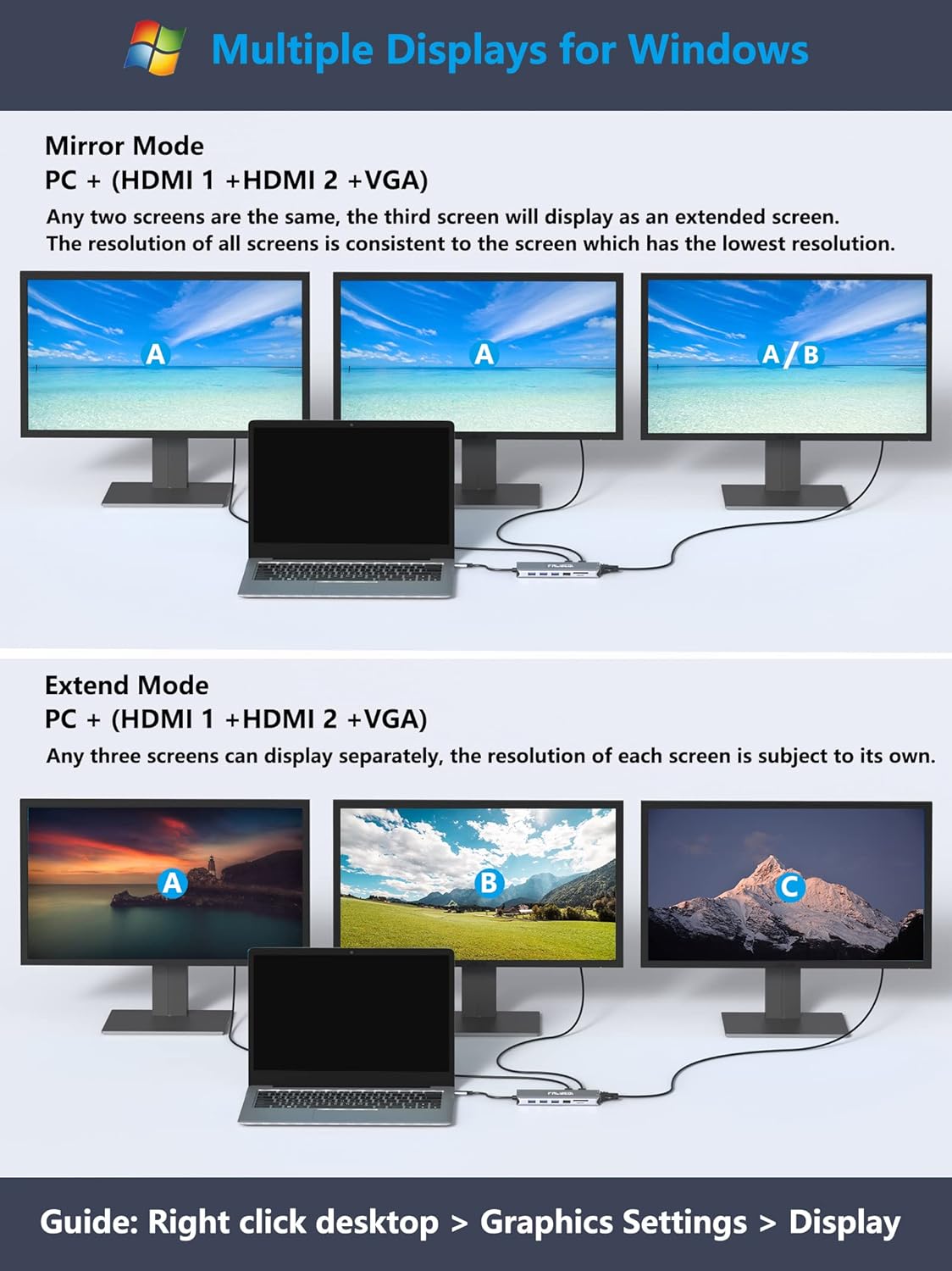
Image: An illustration demonstrating display configurations for Windows OS. It shows "Mirror Mode" where the laptop and two external monitors display the same content (A, A, A/B), and "Extend Mode" where the laptop and three external monitors display different content (A, B, C).
- Mirror Mode: All connected screens (laptop + external monitors) display the same content. If using two HDMI and one VGA, any two screens can be mirrored, and the third will display as an extended screen. The resolution will be limited by the lowest resolution screen.
- Extend Mode: Each connected screen can display different content, allowing for an expanded desktop workspace. The resolution of each screen is independent.
- Resolution: HDMI ports support up to 3840x2160@30Hz. VGA supports up to 1920x1080@60Hz. When connecting two HDMI displays, the resolution can reach 4K (DP1.4).
To configure displays on Windows: Right-click on your desktop > Graphics Settings > Display.
Display Configuration (Mac OS)
Mac OS does not natively support Multi-Stream Transport (MST) for extended displays across multiple external monitors. However, the docking station can achieve two different contents for your MacBook and monitors.

Image: An illustration demonstrating display configurations for Mac OS. It shows "Mirror Mode" where the MacBook and all external monitors display the same content (A, A, A), and "Clone Mode" where the MacBook displays content A, and all external monitors clone content B.
- Mirror Mode: All connected screens (MacBook + external monitors) will mirror the same content.
- Clone Mode: The MacBook displays one content, and all connected external monitors will clone a second content.
To configure displays on Mac OS: Apple logo > System Preferences > Display.

Image: A visual comparison showing that Windows supports 4K@60Hz resolution and triple extended displays, while Mac OS does not support triple extended displays, only mirrored or cloned modes.

Image: A graphic detailing display notes for Mac OS and Windows. For Mac OS, it states "Not Support Different Screen of Multi Monitors" and that under partial connection (no VGA), the highest resolution of all monitors can reach 4K@30Hz. For Windows, it notes that only one monitor's resolution will be up to 4K@30Hz while another will be 1080p under MST mode without connecting VGA port, and all monitor's resolution will be 1920x1080P@60Hz if VGA works simultaneously.
Data Transfer
The docking station provides high-speed data transfer capabilities:
- USB 3.0 Ports (3x) & USB-C Data Port (1x): Offer super-speed data transfer rates of up to 5Gbps, ideal for transferring large files quickly.
- USB 2.0 Ports (2x): Provide data transfer rates of up to 480Mbps, suitable for connecting peripherals like keyboards, mice, and printers without lag.
- SD & TF Card Slots: Support data transfer at 5Gbps, allowing for quick access to media files simultaneously.

Image: A visual representation of the docking station's data transfer capabilities, showing 5Gbps speed for USB-C data and USB 3.0 ports, and indicating compatibility with thumb drives, keyboards, speakers, phones, hard disks, and printers. It also highlights 100W Power Delivery.
Power Delivery (PD 3.0)
The dedicated PD 3.0 USB-C port allows you to charge your laptop through the docking station. It supports up to 100W power input, ensuring your laptop remains charged while using the hub. This feature is applicable only to devices that support the PD protocol.
Gigabit Ethernet
The RJ45 port provides a stable and fast wired internet connection up to 1000Mbps (1 Gigabit per second). This is an excellent alternative for laptops without an Ethernet port or when a wireless network is unstable.

Image: The docking station connected to a laptop, with an Ethernet cable plugged into the RJ45 port showing 1000Mbps speed, and headphones connected to the 3.5mm audio/mic port, indicating HD lossless sound quality.
Audio/Mic Port
The 3.5mm audio/mic port provides high-definition lossless sound quality, allowing you to connect headphones, speakers, or a microphone for audio input and output.
Compatibility
The FALWEDI docking station offers broad compatibility with most Type-C laptops featuring Thunderbolt 3 or a full-function USB-C port. No drivers are needed for operation.

Image: A graphic titled "BROAD COMPATIBILITY" listing compatible brands and models including Apple (MacBook/Pro 2016-2021, MacBook Air/Mac mini 2018-2020, iPad Pro 2018-Newest), Lenovo (Yoga, ThinkPad, IdeaPad), HP (Spectre, Elitebook, Zbook), Dell (Latitude, XPS, Precision, Inspiron), and Others (Asus Zenbook, Huawei MateBook, Samsung Galaxy). It also lists supported Operating Systems: Windows, Mac OS X 10.6 or later, Chrome, and Linux 2.6.14 or later.
Compatible Devices (Partial List):
| Brand | Models |
|---|---|
| Lenovo | Yoga (900/910/920/930/940/C740/C930), IdeaPad Chromebook Flex 5, ThinkPad (P72/E590/T470s/T480s/T490s) |
| Dell | Latitude (5310/5400/5480/5490), Inspiron (14 or 15 7000 series 2-in-1), XPS (9380/13-9300/13-9365), Precision (7520/7730/7750) |
| HP | Spectre (X369/13T-AK000CTO/13T-AF001TU), Elitebook (800 G4/840 G5 series/850 C5/745/830 C6/X2), Zbook/Probook |
| Asus | Zenbook (Flip Q529ZA/UX435/UX434F/UX433FA/UX425EA/S-UX390), Rog GX501 |
| Samsung | Note (20/10/9/8+), Galaxy (S20 ultra/S10+/S10/S9/S8+/Tablet S5e/Tablet New S7/Chromebook/Flex alpha 2-in-1) |
| Huawei | MateBook (X Pro/E/X/Mate 10/Mate 10Pro/Mate 20/Mate 20 Pro/Mate 30/Mate 30 Pro/P20/P20 Pro/P30 Pro) |
| Acer | Aspire 5/Aspire C24-865/Swift 1/Swift 3/Swift 7/Swift X/SPIN 5/SPIN 7/Predator Helios 300 |
| Google Chromebook | Pixel 2016/Pixel 2017/C340-15 |
| Microsoft Surface | Book 2/Go-1943/Laptop 3/Laptop 4/Pro 8/Pro 7 |
Note: This is not a full list. Please refer to the product page or contact support for more detailed compatibility information.

Image: A comprehensive table listing compatible laptop models from various brands like Lenovo, Dell, HP, Asus, Samsung, Huawei, Acer, Google Chromebook, and Microsoft Surface.
Incompatibility (Partial List):
| Brand | Models |
|---|---|
| Apple | MacBook Air (before 2018), MacBook Pro 2015, iMac 2021 |
| Asus | Vivobook series (Q547/Q503U/Q526F/L203MA), TUF 17.3 Gaming Laptop, Zenbook (UX333FN/UX330UA-AH55/Flip 14 UX463FL/Flip 14 UX461FN-DH74T/Q407I) |
| Acer | Aspire E5-575/R5-571T/E5-576G/R15/G3-571, Predator Helios 300/Swift X 14 |
| MSI | GF63/GF65 THIN 9SD-252/GERVR 7RF Apache Pro GS73VR 7RG Stealth Pro/GE73 Raider RGB 8RF |
| Microsoft | Surface Pro 3/Surface Pro 4/Surface Pro 6/Book 3 |
| HP | Spectre X360 13/14/15T, Elitebook (840 G3/840 G4/820 G4/745 C6/800 G2), Probook 600/640/650 G2/Folio 1020 B&O, Earlier Pavilion series/340S C7/Envy 15/EVGA SC15/7265NGW |
| Dell | Inspiron (17-5000 series/15-5000 series/14-5410/15-3000/15-3583/17-3793 Business), Latitude (E7270/E7470/E7440/E7450/3520) |
| Lenovo | V330/T570/Y520/Yoga 520/Yoga 710, Thinkpad (L490/E580), IdeaPad (3/5/330/L340/S340/130S/Flex-15IWL/Flex-6 14IKB) |
| Other | High-power equipment/USB Super Drive/CD/DVD player |
Note: This is not a full list. Please refer to the product page or contact support for more detailed incompatibility information.

Image: A comprehensive table listing incompatible laptop models from various brands like Apple, Asus, Acer, MSI, Microsoft, HP, Dell, and Lenovo, along with a note about high-power equipment.
Troubleshooting
If you encounter issues with your FALWEDI docking station, consider the following common solutions:

Image: A graphic titled "WARM TIPS" with icons and short descriptions for troubleshooting: Suggestions on power supply, About 4 Screens, About Resolution, Need Help?, Logitech Bluetooth Products, About M1 Chip.
- Power Supply: The docking station consumes power. To avoid insufficient power supply to the dock, especially when connecting multiple devices, it is highly recommended to connect a 100W power supply to the dock's PD port. This ensures stable performance and prevents issues caused by the laptop's power output limitations.
- Display Issues (4 Screens): Only DP1.4 and AMD processor computers or Apple models listed after 2018 with dual systems installed can achieve 4 screens when using the Windows system.
- Resolution Limitations: The final resolution of HDMI output depends on your host device. Only when your devices support 4K resolution (AMD + DP1.4), will the video output be 4K.
- Logitech Bluetooth Products: This product is not compatible with Logitech Bluetooth wireless products. When used together, it may cause Bluetooth signal interference, leading to cursor delay or flicker.
- M1 Chip Compatibility: For unstable performance with the latest 2020 Mac processor M1 chip, the video output may fail to display properly in parts of the devices.
- General Connectivity: If a device is not recognized, try unplugging and re-plugging it. Ensure all cables are securely connected.
- Overheating: The aluminum enclosure is designed for faster heat dissipation. If the device feels warm, it is normal during operation, especially under heavy load. Ensure adequate ventilation around the docking station.
- Using Other Converters: We do not recommend using any converter to connect the computer or an external monitor to the dock. It is hard to confirm whether the converter is compatible, and it may affect the function of the docking station.
Specifications
| Feature | Detail |
|---|---|
| Product Dimensions | 6.3 x 3.94 x 71 inches |
| Item Weight | 5.3 ounces |
| ASIN | B09YV2DTPL |
| Date First Available | April 26, 2022 |
| Manufacturer | FALWEDI |
| Country of Origin | China |
| Brand | FALWEDI |
| Color | Grey |
| Hardware Interface | USB Type C, Thunderbolt |
| Special Feature | Plug and Play |
Maintenance
To ensure the longevity and optimal performance of your docking station, follow these maintenance guidelines:
- Cleaning: Use a soft, dry cloth to clean the exterior of the docking station. Avoid using liquid cleaners, aerosols, or abrasive solvents.
- Storage: When not in use for extended periods, store the docking station in a cool, dry place away from direct sunlight and extreme temperatures.
- Handling: Handle the device with care. Avoid dropping it or subjecting it to strong impacts.
- Ventilation: Ensure the docking station has adequate airflow around it, especially during prolonged use, to prevent overheating.
Warranty and Support
FALWEDI is committed to providing high-quality products and customer satisfaction. If you have any questions, operational problems, or require assistance, please contact FALWEDI customer support.
- Contact Support: Refer to the contact information provided on the product packaging or the official FALWEDI website.
- Product Guides: Additional product guides and documents may be available on the product listing page where you purchased the item.
- Compatibility Check: If your laptop model is not explicitly listed in the compatibility section, please contact customer support to verify compatibility before use.
Please retain your proof of purchase for warranty purposes.
Related documents14-in-1 Type C Hub Multiport Adapter Dongle


Ask a question about this manual
Ask about setup, troubleshooting, compatibility, parts, safety, or missing instructions. Manuals+ will review the question and use this page’s manual context to help answer it.