
1. Introduction
The Rettru XDWIFI Mini Wireless WiFi Camera is a compact surveillance device designed for discreet monitoring. It offers HD1080P video resolution, night vision capabilities, motion detection, and remote viewing via a mobile application. This manual provides detailed instructions for setting up, operating, and maintaining your camera.
Video: Overview of the Rettru XDWIFI Mini Wireless WiFi Camera, highlighting its compact size and features.
2. Package Contents
Please verify that all the following items are included in your package:
- 1 x Rettru XDWIFI Camera
- 1 x User Manual
- 1 x USB Cable
- 1 x Micro SD Card Reader
- 1 x Magnetic Base

Image: All components included in the Rettru XDWIFI Mini Wireless WiFi Camera package.
3. Product Features
- Ultra-Compact Design: The camera measures approximately 1.57 x 1.18 x 0.5 inches, making it highly discreet and easy to conceal.
- HD1080P Video: Records high-definition video for clear surveillance.
- Enhanced Night Vision: Equipped with two 940nm infrared lights, providing clear visibility up to 26 feet in low light or total darkness without visible glow.
- Intelligent Motion Detection: Features customizable motion detection zones and times. Sends alarm notifications with images to your phone upon detection.
- Loop Recording: Supports continuous recording, overwriting the oldest files when the memory card is full.
- Cloud Storage: Offers cloud service for video storage (subscription may be required).
- Remote Viewing: Access live video remotely via the mobile application on iOS/Android devices.
- Flexible Installation: Includes a magnetic base and mounting options for versatile placement.

Image: The camera's compact size, held between two fingers.
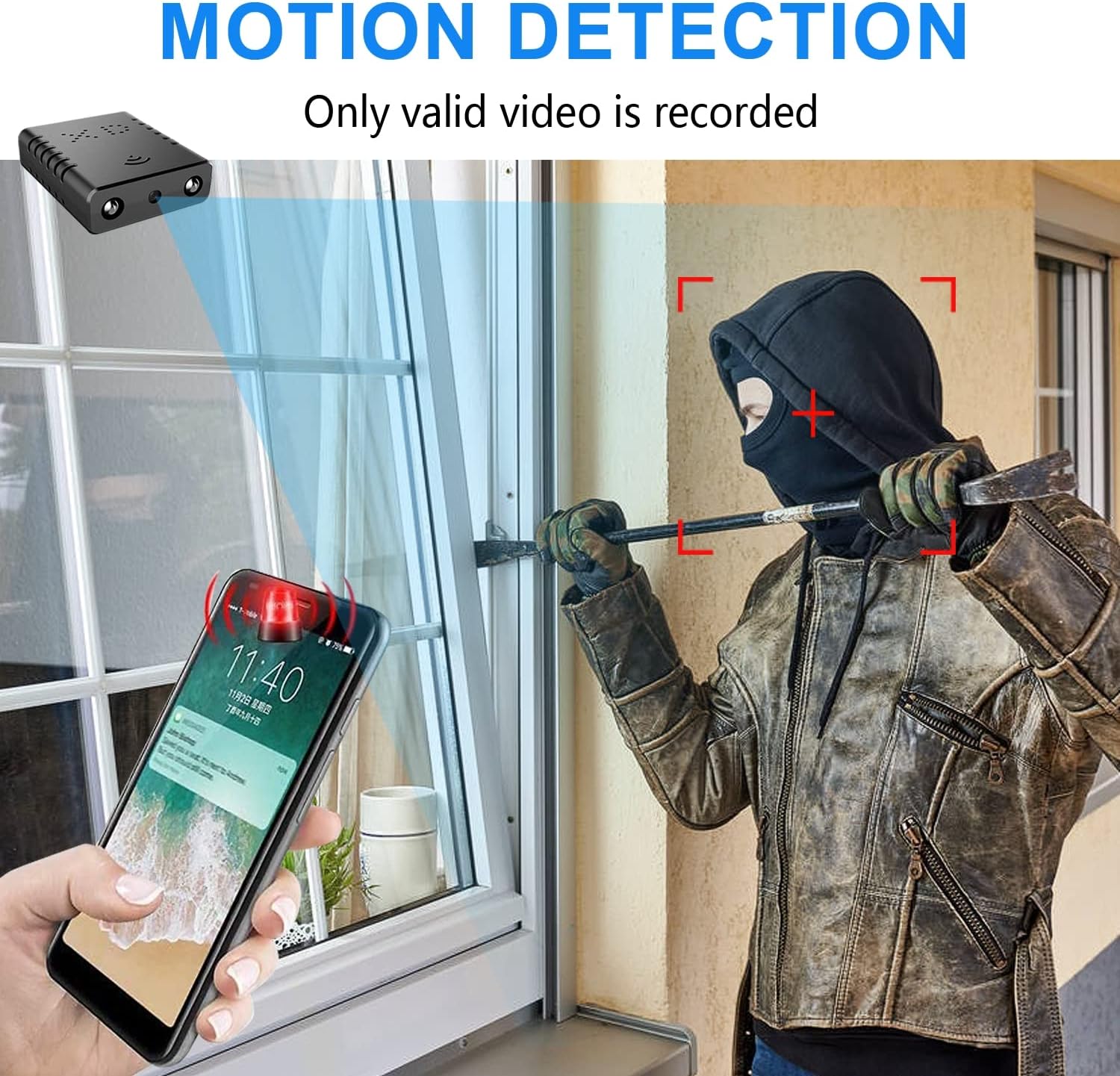
Image: Illustration of the motion detection feature, showing an alert on a smartphone.

Image: Day and night vision comparison, showing clear infrared night vision.
4. Setup Guide
4.1. Initial Charging
Before first use, fully charge the camera for approximately 6 hours. During charging, a yellow light will illuminate. The camera charges via a USB-C port.
4.2. No-WiFi Recording Mode
To record without a WiFi connection, insert a compatible Micro SD card (16GB to 128GB, formatted in FAT32) into the TF card slot. Press the power button. When the blue light flashes, continuous recording will begin automatically in 5-minute clips. No app registration or device binding is needed for this mode. (Micro SD card not included, purchased separately).

Image: Side view of the camera highlighting the TF card slot and charging port.
4.3. WiFi Recording Mode (App Connection)
For remote viewing and advanced features, connect the camera to your home WiFi network via the mobile application. The recommended app is V380 Pro.
- Download the App: Search for "V380 Pro" in your device's app store (iOS/Android) and install it.
- Register an Account: Open the app and follow the on-screen instructions to register a new account.
- Power On Camera: Turn on the camera.
- Hotspot Connection (Method 1):
- Hold the "Reset" button until both red and blue lights flash simultaneously.
- When the blue light flashes again, the camera will send out a hotspot signal.
- On your phone's WLAN settings, connect to the camera's hotspot (e.g., "@MC-********" or "@IPC-********"). No password is required.
- The device should be added automatically in the app. Go to "Device Settings" > "Wi-Fi Network" and choose your available home WiFi network. Enter the password and confirm.
- Bluetooth Connection (Method 2):
- Turn on your phone's Bluetooth.
- Log into the O-KAM Pro app (or V380 Pro), go to the "Mine" page, tap "System Permissions," and enable Bluetooth.
- In the app, click the "+" button in the upper right corner. The app will automatically detect the camera's UID. Click "Connect."
- Enter your correct WiFi password and complete the connection steps. Finally, click "Get Start" to begin using your camera.

Image: Step-by-step guide for easy app installation and WiFi connection.
Video: Detailed tutorial on camera setup and app connection for the Rettru XDWIFI camera.
5. Operating Instructions
5.1. Remote Viewing
Once connected to the app, you can view live video from anywhere in the world. The app allows multiple users to view the camera simultaneously.
5.2. Motion Detection
Configure intelligent motion detection settings within the app. You can manually set monitoring areas and schedules. Upon detection, the camera sends alarm notifications with images to your phone.
5.3. Night Vision
The camera automatically switches to night vision in low light conditions, providing clear black and white video up to 26 feet.
5.4. Continuous Recording
With an inserted Micro SD card, the camera supports loop recording. When the card is full, new footage will automatically overwrite the oldest files, ensuring continuous surveillance.
5.5. Cloud Storage
Utilize the powerful cloud service for secure storage of your video data. This ensures your recordings are safe even if the camera is tampered with or lost.
6. Maintenance
To ensure optimal performance and longevity of your Rettru XDWIFI camera, follow these maintenance guidelines:
- Cleaning: Gently wipe the camera lens and body with a soft, dry cloth. Avoid using harsh chemicals or abrasive materials.
- Battery Life: For prolonged use, ensure the camera is regularly charged. While battery-powered, continuous live viewing or frequent motion alerts can drain the battery faster.
- SD Card Management: Regularly check the status of your Micro SD card. If using loop recording, ensure the card is functioning correctly. Periodically back up important footage.
- Firmware Updates: Check the V380 Pro app for any available firmware updates to ensure your camera has the latest features and security enhancements.
7. Troubleshooting
If you encounter issues with your camera, please refer to the following common solutions:
- Connection Failure: If the camera fails to connect to the app or WiFi, try resetting the camera and attempting to reconnect.
- Resetting the Device: To restore factory settings, power on the camera and hold the "Reset" button until both red and blue lights flash simultaneously. This will clear previous settings and allow for a fresh connection attempt.
- No QR Code for Setup: Some users have reported issues with missing or non-functional QR codes. Follow the manual connection methods (hotspot or Bluetooth) as detailed in Section 4.3.
- Recording Issues: Ensure a compatible Micro SD card (16GB-128GB, FAT32) is properly inserted. Check app settings for recording mode (continuous, motion-activated) and storage preferences.
- Offline Status: Verify your WiFi network is stable and within range. Ensure the camera is powered on and fully charged.
8. Specifications
| Feature | Detail |
|---|---|
| Model | XDWIFI |
| Video Capture Resolution | 1080p |
| Connectivity Technology | Wireless (Wi-Fi) |
| Compatible Devices | iOS/Android Phone/Window/Mac PC |
| Power Source | Battery Powered |
| Controller Type | V380 Pro App |
| Mounting Type | Surface Mount (Magnetic Base) |
| Night Vision Range | 26-28 Feet |
| Item Dimensions (L x W x H) | 1.6 x 1.2 x 0.5 inches |
| Item Weight | 0.8 ounces |
| Special Features | HD1080P, Local Recording, Motion Sensor, Night Vision, Portable |
| Indoor/Outdoor Usage | Indoor/Outdoor (IP65 Rated) |
| Audio Visual Recording Capabilities | Video |
| Number of IR LEDs | 2 |
9. Warranty and Support
For any issues or inquiries regarding your Rettru XDWIFI Mini Wireless WiFi Camera, please contact our after-sales service. The contact email is typically provided in the user manual included in your package. We are committed to providing support and assistance.
