
1. Introduction
The V8 Live Sound Card is a versatile audio mixer and external sound card designed for live broadcasting, KTV, and voice chat. It offers multiple sound effects, adjustable audio controls, and broad compatibility with various devices, enhancing your audio experience for entertainment and professional use.
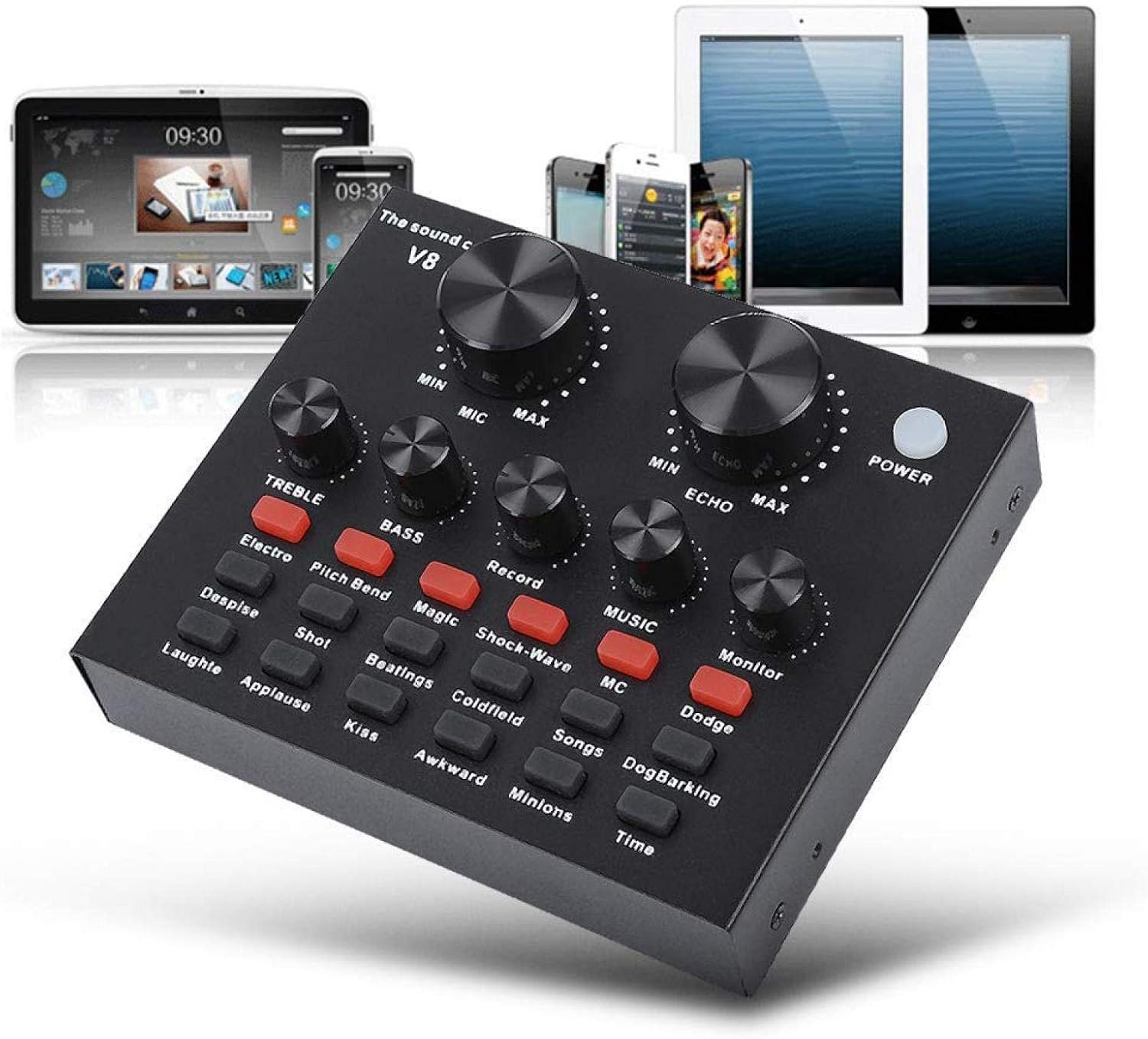
Figure 1: V8 Live Sound Card connected to various devices.
2. Features
- Multi-Device Support: Compatible with mobile phones, computers (laptops, desktops), and single headsets. Supports dual cell phone live, mobile phone computer synchronous live, one computer live, computer accompaniment cell phone live, and instrument input cell phone live.
- Professional Noise Reduction Technology: Features adjustable volume controls for various needs, including reverberation size, microphone volume, high/bass, recording volume, music volume, and monitoring volume (earphone function).
- Multiple Effects, Modes, and Gameplay: Includes 12 kinds of electric sound, 12 kinds of sound effects, and 10 kinds of effect modes. Silicone buttons allow for real-time volume adjustments without software.
- Portable and Lightweight: Designed for portability, allowing users to enjoy singing or speech anywhere.
- Wide Application: Suitable for Home KTV, Voice Chat, Live streaming (Facebook, Periscope, Livestream, Wechat, Smule), and more. Plug and Play functionality, no driver downloads required.
3. Package Contents
Upon opening the package, please verify that all components are present and in good condition:
- 1 x V8 Live Sound Card Unit
- 2 x Audio Cables
- 1 x USB Cable
- 1 x English User Manual

Figure 2: V8 Live Sound Card and its included accessories.
4. Product Overview
Familiarize yourself with the V8 Live Sound Card's layout and ports:
Front Panel Controls:

Figure 3: Front panel of the V8 Live Sound Card.

Figure 4: Detailed view of control panel labels.
- MIC (Microphone Volume): Adjusts the input volume of the microphone.
- ECHO (Echo Effect): Controls the intensity of the echo effect.
- TREBLE (Treble Adjustment): Adjusts the high-frequency sound.
- BASS (Bass Adjustment): Adjusts the low-frequency sound.
- RECORD (Recording Volume): Controls the volume of the recorded output.
- MUSIC (Music Volume): Adjusts the volume of the background music.
- MONITOR (Monitoring Volume): Controls the volume heard through connected headphones/earphones.
- POWER Button: Turns the device on/off.
- Sound Effect Buttons: Various buttons for specific sound effects (e.g., Electro, Pitch Bend, Magic, Shock-Wave, MC, Dodge, Despise, Shot, Beatings, Coldfield, Songs, Dog Barking, Laughter, Applause, Kiss, Awkward, Minions, Time, Reverb Delay, Voice Change, Elimination, Crack, 9277, Yell, Slash, PUBG).
Rear Panel Ports:

Figure 5: Rear panel ports of the V8 Live Sound Card.
- Charging / Computer Interface: USB port for charging and connecting to a computer.
- Live 1 / Live 2: Ports for connecting mobile phones for live broadcasting.
- Accompaniment Interface: For connecting an external audio source for background music.
- Earphone Speaker: Output for connecting external speakers or headphones.
- Headset Interface: For connecting a headset with a combined microphone and headphone jack.
- Condenser Mic: Input for condenser microphones.
- Dynamic Mic: Input for dynamic microphones.
5. Setup
Follow these steps to set up your V8 Live Sound Card:
Initial Power On:
- Ensure the sound card is charged or connected to a power source via the USB cable.
- Press the POWER button on the front panel to turn on the device.
Connection Methods:

Figure 6: Computer Live/Accompaniment connection method.
- For Computer Live/Accompaniment:
- Connect the USB cable from the sound card's Charging / Computer Interface to your computer. The sound card should be automatically recognized.
- Connect your microphone to the Condenser Mic or Dynamic Mic input.
- Connect your headphones or speakers to the Earphone Speaker or Headset Interface.
- If using an accompaniment device (e.g., another phone for music), connect it to the Accompaniment Interface using an audio cable.
- For Single Mobile Phone Live Broadcast:
- Connect one audio cable from the sound card's Live 1 or Live 2 port to your mobile phone's audio jack. If your phone does not have a 3.5mm audio jack, use an audio adapter cable (not included).
- Connect your microphone to the appropriate mic input.
- Connect your headphones to the Headset Interface or Earphone Speaker.
- For Dual Mobile Phone Live Broadcast:
- Connect one audio cable from the sound card's Live 1 port to your first mobile phone.
- Connect a second audio cable from the sound card's Live 2 port to your second mobile phone.
- Connect your microphone and headphones as described above.
6. Operating Instructions
Once connected, you can begin using your V8 Live Sound Card:
- Adjusting Volumes: Use the large knobs for MIC and ECHO. Use the smaller knobs for TREBLE, BASS, RECORD, MUSIC, and MONITOR to fine-tune your audio levels.
- Applying Sound Effects: Press the various sound effect buttons on the front panel to activate different effects. Experiment with each button to find the desired sound.
- Voice Change: Utilize the


