
1. Introduction and Overview
The Thinkcar Thinkscan Max2 is a professional-grade automotive diagnostic scanner designed for comprehensive vehicle health checks and maintenance. Equipped with a 6-inch LCD touchscreen, Android 10.0 operating system, and a Bluetooth VCI dongle, it offers a user-friendly experience for diagnosing issues across all vehicle systems.
This device supports the advanced CAN-FD protocol, ensuring compatibility with newer vehicle models. It provides OE-level diagnostics, allowing users to read and clear fault codes, view live data streams, and access ECU information. Additionally, the Thinkscan Max2 includes over 28 common maintenance reset functions, making it an indispensable tool for both professional technicians and car enthusiasts.

Figure 1: Thinkcar Thinkscan Max2 Diagnostic Tool and Accessories
2. Product Features
The Thinkscan Max2 offers a robust set of features to facilitate accurate and efficient vehicle diagnostics:
- OE-Level All System Diagnostics: Capable of scanning all electronic control units (ECUs) such as Engine, Transmission, ABS, SRS (Airbag), TPMS, SAS, BMS, DPF, EPS, IMMO, EPB, EVAP, and more.
- 28+ Maintenance Reset Functions: Includes essential services like Oil Reset, Electronic Parking Brake (EPB) Reset, Steering Angle Sensor (SAS) Calibration, ABS Bleeding, Battery Management System (BMS) Reset, Diesel Particulate Filter (DPF) Regeneration, Tire Pressure Monitoring System (TPMS) Reset, Injector Coding, Throttle Adaptation, Gear Learning, and many others.
- CAN-FD Protocol Support: Ensures compatibility with the latest GM vehicles (2020-2021 models) and offers faster communication speeds for efficient diagnostics.
- Wireless Bluetooth VCI Dongle: Allows for convenient wireless communication with the vehicle, providing a working range of up to 10 meters (33 feet).
- Smart Diagnosis with Auto VIN: Automatically identifies vehicle information (VIN) for quick and accurate system matching, streamlining the diagnostic process.
- Live Data Stream & Graphing: Displays real-time sensor data in text or graphical format, supporting 4-in-1 data stream graphing for detailed analysis.
- High-End Hardware Configuration: Features a 6-inch touchscreen, Android 10.0 OS, 2GB RAM, 32GB ROM, and a 3150mAh battery for reliable performance.
- Extensive Vehicle Coverage: Supports over 93 vehicle brands and 10,000+ vehicle models globally, including FCA protocol support.
- Multi-Language Support: Operates in 17 languages, including English, French, German, Italian, Spanish, Portuguese, Japanese, Russian, Polish, Dutch, Arabic, Greek, Korean, Swedish, Slovak, Hungarian, and Chinese.
- Lifetime Free Software Updates: All basic diagnostic software and reset functions receive free lifetime updates, ensuring access to the latest vehicle coverage and features.
- Diagnostic Report Generation & Sharing: Automatically generates diagnostic reports that can be shared via QR code or email for easy record-keeping and client communication.

Figure 2: Overview of 28+ Maintenance Functions
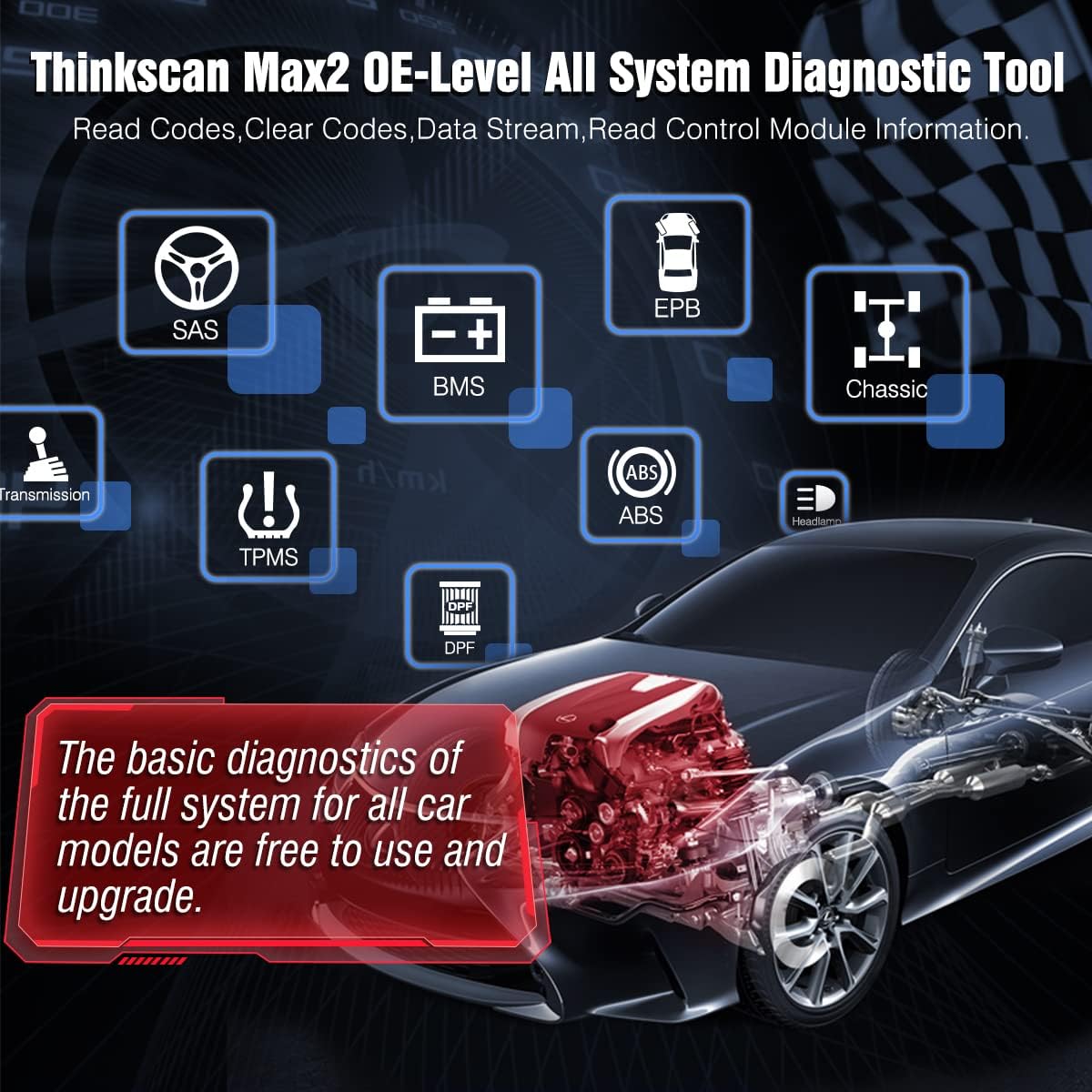
Figure 3: OE-Level All System Diagnostic Capabilities

Figure 4: 4-in-1 Datastream Graph Display
3. Setup Guide
3.1 Unboxing and Initial Inspection
Upon receiving your Thinkscan Max2, carefully open the package and verify that all components are present. The standard package includes:
- Thinkscan Max2 Diagnostic Tablet
- VCI Dongle (Bluetooth connector)
- Charging Cable (USB-C)
- Charging Adapter
- Convertible Plugs (x3)
- EVA Storage Bag
- Multilingual User Manual

Figure 5: Thinkscan Max2 Package Contents
3.2 Charging the Device
Before first use, ensure the Thinkscan Max2 tablet is fully charged. Connect the provided USB-C charging cable to the device and the charging adapter, then plug it into a power outlet. The charging indicator will show the battery status. A full charge typically takes a few hours.
3.3 Initial Power On and Language Selection
Press and hold the power button to turn on the device. Follow the on-screen prompts to select your preferred language (e.g., English) and connect to a Wi-Fi network. A stable Wi-Fi connection is essential for software updates and online features.
3.4 VCI Dongle Connection
The VCI (Vehicle Communication Interface) dongle connects the Thinkscan Max2 tablet to your vehicle's OBD-II port. Insert the VCI dongle firmly into the vehicle's OBD-II port, usually located under the dashboard on the driver's side. The dongle will power on and establish a Bluetooth connection with the tablet automatically once the tablet is powered on and within range.
3.5 Software Updates
It is highly recommended to update the software immediately after initial setup to ensure you have the latest vehicle coverage and diagnostic functions. Navigate to the 'Upgrade' or 'Update' section on the tablet's main menu. The Thinkscan Max2 offers lifetime free software updates for its core diagnostic and reset functions.

Figure 6: Software Update Interface
4. Operating Instructions
4.1 Connecting to a Vehicle
Ensure the VCI dongle is securely plugged into the vehicle's OBD-II port. On the Thinkscan Max2 tablet, select 'Scan' from the main menu. The device will automatically attempt to connect to the VCI dongle via Bluetooth.
4.2 Auto VIN Scan
After establishing communication, the device will prompt you to perform an 'Auto VIN' scan. This feature automatically identifies the vehicle's make, model, and year, simplifying the diagnostic process. If Auto VIN fails, you can manually select the vehicle information.

Figure 7: Auto VIN Scan in Progress
4.3 All System Diagnostics
Once the vehicle is identified, you can proceed with a full system scan. This function allows you to:
- Read Fault Codes (DTCs): Retrieve diagnostic trouble codes from all accessible ECUs.
- Clear Fault Codes: Erase stored DTCs after repairs have been made.
- View Live Data Stream: Monitor real-time parameters from various sensors and components. This data can be displayed in numerical or graphical format for easier analysis.
- Read ECU Information: Access detailed information about the vehicle's control modules, including part numbers and software versions.
4.4 Maintenance Reset Functions
The Thinkscan Max2 provides over 28 special reset services. To access these, navigate to the 'Maintenance & Service' section from the main menu. Select the desired function and follow the on-screen instructions. Some common functions include:
- Oil Reset: Resets the oil life reminder after an oil change.
- EPB Reset: Deactivates and reactivates the electronic parking brake system for brake pad replacement.
- SAS Calibration: Calibrates the steering angle sensor after steering system repairs.
- TPMS Reset: Resets tire pressure monitoring system sensors after tire rotation or replacement.
- Injector Coding: Codes new injector numbers into the ECU after replacement.
- DPF Regeneration: Initiates the regeneration process for the diesel particulate filter.
4.5 Diagnostic Report Generation
After completing a diagnostic session, the Thinkscan Max2 can generate a comprehensive report. This report summarizes the vehicle's health status, including any detected fault codes. You can share these reports by scanning a QR code displayed on the screen or by sending them via email.

Figure 8: Sharing Diagnostic Reports
5. Maintenance
To ensure the longevity and optimal performance of your Thinkscan Max2, follow these maintenance guidelines:
- Cleaning: Use a soft, dry cloth to clean the device. Avoid using abrasive cleaners or solvents that could damage the screen or casing.
- Software Updates: Regularly check for and install software updates. These updates provide new features, bug fixes, and expanded vehicle coverage. Connect the device to a stable Wi-Fi network for seamless updates.
- Battery Care: To preserve battery life, avoid fully discharging the device frequently. If storing the device for an extended period, ensure it is charged to about 50-70%.
- Storage: Store the device in its EVA storage bag in a cool, dry place, away from direct sunlight, extreme temperatures, and excessive dust.
6. Troubleshooting
If you encounter issues with your Thinkscan Max2, refer to the following common troubleshooting tips:
- Device Not Powering On: Ensure the battery is charged. Connect the charger and try again. If the issue persists, contact support.
- VCI Dongle Not Connecting: Verify the VCI dongle is securely plugged into the vehicle's OBD-II port. Ensure the vehicle's ignition is on. Check Bluetooth settings on the tablet to confirm it's enabled and attempting to pair.
- Software Update Failure: Ensure a strong and stable Wi-Fi connection. Restart the device and try the update again. If the problem continues, there might be insufficient storage space; clear unnecessary files if possible.
- Unable to Diagnose Specific Vehicle: Confirm the vehicle's make, model, and year are correctly selected. Ensure the software for that specific vehicle brand is downloaded and up to date. Some older or highly specialized vehicles may require manual VIN entry.
- Inaccurate Readings/Functions Not Working: Ensure the VCI dongle is properly connected and the vehicle's ignition is on. Verify that the specific function is supported for your vehicle model.
For more complex issues or if troubleshooting steps do not resolve the problem, utilize the 'Online Feedback' feature on the device or contact Thinkcar's remote technical support.
7. Specifications
| Feature | Specification |
|---|---|
| Manufacturer | Thinkcar |
| Brand | Thinkcar |
| Model Number | XKB05 |
| Serial Number | Thinkcar MAX2 |
| Item Weight | 1.52 Kilograms |
| Product Dimensions (L x W x H) | 19.99 x 14 x 7.01 cm |
| Battery | 3150 mAh (1 AAA battery required for VCI dongle) |
| Operating System | Android 10.0 |
| Screen Size | 5.99 Inches |
| Display Resolution | 1280x800 |
| Connectivity | Bluetooth V4.0 (VCI), Wi-Fi (2.4GHz/5GHz) |
| Storage (ROM) | 32 GB |
| RAM | 2 GB |
| Supported Protocols | OBD-II, CAN-FD, FCA |
| UPC | 768297195143 |
8. Warranty and Support
Thinkcar is committed to providing excellent customer service and product support for the Thinkscan Max2.
- Lifetime Free Updates: Enjoy free lifetime software updates for all basic diagnostic functions and 28+ reset services, ensuring your device remains current with the latest vehicle models and features.
- 3-Year Safeguard: The product comes with a 3-year safeguard period.
- 30-Day Free Return: A 30-day free return policy is available for your peace of mind.
- Remote Technical Support: Access remote technical assistance for complex diagnostic issues or operational guidance. This can often be initiated directly from the device via the 'Online Feedback' function.
For further assistance, please refer to the contact information provided in your product packaging or visit the official Thinkcar website.

Figure 9: Thinkcar Customer Support


