
Blindsmart ZM25TQWIFI-AU
Blindsmart Smart Blinds Motor Instruction Manual
Model: ZM25TQWIFI-AU
1. Introduction
Thank you for choosing the Blindsmart Smart Blinds Motor. This motor is designed to automate your roller shades, providing convenience through remote, app, and voice control. This manual provides detailed instructions for installation, operation, and maintenance to ensure optimal performance and longevity of your device.
2. Product Overview
The Blindsmart Smart Blinds Motor is a tubular motor specifically designed for 38 mm (1-1/2 inch) roller shade tubes. It features a built-in Wi-Fi module, enabling seamless integration with your smart home ecosystem via the Tuya or Smart Life application. Control your blinds effortlessly using the included remote, your smartphone, or voice commands through Amazon Alexa and Google Assistant.
Key features include:
- Wi-Fi Connectivity: Operates on 2.4GHz Wi-Fi, no additional gateway required.
- Multiple Control Options: Remote control, Smart Life/Tuya APP control, and voice control (Alexa, Google Assistant).
- Timing Control: Schedule automatic opening and closing of your blinds.
- Compatibility: Suitable for 38 mm (1-1/2 inch) tubes. Supports roller shades up to 3 meters (118 inches) in length and 4 KG (8.82 lb) in weight.
3. Package Contents
Please verify that all components are present in your package:
- 1x Blindsmart Smart Blinds Motor (suitable for 36-38mm / 1-1/2 inch tubes)
- 1x End Cap
- 2x Mounting Brackets (Trackets)

Image: Blindsmart Smart Blinds Motor, end cap, and mounting brackets.

Image: Detailed product information including motor dimensions and accessory types. Note: Remote controls are sold separately for the 'Only Motor' variant.
4. Specifications
| Attribute | Detail |
|---|---|
| Brand | Blindsmart |
| Model Number | ZM25TQWIFI-AU |
| Material | Aluminum |
| Product Dimensions | 14.06"L x 0.98"W |
| Tube Compatibility | 38 mm (1-1/2 inch) tube |
| Max Roller Shade Length | 3M (118 Inch) |
| Max Roller Shade Weight | 4KG (8.82lb) |
| Operation Mode | Automatic |
| Control Type | Remote/Motorized/Voice |
| Mounting Type | Outside Mount |
| Item Weight | 0.085 Ounces |
| Power Source | AC (Plug-in) |
| Batteries Required | No (for motor) |
| Product Care Instructions | Spot Clean |
5. Setup
5.1 Physical Installation
The Blindsmart motor is designed to fit into standard 38mm (1-1/2 inch) tubular roller shade mechanisms. Ensure your existing roller shade tube has a groove for proper motor fitment.
- Measure Your Tube: Confirm your roller shade tube's inner diameter is approximately 38mm (1-1/2 inches).
- Insert the Motor: Carefully slide the Blindsmart motor into one end of your roller shade tube. Ensure the motor's drive wheel engages correctly with the tube's groove.
- Attach End Cap: Place the provided end cap onto the opposite end of the roller shade tube.
- Mount the Brackets: Securely install the two mounting brackets (trackets) to your window frame or wall, ensuring they are level and spaced correctly to support the roller shade assembly.
- Install the Shade: Place the assembled roller shade (with motor and end cap) onto the mounted brackets.

Image: Measuring the roller shade tube to ensure compatibility.

Image: The motor being inserted into the roller shade tube.

Image: The end cap being attached to the roller shade tube.

Image: A mounting bracket being installed.

Image: Diagram illustrating how the motor fits into a 38mm tube with a groove.
5.2 Network Connection (Wi-Fi)
The Blindsmart motor connects directly to your 2.4GHz Wi-Fi network. A separate gateway is not required.
- Power On: Plug in the motor to a power outlet.
- Enter Pairing Mode: Press the motor setting button (usually a small button on the motor head) 3 times. The motor will make a 'Di' sound, indicating it's in network configuration state.
- Open Tuya/Smart Life App: On your smartphone, open the Tuya Smart or Smart Life application. Ensure your phone is connected to a 2.4GHz Wi-Fi network.
- Add Device: The app should automatically detect the new device. If not, tap 'Add Device' or the '+' icon and select 'Auto Scan' or manually add the 'Curtain Motor (Wi-Fi)'.
- Confirm Wi-Fi: Follow the in-app prompts to confirm your 2.4GHz Wi-Fi network and enter the password.
- Pairing Complete: Once connected, the motor will confirm with a sound, and the device will appear in your app.

Image: Step-by-step guide for connecting the motor to the Tuya/Smart Life app.

Image: Visual representation of the motor connecting directly to a 2.4GHz Wi-Fi router.
5.3 Remote Control Pairing (Optional Accessory)
If you have purchased a compatible Blindsmart remote control, follow these steps to pair it with your motor:
- Enter Pairing Mode: Press the motor setting button (small button on the motor head) 1 time.
- Press Remote 'Up' Key: On your remote control, press the 'Up' button.
- Pairing Done: The motor will respond, indicating successful pairing.

Image: Step-by-step guide for pairing the motor with a remote control.
6. Operating Instructions
6.1 Remote Control Operation
Use the remote control for direct and convenient operation of your motorized blinds.
- Up Button: Raises the blinds.
- Down Button: Lowers the blinds.
- Stop Button: Stops the blinds at their current position.
- Setting Limits: Refer to the remote control's specific manual for setting upper and lower travel limits.

Image: A user operating smart blinds with a remote control.

Image: A hand holding a remote control, with an arrow indicating blinds moving upwards.
6.2 APP Control (Tuya Smart / Smart Life)
The Tuya Smart or Smart Life app provides comprehensive control and scheduling features for your blinds.
- Open/Close: Use the virtual buttons in the app to open, close, or stop your blinds at any desired position.
- Stroke Limit & Reset: Adjust the upper and lower travel limits of your blinds directly from the app. If needed, you can also reset the limits.
- Timing Control: Set schedules for your blinds to open or close automatically at specific times of the day or on certain days of the week.

Image: The Smart Life app interface displaying options for stroke limit, reset, and timing control for the blinds.
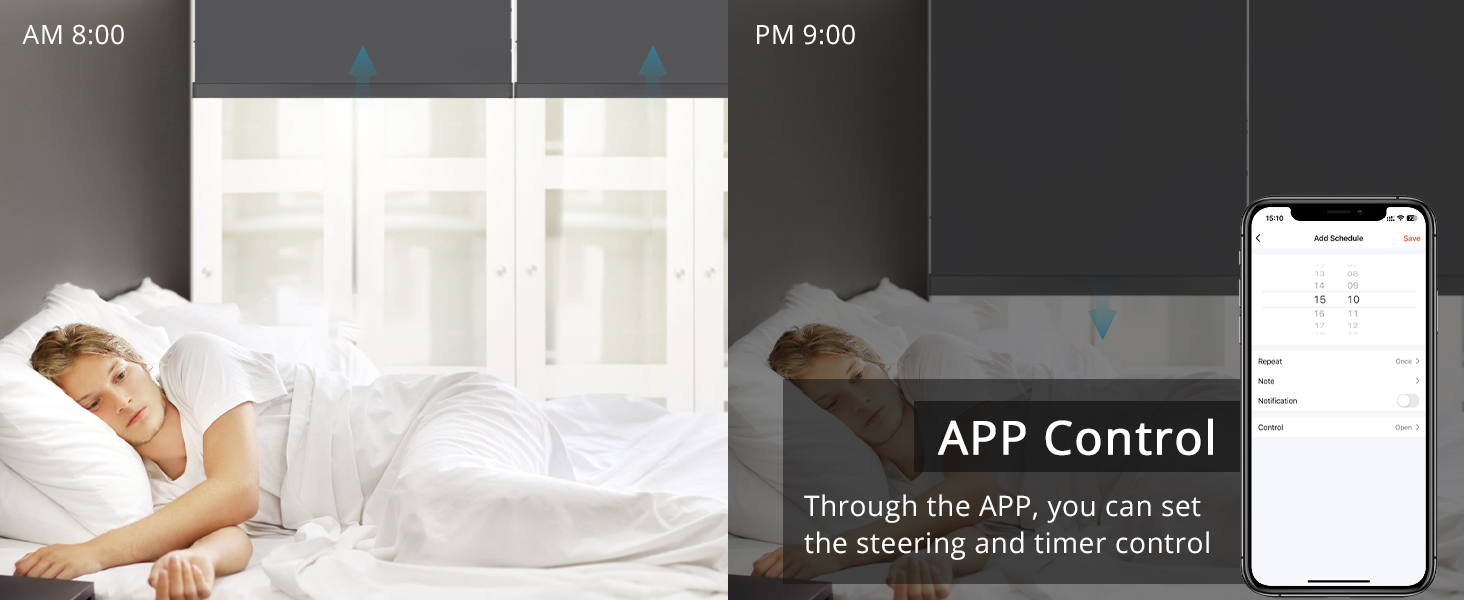
Image: A smartphone displaying the app control interface, highlighting timing schedule options for automated blind operation.
6.3 Voice Control (Alexa & Google Assistant)
Integrate your Blindsmart motor with Amazon Alexa or Google Assistant for convenient voice commands.
- Link Account: In your Alexa or Google Home app, enable the 'Tuya Smart' or 'Smart Life' skill/service and link your account.
- Discover Devices: Ask your voice assistant to discover new devices.
- Voice Commands: Once discovered, you can use commands such as:
- "Alexa, open the blinds."
- "Hey Google, close the living room shade."
- "Alexa, set the blinds to 50%."

Image: A couple interacting with an Amazon Echo device, demonstrating voice control to close roller shades.
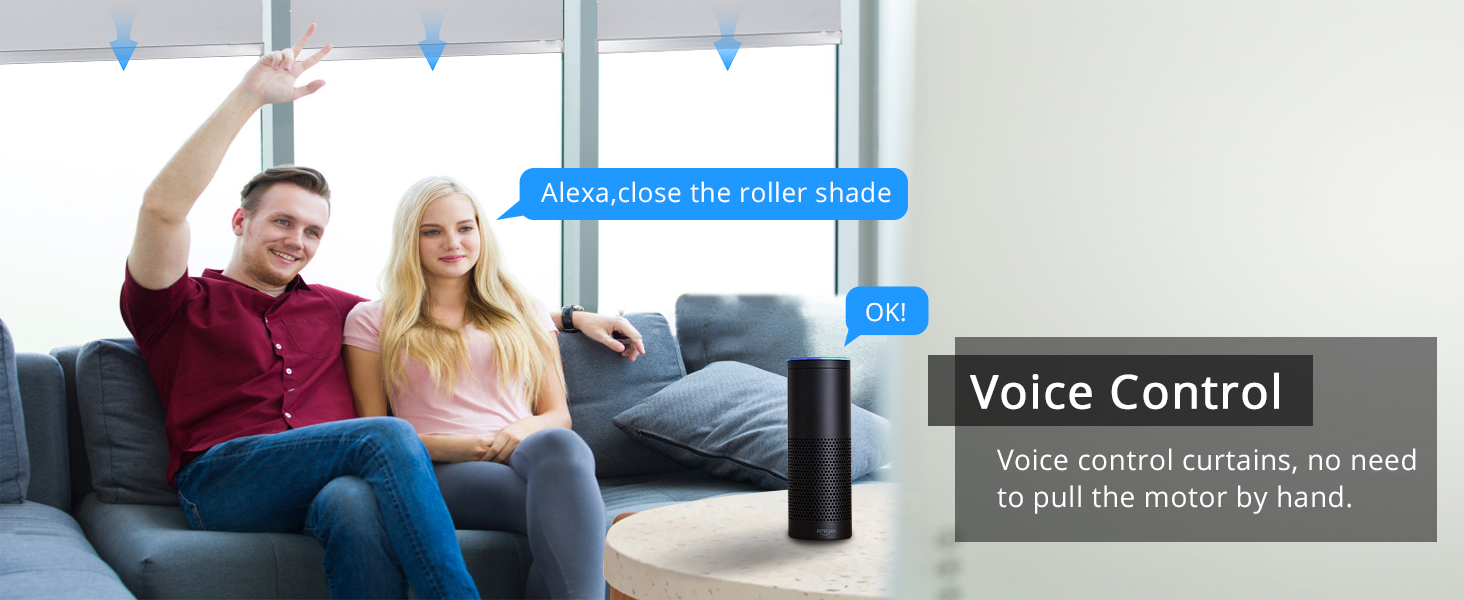
Image: A visual representation of voice control functionality, featuring logos for Amazon Alexa and Google Assistant.
7. Maintenance
The Blindsmart Smart Blinds Motor requires minimal maintenance. Follow these guidelines to ensure its continued performance:
- Cleaning: If necessary, gently spot clean the exterior of the motor and brackets with a soft, dry cloth. Do not use abrasive cleaners or immerse the motor in water.
- Regular Checks: Periodically check the mounting brackets and the motor's connection to the roller shade tube to ensure they remain secure.
- Avoid Obstructions: Ensure the path of the blinds is clear of any obstructions that could impede their movement and strain the motor.
8. Troubleshooting
If you encounter issues with your Blindsmart Smart Blinds Motor, refer to the following common solutions:
| Problem | Possible Cause | Solution |
|---|---|---|
| Motor not responding to remote/app/voice. | No power, Wi-Fi disconnected, remote not paired, motor stuck. | Check power connection. Verify 2.4GHz Wi-Fi signal strength. Re-pair remote if necessary (Section 5.3). Check for physical obstructions. |
| Blinds move in the wrong direction. | Motor direction setting is reversed. | In the Tuya/Smart Life app settings for the motor, find the 'Reverse Direction' or 'Motor Direction' option and toggle it. If using a remote, consult its specific manual for direction reversal. |
| Blinds do not open/close completely. | Upper/lower limits are incorrectly set. | Adjust the stroke limits using the Tuya/Smart Life app (Section 6.2) or your remote control's limit setting procedure. |
| Motor loses Wi-Fi signal frequently. | Weak Wi-Fi signal, network interference. | Ensure your 2.4GHz Wi-Fi router is within range and not obstructed. Consider a Wi-Fi extender if necessary. You may need to reset and re-pair the motor to the app. |
9. Warranty and Support
Blindsmart is committed to providing high-quality products and excellent customer service. If you require any installation assistance, encounter problems with your product, or have questions not covered in this manual, please do not hesitate to contact us. We will make every effort to provide you with the necessary support.
Please refer to your purchase documentation for specific warranty terms and contact information.
Ask a question about this manual
Ask about setup, troubleshooting, compatibility, parts, safety, or missing instructions. Manuals+ will review the question and use this page’s manual context to help answer it.