
1. Introduction
This manual provides instructions for the setup, operation, and maintenance of your ExtreLife Wireless Charging RGB Gaming Mouse Pad. Please read this manual thoroughly before use to ensure proper function and longevity of the product.
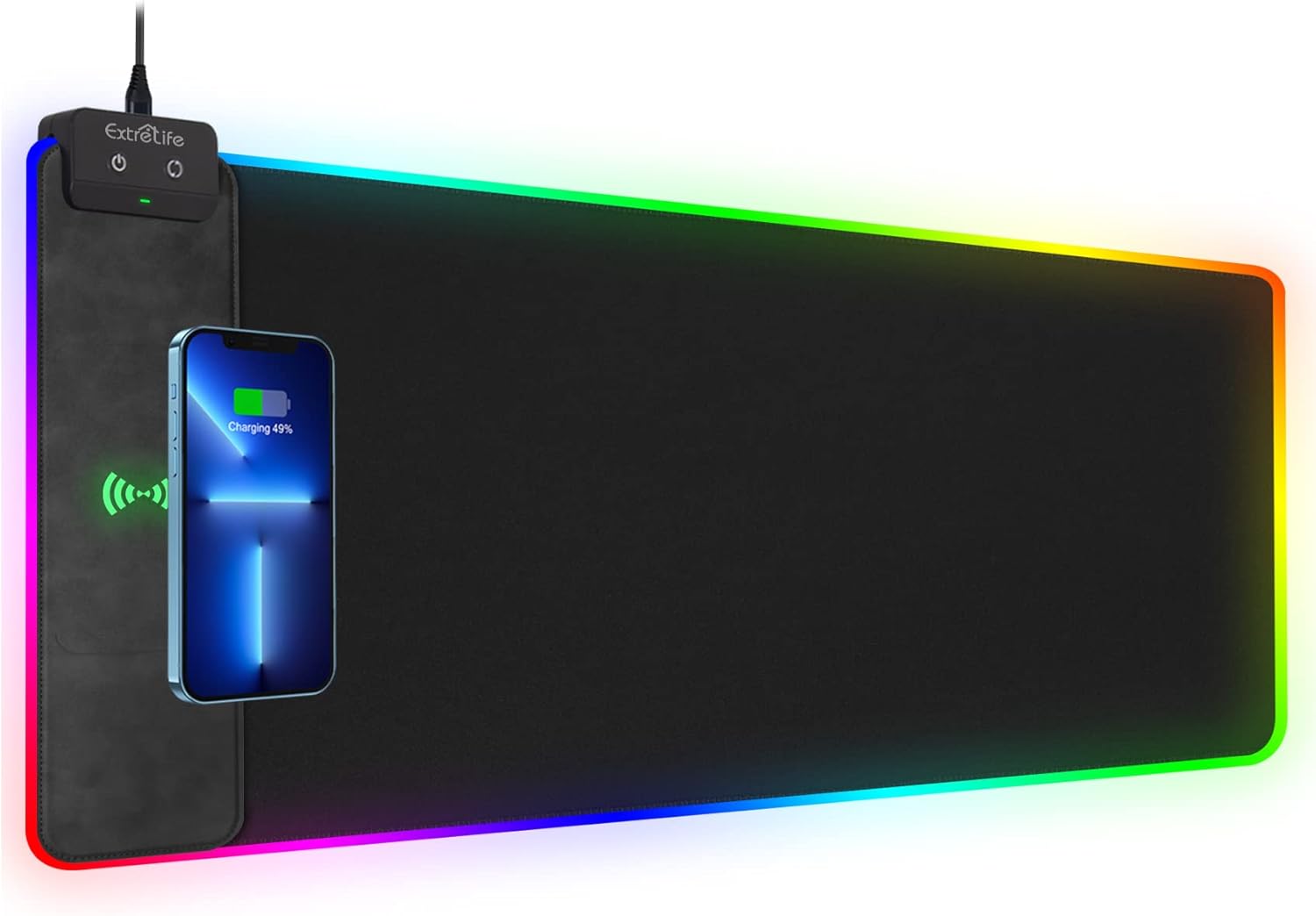
Image 1.1: The ExtreLife Wireless Charging RGB Gaming Mouse Pad, featuring a smartphone wirelessly charging on the integrated pad.
2. Safety Information
- Do not expose the product to extreme temperatures or direct sunlight.
- Keep away from water and other liquids, despite its waterproof coating.
- Use only a compatible power adapter (9V 2A or QC3.0/2.0) for the wireless charging function.
- Avoid placing metal objects, magnets, credit cards, or phone grips/stands on the wireless charging area as this may interfere with charging or damage the device.
- Do not attempt to disassemble or repair the product yourself. Contact customer support for assistance.
3. Package Contents
Please verify that all items are present in the package:
- ExtreLife Wireless Charging RGB Gaming Mouse Pad
- USB Power Cable
- Instruction Manual (this document)
Note: A power adapter (9V 2A or QC3.0/2.0) is NOT included and must be purchased separately for optimal 10W wireless charging.
4. Setup
4.1 Connecting the Power
- Unroll the mouse pad and place it on a flat, stable surface.
- Connect the provided USB power cable to the port on the control module of the mouse pad.
- Plug the other end of the USB cable into a compatible power adapter (9V 2A or QC3.0/2.0 recommended for 10W wireless charging) and then into a power outlet.

Image 4.1: The control module of the mouse pad, showing the power input and control buttons.
4.2 Initial Placement
Ensure the mouse pad is positioned comfortably on your desk, allowing ample space for your keyboard and mouse. The large size (31.5 x 15.7 inches) is designed to accommodate various setups.

Image 4.2: The mouse pad set up on a desk, providing a large surface for a keyboard and mouse.
5. Operating Instructions
5.1 Wireless Charging Function
The mouse pad features a 10W wireless charging area. To use this function:
- Place your Qi-enabled device (e.g., smartphone) directly onto the designated wireless charging area on the mouse pad.
- Ensure the device is centered on the charging icon for optimal contact.
- The charging indicator light on the control module will turn GREEN when charging is active.

Image 5.1: An illustration highlighting the internal wireless charging coil within the mouse pad.
Compatibility:
The wireless charger is compatible with most Qi-enabled devices, including:
- 10W for Samsung: Galaxy S22/S22 Ultra/S21/S20/S10, Note 10/9/8, etc.
- 7.5W for iPhone: iPhone 16/16 Plus/16 Pro/16 Pro Max/15/15 Plus/15 Pro/15 Pro Max/14/14Plus/14Pro/14 Pro Max/13/13Pro/12/12Pro/11Pro/Xs Max, etc.
- 5W for AirPods: AirPods Pro, AirPods 3, AirPods 2.
- Other Qi-enabled devices.
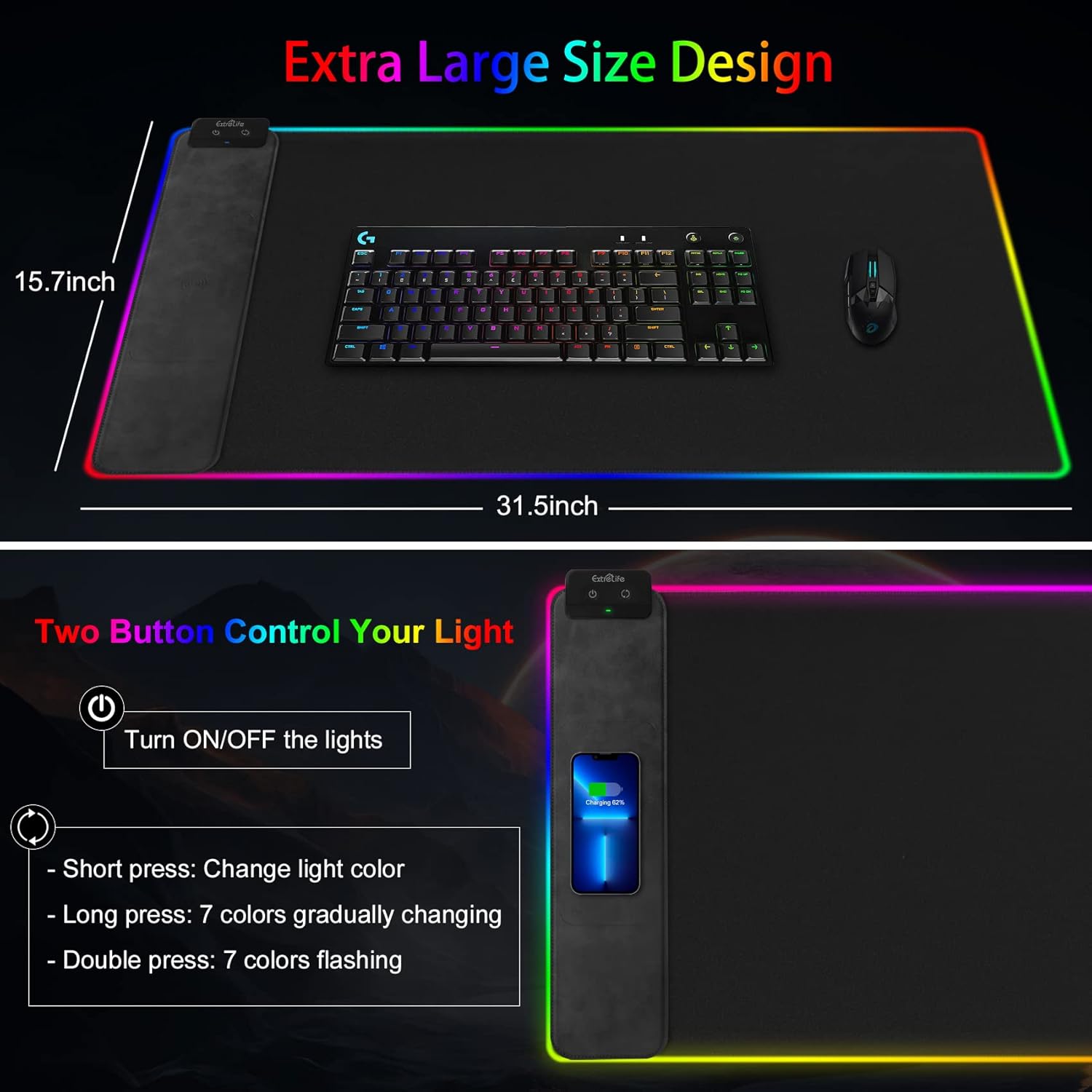
Image 5.2: A visual guide to device compatibility for the integrated wireless charger.
5.2 RGB Lighting Control
The mouse pad features RGB LED lighting around its perimeter. Use the control buttons on the module to manage the lighting:
- Power Button (Left): Press to turn ON/OFF the RGB lights.
- Light Mode Button (Right):
- Short Press: Cycles through 7 static colors (Green, Sky Blue, Blue, Purple, Rose Red, Red, Yellow).
- Long Press: Activates a 7-color gradually changing mode.
- Double Press: Activates a 7-color flashing mode.
Upon powering on, the lights will default to a dynamic color changing mode.

Image 5.3: The mouse pad showcasing its 9 different lighting modes, including static colors and dynamic effects.
5.3 Surface and Base Features
- Smooth Surface: The micro-texture cloth surface provides precise mouse control and smooth gliding.
- Non-Slip Rubber Base: The natural rubber base ensures the pad remains firmly in place during use, preventing unwanted movement.
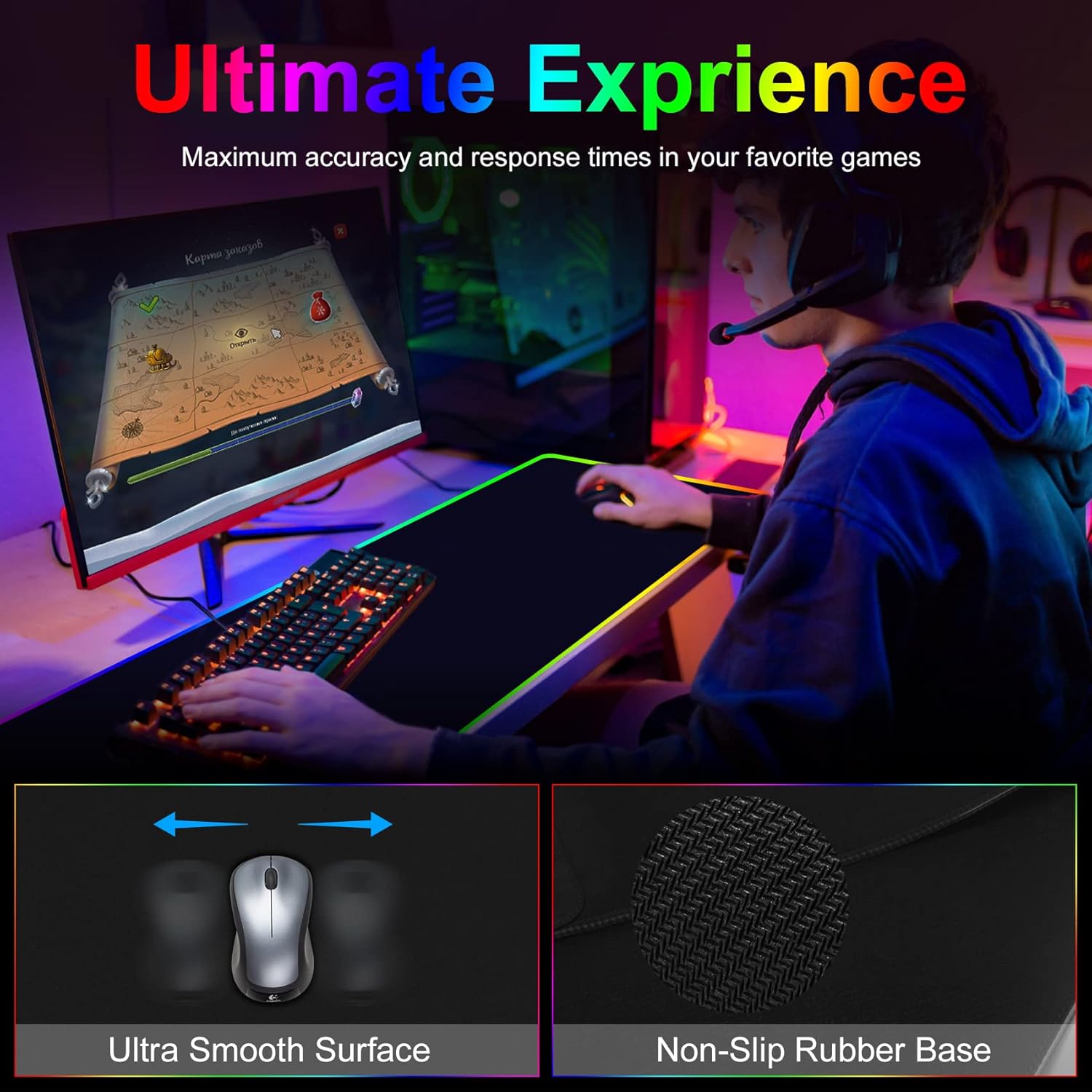
Image 5.4: Detailed views of the mouse pad's ultra-smooth surface and its non-slip rubber base texture.
6. Maintenance
6.1 Cleaning
The mouse pad features a spill-proof coating, making it resistant to liquid damage.
- For spills, gently wipe the surface with a clean, damp cloth.
- Avoid using harsh chemicals or abrasive cleaners, as these may damage the surface or coating.
- Ensure the pad is completely dry before reconnecting power, especially around the control module.

Image 6.1: The waterproof surface of the mouse pad, showing liquid beading on top.
7. Troubleshooting
7.1 Wireless Charging Issues
- Device not charging:
- Ensure your device is Qi-enabled and properly aligned on the charging area.
- Check if the power adapter meets the recommended specifications (9V 2A or QC3.0/2.0). Lower power adapters may not provide sufficient power for 10W charging.
- Remove any metal objects, magnets, credit cards, or thick cases from your device that might interfere with wireless charging.
- Charging indicator flashing BLUE: This indicates a "placed error," over-temperature protection, or Foreign Object Detection (FOD) trigger. Reposition your device, ensure no foreign objects are present, and check for overheating.

Image 7.1: Correct and incorrect placement of a smartphone on the wireless charging area.

Image 7.2: Explanation of charging indicator light states: Blue for Standby, Green for Charging, Blue Flashing for Error.

Image 7.3: Items to avoid placing on the wireless charging pad to prevent interference or damage.
7.2 RGB Lighting Not Working
- Ensure the mouse pad is properly connected to a power source.
- Press the power button on the control module to turn the lights on.
- If only a portion of the lights are working, check the cable connection to the control module.
8. Specifications
| Brand | ExtreLife |
| Model | B09YLGRY26 |
| Dimensions (LxWxH) | 31.5 x 15.75 x 0.47 inches (800 x 400 x 12 mm) |
| Item Weight | 2.01 pounds |
| Color | Black |
| Material | Rubber |
| Power Source | Corded Electric |
| Wireless Charging Output | Up to 10W (requires 9V 2A or QC3.0/2.0 adapter) |
| RGB Lighting Modes | 7 Static, 2 Dynamic (Gradual, Flashing) |
| Special Features | Non-slip, Waterproof, Wrist Support |
9. Warranty and Support
For warranty information and customer support, please refer to the official ExtreLife website or contact your retailer. Keep your purchase receipt for warranty claims.
