
1. Product Overview
The GreenForest Computer Desk (Model: THOR-BK-S) is a versatile and durable workstation designed for home office, study, writing, or gaming. It features a spacious desktop, integrated printer shelf, reversible storage shelves, a movable monitor stand, and dual hooks for accessories. This manual provides detailed instructions for assembly, operation, maintenance, and troubleshooting.

Figure 1: GreenForest Computer Desk (Model: THOR-BK-S) in a typical setup.
2. Package Contents
Before beginning assembly, ensure all parts listed below are present and undamaged. If any parts are missing or damaged, please contact GreenForest customer support.
- Desktop Panel (1)
- Printer Shelf Unit (1)
- Movable Monitor Stand (1)
- Metal Frame Components (various)
- Accessory Hooks (2)
- Assembly Hardware (screws, bolts, L-wrench)
- Instruction Manual (this document)
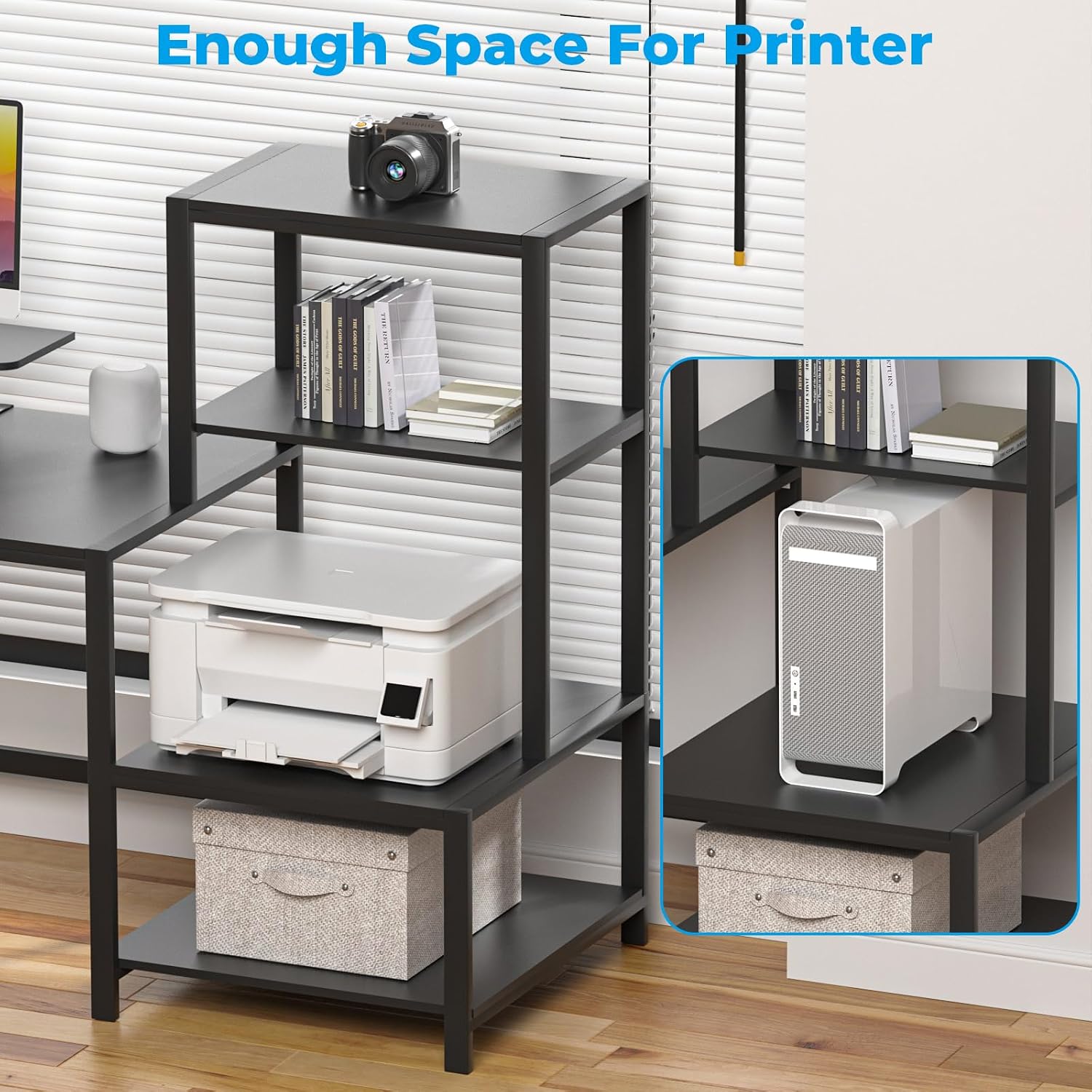
Figure 2: Desk dimensions and components.
3. Setup and Assembly
Assembly is simple and straightforward, typically taking around 40 minutes. It is recommended that two people assemble the desk for ease and safety.
3.1 Preparation
- Clear a spacious area for assembly.
- Unpack all components and verify against the package contents list.
- Keep all hardware organized and within reach.
3.2 Assembly Steps
- Attach the metal frame components to the desktop panel using the provided bolts and L-wrench. Ensure all connections are secure but do not overtighten initially.
- Assemble the printer shelf unit according to the diagrams, ensuring the shelves are correctly oriented.
- Attach the assembled printer shelf unit to the main desk frame. The reversible design allows installation on either the left or right side of the desk to suit your space layout.
- Install the two accessory hooks on the side of the desk frame as desired.
- Place the movable monitor stand on the desktop. This stand is designed to raise your screen to eye level, reducing neck and back strain.
- Once all components are in place, tighten all bolts securely.

Figure 3: Reversible design for flexible setup.

Figure 4: Ergonomic Detachable Monitor Stand.

Figure 5: Convenient side hooks for accessories.
4. Operating and Usage
The GreenForest Computer Desk is designed for optimal functionality and organization in various settings.
4.1 Workspace Organization
- Printer Shelf: The dedicated middle shelf on the unit is sized to accommodate most standard printers, scanners, or other office equipment, keeping your main desktop clear.
- Storage Shelves: Utilize the four reversible storage shelves for books, documents, office supplies, or decorative items.
- Monitor Stand: Position your monitor on the movable stand to achieve an ergonomic viewing height, reducing strain during long work or gaming sessions.
- Accessory Hooks: Use the two side hooks to hang headphones, bags, or other items, keeping them easily accessible and off the desk surface.
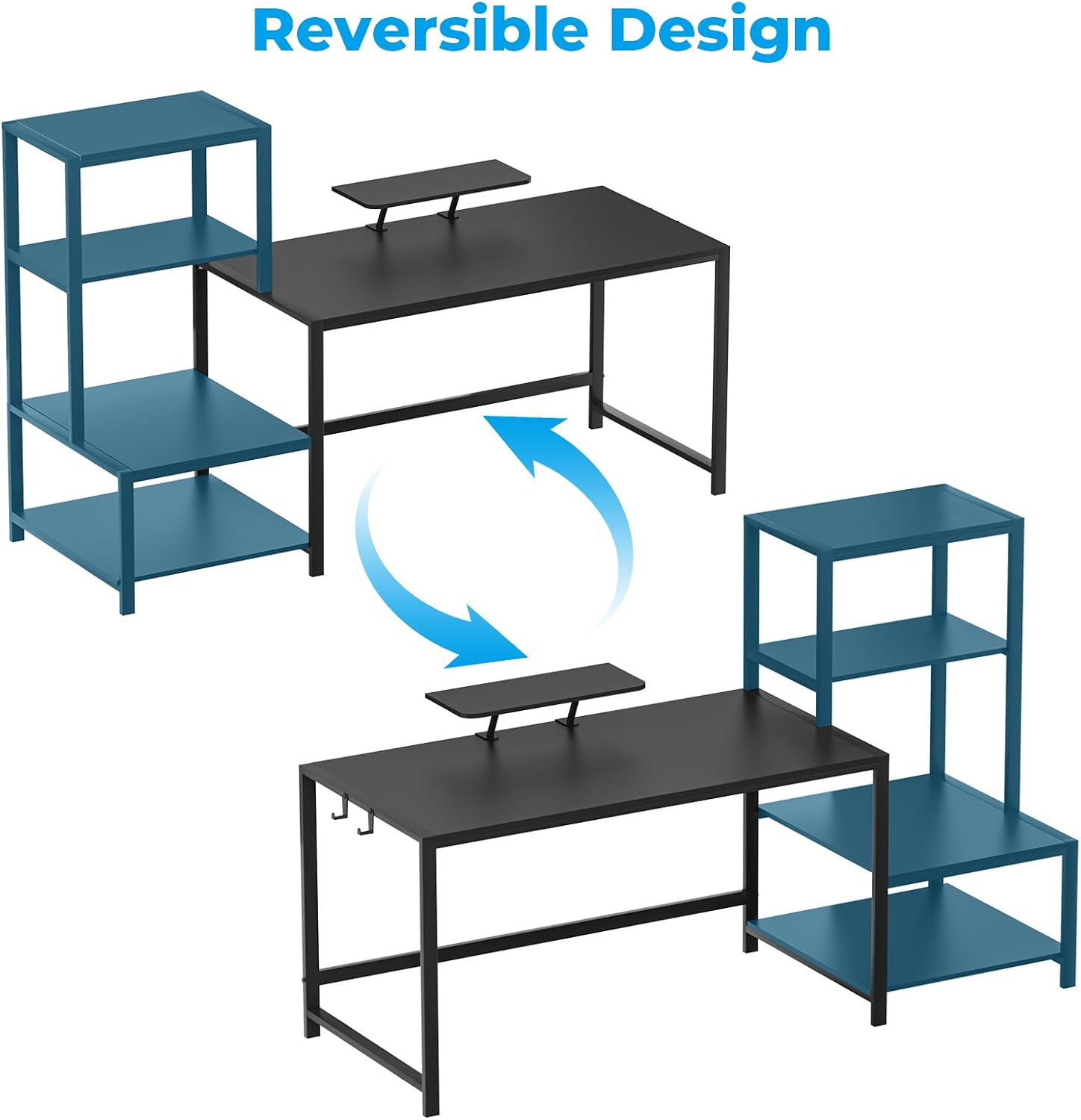
Figure 6: Dedicated printer space and additional storage.

Figure 7: Efficient storage for all your essentials.
5. Maintenance
To ensure the longevity and appearance of your GreenForest Computer Desk, follow these simple maintenance guidelines:
- Cleaning: Wipe the desktop and metal frame with a soft, damp cloth. Avoid harsh chemicals or abrasive cleaners that could damage the finish.
- Spills: Immediately wipe up any spills to prevent staining or damage to the particleboard.
- Hardware Check: Periodically check all bolts and screws to ensure they remain tight. Retighten if necessary to maintain stability.
- Weight Limit: Do not exceed the maximum weight recommendation of 180 pounds on the desktop.

Figure 8: Sturdy steel tube frame for long-lasting durability.
6. Troubleshooting
If you encounter any issues with your GreenForest Computer Desk, refer to the following common problems and solutions:
| Problem | Possible Cause | Solution |
|---|---|---|
| Desk is wobbly or unstable. | Loose bolts or uneven floor. | Ensure all assembly bolts are fully tightened. Adjust the desk's position on the floor or use shims if necessary. |
| Parts do not align during assembly. | Incorrect orientation of components. | Review the assembly diagrams carefully, especially for the reversible printer shelf unit. Ensure components are not forced. |
| Difficulty inserting screws. | Misaligned holes or debris. | Check for any obstructions in the screw holes. Ensure parts are correctly aligned before attempting to insert screws. Do not overtighten. |
7. Specifications
| Feature | Detail |
|---|---|
| Brand | GreenForest |
| Model Number | THOR-BK-S |
| Product Dimensions | 59"D x 18.9"W x 29.5"H |
| Color | Black |
| Material | Engineered Wood (Top), Metal (Frame) |
| Maximum Weight Recommendation | 180 Pounds |
| Special Features | Printer Shelf, Reversible Storage Shelves, Movable Monitor Stand, Headphone Hooks |
| Assembly Required | Yes |
| Recommended Assembly People | 2 |
8. Important Safety Information
WARNING:
- Do not exceed the maximum weight limit of 180 pounds. Overloading may cause the desk to collapse, leading to injury or damage.
- Ensure all connections are securely tightened after assembly and periodically checked. Loose connections can compromise stability.
- Keep small parts and packaging materials away from children to prevent choking hazards.
- Avoid placing hot items directly on the desktop surface without protection to prevent damage to the finish.
9. Warranty and Support
GreenForest is committed to providing quality furniture products. For any questions, missing parts, or assistance with assembly, please contact GreenForest customer support. Refer to your purchase documentation for specific warranty details.
For more information and support, visit the official GreenForest store: