
REVODATA I706-P
REVODATA 5MP POE Mini IP Camera User Manual
Model: I706-P
1. Introduction
Thank you for choosing the REVODATA 5MP POE Mini IP Camera. This manual provides detailed instructions for the installation, operation, and maintenance of your new security camera. Please read this manual thoroughly before using the product to ensure proper setup and optimal performance. This camera is designed for indoor surveillance, offering UltraHD 5MP resolution and flexible power options.

Figure 1: REVODATA 5MP POE Mini IP Camera (Model I706-P)
2. Safety Information
- Power Source: This camera is primarily powered by Power Over Ethernet (POE) and requires connection to an 802.3AF Standard 48V POE Switch. An auxiliary power connector is available for use with a conventional 12V 2A power supply if POE is not utilized. Ensure the correct power source is used to prevent damage.
- Heat Generation: Due to its compact size, the camera may generate heat during operation. This is normal and safe. Avoid placing the camera in enclosed spaces without adequate ventilation or in direct contact with heat-sensitive materials.
- Indoor Use Only: This camera is designed for indoor use. Do not expose it to water, moisture, or extreme outdoor weather conditions as it is not waterproof.
- Installation: Ensure the camera is securely mounted to prevent accidental falls. Use the provided screws set for installation.
- Cleaning: Disconnect power before cleaning. Use a soft, dry cloth. Do not use liquid cleaners or aerosol cleaners.
- Disassembly: Do not attempt to disassemble or modify the camera. This will void the warranty and may cause damage or injury.
3. Package Contents
Verify that all items are present in your package:
- 1 x REVODATA 5MP POE Mini IP Camera
- 1 x User Manual (this document)
- 1 x Screws Set for mounting
Note: This product does not include a power unit (AC adapter) if you choose not to use POE.
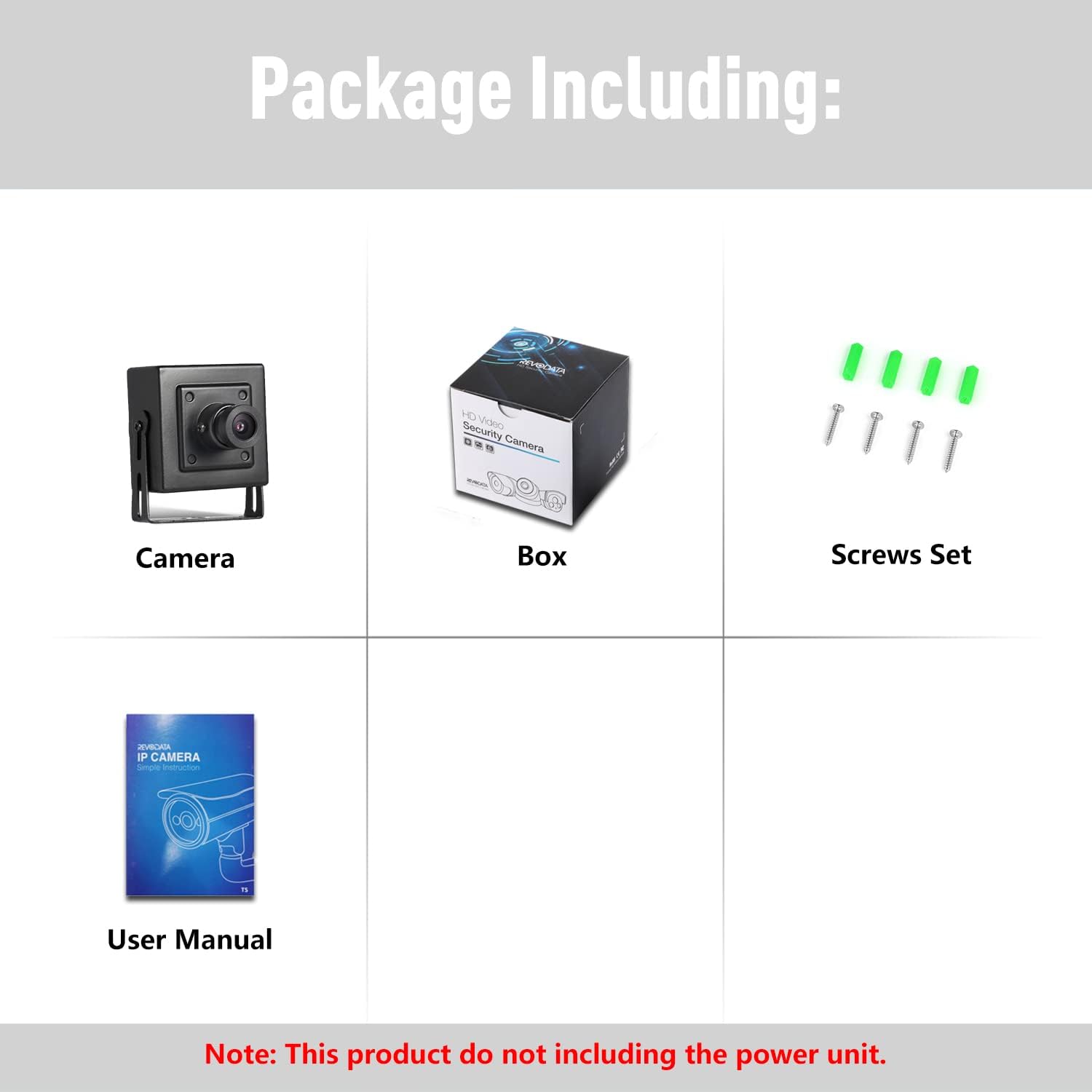
Figure 2: Contents included in the product package.
4. Product Overview
The REVODATA 5MP POE Mini IP Camera (Model I706-P) is a compact and powerful surveillance solution designed for indoor environments. It features a 5.0 Megapixel 1/3'' CMOS Sensor, providing UltraHD 2880x1620P resolution at 20 frames per second for clear and smooth video. Its small form factor allows for discreet placement.

Figure 3: Overview of key features including 5MP resolution, motion detection, PoE, 3.6mm lens (75° FOV), and H.265 compression.
4.1. Key Features
- UltraHD 5MP Resolution: Captures detailed video at 2880x1620P.
- POE Support: Simplifies installation by delivering power and data over a single Ethernet cable (802.3af standard).
- Auxiliary Power Option: Can be powered by a standard 12V 2A power supply (not included) if POE is unavailable.
- H.265/H.264 Compression: Supports both compression formats for compatibility with various NVRs and efficient storage.
- 3.6mm Fixed Lens: Provides a 75° field of view, suitable for covering indoor spaces.
- Motion Detection: Triggers alerts and recordings upon detecting movement.
- P2P Remote Viewing: Access live feed and recordings from your smartphone or PC.
- Metal Material Shell: Durable construction.
4.2. Dimensions and Components
The camera's compact design (5.3 x 4.5 x 4 cm) allows for discreet placement. It includes an adjustable mounting bracket for flexible installation.

Figure 4: Detailed view of the camera's dimensions, 3.6mm lens, mounting brackets, RJ45 port (for POE), and auxiliary power port (12V 2A).
The camera features an RJ45 port for Ethernet and POE connection, and a separate auxiliary power port for a 12V 2A power supply. A screw hole is present for secure mounting.
5. Setup Guide
5.1. Powering the Camera
The camera supports two power methods:
- Power Over Ethernet (POE): Connect the camera's RJ45 port directly to an 802.3af standard 48V POE switch or POE NVR using an Ethernet cable (Cat5/6 recommended). This method provides both power and data connectivity.
- Auxiliary Power: If POE is not available, connect a 12V 2A DC power adapter (not included) to the auxiliary power connector. Then, connect the camera's RJ45 port to your network router or switch for data connectivity.
5.2. Network Connection and Initial Access
Once powered, the camera will attempt to obtain an IP address dynamically (DHCP). If your network does not have a DHCP server, the camera will default to a static IP address.
- Default Static IP: The camera's default static IP address is 192.168.1.108. However, some units may ship with 192.168.0.109. If you cannot access the camera using the primary default IP, try the alternative.
- Accessing via Web Browser: Open a web browser (IE8.0+, Edge, Chrome, Firefox, Safari) and enter the camera's IP address (e.g., http://192.168.1.108) to access its web interface. You may need to install a plugin for full functionality in some browsers.
- Using IP Scanner Tools: If you are unsure of the camera's IP address, use an IP scanner tool on your network to discover connected devices.
5.3. Software Installation
For remote viewing and management, use the recommended applications:
- Smartphone App (TSEYE): Download the "TSEYE" app from your smartphone's app store (available for iPhone and Android). Follow the in-app instructions to add your camera using P2P (Peer-to-Peer) functionality.
- PC Software (VMS): For Windows users, VMS software is available for comprehensive management. This software is not compatible with MAC OS or Linux.

Figure 5: Screenshots of the TSEYE smartphone application and the VMS PC software for camera viewing and management.
6. Operation
6.1. Live View and Playback
Access live video streams and recorded footage through the TSEYE app on your smartphone or the VMS software on your PC. The camera supports P2P remote viewing for easy access from anywhere with an internet connection.

Figure 6: Comparison of video quality during day and night conditions. Note: This camera does not have IR LEDs for night vision, relying on ambient light.
6.2. Resolution and Compression Settings
The camera defaults to 5MP (2880x1620P) resolution and H.265 compression. If your Network Video Recorder (NVR) or viewing software does not support these settings, you can adjust them via the camera's web interface or VMS software.
- Changing Resolution: You can change the camera's resolution to 1080P (2MP) if needed for compatibility.
- Changing Compression: The camera supports both H.265 and H.264. Adjust this setting to match your NVR's capabilities.

Figure 7: Visual comparison demonstrating the difference between 1080P (2MP) and 5MP (2880x1620P) resolutions, highlighting the increased detail with 5MP.
6.3. Motion Detection and Email Alarm
Configure motion detection settings through the camera's web interface or VMS software. When motion is detected, the camera can send alarm notifications to your smartphone via the TSEYE app or trigger email alerts.

Figure 8: Illustration of a motion detection alarm notification received on a smartphone, indicating activity within the camera's view.
6.4. ONVIF Compliance
The camera is ONVIF compliant, allowing for integration with various third-party NVRs and surveillance software that support the ONVIF standard. The ONVIF compliant port is 8088.
7. Maintenance
- Cleaning the Lens: Gently wipe the camera lens with a soft, lint-free cloth to remove dust or smudges. Do not use abrasive cleaners or solvents.
- Heat Management: As noted in safety information, the camera may become warm. Ensure it is installed in a location with adequate airflow and not in direct contact with sensitive surfaces. This is normal operation and does not indicate a fault.
- Firmware Updates: Periodically check the manufacturer's website or app for available firmware updates to ensure optimal performance and security.
8. Troubleshooting
| Problem | Possible Cause | Solution |
|---|---|---|
| Camera not powering on. | Incorrect power source; POE switch not 802.3af standard; auxiliary power adapter not 12V 2A or faulty. | Ensure POE switch is 802.3af standard 48V. If using auxiliary power, verify adapter is 12V 2A and functional. Check all cable connections. |
| Cannot access camera via IP address. | Incorrect IP address; network conflict; camera not connected to network. | Try default IPs: 192.168.1.108 or 192.168.0.109. Use an IP scanner tool to find the camera's actual IP. Ensure camera is properly connected to the network via Ethernet. Check router DHCP settings. |
| Image is black or has vertical stripes (especially at night). | Insufficient ambient light; incorrect shutter speed settings. | This camera does not have built-in IR night vision. Ensure adequate ambient light for night viewing. Access camera settings via web interface/VMS and adjust shutter speed from "Auto" to a manual setting, then back to "Auto" if needed. Consider adding external IR illumination for dark environments. |
| Camera gets very hot. | Normal operation for compact design; insufficient ventilation. | This is normal due to the small metal casing. Ensure the camera is not in an enclosed space without airflow. It is designed to dissipate heat through its body. |
| VMS software not working on Mac/Linux. | Software compatibility issue. | The VMS software is only compatible with Windows operating systems. Use the TSEYE smartphone app or a compatible third-party ONVIF client for Mac/Linux. |
| Image is blurry or out of focus. | Lens not properly focused. | The camera has a manual focus lens. Gently rotate the lens to adjust focus until the image is clear. |
9. Specifications
| Feature | Detail |
|---|---|
| Model | I706-POE-TS |
| Resolution | 5.0 Megapixel (2880 x 1620P) |
| Sensor | 1/3'' CMOS (FH8852V310+GC5063) |
| Min Illumination | 0.1Lux @(F1.2,AGC ON) |
| Frame Rate | 20fps |
| Lens | 3.6mm Fixed Lens (75° FOV) |
| Lens Interface Type | M12 |
| Shutter Speed | 1/25 seconds - 1/100,000 seconds |
| Compression Format | H.265/H.264 |
| Compression Rate Output | 128 Kbps~8Mbps |
| Storage | NVR or Computer |
| IP Address | Static (Default 192.168.1.108) / Dynamic |
| Smart Alarm | Motion detection, Email alarm |
| Supported Protocols | HTTP, TCP/IP, RTSP, RTP, UPNP, SMTP, DHCP, DDNS, DNS, FTP, NTP |
| General Function | A key recovery, dual stream, password protection, video hiding |
| Ethernet | 10M/100M mbps Ethernet (RJ-45) |
| ONVIF Compliant Port | 8088 |
| Operating Temperature | -25°C~60°C (-13°F~140°F) |
| Operating Humidity | 10%~90% |
| Power Supply | POE (802.3af Standard 48V) or 12V 2A DC (auxiliary) |
| Dimensions (L x W x H) | 5.3 x 4.5 x 4 cm (2.09 x 1.77 x 1.57 inches) |
| Weight | 0.2 kg (6.4 ounces) |
| Material | Metal |
| Indoor/Outdoor Usage | Indoor |
10. Warranty & Support
For warranty information and technical support, please refer to the official REVODATA website or contact their customer service directly. The product typically comes with a standard manufacturer's warranty covering defects in materials and workmanship.
For software support, the "TSEYE" app is available for smartphones, and VMS software is provided for Windows users. Please note that VMS software does not support MAC OS or Linux.
You can also refer to the official user manual PDF available on the product page for additional details: User Manual (PDF)
Related documentsI706-P


Ask a question about this manual
Ask about setup, troubleshooting, compatibility, parts, safety, or missing instructions. Manuals+ will review the question and use this page’s manual context to help answer it.