
PlayZoom PZ202B-42-F01
Playzoom Kids Smartwatch & Earbuds Set Instruction Manual
Model: PZ202B-42-F01
Introduction
Welcome to the Playzoom Kids Smartwatch & Earbuds Set. This device is designed to provide engaging and educational entertainment for children, featuring a camera, games, music playback, and various timekeeping functions. This manual will guide you through the setup, operation, and maintenance of your new Playzoom device.

Figure 1: Playzoom Kids Smartwatch and Earbuds Set
What's in the Box
Please check the package contents to ensure all items are present:
- Playzoom Kids Smartwatch
- Playzoom Earbuds
- USB-Powered Charging Cable
- Warranty/Quick Start Guide

Figure 2: Contents of the Playzoom Smartwatch and Earbuds Set
Setup
1. Charging the Device
The Playzoom Smartwatch is powered by a built-in Lithium Ion battery. Before first use, fully charge the device using the provided USB-powered charging cable. Connect the small end of the USB cable to the smartwatch's charging port and the other end to a standard USB power adapter (not included) or a computer's USB port.
A full charge typically takes approximately 2-3 hours. The battery indicator on the screen will show charging progress.
2. Initial Power On
Press and hold the power button (usually located on the side of the smartwatch) for a few seconds until the Playzoom logo appears on the screen. The device will boot up and display the main clock face.
Operating Instructions
General Navigation
The smartwatch features a touch screen for easy navigation. Swipe left or right to browse through different applications and functions. Tap an icon to select and open an application.
Digital Camera with Video Record
The smartwatch includes a swivel camera for taking photos and recording videos. To access the camera, tap the camera icon on the screen. You can swivel the camera lens to capture selfies or record your surroundings.
- Taking Photos: Tap the shutter icon to capture an image. The smartwatch can store up to 8000 images.
- Recording Videos: Switch to video mode and tap the record button. The device can record up to 28 minutes of video.
- Transferring Media: Photos and videos can be saved and uploaded to your computer via the USB cable. Connect the smartwatch to your computer, and it will appear as a removable storage device.
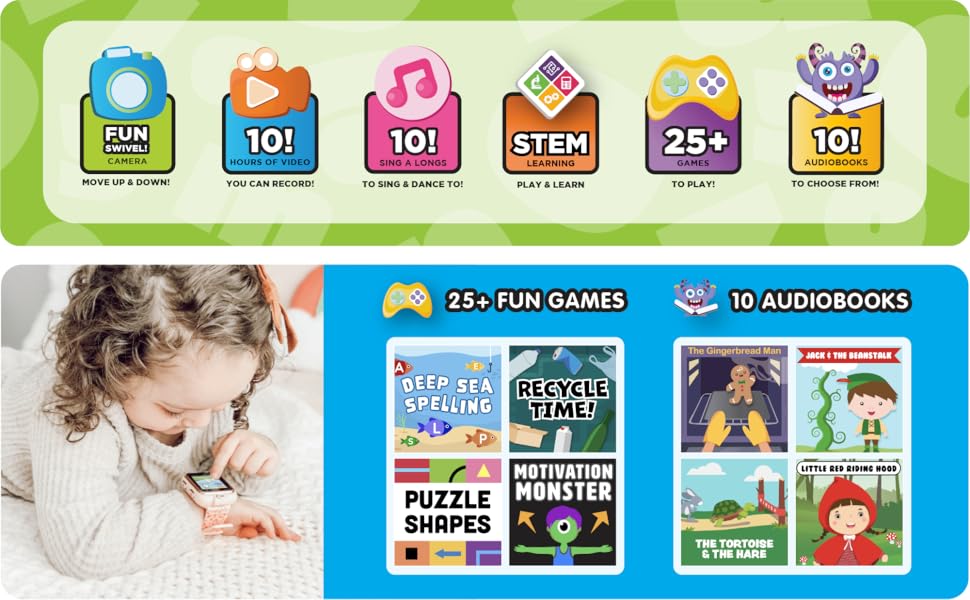
Figure 3: Key Features of the Playzoom Smartwatch
Customizable Clock Faces
Personalize your smartwatch by choosing from various pre-installed wallpapers and screen-savers. Access the settings menu to change the clock face and customize the appearance of your device.
Educational Games and Activities
The smartwatch comes pre-loaded with a variety of learning and active games designed to engage children. These games often include sound animation for an interactive experience.
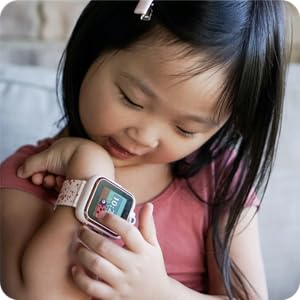
Figure 4: Child Interacting with the Smartwatch
MP3 Music Player & Audio Books
Use the included earbuds to listen to your favorite music and audio stories. The smartwatch supports MP3 playback. Transfer audio files to the device via the USB cable, similar to transferring photos and videos.
Note: No app is needed for this smartwatch, as it does not connect to any data connection or GPS for safe use.
Timekeeping Functions
The smartwatch includes several useful timekeeping tools:
- Stopwatch: For timing activities.
- Alarm: Set alarms for reminders.
- Timer: A countdown timer for various uses.
- Calendar: View the current date and month.
Maintenance
Cleaning
To clean the smartwatch and earbuds, gently wipe them with a soft, dry, lint-free cloth. Do not use abrasive cleaners, solvents, or aerosol sprays, as these may damage the device. Avoid exposing the device to excessive moisture.
Storage
When not in use for extended periods, store the device in a cool, dry place away from direct sunlight and extreme temperatures. Ensure the battery is partially charged before storing to prolong its lifespan.
Troubleshooting
If you encounter any issues with your Playzoom Smartwatch, please refer to the following common solutions:
| Problem | Possible Cause | Solution |
|---|---|---|
| Device does not power on. | Low or depleted battery. | Charge the device using the USB cable for at least 30 minutes. |
| Screen is unresponsive. | Temporary software glitch. | Perform a soft reset by holding the power button until the device restarts. |
| Cannot transfer files to computer. | Incorrect USB connection or driver issue. | Ensure the USB cable is securely connected. Try a different USB port or computer. |
| Sound not working with earbuds. | Earbuds not properly plugged in or volume too low. | Ensure earbuds are fully inserted into the audio jack. Check the volume settings on the smartwatch. |
Specifications
| Feature | Detail |
|---|---|
| Product Dimensions | 9 x 2 x 9 inches |
| Item Weight | 7.8 ounces |
| Model Number | PZ202B-42-F01 |
| Batteries | 1 Lithium Ion battery (included) |
| Standing Screen Display Size | 36.58 Millimeters |
| Operating System | Proprietary (Children's Smartwatch OS) |
| Special Features | Back-up battery, light, stopwatch, timer |
| Connectivity Technology | None (No GPS/Data connection for safety) |
| Wireless Communication Standard | Bluetooth (for internal functions, not external connection) |
| Manufacturer | American Exchange |
Warranty and Support
This product comes with a warranty. Please refer to the included "Warranty/Quick Start Guide" for detailed information regarding warranty coverage, terms, and conditions.
For technical support, troubleshooting assistance, or inquiries about your Playzoom Kids Smartwatch & Earbuds Set, please contact the manufacturer, American Exchange, or visit their official support channels as indicated in the product packaging or quick start guide.
Ask a question about this manual
Ask about setup, troubleshooting, compatibility, parts, safety, or missing instructions. Manuals+ will review the question and use this page’s manual context to help answer it.