
1. Product Overview
The VVB 13-IN-1 USB C Hub is a versatile docking station designed to expand the connectivity of your USB-C enabled laptop or device. It provides multiple ports for display output, data transfer, network connection, audio, and power delivery.
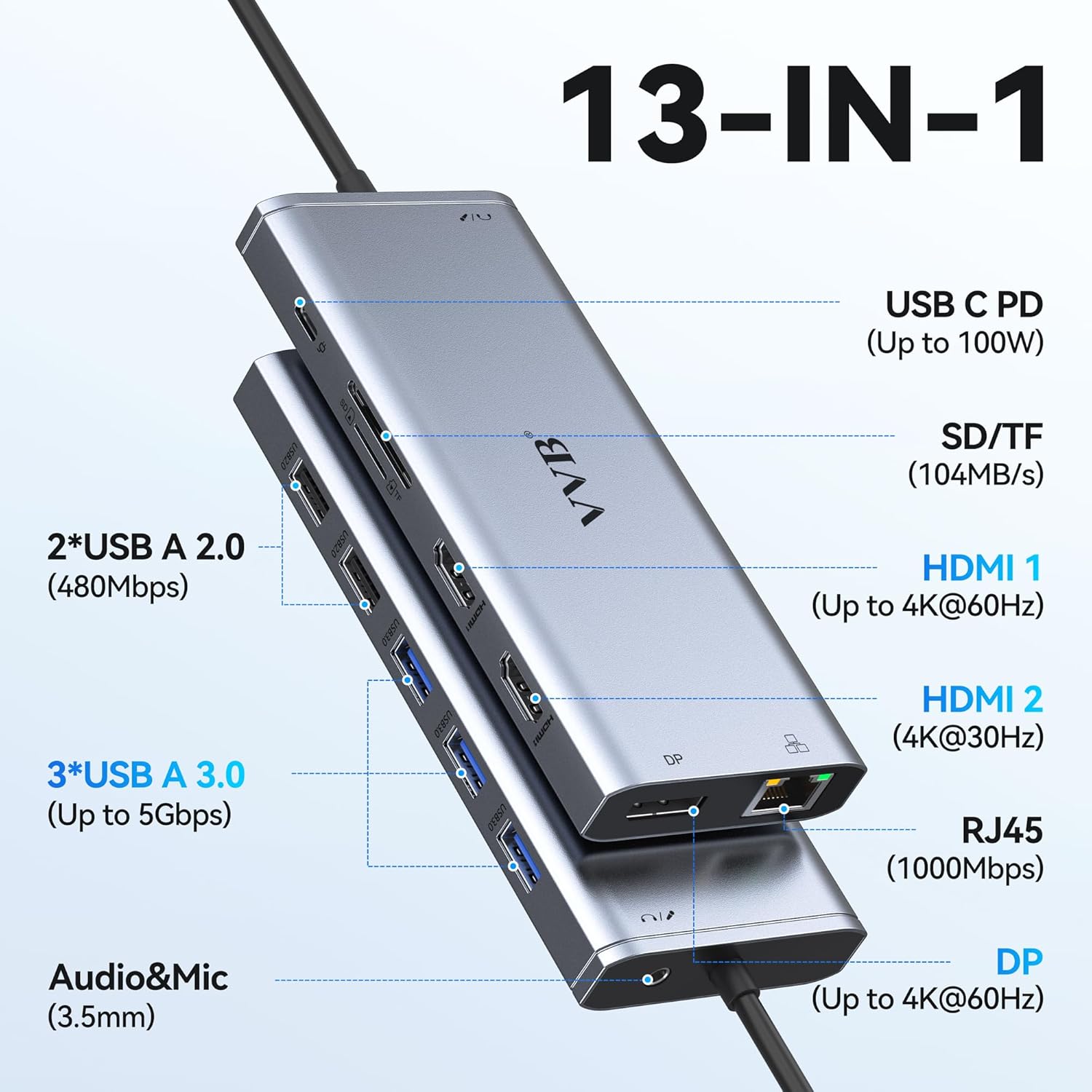
Image 1.1: Front and side view of the VVB 13-IN-1 USB C Hub, illustrating all available ports and their functions.
Port Specifications:
- 1x USB C PD Port: Up to 100W power delivery for charging your host device.
- 1x SD Card Slot: Data transfer up to 104MB/s.
- 1x TF Card Slot: Data transfer up to 104MB/s.
- 1x HDMI 1 Port: Supports resolutions up to 4K@60Hz.
- 1x HDMI 2 Port: Supports resolutions up to 4K@30Hz.
- 1x RJ45 Ethernet Port: Provides a stable wired network connection up to 1000Mbps.
- 1x DisplayPort (DP): Supports resolutions up to 4K@60Hz.
- 2x USB A 2.0 Ports: Data transfer up to 480Mbps.
- 3x USB A 3.0 Ports: Data transfer up to 5Gbps.
- 1x 3.5mm Audio & Mic Jack: For connecting headphones or speakers with microphone functionality.
2. Setup Instructions
Follow these steps to connect your VVB 13-IN-1 USB C Hub to your device and peripherals.
2.1 Connecting to Host Device
- Ensure your laptop or device has a USB-C port that supports video output (DisplayPort Alternate Mode) and power delivery.
- Connect the integrated USB-C cable from the VVB Hub to the USB-C port on your host device.
2.2 Power Delivery
To charge your laptop through the hub, connect your original USB-C power adapter to the USB C PD port on the hub. The hub supports up to 100W input, providing up to 87W output to your laptop.

Image 2.1: Illustration of connecting a 100W power adapter to the USB C PD port on the hub, which then delivers 87W to the connected laptop.
Note: For optimal charging performance, use a power adapter above 65W. If your laptop requires more than 87W, it may charge slower or display a warning about insufficient power, though it will continue to operate.
2.3 Connecting Peripherals
- Monitors: Connect your external monitors to the HDMI 1, HDMI 2, or DisplayPort (DP) outputs on the hub using appropriate cables.
- USB Devices: Plug in your USB peripherals (keyboard, mouse, external drives, etc.) into the USB A 3.0 or USB A 2.0 ports.
- Ethernet: For a stable wired network connection, connect an Ethernet cable from your router/modem to the RJ45 port on the hub.
- Audio: Connect headphones or speakers to the 3.5mm audio jack.

Image 2.2: The hub connected to an Ethernet cable for a stable network and headphones for audio output.
3. Operating Instructions
3.1 Display Modes (Windows)
The hub supports both dual and triple display configurations on Windows operating systems. Ensure your laptop's USB-C port supports DP 1.4 for optimal performance.

Image 3.1: Visual guide for configuring dual and triple monitor setups on Windows, indicating supported resolutions and refresh rates for DP 1.2 and DP 1.4 laptops.
- Dual Display: Connect two monitors to any combination of HDMI 1, HDMI 2, or DP ports. For DP 1.2 laptops, you can extend to two 1080P@60Hz monitors (e.g., DP and HDMI 1/2). For DP 1.4 laptops, you can achieve 4K@30Hz on HDMI 1/2 and 1080P@60Hz on DP, or 1080P@60Hz on both HDMI 1/2.
- Triple Display: For DP 1.4 laptops, you can extend to three monitors: DP (1080P@60Hz), HDMI 2 (1080P@60Hz), and HDMI 1 (1080P@60Hz).
3.2 Display Modes (macOS)
macOS supports SST (Single Stream Transport) Extend Mode. Please note that macOS does not support MST (Multi-Stream Transport) display, meaning all external monitors will mirror the same extended desktop, not provide independent extended displays.

Image 3.2: Visual representation of macOS display limitations, showing SST Extend Mode where all external displays mirror each other, and explicitly stating that MST is not supported.
- SST Extend Mode: When connecting multiple monitors to a macOS device, the laptop screen (A) can be extended, and all connected external monitors (B, C, D) will display the same content as an extended desktop. For example, DP (4K@30Hz), HDMI 2 (4K@30Hz), and HDMI 1 (4K@30Hz) will all show the same extended display.
3.3 Data Transfer
The hub offers various data transfer options:

Image 3.3: Diagram illustrating the data transfer speeds of the USB A 3.0 (5Gbps), USB A 2.0 (480Mbps), and SD/TF card reader (up to 104MB/s) ports.
- USB A 3.0 Ports: Transfer data at speeds up to 5Gbps. Ideal for external hard drives, SSDs, and high-speed peripherals.
- USB A 2.0 Ports: Transfer data at speeds up to 480Mbps. Suitable for keyboards, mice, and other standard USB devices.
- SD/TF Card Slots: Read and write data from SD and TF cards at speeds up to 104MB/s.
3.4 Ethernet Connection
The RJ45 port provides a stable and fast wired internet connection up to 1000Mbps (1 Gigabit Ethernet). This is beneficial for activities requiring high bandwidth or a reliable connection, such as online gaming or large file transfers.
4. Maintenance
Proper maintenance ensures the longevity and optimal performance of your VVB 13-IN-1 USB C Hub.
- Cleaning: Use a soft, dry, anti-static cloth to clean the hub. Avoid liquid cleaners or abrasive materials.
- Storage: Store the hub in a cool, dry place away from direct sunlight and extreme temperatures.
- Temperature: The hub may become warm during extended use, which is normal. Ensure adequate ventilation around the device. Avoid covering it or placing it in enclosed spaces.
- Handling: Avoid dropping the hub or subjecting it to strong impacts. Do not attempt to disassemble the device.
5. Troubleshooting
If you encounter issues with your VVB 13-IN-1 USB C Hub, refer to the following troubleshooting steps.
5.1 No Display Output
- Check Connections: Ensure all display cables (HDMI, DP) are securely connected to both the hub and the monitors.
- Host Device Compatibility: Verify that your laptop's USB-C port supports DisplayPort Alternate Mode (video output). Not all USB-C ports support this feature.
- Display Settings: Check your computer's display settings to ensure the external monitors are detected and configured correctly (e.g., Extend, Duplicate).
- Drivers: Ensure your graphics drivers are up to date.
- Resolution/Refresh Rate: Try lowering the resolution or refresh rate of the external monitors, especially if using multiple displays, as some systems or cables may have bandwidth limitations.
5.2 USB Ports Not Functioning
- Reconnect: Disconnect and reconnect the USB device to the hub.
- Test Other Ports: Try connecting the USB device to a different USB port on the hub or directly to your computer to isolate the issue.
- Power Draw: If connecting high-power USB devices (e.g., external hard drives), ensure the hub is connected to a power adapter, as some devices require more power than the host can provide through the USB-C connection alone.
5.3 Charging Issues
- Power Adapter: Ensure your USB-C power adapter is connected to the hub's PD port and provides sufficient wattage (preferably 65W or higher, up to 100W input).
- Cable Quality: Use a high-quality USB-C cable that supports power delivery.
- Laptop Compatibility: Confirm your laptop supports charging via its USB-C port.
5.4 Intermittent Connections or Overheating
- Ventilation: Ensure the hub is placed in a well-ventilated area to prevent overheating.
- Reduce Load: Disconnect unnecessary peripherals to reduce the overall power draw and heat generation.
- Firmware/Drivers: Check for any available firmware updates for the hub or driver updates for your computer's USB-C controller.
- Restart: Restart your computer and reconnect the hub.
6. Specifications
| Feature | Specification |
|---|---|
| Product Dimensions | 3.35 x 0.62 x 5.7 inches |
| Item Weight | 0.353 ounces |
| Model Number | 13 IN 1 dockingstation |
| Hardware Interface | DisplayPort, Ethernet, HDMI, MicroSD, USB 3.0, USB Type C |
| Special Feature | Fast Charging |
| USB C PD Input | Up to 100W |
| USB C PD Output | Up to 87W to host device |
| HDMI 1 Output | Up to 4K@60Hz |
| HDMI 2 Output | Up to 4K@30Hz |
| DisplayPort Output | Up to 4K@60Hz |
| RJ45 Ethernet | 10/100/1000Mbps (Gigabit Ethernet) |
| USB A 3.0 Ports | 3 ports, up to 5Gbps data transfer |
| USB A 2.0 Ports | 2 ports, up to 480Mbps data transfer |
| SD/TF Card Reader | Up to 104MB/s |
| Audio Jack | 3.5mm Audio & Mic |
Compatible Devices (Partial List):
Dell XPS 9380/ XPS 13 9365/ XPS 15 2018/ XPS 13 9300/ New XPS 15; Latitute 7280/ Latitude 5310 2-in-1; Precision 7730/ 7750; Laptop 5590. HP Spectre Laptop 13-af001TU/ Spectre x360 13t/ Spectre folio/ Spectre 360 laptop/ Specter x369; Elitebook 840 G5 series/ Elitebook X2/ Elitebook x360 1030 G3/ Elitebook 745 G6/ Elitebook 830 G6/ 2018 HP Elite 800 G4; Envy Geforce mx250; Z book 15u G3/ Zbook 17 G4. Lenovo Yoga 720-13IKB/ Yoga 730/ Yoga 900-13ISK/ Yoga 910/ Yoga 920/ Yoga 930/ Yoga 940-14IIL; 3rd generation Thinkpad Yoga; Yoga15 Thinkpad Ultrabook Pro; Thinkpad E590/ Thinkpad P72/ Thinkpad T470/ Thinkpad X1 Carbon (2019 model); Flex 14 IML/ Flex 5; Legion Y530; Lenovo C930/ T480s/ X390/ 81N8. Microsoft Surface Book 2/ Surface Go/ Surface Laptop 3; Surface Pro 7. Huawei Macbook Mate10/ Mate10 pro/ Mate20/ Mate20 pro / Mate30/ Mate30Pro; Google Slate (2019); Chromebook C340-15; SanDisk Cruise Glide; Razer Blade 2017 (gtx 1060); Pixel book go 2019/2020.
7. Warranty and Support
For warranty information or technical support, please refer to the product packaging or contact VVB customer service through the retailer where the product was purchased. Please have your product model number and purchase details ready when contacting support.


