
zidoo Z1000pro
zidoo Z1000Pro 4K Media Player Instruction Manual
Model: Z1000Pro
1. Introduction
The zidoo Z1000Pro is a high-performance 4K Media Player designed to deliver an exceptional home theater experience. Equipped with the Realtek RTD1619DR hexa-core 64bit processor and Android 9.0 OS, it supports advanced video and audio technologies including HDR10+, Dolby Vision, and high-definition audio pass-through.
This manual provides essential information for setting up, operating, maintaining, and troubleshooting your Zidoo Z1000Pro media player. Please read it thoroughly before use to ensure optimal performance and longevity of your device.
2. Package Contents
Please verify that all the following items are included in your package:
- Zidoo Z1000Pro 4K Media Player
- Remote Control
- Power Adapter
- SATA Cable
- HDMI 2.0 Cable
- User Manual (this document)
3. Product Overview
Familiarize yourself with the physical components and ports of your Zidoo Z1000Pro.
3.1 Front Panel

Figure 3.1: Front view of the Zidoo Z1000Pro, showing the display, power button, and status indicators.
The front panel features a digital display showing time and status, along with a power button and various indicator lights.
3.2 Rear Panel

Figure 3.2: Rear view of the Zidoo Z1000Pro, highlighting AC power input, RS232, Coaxial, Optical, RCA Audio L/R, RCA CVBS, HDMI In, HDMI Out, and Gigabit LAN ports.
The rear panel provides a comprehensive set of connectivity options for audio, video, and network connections.
- AC Power Input: Connect the provided power adapter.
- RS232: For intelligent control systems.
- Coaxial: Digital audio output.
- SPDIF (Optical): Digital audio output.
- RCA Audio L/R: Analog stereo audio output.
- RCA CVBS: Analog composite video output.
- HDMI In: HDMI 2.0 input, supports 4K@60p, PCM audio.
- HDMI Out: HDMI 2.0a output, supports up to 4K@60p, HDR, 12Bit, YCbCr 4:4:4, and audio pass-through.
- Gigabit LAN: RJ-45 Ethernet jack (10/100/1000Mbps) for wired network connection.
- External High-Gain Antenna: Two ports for Wi-Fi antennas.
3.3 Side Panel and Internal HDD Bay
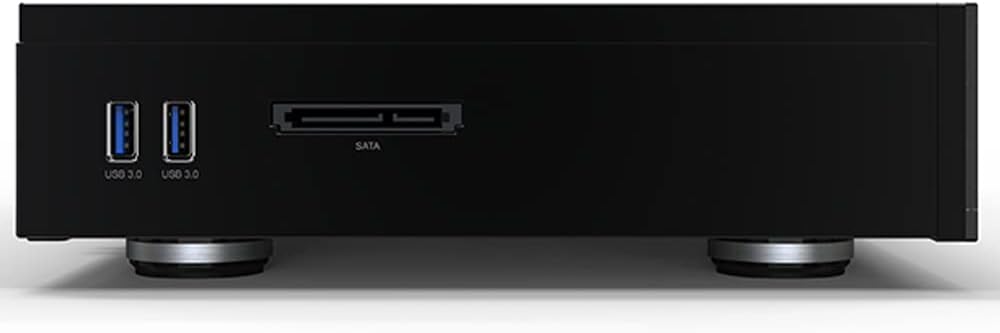
Figure 3.3: Side view of the Zidoo Z1000Pro, showing USB 3.0 ports and an external SATA port.

Figure 3.4: Zidoo Z1000Pro with the hidden HDD bay cover open, revealing the internal drive slot.
The Z1000Pro includes multiple USB ports and a hidden internal HDD bay for storage expansion.
- USB 3.0: Two ports for connecting external storage devices or peripherals.
- USB 2.0: Two ports (location not explicitly shown in images, typically on side or rear).
- SATA 3.0: One external SATA port.
- Hidden HDD Bay: Supports one 3.5-inch or 2.5-inch SATA hard drive (up to 16TB).
4. Setup Guide
Follow these steps to set up your Zidoo Z1000Pro media player:
- Connect to Display: Connect one end of the provided HDMI 2.0 cable to the HDMI Out port on the Z1000Pro and the other end to an HDMI input on your TV or AV receiver.
- Connect to Network (Optional):
- Wired: Connect an Ethernet cable from your router to the Gigabit LAN port on the Z1000Pro.
- Wireless: Screw in the two external high-gain antennas to the antenna ports on the rear panel. You will configure Wi-Fi settings later in the system menu.
- Install Internal HDD (Optional):
- Open the hidden HDD bay cover on the side of the device.
- Gently slide your 3.5-inch or 2.5-inch SATA hard drive into the bay until it clicks into place.
- Close the HDD bay cover.
- Connect Power: Connect the power adapter to the AC Power Input on the Z1000Pro, then plug the adapter into a wall outlet.
- Power On: Press the power button on the front panel of the Z1000Pro or on the remote control to turn on the device.
- Initial Setup: Follow the on-screen instructions to complete the initial setup, including language selection, network configuration, and display settings.
5. Operating Instructions
This section covers basic operation and key features of your Zidoo Z1000Pro.
5.1 Navigation and User Interface
The Z1000Pro runs on Android 9.0 OS with a custom Zidoo interface. Use the provided remote control to navigate through menus and select options. The main screen provides access to various applications and settings.
5.2 Media Playback
The Z1000Pro supports a wide range of audio and video formats. You can play media from:
- Internal HDD: Media stored on the installed hard drive.
- External USB Devices: USB flash drives or external hard drives connected to the USB 3.0/2.0 ports.
- Network Storage: Stream media from NAS (Network Attached Storage) or PC via NFS, SMB V1/V2/V3, or UPnP protocols.
Use the built-in media player applications to browse and play your content. The device is optimized for 4K HDR content, including HDR10+ and Dolby Vision.
5.3 Audio Playback
The Z1000Pro supports high-definition audio pass-through and decoding, including master-level DSD (SACD ISO, DFF, DSF) and lossless CD formats (WAV, APE, FLAC) up to DSD256/PCM 192KHZ sampling rate. Connect to your audio system via HDMI, Coaxial, Optical, or RCA L/R outputs for optimal sound quality.
5.4 Android Applications
As an Android 9.0 device, you can install various applications from the Android ecosystem. The ZIDOO Controller app is available for mobile device control.
5.5 Advanced Features
- HDMI Input: Connect another HDMI source (e.g., game console, set-top box) to the HDMI In port.
- Intelligent Control: Supports Mobile APP control, RS-232, TCP/IP control, and WOL (Wake-on-LAN).
- OTA Updates: The device supports Over-The-Air (OTA) firmware updates to ensure you have the latest features and bug fixes. Check for updates periodically in the system settings.
6. Maintenance
Proper care and maintenance will extend the life of your Zidoo Z1000Pro.
- Cleaning: Use a soft, dry cloth to clean the exterior of the device. Do not use liquid cleaners or aerosols.
- Ventilation: Ensure the device is placed in a well-ventilated area. Do not block the ventilation openings.
- Temperature: Operate the device within recommended temperature ranges. Avoid extreme heat or cold.
- Power Off: When not in use for extended periods, it is recommended to power off the device and unplug it from the power outlet.
- Firmware Updates: Regularly check for and install firmware updates to ensure optimal performance and security.
7. Troubleshooting
If you encounter issues with your Zidoo Z1000Pro, refer to the following common problems and solutions:
| Problem | Possible Cause | Solution |
|---|---|---|
| No power | Power cable not connected; Power outlet faulty | Ensure power adapter is securely connected to the device and a working power outlet. |
| No video output | HDMI cable loose/faulty; Incorrect HDMI input selected on TV; Display resolution issue | Check HDMI cable connections. Select the correct HDMI input on your TV/receiver. Try a different HDMI cable. Restart the device and TV. |
| No audio output | Audio cables loose/faulty; Incorrect audio output selected in settings; Volume too low | Check all audio cable connections. Verify audio output settings in the device menu. Increase volume on the device and connected audio system. |
| Cannot connect to Wi-Fi | Incorrect password; Antennas not connected; Router issue; Signal interference | Double-check Wi-Fi password. Ensure antennas are securely attached. Restart your router. Try moving the device closer to the router or reducing interference. |
| Device freezes or crashes | Software glitch; Overheating; Corrupted media file | Restart the device. Ensure proper ventilation. Try playing a different media file. Check for and install the latest firmware updates. If persistent, perform a factory reset (backup data first). |
| Remote control not working | Dead batteries; Obstruction; Remote not paired | Replace batteries. Ensure no obstructions between remote and device. Re-pair the remote if necessary (refer to device settings for pairing instructions). |
If the problem persists after trying these solutions, please contact Zidoo customer support or visit their official forum for further assistance.
8. Technical Specifications
| Feature | Description |
|---|---|
| Model | Z1000Pro |
| Chassis | Aluminum alloy |
| Operating System | Android 9.0 |
| CPU | Realtek RTD1619DR ARM Cortex-A55 (Hexa-core) |
| GPU | ARM Mali-G51 MP3 |
| RAM | 2GB DDR4 |
| Internal Storage | 32GB eMMC |
| Bluetooth | BT 4.2 |
| Wi-Fi | 2.4G + 5G dual-band WiFi, 802.11 a/b/g/n/AC 2T2R MIMO 867Mbps |
| Ethernet | RJ-45 Ethernet jack (10/100/1000Mbps) |
| HDMI Output | HDMI 2.0a, up to 4K@60p, HDR, 12Bit, YCbCr 4:4:4, audio pass-through |
| HDMI Input | HDMI 2.0, supports 4K@60p, PCM audio |
| Video Decoding | 4K@60p HEVC/H.265 12Bit HDR10, HDR10+, Dolby Vision |
| Audio Decoding | High-definition audio pass-through and decode (DSD, WAV, APE, FLAC) |
| SATA | SATA 3.0 * 1, HDD Bay * 1 (supports up to 16TB) |
| USB Ports | USB 3.0 * 2, USB 2.0 * 2 |
| Other Interfaces | IR Receiver, RCA Cvbs, RCA Audio L/R, Coaxial, SPDIF, RS232, External High-Gain Antenna * 2 |
| Power Supply | 100-240V ~ 50/60Hz, Max 1.3A |
| Dimensions (L x W x H) | 350 mm x 240 mm x 60 mm (13.78 x 9.45 x 2.36 inches) |
| Weight | 3.83 kg (8.44 lbs) |
9. Warranty and Support
Zidoo is committed to providing quality products and customer service.
9.1 Warranty Information
For detailed warranty terms and conditions, please refer to the warranty card included with your product or visit the official Zidoo website. The warranty typically covers manufacturing defects for a specified period from the date of purchase.
9.2 Customer Support
If you have any questions, encounter issues, or require technical assistance, please utilize the following resources:
- Official Zidoo Website: Visit the official Zidoo website for FAQs, firmware downloads, and support contact information.
- Online Forum: Zidoo maintains a home theater forum on their official website where users can find solutions, share experiences, and get assistance from the community and Zidoo representatives.
- Email Support: You can email the seller or Zidoo support directly for specific issues.
When contacting support, please have your product model (Z1000Pro) and serial number ready.
Related documentsZ1000pro


Ask a question about this manual
Ask about setup, troubleshooting, compatibility, parts, safety, or missing instructions. Manuals+ will review the question and use this page’s manual context to help answer it.