
Introduction
The HP Thunderbolt Dock 120W G4 (4J0A2AA) is a versatile docking station designed to expand the connectivity of your laptop. It provides a single-cable solution for connecting multiple peripherals, external displays, and network access, while also delivering power to your device. This dock is compatible with a wide range of operating systems, including Windows, Mac, and Chrome OS, ensuring broad usability across different computing environments. It integrates advanced security features to protect your connected devices and network.
This manual provides detailed instructions for setting up, operating, maintaining, and troubleshooting your HP Thunderbolt Dock 120W G4. Please read through the instructions carefully to ensure optimal performance and longevity of your device.
Setup
Follow these steps to set up your HP Thunderbolt Dock 120W G4:
- Unpack the Dock: Carefully remove the docking station, power adapter, and any included cables from the packaging.
- Connect Power: Connect the power adapter to the dock's power input port and then plug the power adapter into a wall outlet. The dock will power on automatically.
- Connect to Laptop: Use the integrated USB-C cable from the dock to connect to a Thunderbolt or USB-C port on your laptop. This single connection will provide power, data, and video signals.
- Connect External Displays: Connect your external monitors to the available video output ports on the dock (e.g., DisplayPort, HDMI, VGA). The dock supports up to four 4K displays.
- Connect Peripherals: Connect your USB devices (keyboard, mouse, external drives) to the USB ports on the dock. The dock features four USB 3.0 ports with fast-charge support.
- Connect to Network: For a stable wired network connection, connect an Ethernet cable from your router or network switch to the Ethernet port on the dock.
Once all connections are made, your laptop should automatically detect the dock and configure the connected devices. If not, you may need to install the latest drivers from the HP support website.
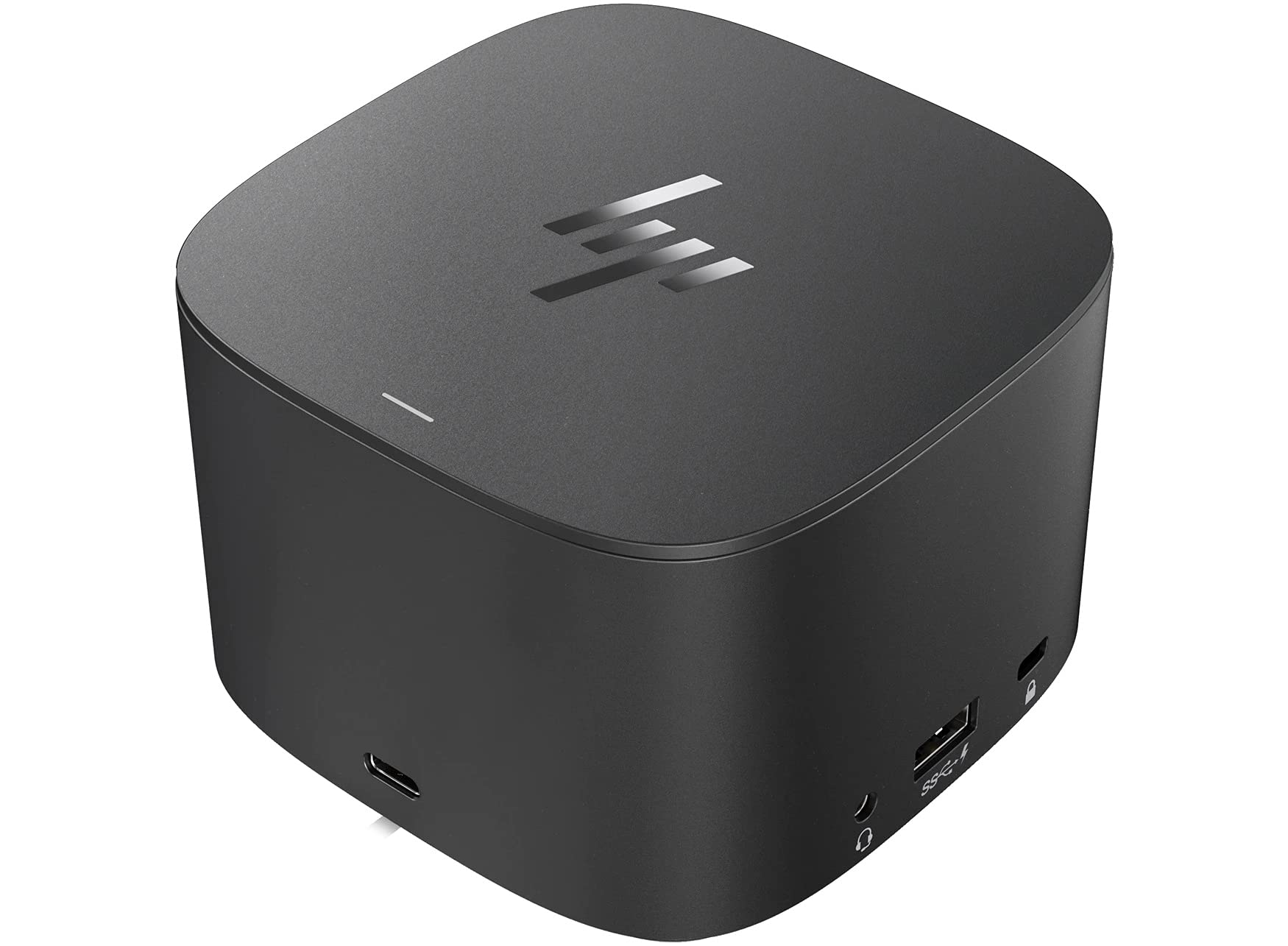
Figure 1: HP Thunderbolt Dock 120W G4 with its integrated USB-C cable for laptop connection.

Figure 2: Rear view of the docking station, highlighting the array of connectivity options including USB, DisplayPort, HDMI, and Ethernet.
Operating Instructions
The HP Thunderbolt Dock 120W G4 is designed for seamless operation with minimal user intervention once set up. Here are key operational aspects:
- Automatic Device Recognition: When connected to a compatible laptop, the dock automatically recognizes and configures connected displays and peripherals.
- Power Delivery: The dock delivers up to 100W of power to your connected laptop, allowing you to charge your device while working.
- Multi-Display Support: Utilize the dock to extend or duplicate your laptop's display across up to four 4K external monitors, enhancing productivity.
- High-Speed Data Transfer: The Thunderbolt 4 technology and USB 3.0 ports enable rapid data transfer for external storage devices and other high-bandwidth peripherals.
- Network Connectivity: The integrated Ethernet port provides a stable and fast wired network connection, offering double the speed of previous generations for quicker downloads and reliable internet access.
- Security Features: The dock incorporates HP Sure Start, which helps protect against firmware attacks, securing your network and attached notebook from the moment you log on. It meets full NIST 800-193 requirements.

Figure 3: Front view of the docking station, showing easily accessible USB-C and USB-A ports for quick connections.
Maintenance
To ensure the longevity and optimal performance of your HP Thunderbolt Dock 120W G4, follow these maintenance guidelines:
- Cleaning: Regularly wipe the exterior of the dock with a soft, dry, lint-free cloth. Avoid using harsh chemicals, solvents, or abrasive cleaners. Ensure no liquids enter the ports or ventilation openings.
- Ventilation: Ensure the dock is placed in a well-ventilated area. Do not block the ventilation openings to prevent overheating.
- Cable Management: Keep cables organized and free from kinks or excessive bending. Proper cable management helps prevent damage to the cables and ports.
- Firmware Updates: Periodically check the HP support website for any available firmware updates for your docking station. Keeping the firmware updated can improve performance, stability, and security.
- Environmental Conditions: Operate the dock within recommended temperature and humidity ranges. Avoid exposing it to extreme temperatures, direct sunlight, or high moisture.
Troubleshooting
If you encounter issues with your HP Thunderbolt Dock 120W G4, try the following troubleshooting steps:
- No Power:
- Ensure the power adapter is securely connected to both the dock and a working wall outlet.
- Verify the wall outlet is functional by plugging in another device.
- Laptop Not Charging:
- Confirm the USB-C cable from the dock is properly connected to your laptop's Thunderbolt or USB-C port.
- Ensure your laptop supports USB-C power delivery and that the port is enabled for charging.
- No Display on External Monitors:
- Check all video cables (DisplayPort, HDMI, VGA) for secure connections between the dock and monitors.
- Ensure the monitors are powered on and set to the correct input source.
- Update your laptop's graphics drivers.
- Try connecting one monitor at a time to isolate the issue.
- USB Devices Not Working:
- Reconnect the USB device to a different port on the dock.
- Test the USB device by connecting it directly to your laptop.
- No Network Connection:
- Verify the Ethernet cable is securely connected to both the dock and your network router/switch.
- Check your laptop's network settings.
- General Instability:
- Restart your laptop and the docking station.
- Ensure all drivers and firmware for your laptop and dock are up to date.
Specifications
| Feature | Detail |
|---|---|
| Brand | HP |
| Model | Thunderbolt Dock 120W G4 (4J0A2AA) |
| Color | Black |
| Hardware Interface | Ethernet, USB-C, USB-A, DisplayPort, HDMI, VGA |
| Compatible Devices | Windows, Mac, and Chrome OS laptops with Thunderbolt or USB-C ports |
| Total USB Ports | 6 (including USB-C) |
| Product Dimensions (L x W x H) | 3.9" x 3.9" x 2.7" |
| Number of Ports | 11 |
| Total HDMI Ports | 1 |
| Wattage | 120 watts (power delivery up to 100W to laptop) |
| UPC | 196068757380 |
Warranty and Support
For warranty information and technical support, please refer to the documentation included with your product or visit the official HP support website. Warranty terms may vary depending on your region and the retailer from whom the product was purchased. It is recommended to register your product with HP to facilitate support services.
If you purchased this product from a third-party seller, please verify their specific warranty and return policies, as these may differ from HP's standard warranty. Keep your proof of purchase for any warranty claims.
HP Support Website: www.hp.com/support


