1. Introduction
This manual provides detailed instructions for the installation, operation, and maintenance of your SV3C C11 Outdoor Wireless 5MP PTZ Security Camera. Please read this manual thoroughly before using the product to ensure proper functionality and safety.

Image 1: SV3C C11 Outdoor Wireless 5MP PTZ Security Camera. This image displays the main unit of the camera, highlighting its dome-shaped body, antenna, and the array of LED lights around the lens.
2. Product Features
- High-Resolution Imaging: Equipped with a 5-megapixel Full HD lens for clear and smooth video capture, day or night.
- Pan/Tilt Functionality: Remotely adjust the viewing angle with 355° horizontal pan and 90° vertical tilt via the smartphone application.
- Advanced Detection: Features AI human detection and automatic tracking, reducing false alarms and following detected movement.
- Color Night Vision: Integrated white LED lights enable clear color video recording even in complete darkness, alongside traditional infrared black and white mode.
- Dual-Band Wi-Fi & Wired Connectivity: Supports both 2.4GHz and 5GHz wireless networks, as well as a wired LAN connection for flexible installation.
- Two-Way Audio: Built-in microphone and speaker allow for remote communication and audio monitoring.
- Weatherproof Design: Constructed from aluminum alloy with an IP66 dustproof and waterproof rating, suitable for outdoor use in various weather conditions.
- Multi-Device & Expandable Monitoring: View up to 6 cameras simultaneously on one device. Expandable to up to 64 SV3C HX series cameras.
- Multiple Platform Support: Compatible with iOS, Android, and Windows (via HiP2P Client software).
3. Package Contents
Please verify that all items are present in the package:
- SV3C C11 PTZ Security Camera Unit
- Power Adapter
- Antenna
- LAN Cable
- Mounting Screws (4 pcs)
- User Manual (Quick Start Guide)
4. Setup Guide
4.1 Initial Connection
- Power On: Connect the camera to the power adapter and plug it into an electrical outlet. The camera will perform a self-test.
- Wired Connection (Recommended for Initial Setup): Connect the camera to your router using the provided LAN cable. Ensure your smartphone/PC is connected to the same network.
- Wireless Connection: If you prefer wireless, ensure the antenna is securely attached. You will configure Wi-Fi settings later via the app.

Image 2: Illustration of wired (LAN cable) and wireless (Wi-Fi) connection methods for the camera to a router.
4.2 App Installation and Camera Pairing
- Download App: Download and install the "Camhi" or "Camhipro" app from your smartphone's app store (iOS/Android).
- Add Camera: Open the app, register an account if necessary, and follow the in-app instructions to add a new camera. This typically involves scanning a QR code on the camera or manually entering its UID.
- Configure Wi-Fi (if applicable): If you initially connected via LAN, you can configure Wi-Fi settings within the app to enable wireless operation. Ensure the camera and your device are on the same network during this process.
For PC monitoring, download the "HiP2P Client" software from the official SV3C website.
5. Operating Instructions
5.1 Live View and Playback
- Access live video streams and recorded footage through the Camhi/Camhipro app or HiP2P Client software.
- Adjust video quality (e.g., to HD) from the live view screen in the app.

Image 3: Demonstrates the camera's clear 5MP image quality during both day and night, as viewed on a smartphone.
5.2 Pan and Tilt Control
- In the app's live view, use the on-screen controls to pan the camera horizontally (355°) and tilt it vertically (90°).
- Set up preset positions for quick navigation to specific areas.

Image 4: Illustrates the camera's pan (355°) and tilt (90°) capabilities, showing its wide coverage area.

Image 5: Shows how preset positions can be configured to monitor multiple areas around a property.
5.3 Night Vision Modes
The camera offers multiple night vision options:
- Infrared Mode: Standard black and white night vision using IR LEDs.
- Full Color Mode: Utilizes built-in white LED lights to provide full-color video in low-light conditions.
- Intelligent Mode: Automatically switches between IR and color night vision based on detected motion or ambient light.

Image 6: Compares the visual output of the camera in color night vision, daytime 5MP, and black and white infrared night vision modes.

Image 7: Shows the in-app interface for selecting different night vision modes: Infrared, Full Color, and Intelligent.
5.4 AI Human Detection & Auto Tracking
- The camera can detect human shapes, reducing false alarms from pets or inanimate objects.
- When motion is detected, the camera automatically begins recording and tracks the movement of the subject.
- Sensor lights can be configured to activate at night to deter intruders.
- Receive instant notifications on your smartphone or tablet when an event is detected.
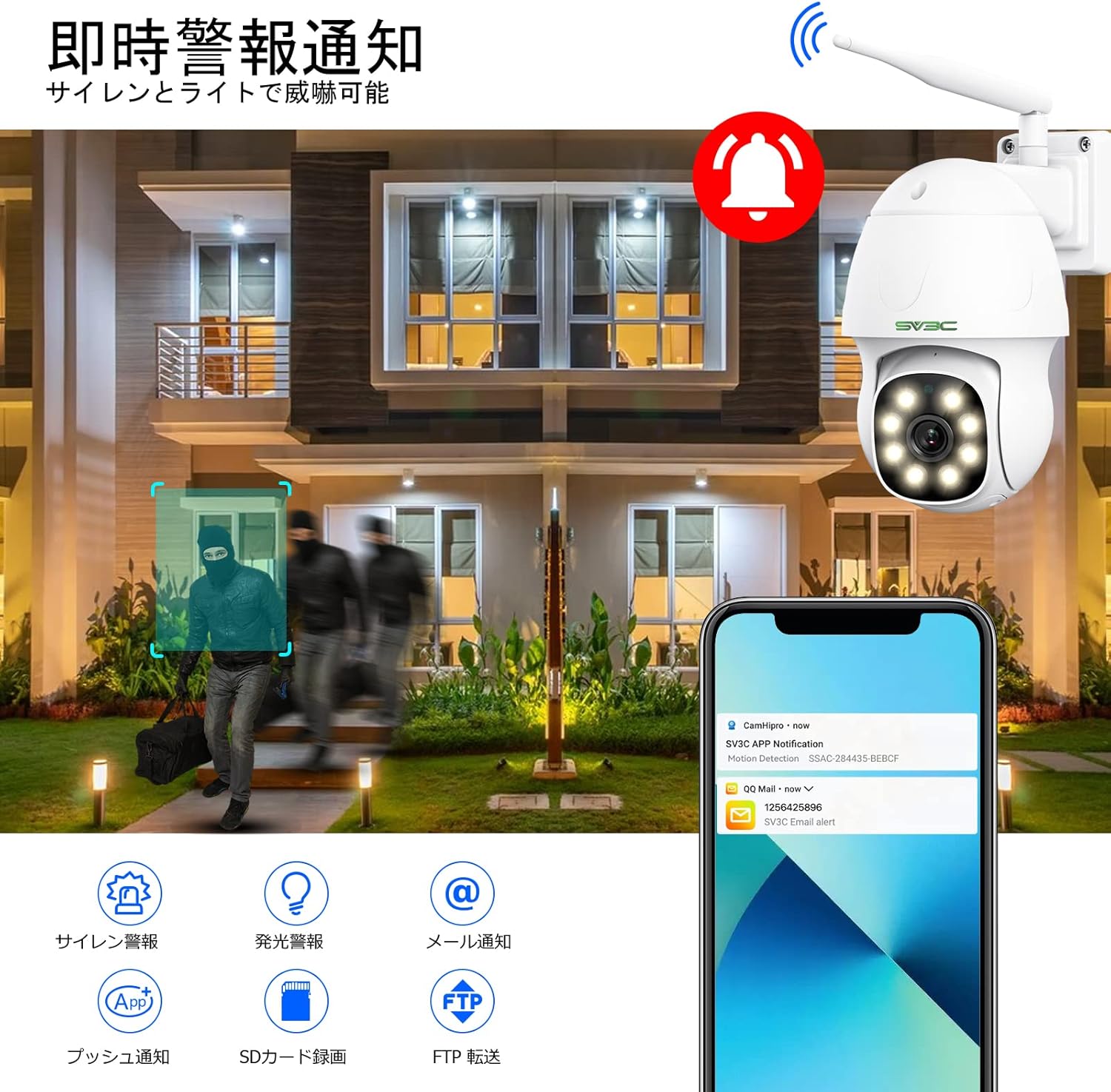
Image 8: Depicts the camera detecting an intruder, triggering a siren, light, and sending notifications to a smartphone.
5.5 Two-Way Audio
- Use the built-in microphone to listen to audio around the camera.
- Speak through the built-in speaker via the app to communicate with individuals near the camera.

Image 9: Illustrates the two-way audio feature, showing a child speaking to the camera and receiving a response.
5.6 Storage and Recording
- The camera supports local storage via a Micro SD card (not included). Insert the card into the designated slot.
- Recorded footage can be accessed and played back through the app.
- FTP storage is also supported for alarm recordings.

Image 10: Close-up view of the camera's Micro SD card slot, indicating local storage capability.
5.7 Multi-Device Monitoring
- Monitor your camera feed from various devices including smartphones (iOS, Android), tablets (iPad, Android), and PCs (Mac OS, Windows).
- The HiP2P Client software for PC allows for more detailed configuration and simultaneous viewing of multiple cameras.

Image 11: Shows the camera feed being monitored on multiple devices, including a PC running P2P Client software, and various mobile apps.

Image 12: Illustrates the camera's compatibility with various web browsers and operating systems for monitoring.
6. Installation and Placement
The SV3C C11 camera is designed for outdoor use and can be mounted on walls or eaves. Ensure the mounting location provides a clear view of the area you wish to monitor and is within Wi-Fi range or accessible for a wired connection.

Image 13: Shows the camera installed outdoors, enduring rain, snow, and fog, highlighting its IP66 weatherproof rating.
7. Maintenance
- Cleaning: Regularly wipe the camera lens and body with a soft, damp cloth to remove dust and dirt. Do not use harsh chemicals.
- Firmware Updates: Check the SV3C official website periodically for firmware updates to ensure optimal performance and security.
- Power Cycle: If the camera experiences connectivity issues, try power cycling it by unplugging and replugging the power adapter after a few seconds.
8. Troubleshooting
This section addresses common issues and their solutions.
- Q1: Setup and installation methods are unclear.
- A: A quick start guide is included with the product. For detailed setup instructions, please refer to the full manual available for download on the official SV3C website (HX series). You can also contact SV3C support via Amazon: ① Access your order history from Account Services. ② Click on the seller's shop link. ③ Click "Ask a question." ④ Select the type and content of your inquiry. ⑤ Click "Enter message." ⑥ After entering, click "Send email." Alternatively, email customer support using the address provided in the manual.
- Q2: The camera is not detected when searching for LAN cameras, even when connected via LAN cable.
- A: Ensure the camera and your smartphone/PC are connected to the same network. If it's still not recognized, try connecting wirelessly by following the instructions in the manual.
- Q3: The resolution is low, and the image is not clear. How do I adjust the settings?
- A: You can change to high quality in the Camhi/Camhipro app. On the live screen of the Camhi/Camhipro app, select "HD" to switch to high resolution. For HiP2P Client, right-click the camera's UID on the preview screen and select "Full HD."
- Q4: Infrared or intelligent night vision does not turn on automatically.
- A: The camera's infrared or illumination lights activate based on ambient light conditions. If the environment (e.g., garden, entrance) is sufficiently bright due to streetlights or other lighting, the camera may remain in daytime mode (color) even at night, and the lights will not turn on. For the lights to activate, the surrounding environment needs to be dark.
- Q5: The wireless LAN connection suddenly became disconnected on my smartphone. What could be the cause?
- A: The wireless connection may occasionally drop due to radio wave interference. If the connection remains lost for several minutes, try power cycling the camera (turn off power, wait a few seconds, then turn back on). If the issue persists, please contact customer support.
- Q6: The QR code cannot be read during initial setup.
- A: If the QR code cannot be read, press and hold the camera's reset button for 10-15 seconds, then try again. If it still fails, please contact support.
- Q7: Alarm saving to FTP server from the IP camera stopped working from January 1, 2025.
- A: As of January 1, 2025, there was a change in the FTP encryption method. Saving to previous folders is no longer possible; files can only be saved to the root directory. For detailed explanations and solutions, please check the official website (HX Series - Manual FTP folder creation method).
9. Specifications
| Feature | Detail |
|---|---|
| Brand | SV3C |
| Model Number | C11 |
| Material | Aluminum |
| Waterproof Level | IP66 (Waterproof) |
| Package Dimensions | 20.3 x 17.4 x 10.7 cm |
| Item Weight | 990 g |
| Recommended Use | Security, Monitoring |
| Connectivity Technology | Wired, Wi-Fi (2.4GHz & 5GHz) |
| Special Features | 5MP Resolution, PTZ Technology, Motion Detection/AI Human Detection, Two-Way Audio, Color Night Vision & Infrared Night Vision |
| Indoor/Outdoor Use | Outdoor |
| Compatible Devices | Tablet (also iOS, Android, PC) |
| Connection Protocol | Wi-Fi |
| Number of Items | 1 |
| Frame Rate | 15 fps |
10. Warranty and Support
For warranty information and customer support, please refer to the quick start guide included with your product or visit the official SV3C website. You can also contact SV3C support directly through your Amazon order history as described in the Troubleshooting section (Q1).
SV3C was established in 2013 as a security camera company. Leveraging years of camera manufacturing technology, they research, develop, produce, and sell security cameras for both corporate and individual use.


