
Athom DS-121JL
Athom Smart Wall Light Switch User Manual
Model: DS-121JL
Introduction
This user manual provides comprehensive instructions for the installation, operation, and maintenance of your Athom US Standard Dual Mode WiFi Smart Wall Light Switch. This smart switch is designed for seamless integration with Apple HomeKit, offering both no-neutral and neutral wire compatibility for AC 220-240V systems. It features a glass touch panel, Siri voice control, and remote control capabilities via Wi-Fi.
Safety Information
Please read all safety warnings and installation instructions carefully before installing or operating this device. Failure to follow these instructions may result in electric shock, fire, or property damage.
- WARNING: Risk of Electric Shock. Installation should only be performed by a qualified electrician or trained personnel.
- Ensure power is turned OFF at the circuit breaker before installation, wiring, or servicing.
- This device is designed for AC 220-240V 50/60HZ systems only. Do not connect to other voltage systems.
- Do not exceed the maximum load of 600W per gang for incandescent lights or 200W per gang for LED lights.
- Operate the device within the specified working temperature range of 20℃ to 50℃.
- Avoid installing in excessively humid environments.
Package Contents
Verify that all items listed below are included in your package:
- Athom Smart Wall Light Switch (DS-121JL)
- Mounting Screws
- User Manual
- Capacitor (for No Neutral wire setup)

Image: Contents of the Athom Smart Switch package, showing the switch, instruction manual, and accessories.
Product Overview
The Athom Smart Wall Light Switch features a sleek glass touch panel with integrated power icons for each gang and a Wi-Fi indicator. The rear of the switch houses the wiring terminals.
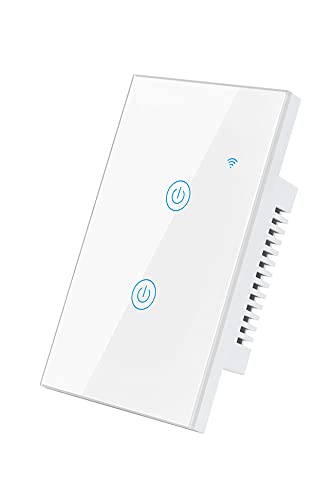
Image: Front view of the Athom Smart Wall Light Switch, showcasing its glass touch panel and two touch-sensitive buttons with power symbols, along with a Wi-Fi signal icon.

Image: Rear view of the Athom Smart Wall Light Switch, displaying the terminal block with labels for Line (L), Neutral (N), and load outputs (L1, L2, L3, L4), along with product model and electrical specifications.
Terminal Definitions:
- L: Live Wire Input
- N: Neutral Wire Input
- L1, L2, L3, L4: Load Outputs (connect to lights/appliances)
Installation
The Athom Smart Switch supports both neutral wire and no-neutral wire installations. Choose the appropriate wiring diagram for your home's electrical system.
Before Installation:
- Turn off power: Locate your circuit breaker and turn off the power to the light switch you are replacing. Verify power is off using a voltage tester.
- Remove your old switch from the wall box.
- Identify the wires: Live (L), Neutral (N) if present, and Load wires (L1, L2, etc.).
Wiring Diagrams:
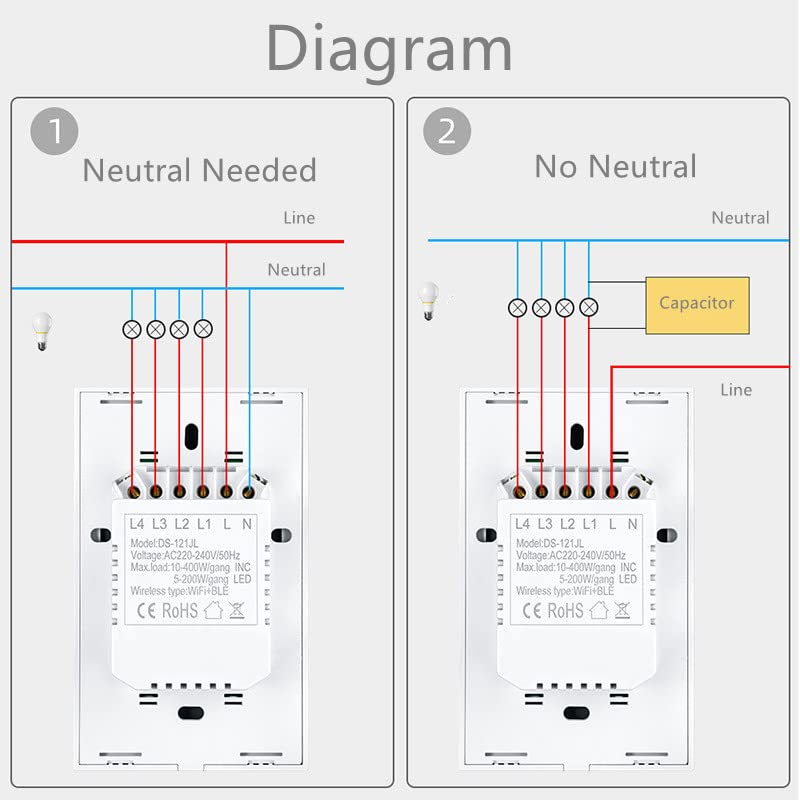
Image: Wiring diagrams illustrating two installation methods: Diagram 1 shows wiring with a neutral wire connection, and Diagram 2 shows wiring without a neutral wire, requiring the included capacitor to be connected across the light fixture.
1. Neutral Wire Needed Setup:
- Connect the Live wire from your wall box to the 'L' terminal on the switch.
- Connect the Neutral wire from your wall box to the 'N' terminal on the switch.
- Connect the Load wire(s) (going to your light fixture) to the 'L1', 'L2', 'L3', or 'L4' terminals as appropriate for your setup.
2. No Neutral Wire Setup:
- Connect the Live wire from your wall box to the 'L' terminal on the switch.
- Connect the Load wire(s) (going to your light fixture) to the 'L1', 'L2', 'L3', or 'L4' terminals as appropriate.
- Important: Install the provided capacitor across the Live and Neutral terminals of your light fixture. This is crucial for stable operation in a no-neutral setup.
Final Steps:
- Carefully push the wired switch into the wall box.
- Secure the switch with the provided screws.
- Attach the glass touch panel.
- Turn the power back on at the circuit breaker.
Operation
Your Athom Smart Switch can be controlled manually, via the Apple Home app, or using Siri voice commands.
Manual Control:
Simply touch the power icons on the glass panel to turn the connected lights on or off.
Apple HomeKit Setup and Control:
The switch is designed for direct integration with Apple HomeKit. No third-party app download or registration is required.
- Ensure your iPhone, iPad, or iPod Touch is connected to the same 2.4GHz Wi-Fi network as your smart switch.
- Open the Apple Home app on your iOS device.
- Tap the '+' icon in the top right corner and select 'Add Accessory'.
- Scan the HomeKit setup code located on the switch itself or on the included manual/packaging.
- Follow the on-screen prompts to name your switch and assign it to a room.
- Once added, you can control the switch from the Home app, create scenes, and set automations.
Siri Voice Control:
After adding the switch to Apple HomeKit, you can use Siri on your iPhone, iPad, iPod Touch, HomePod, or Apple Watch to control your lights.
- Say "Hey Siri, turn on [Switch Name]"
- Say "Hey Siri, turn off [Switch Name]"
- Say "Hey Siri, set [Switch Name] to 50%" (if dimming is supported and configured)
Remote Control and Automation:
For remote control outside your home and advanced automations, you will need an Apple HomeKit hub (e.g., HomePod, Apple TV, or iPad set as a home hub) connected to your home network.

Image: Visual representation of smart home capabilities, including setting up "Arriving/Leaving Home Scenes" and "Automation Routing" for automated lighting control.

Image: Visual representation of smart home features, including setting a "Schedule Time" for lights and "Group Control" for managing multiple devices simultaneously.
Timing Function:
Utilize the Apple Home app to set schedules for your lights to turn on or off automatically at specific times, enhancing convenience and energy efficiency.
Group Control:
Group multiple Athom smart switches or other HomeKit-compatible devices within the Home app to control them simultaneously with a single command or scene.
Maintenance
The Athom Smart Switch requires minimal maintenance.
- Cleaning: Wipe the glass touch panel with a soft, damp cloth. Do not use abrasive cleaners or solvents. Ensure the switch is dry before use.
- Firmware Updates: Periodically check for firmware updates via the Apple Home app or any associated Athom app (if applicable) to ensure optimal performance and security.
Troubleshooting
| Problem | Possible Cause | Solution |
|---|---|---|
| Switch not responding to touch. | No power; loose wiring; faulty switch. | Check circuit breaker. Verify wiring connections. If problem persists, contact support. |
| Cannot add to HomeKit. | Incorrect Wi-Fi band (not 2.4GHz); Wi-Fi signal too weak; incorrect HomeKit code; switch not in pairing mode. | Ensure your device is on 2.4GHz Wi-Fi. Move closer to router. Re-scan code. Reset switch (refer to reset procedure in manual, if available). |
| Lights flicker or don't turn off completely (No Neutral setup). | Capacitor not installed or incorrectly installed; incompatible light fixture (e.g., very low wattage LED). | Ensure the capacitor is correctly wired across the light fixture. Try a higher wattage LED bulb or an incandescent bulb for testing. |
| Siri voice control not working. | Switch not properly added to HomeKit; incorrect device name; HomeKit hub offline. | Verify switch status in Home app. Check device name. Ensure HomeKit hub (HomePod, Apple TV, iPad) is online and configured. |
Specifications

Image: Technical drawing showing the dimensions of the Athom Smart Wall Light Switch in millimeters (118x72mm front, 39mm depth).
| Feature | Detail |
|---|---|
| Model Number | DS-121JL |
| Input Voltage | AC 220-240V, 50/60HZ |
| Load Capacity (Incandescent) | Max 600W/gang |
| Load Capacity (LED) | Max 200W/gang |
| Control Mode | APP (Apple HomeKit)/Voice (Siri)/Manual |
| Wireless Connectivity | Wi-Fi 802.11 b/g/n (2.4GHz) |
| Hub Requirement | No (for basic control); Apple HomeKit hub for remote access/automations |
| Dimensions (L x W x H) | 118 x 70 x 39 mm (4.65 x 2.76 x 1.54 inches) |
| Working Temperature | 20℃ - 50℃ |
| Certifications | CE, ROHS |
| Material | Glass (Panel), Copper (Contact) |
Warranty and Support
For warranty information and technical support, please refer to the official Athom website or contact their customer service directly. Keep your purchase receipt as proof of purchase.
Manufacturer: Athom
Date First Available: April 16, 2022
Related documentsDS-121JL


Ask a question about this manual
Ask about setup, troubleshooting, compatibility, parts, safety, or missing instructions. Manuals+ will review the question and use this page’s manual context to help answer it.