
GOOJODOQ GD13
GOOJODOQ GD13 Stylus Pen User Manual
Model: GD13 | Brand: GOOJODOQ
Introduction
Thank you for choosing the GOOJODOQ GD13 Stylus Pen. This advanced stylus is designed to enhance your iPad experience with features like true wireless charging, tilt sensitivity, and palm rejection. This manual will guide you through the setup, operation, and maintenance of your new GD13 stylus.

Image: The GOOJODOQ GD13 Stylus Pen, shown alongside an iPad displaying its wireless charging status and the three included replacement nibs.
Setup
1. Initial Charging
The GD13 stylus supports true wireless charging. Simply attach the stylus magnetically to the side of your compatible iPad. The stylus will automatically begin charging.
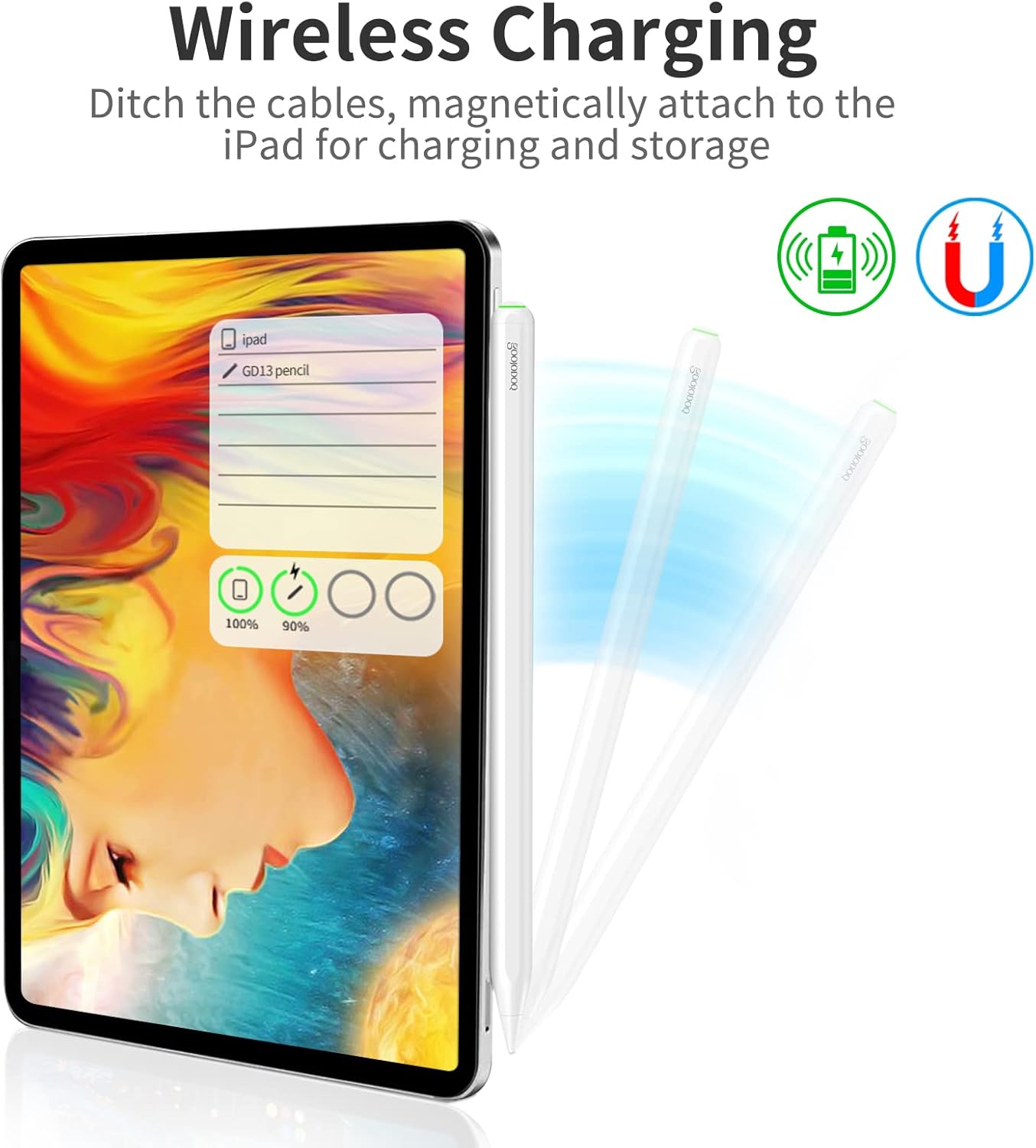
Image: The GD13 stylus magnetically attached to the side of an iPad, illustrating its wireless charging capability.
2. Bluetooth Pairing (If Required)
For full functionality and battery status display, Bluetooth pairing is recommended. If you have previously connected an Apple Pencil, please disconnect it first.
- Go to your iPad's Settings.
- Tap on Bluetooth and ensure it is turned On.
- Look for "GD13 pencil" in the list of devices and tap to connect.

Image: A screenshot of an iPad's Bluetooth settings, highlighting the "GD13 pencil" as an available device for connection.
Operating Instructions
Wireless Charging & Smart Mode
The GD13 stylus eliminates the need for charging cables. When not in use, simply attach it to the side of your compatible iPad. It will automatically switch to smart charging mode, ensuring it's always ready when you need it.
Quick Wake Feature
To quickly access notes, double-tap the iPad screen with the GD13 stylus. This will instantly open a blank memo in the notes application, allowing you to capture ideas without delay.

Image: A hand demonstrating the quick wake feature by double-tapping the iPad screen with the GD13 stylus to open the notes app.
Tilt Sensitivity & Palm Rejection
The GD13 stylus dynamically adjusts line thickness based on the angle at which you hold it, mimicking a traditional pencil. The advanced Palm Rejection technology allows you to rest your hand naturally on the iPad screen while writing or drawing, without interfering with the stylus's input.

Image: An illustration demonstrating the GD13 stylus's tilt sensitivity, showing how line thickness changes with angle, and its palm rejection feature, allowing comfortable hand placement on the screen.
Quick Gestures
- Access Notes: Swipe the GD13 stylus from the bottom right corner of the iPad screen towards the center to immediately access notes.
- Take Screenshot: Swipe the GD13 stylus from the bottom left corner of the iPad screen towards the center to quickly take a screenshot.
Battery Capacity Indicator
The GD13 stylus features an indicator light to show its battery status:
- Red Light: 0-30% battery
- Blue Light: 30-70% battery
- Green Light: 70-100% battery
- The light will blink while charging.
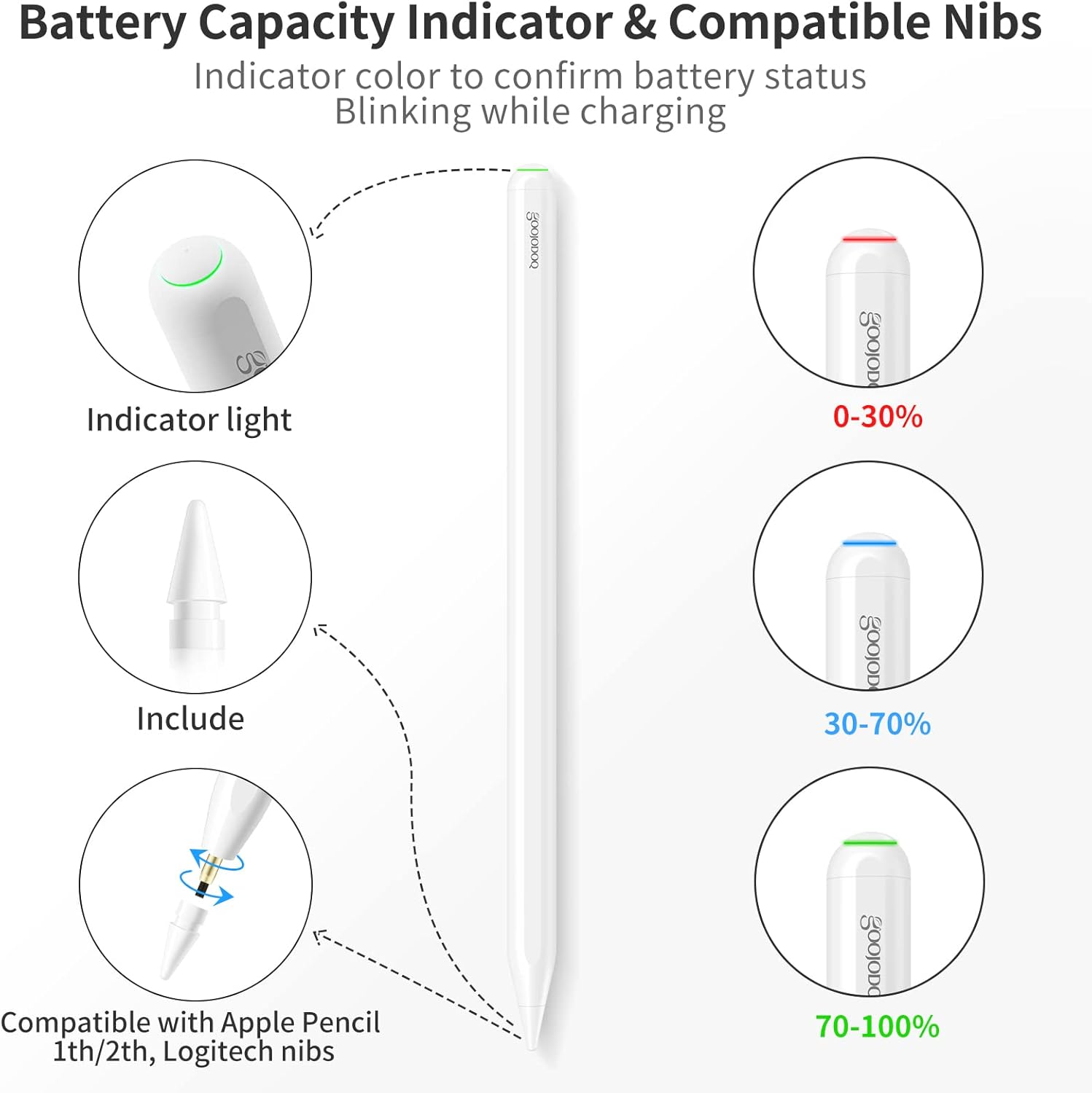
Image: A visual guide to the GD13 stylus's battery indicator light colors (red, blue, green) corresponding to charge levels, and illustrating the compatibility of its nib with Apple Pencil and Logitech nibs.
Maintenance
Nib Replacement
The GD13 stylus nib is designed for durability, but may require replacement over time due to wear. The GD13 nib is compatible with Apple Pencil (1st/2nd Gen) and Logitech nibs, making replacements widely available.
To replace the nib:
- Gently twist the old nib counter-clockwise to remove it.
- Align the new nib with the stylus tip and twist clockwise until securely fastened.
Always ensure the stylus and nib are clean and free of debris for optimal performance.
Troubleshooting
| Problem | Possible Cause | Solution |
|---|---|---|
| Stylus not connecting/responding. | Bluetooth not enabled, previously paired Apple Pencil, low battery, incompatible iPad model. |
|
| Stylus not charging. | Not properly attached to iPad, dirty contact area, incompatible iPad model. |
|
| Inaccurate input or lag. | Low battery, worn-out nib, screen protector interference, software issue. |
|
Specifications
- Brand: GOOJODOQ
- Model: GD13
- Color: White
- Material: Polyoxymethylene
- Weight: 30 Grams
- Battery Type: Lithium-ion (1 included)
- Charging: Wireless Magnetic Charging
- Features: Tilt Sensitivity, Palm Rejection, Quick Wake, Quick Gestures
Compatible iPad Models:
The GD13 stylus is compatible with the following iPad models. Please check the model number on the back of your iPad to confirm compatibility.
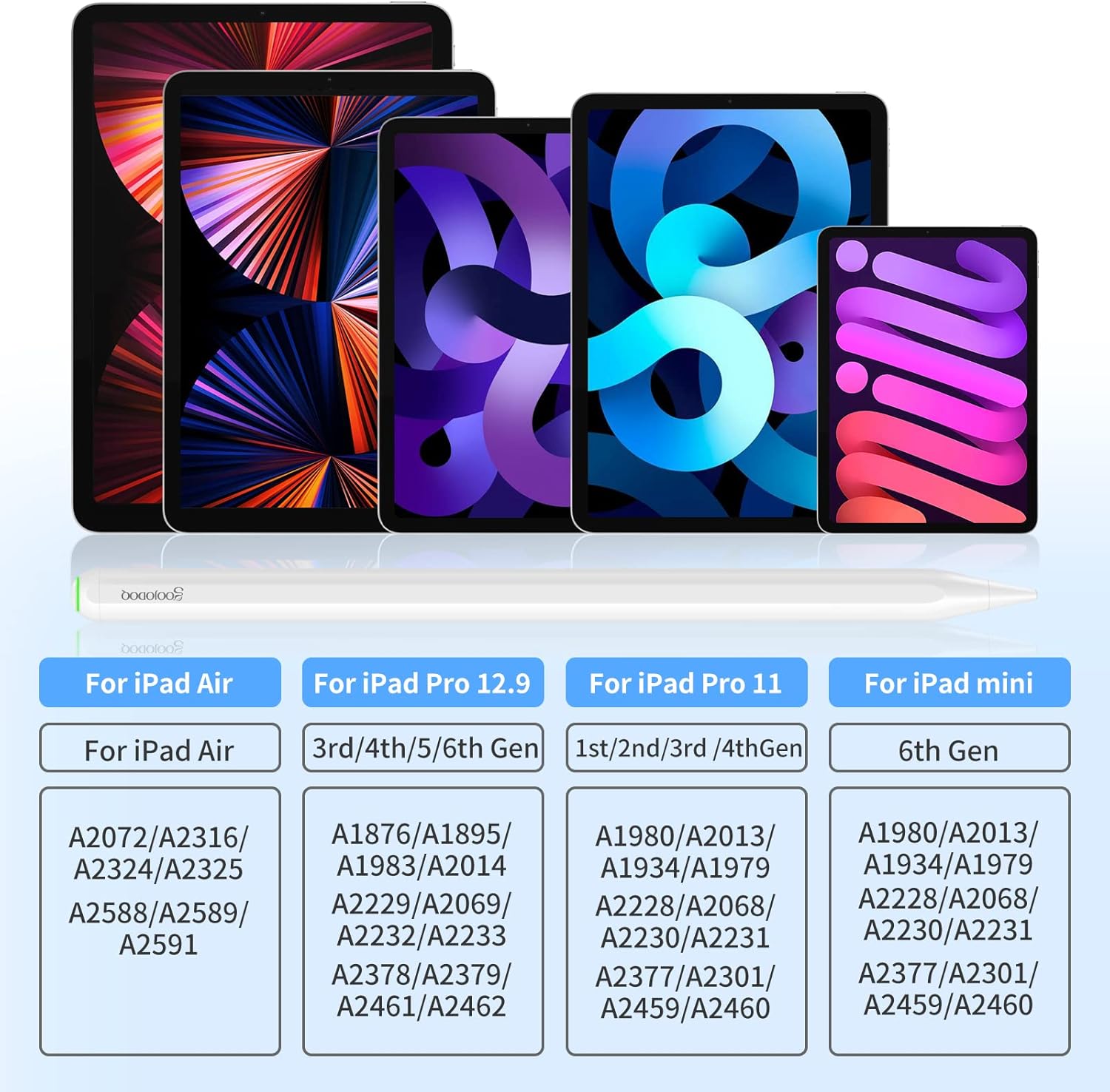
Image: A comprehensive table listing compatible iPad Air, iPad Pro 12.9-inch, iPad Pro 11-inch, and iPad Mini models, along with their corresponding model numbers, for the GD13 stylus.
| iPad Model | Compatible Generations | Model Numbers (Axxxx) |
|---|---|---|
| iPad Air | 4th/5th Gen | A2072, A2316, A2324, A2325, A2588, A2589, A2591 |
| iPad Pro 12.9-inch | 3rd/4th/5th/6th Gen | A1876, A2014, A1895, A1983, A2229, A2069, A2232, A2233, A2378, A2461, A2379, A2462 |
| iPad Pro 11-inch | 1st/2nd/3rd/4th Gen | A1980, A2013, A1934, A1979, A2228, A2068, A2230, A2231, A2377, A2459, A2301, A2460 |
| iPad Mini | 6th Gen | A2567, A2568, A2569 |
Warranty and Support
Specific warranty information for the GOOJODOQ GD13 Stylus Pen is not provided in this manual. For warranty claims, technical support, or any product-related inquiries, please contact GOOJODOQ customer service through their official website or the platform where you purchased the product.
You can often find support contact details on the product packaging or the seller's page.