
1. Introduction
This manual provides detailed instructions for the installation, operation, and troubleshooting of your weeryyi Wireless HDMI Extender Kit. This kit allows for wireless transmission of Full HD 1080p video and audio signals over distances up to 820 feet (250 meters) in open environments, supporting various HDMI devices.
1.1 Package Contents
Please verify that all items are present in your package:
- 1x Wireless HDMI Transmitter (TX)
- 1x Wireless HDMI Receiver (RX)
- 2x Antennas (for each unit, total 4)
- 2x USB A to USB C Power Cables
- 2x IR Extension Cables
- 2x Power Adapters (5V/2A)
- 1x User Manual (this document)

2. Safety Information
To ensure safe and optimal operation of your device, please observe the following safety guidelines:
- Do not expose the device to water, moisture, or extreme temperatures.
- Use only the provided power adapters and cables.
- Avoid placing the device in direct sunlight or near heat sources.
- Do not attempt to disassemble or modify the device. This will void the warranty.
- Ensure proper ventilation around the units to prevent overheating.
- Keep the device away from strong electromagnetic fields.
3. Product Overview and Features
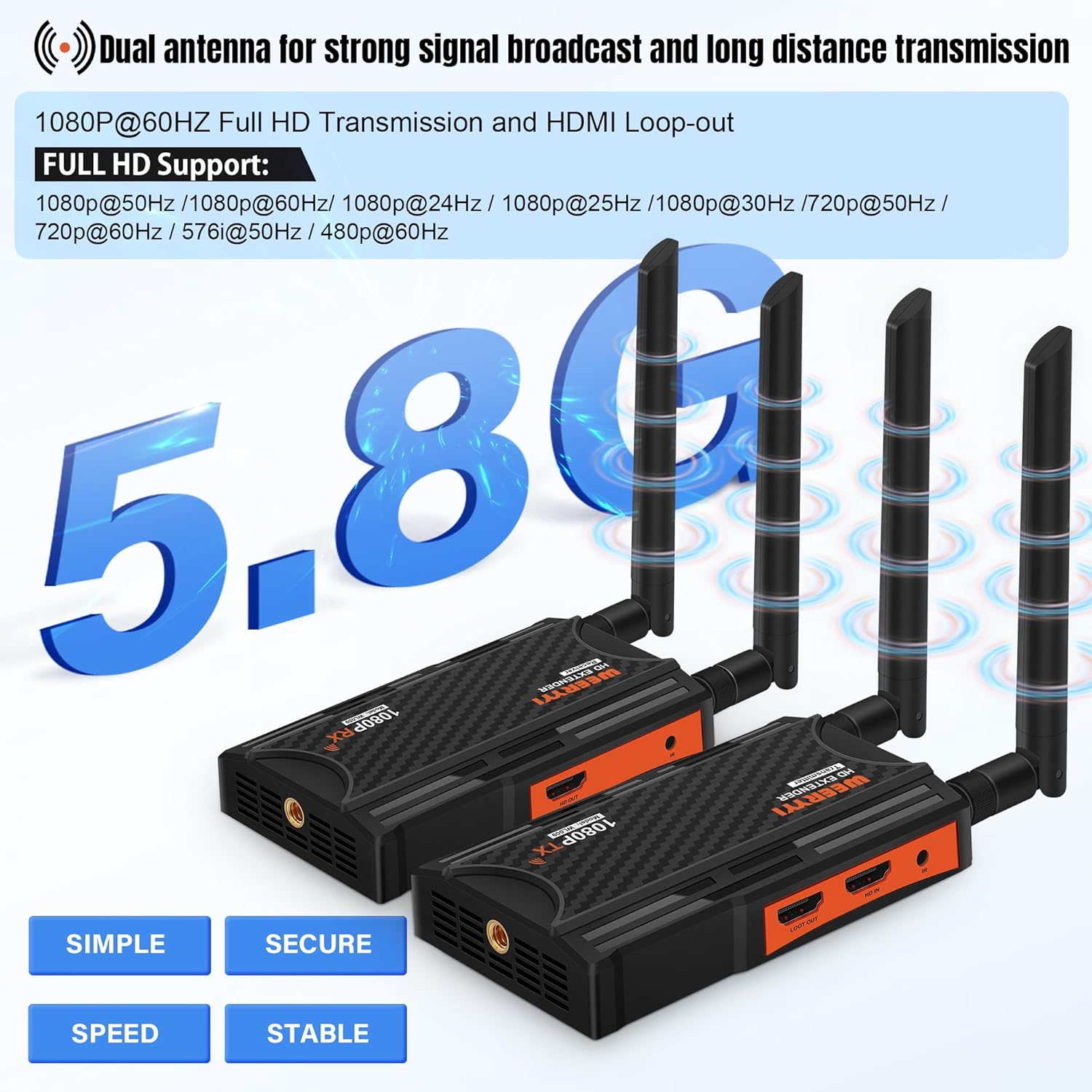
The weeryyi Wireless HDMI Extender Kit consists of a Transmitter (TX) unit and a Receiver (RX) unit, designed to extend HDMI signals wirelessly.

3.1 Key Features
- Full HD 1080p Transmission: Supports input/output resolutions up to 1080p @60Hz for clear and stable video.
- Extended Range: Transmits signals up to 820 feet (250 meters) in open line-of-sight conditions using 2.4/5.8GHz dual-band wireless technology.
- Plug and Play: No software installation required for quick setup.
- Low Latency: Designed for minimal transmission delay, typically around 0.06 seconds. The loop-out local display has no delay.
- HDMI Loop-Out: The Transmitter (TX) unit includes an HDMI loop-out port, allowing a local display to be connected directly to the source.
- IR Pass-Through: Control your source device remotely from the receiver location using the included IR extension cables.
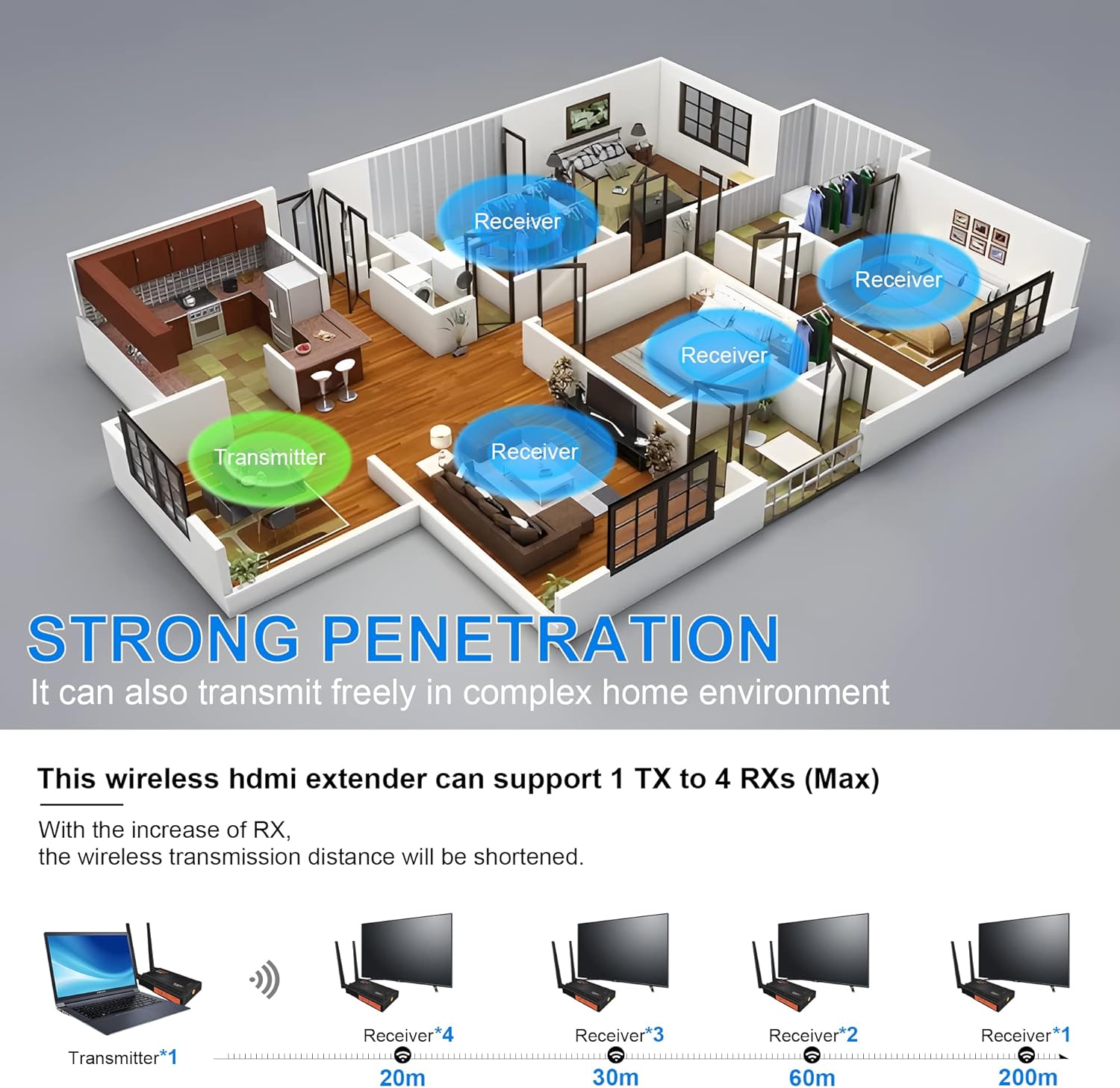
- Multi-Receiver Support: One Transmitter (TX) can connect to up to four Receivers (RX) for multiple display setups. (Note: Transmission distance may decrease with more receivers).
- Wide Compatibility: Compatible with various HDMI source devices (laptops, set-top boxes, Blu-ray players, DSLR cameras) and display devices (TVs, projectors, monitors).
3.2 Port Descriptions
Each unit features several ports for connectivity:
- HDMI IN (TX): Connects to your HDMI source device.
- HDMI OUT (TX): HDMI loop-out for a local display.
- HDMI OUT (RX): Connects to your HDMI display device.
- IR OUT (TX): Connects the IR blaster cable to control the source device.
- IR IN (RX): Connects the IR receiver cable to receive remote control signals.
- 5V/2A (USB-C): Power input port.
- AMS (TX/RX): Audio input on TX for external microphone/audio source; Audio output on RX for monitoring.
- Antenna Ports: For connecting the external antennas.

4. Setup Guide
Follow these steps for initial setup of your wireless HDMI extender kit.
4.1 Basic Connection
- Connect Antennas: Screw the four antennas onto the Transmitter (TX) unit and the four antennas onto the Receiver (RX) unit. Ensure they are securely tightened.
- Connect TX to Source: Connect an HDMI cable from your source device (e.g., laptop, set-top box) to the HDMI IN port on the Transmitter (TX).
- Connect RX to Display: Connect an HDMI cable from your display device (e.g., TV, projector) to the HDMI OUT port on the Receiver (RX).
- Power On: Connect the provided 5V/2A power adapters to the USB-C power ports on both the TX and RX units, then plug them into power outlets.
- Verify Connection: Both units will power on. The LED indicators will show their status. After a short period, the TX and RX units should automatically pair, and the video signal will appear on your display.

4.2 Adding New Receivers (Pairing)
If you purchase additional RX units (ASIN: B09Y1173WD), they must be paired with your existing TX unit before use.
- Power Up: Power up both the new RX unit and your existing TX unit using their respective 5V/2A power adapters.
- Direct Connection: Connect an HDMI cable from the new RX's HD OUT port to the TX's HD IN port.
- Wait for Pairing: Wait approximately 30 seconds. Check the indicator LED on the TX unit. If it changes to a solid green light, and then after 5 more seconds, it means the new RX is successfully paired with the TX.
- Disconnect and Deploy: Once paired, disconnect the HDMI cable. The new RX unit is now ready for wireless operation with your TX unit.

5. Operating Instructions
5.1 IR Pass-Through Functionality
The IR pass-through feature allows you to control your HDMI source device (e.g., cable box, DVD player) from the location of your display (where the RX unit is located).
- Connect IR Blaster (TX): Plug one end of the IR extension cable into the IR OUT port on the Transmitter (TX). Position the IR blaster head near the IR sensor of your source device.
- Connect IR Receiver (RX): Plug the other IR extension cable into the IR IN port on the Receiver (RX). Position the IR receiver head in a location where it can receive signals from your remote control.
- Remote Control: Point your source device's remote control at the IR receiver head connected to the RX unit. The signal will be transmitted wirelessly to the TX unit, which will then relay it to your source device via the IR blaster.

5.2 Multi-Receiver Operation (1 TX to up to 4 RXs)
This system supports connecting one Transmitter (TX) to multiple Receivers (RX) simultaneously. After pairing additional RX units as described in Section 4.2, simply power them on and ensure they are within the transmission range of the TX unit.
- Transmission Distance: The wireless transmission distance may be reduced when using multiple receivers. For example, 1 TX to 1 RX can reach 820ft, while 1 TX to 4 RXs may reach approximately 623ft (line of sight).
- Signal Strength: Ensure receivers are placed in optimal locations to maintain strong signal reception, especially in environments with obstacles.
5.3 Audio Input and Separation
The AMS port on both the TX and RX units provides additional audio functionality.
- Audio Input (TX): The AMS interface on the TX unit can be used to connect an external audio source, such as a microphone, for transmission alongside the HDMI video signal.
- Audio Separation (RX): The AMS port on the RX unit allows you to connect headphones or external speakers to monitor the transmitted audio separately from the HDMI output.

6. Maintenance
To ensure the longevity and optimal performance of your weeryyi Wireless HDMI Extender Kit, follow these maintenance guidelines:
- Cleaning: Use a soft, dry cloth to clean the exterior of the units. Do not use liquid cleaners or aerosols.
- Storage: When not in use for extended periods, store the devices in a cool, dry place away from direct sunlight and extreme temperatures.
- Ventilation: Ensure that the ventilation openings on the units are not blocked to prevent overheating.
- Cable Management: Avoid bending or crimping HDMI, power, and IR cables excessively to prevent damage.
7. Troubleshooting
If you encounter issues with your wireless HDMI extender, refer to the following common problems and solutions.
7.1 No Signal / "Searching TX......" on Receiver Screen
If your receiver display shows a "Searching TX......" message or no signal:
- Power Supply: Check if both the Transmitter (TX) and Receiver (RX) units are properly powered on and their power indicator lights are illuminated.
- HDMI Connections: Ensure all HDMI cables are securely connected between the source, TX, RX, and display. Try reseating the cables.
- Transmission Distance/Obstacles: Verify that the transmission distance does not exceed the device's limitations (820ft line of sight). Reduce obstacles between the TX and RX units. Try repositioning the units for better line of sight.
- Signal Strength: Check the signal strength indication on the receiver (if available). Enhance the installation and placement of wireless devices to improve signal reception.
- Source Device Output: Ensure your source device is outputting a valid HDMI signal and is set to a compatible resolution (up to 1080p @60Hz).
7.2 IR Remote Control Has No Response
If the IR remote control functionality is not working:
- IR Cable Connection: Check if the IR extension cables are inserted correctly. Ensure the IR blaster is connected to the TX's IR OUT port and the IR receiver is connected to the RX's IR IN port.
- IR Blaster/Receiver Placement: Make sure the IR blaster head is directly facing the IR sensor of your source device. Ensure the IR receiver head is positioned to receive signals from your remote control.
- IR Frequency: Verify that the infrared frequency of your remote control is within the controllable range of 20KHz-60KHz.
- Remote Control Battery: Check the batteries in your remote control.
8. Specifications
| Model Number | CPC200-CP2A |
| Brand | weeryyi |
| Connectivity Technology | Wireless, Wi-Fi, HDMI |
| Connector Type | HDMI |
| Resolution | 1080p (Full HD @60Hz) |
| Transmission Distance | Up to 820 feet (250 meters) line of sight |
| Wireless Frequency | 2.4GHz / 5.8GHz |
| Latency | Approximately 0.06 seconds |
| IR Frequency Range | 20KHz-60KHz |
| Power Supply | 5V/2A DC (USB-C) |
| Item Weight | 1.01 pounds (total for kit) |
| Package Dimensions | 7.99 x 6.02 x 2.32 inches |
| Compatible Devices | Laptop, Television, Monitor, Personal Computer, Projector, TV, STB |
9. Warranty and Support
weeryyi products are designed for reliability and performance. This product is covered by a manufacturer's warranty against defects in materials and workmanship under normal use. For specific warranty terms and conditions, please refer to the documentation included with your purchase or contact weeryyi customer support.
9.1 Customer Support
If you have any questions, require technical assistance, or need to report an issue, please contact weeryyi customer support through the platform where you purchased the product. Our support team is committed to responding to inquiries within 24 hours.