
Introduction
Thank you for choosing the Peteme Smart WiFi Light Bulb. This smart LED bulb offers a vibrant range of 16 million colors, dimmable white light, and convenient control options. It is designed to enhance your home lighting experience through app control, voice commands with popular smart assistants like Alexa, Google Home, and Siri, and advanced features such as group control and scheduling. Please read this manual carefully to ensure proper installation, operation, and maintenance of your new smart light bulb.

Image: The Peteme Smart WiFi Light Bulb, an A19 E26 LED bulb, displaying its multi-color capabilities. The bulb features a standard E26 screw base and a white body with the Peteme logo and specifications printed on it.
Safety Information
- Ensure the power is turned off before installing or removing the bulb.
- This bulb is designed for indoor use only. Do not expose to water or high humidity.
- Do not disassemble or modify the bulb. This will void the warranty.
- Use in an operating environment between -20°C to 40°C (-4°F to 104°F).
- This device supports 2.4GHz Wi-Fi networks only. It is not compatible with 5GHz Wi-Fi.
- Keep out of reach of children.
Package Contents
- 1 x Peteme Smart WiFi Light Bulb (A19 E26)
- 1 x User Manual (this document)
Setup Guide
1. Physical Installation
- Ensure the power to the light fixture is turned off at the switch before installation.
- Carefully screw the Peteme Smart WiFi Light Bulb into a standard E26 light socket.
- Turn on the power to the light fixture. The bulb should light up.
2. App Download and Account Registration
The Peteme Smart WiFi Light Bulb uses the Smart Life app for control. You can download it from your device's app store.
- Search for "Smart Life" in the Apple App Store (for iOS) or Google Play Store (for Android).
- Download and install the app.
- Open the Smart Life app and register for a new account or log in if you already have one.
3. Pairing the Bulb with the App
To put the bulb into pairing mode, you need to cycle its power.
- With the bulb powered on, turn the light switch OFF and ON three times rapidly (OFF-ON-OFF-ON-OFF-ON).
- The bulb should begin to flash rapidly, indicating it is in pairing mode. If it does not flash, repeat the power cycle.
- Open the Smart Life app. Tap the "+" icon in the top right corner to add a device.
- Select "Lighting" or "Light Source (Wi-Fi)" from the device list.
- Confirm that the indicator light is rapidly blinking.
- Enter your 2.4GHz Wi-Fi network password. Ensure your phone is connected to the 2.4GHz network.
- The app will begin connecting to the bulb. Once connected, you can rename the bulb for easier control.
4. Integrating with Voice Assistants (Alexa, Google Home, Siri)
The Peteme Smart WiFi Light Bulb is compatible with Amazon Alexa, Google Home, and Siri for voice control.

Image: A visual representation of voice control, showing a user interacting with the smart bulb via Siri. The image highlights the ability to change color and brightness using voice commands, and mentions compatibility with Amazon Alexa and Google Assistant.
- For Amazon Alexa:
- Open the Alexa app.
- Go to "Skills & Games" and search for "Smart Life".
- Enable the Smart Life skill and link your Smart Life account using your credentials.
- Discover devices. You can say, "Alexa, discover my devices."
- For Google Home:
- Open the Google Home app.
- Tap the "+" icon, then "Set up device" > "Works with Google".
- Search for "Smart Life", link your Smart Life account, and authorize.
- For Siri (via Siri Shortcuts):
- In the Smart Life app, navigate to the device control page for your bulb.
- Look for an option to "Add to Siri" or "Siri Shortcuts".
- Record a custom phrase for actions like "Turn on the light" or "Change light to yellow".
Operating Instructions
1. Basic On/Off and Brightness Control
- Via App: Open the Smart Life app, select your bulb, and use the toggle switch for On/Off. Adjust brightness using the slider.
- Via Voice: Say "Alexa/Hey Google, turn on/off [bulb name]" or "Alexa/Hey Google, dim/brighten [bulb name] to [percentage]".
2. Color Changing and White Light Adjustment
Your Peteme Smart WiFi Light Bulb offers 16 million colors and adjustable cool/warm white light.

Image: A demonstration of the color-changing capabilities of the Peteme Smart WiFi Light Bulb, showing various hues from cool white to warm white and vibrant RGB colors. This illustrates the bulb's versatility for different lighting needs.
- Via App: In the Smart Life app, navigate to the color palette or white light temperature settings to select your desired color or white shade.
- Via Voice: Say "Alexa/Hey Google, change [bulb name] to red" or "Alexa/Hey Google, set [bulb name] to warm white."
3. Group Control
Control multiple Peteme smart bulbs simultaneously by grouping them in the Smart Life app.

Image: The Smart Life app interface demonstrating the group control feature, allowing users to manage multiple smart bulbs across different rooms from a single screen. This shows how lights in a living room setting can be synchronized.
- In the Smart Life app, go to the "Smart" or "Scene" section.
- Create a new group and add the desired bulbs to it.
- You can then control the entire group with a single command or tap.
4. Timer and Schedule Settings
Automate your lighting by setting schedules for your bulb to turn on or off.

Image: A visual guide to setting timers and schedules for the smart bulb, illustrating how users can program the bulb to turn on at 7:00 AM for waking up and turn off at 10:00 PM for sleeping, enhancing daily routines.
- In the Smart Life app, select your bulb and find the "Schedule" or "Timer" option.
- Set specific times for the bulb to turn on or off, and choose repeat days if desired.
5. Remote Control
Control your lights from anywhere with an internet connection.

Image: An illustration of the remote control capability, showing a house at night with lights being controlled via the Smart Life app on a smartphone. This demonstrates the convenience of managing your home lighting from any location.
- As long as your bulb is connected to Wi-Fi and your phone has internet access, you can control your lights remotely through the Smart Life app.
6. Music Sync
The bulb can synchronize its color changes with music (feature mentioned in product bullets).
- Check the Smart Life app for a "Music Mode" or "Rhythm" function.
- Activate this mode to have the bulb's colors change in response to ambient sound or music played through your device.
Maintenance
- Ensure the bulb is cool and powered off before cleaning.
- Wipe the bulb with a soft, dry cloth. Do not use liquid cleaners or abrasive materials.
- Regularly check for any loose connections in the light fixture.
Troubleshooting
| Problem | Possible Cause | Solution |
|---|---|---|
| Bulb does not turn on. | No power to the fixture; bulb not screwed in properly; bulb faulty. | Check the light switch and circuit breaker. Ensure the bulb is securely screwed into the socket. Test the bulb in another working fixture. |
| Bulb is not connecting to Wi-Fi/App. | Incorrect Wi-Fi band (5GHz); incorrect password; bulb not in pairing mode; weak Wi-Fi signal. | Ensure your Wi-Fi is 2.4GHz. Double-check your Wi-Fi password. Perform the OFF-ON-OFF-ON-OFF-ON power cycle to re-enter pairing mode. Move the bulb closer to your Wi-Fi router during setup. |
| Bulb frequently disconnects. | Weak Wi-Fi signal; network congestion; router issues. | Ensure the bulb is within good Wi-Fi range. Restart your Wi-Fi router. Check for firmware updates for the bulb in the Smart Life app. |
| Voice control not working. | Incorrect voice command; Smart Life skill/action not linked; device name mismatch. | Verify the exact device name in the Smart Life app and your voice assistant app. Re-link the Smart Life skill/action in your voice assistant app. |
| Brightness on colors is low. | This is normal for RGB LEDs; color brightness is generally lower than white light. | This is an inherent characteristic of RGB LEDs. For brighter illumination, use the white light settings. |
Specifications
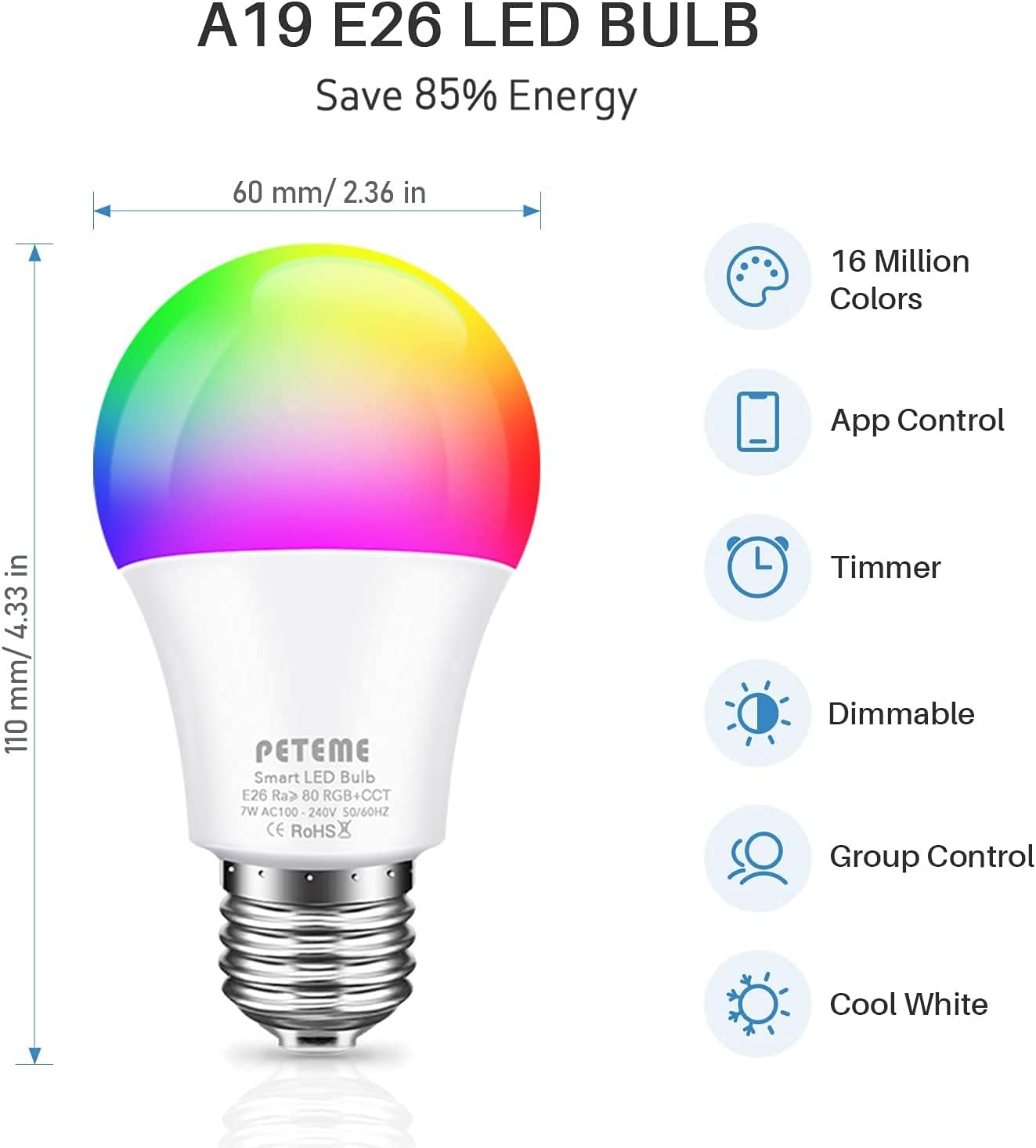
Image: A detailed diagram of the A19 E26 LED bulb, illustrating its dimensions (110mm height, 60mm diameter) and key features such as 16 million colors, app control, timer function, dimmability, group control, and cool white light capability.
| Feature | Detail |
|---|---|
| Model | A19 E26 Smart LED Bulb |
| Bulb Base | E26 |
| Light Type | LED |
| Wattage | 10 Watts (60W Equivalent) |
| Lumen Output | 600 Lumens |
| Light Color | RGB (16 Million Colors), Cool White, Warm White |
| Special Features | Dimmable, Color Changing, Music Sync |
| Connectivity Technology | Wi-Fi (2.4GHz only) |
| Control Method | App (Smart Life), Voice (Alexa, Google Home, Siri) |
| Indoor/Outdoor Usage | Indoor |
| Item Weight | 2.08 ounces |
| Package Dimensions | 6.06 x 4.88 x 2.4 inches |
| UPC | 712537961081 |
Warranty and Support
Peteme products are manufactured with high-quality standards. For warranty information and customer support, please refer to the packaging or contact Peteme customer service directly. You can often find support contact details on the official Peteme brand website or through the Smart Life app's help section.
For further assistance, visit the official Peteme store on Amazon: Peteme Store