
LYCEBELL 100-APP
LYCEBELL 100-APP Wireless Bluetooth Anemometer User Manual
Model: 100-APP
1. Product Overview
The LYCEBELL 100-APP is a digital handheld anemometer designed for measuring wind speed, wind temperature, and air volume (CFM). It features Bluetooth connectivity for real-time data monitoring, recording, and analysis via a mobile application on iOS and Android devices. This device is suitable for various applications including HVAC system analysis, outdoor activities, and meteorological observations.

Image: LYCEBELL 100-APP Wireless Bluetooth Anemometer with its mobile application interface.
Key Features:
- Wireless Bluetooth connectivity for app integration.
- Measures current, maximum, and minimum wind speed.
- Measures wind temperature and wind chill indication.
- Large LCD with backlight for clear readings.
- Multiple wind speed units: m/s, Km/h, ft/min, Knots, mph.
- Automatic and manual power-off functions.
- Tripod mountable design.
2. Setup and Installation
2.1 Unboxing and Components
Carefully unpack the anemometer and verify all components are present.

Image: Package contents including the anemometer, carrying pouch, batteries, lanyard, and instruction manual.
The package should include:
- LYCEBELL 100-APP Anemometer
- Carrying Pouch
- 2 x AAA Batteries
- Lanyard
- Instruction Manual (this document)
2.2 Battery Installation
- Locate the battery compartment cover on the back of the device.
- Slide or unclip the cover to open.
- Insert 2 AAA batteries, ensuring correct polarity (+/-).
- Replace the battery compartment cover securely.
2.3 Mobile Application Download and Bluetooth Connection
The LYCEBELL 100-APP anemometer connects to your smartphone or tablet via Bluetooth for enhanced data management.

Image: Visual guide for Bluetooth connection and app download.
- Download the App: Scan the QR code on the device packaging or in the manual, or search for "Intelligent Anemometer" on the Apple App Store (for iOS) or Google Play Store (for Android). Alternatively, visit http://aicare.net.cn/app/iAnemometer/index.html to download.
- Enable Bluetooth: Turn on the anemometer and ensure Bluetooth is enabled on your smartphone or tablet.
- Connect: Open the "Intelligent Anemometer" app. The device should automatically pair. A green light on the anemometer indicates a successful connection.

Image: The mobile application interface displaying wind data and settings.
2.4 Tripod Mounting (Optional)
The anemometer features a standard tripod hole at the bottom for stable and accurate measurements, especially during prolonged monitoring.

Image: The bottom of the anemometer showing the tripod mounting thread and lanyard attachment point. Tripod not included.
- Locate the tripod hole at the base of the anemometer.
- Screw the anemometer onto a compatible tripod (not included).
- Ensure the device is securely attached before use.
3. Operating Instructions
3.1 Device Layout and Buttons
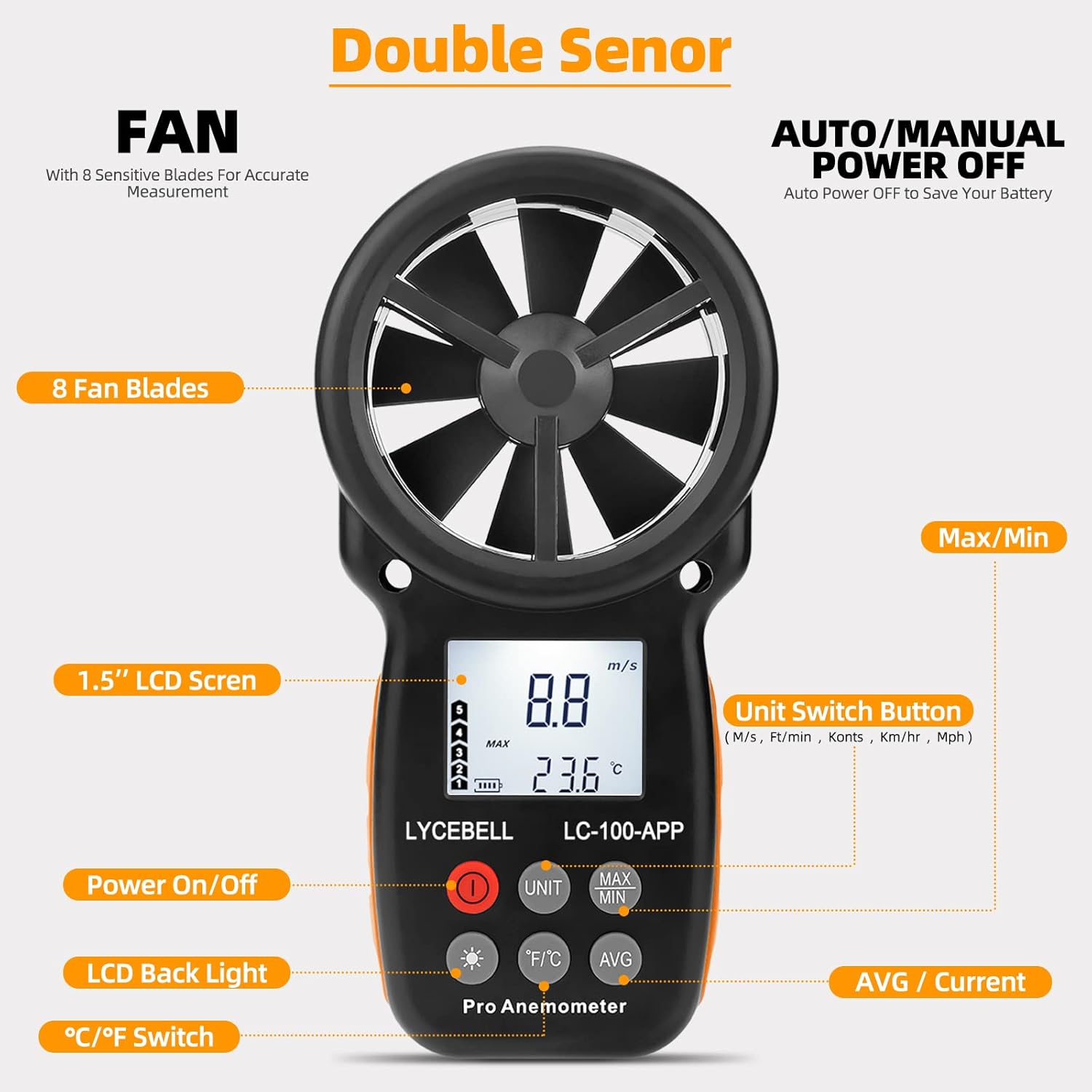
Image: Front view of the anemometer with labels for buttons and display features.
- Power On/Off Button (Red): Press to turn the device on or off.
- UNIT Button: Cycles through wind speed units (m/s, Km/h, ft/min, Knots, mph).
- MAX/MIN Button: Displays maximum, minimum, and current wind speed readings.
- °F/°C Button: Switches between Fahrenheit and Celsius temperature units.
- Backlight Button (Sun icon): Toggles the LCD backlight on/off.
- AVG Button: Displays the average wind speed.
3.2 Basic Measurement
- Press the red Power On/Off button to turn on the anemometer. The LCD will display current readings.
- Hold the anemometer so that the fan blades face the direction of the wind.
- Read the wind speed and temperature values on the LCD.
Video: Demonstration of the LYCEBELL 100-APP Anemometer's basic functions.
3.3 Changing Units
- Wind Speed Units: Press the UNIT button to cycle through m/s, Km/h, ft/min, Knots, and mph.
- Temperature Units: Press the °F/°C button to switch between Celsius and Fahrenheit.

Image: Table detailing the temperature and wind speed measurement ranges and available units.
3.4 MAX/MIN/AVG Readings
Press the MAX/MIN button to toggle between current, maximum, and minimum wind speed readings. Press the AVG button to display the average wind speed.
Video: Demonstration of attaching the lanyard to the anemometer.
Note: The video above shows lanyard attachment, but the button functions for MAX/MIN/AVG are similar across models.
3.5 Backlight Control
Press the Backlight Button (sun icon) to turn the LCD backlight on or off for improved visibility in low-light conditions.
3.6 Auto/Manual Power Off
The device features an auto power-off function to conserve battery life. It will automatically turn off after a period of inactivity. To manually power off the device, press and hold the red Power On/Off button.
3.7 App Functionality
When connected to the "Intelligent Anemometer" app via Bluetooth, you can:
- Monitor real-time wind speed and temperature data.
- Record and log measurement data over time.
- Analyze data with graphical displays and tables.
- Adjust sampling rates.
- Share data.

Image: The mobile application providing comprehensive analysis of airflow data, including Max, Min, Real-time, and Average readings.
4. Maintenance
4.1 Cleaning
To ensure accurate readings and prolong the life of your anemometer:
- Wipe the device with a soft, dry cloth.
- Do not use abrasive cleaners or solvents.
- Keep the fan blades free from dust and debris. Gently clean with a soft brush if necessary.
4.2 Storage
When not in use for extended periods, remove the batteries to prevent leakage. Store the device in its carrying pouch in a cool, dry place, away from direct sunlight and extreme temperatures.
5. Troubleshooting
| Problem | Possible Cause | Solution |
|---|---|---|
| Device does not power on. | Low or dead batteries; incorrect battery installation. | Replace batteries with new AAA batteries; ensure correct polarity. |
| LCD display is dim or blank. | Low battery; backlight off. | Replace batteries; press the backlight button to turn it on. |
| Bluetooth connection fails. | Bluetooth not enabled on device or phone; app not open; device out of range. | Ensure Bluetooth is active on both devices; open the app; bring devices closer; restart both devices. |
| Inaccurate readings. | Obstruction to fan blades; device not held correctly; environmental factors. | Ensure fan blades are clear and spinning freely; hold the device directly into the wind; avoid strong gusts or turbulent air for stable readings. |
6. Specifications
Detailed technical specifications for the LYCEBELL 100-APP Anemometer.
| Feature | Detail |
|---|---|
| Brand | LYCEBELL |
| Model | 100-APP |
| Wind Speed Range | 0.3-30 m/s (Accuracy: ±5%) |
| Wind Speed Units | m/s, Km/h, ft/min, Knots, mph |
| Wind Temperature Range | -10°C ~ 45°C (14°F ~ 113°F) (Accuracy: ±2°C / 35.6°F) |
| Resolution | 0.1 m/s |
| Display | Large LCD with Backlight |
| Connectivity | Bluetooth (App compatible with iPhone/Android phones/Tablet) |
| Power Source | 2 x AAA Batteries |
| Material | Acrylonitrile Butadiene Styrene (ABS) |
| Dimensions (L x W x H) | 3.54 x 1.57 x 6.69 inches (90 x 40 x 170 mm approx.) |
| Weight | 153 g |
7. Warranty and Support
7.1 Warranty Information
Please refer to the product packaging or the official LYCEBELL website for specific warranty terms and conditions. Typically, LYCEBELL products come with a limited manufacturer's warranty covering defects in materials and workmanship.
7.2 Customer Support
For technical assistance, troubleshooting, or warranty claims, please contact LYCEBELL customer support through their official website or the contact information provided on the product packaging.
Note: Keep your purchase receipt as proof of purchase for warranty purposes.
Related documents100-APP

Ask a question about this manual
Ask about setup, troubleshooting, compatibility, parts, safety, or missing instructions. Manuals+ will review the question and use this page’s manual context to help answer it.