
1. Setup
1.1 Unboxing and Package Contents
Carefully remove all items from the packaging. Ensure the following components are present:
- Pinell Supersound 301 Internet Radio
- Power Adapter
- Remote Control with Batteries
- User Manual

Figure 1.1: The Pinell Supersound 301 product packaging, showing the radio and its branding.
1.2 Connecting Power
Connect the supplied power adapter to the DC IN port on the rear of the radio. Plug the other end of the adapter into a suitable wall outlet. The radio will enter standby mode or power on automatically.
1.3 Antenna Connection
For optimal DAB+ and FM radio reception, extend the telescopic antenna located on the rear of the unit. Adjust its position for the best signal quality.

Figure 1.2: The Pinell Supersound 301 with its telescopic antenna fully extended for improved radio reception.
1.4 Initial Setup and Wi-Fi Connection
Upon first power-on, the radio will guide you through an initial setup wizard. This typically includes:
- Language Selection: Use the 'scroll' knob to select your preferred language and press to confirm.
- Time/Date Setting: Set the current time and date. This can often be synchronized automatically via the internet.
- Wi-Fi Network Setup: The radio will scan for available Wi-Fi networks. Select your network from the list, then use the 'scroll' knob to enter the password. Press to confirm. A successful connection is required for Internet Radio and Spotify Connect functionalities.

Figure 1.3: The Wi-Fi logo, indicating wireless network connectivity for the radio.
2. Operating Instructions
2.1 Basic Controls
The Pinell Supersound 301 features intuitive controls on its front panel and a remote control for convenient operation.
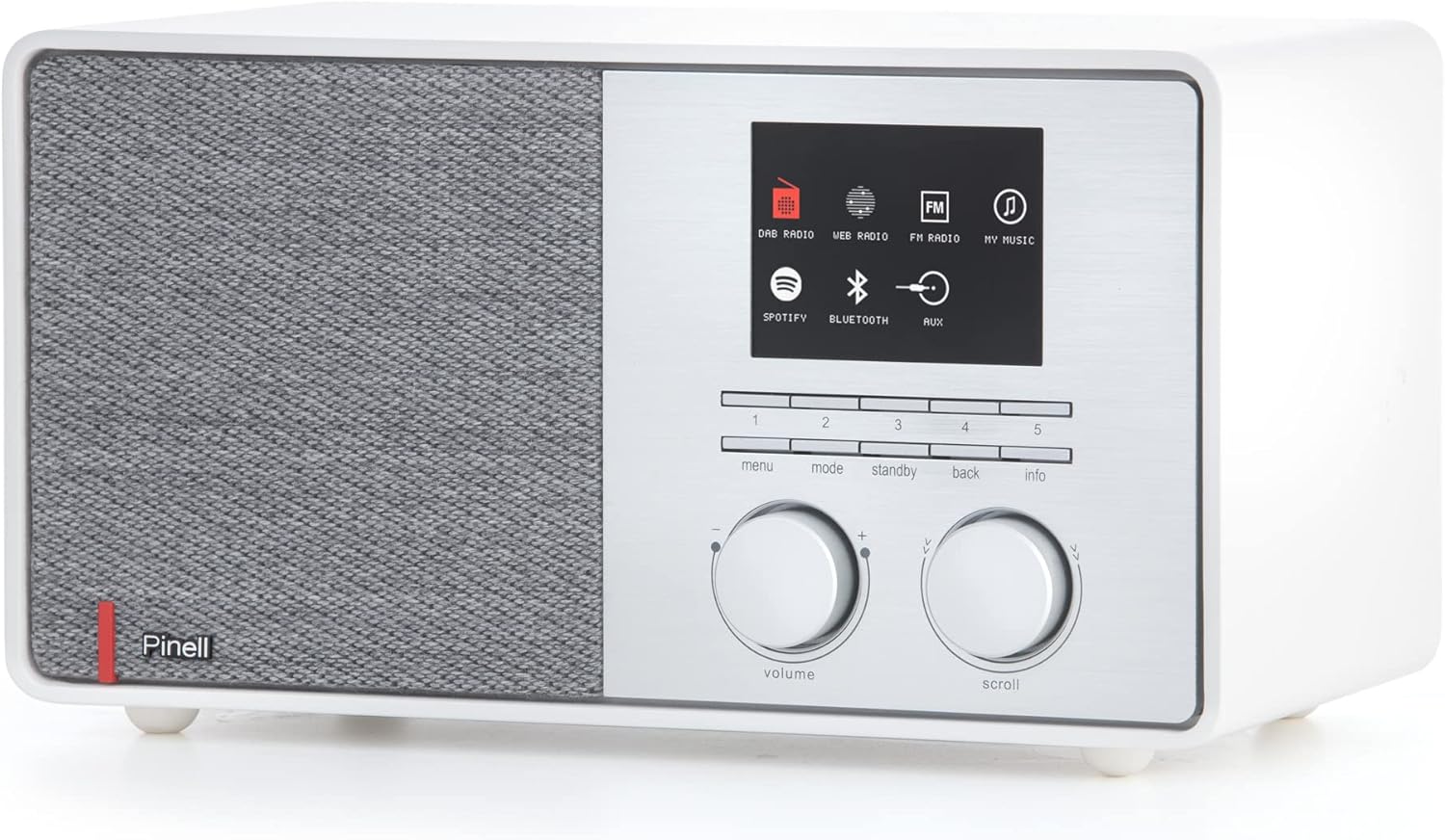
Figure 2.1: Front panel of the Pinell Supersound 301, showing the display, control knobs, and buttons.
- Volume Knob: Rotate to adjust the audio output level. Press to mute/unmute.
- Scroll Knob: Rotate to navigate through menus and lists. Press to select an option or confirm an entry.
- Menu Button: Access the main menu for settings and options.
- Mode Button: Switch between different audio sources (Internet Radio, DAB+, FM, Bluetooth, AUX, Spotify Connect).
- Standby Button: Power the unit on or off (to standby mode).
- Back Button: Return to the previous menu or screen.
- Info Button: Display additional information about the current track or station.
- Preset Buttons (1-5): Quickly access your saved favorite stations.
2.2 Using the Remote Control
The included remote control provides full functionality from a distance.
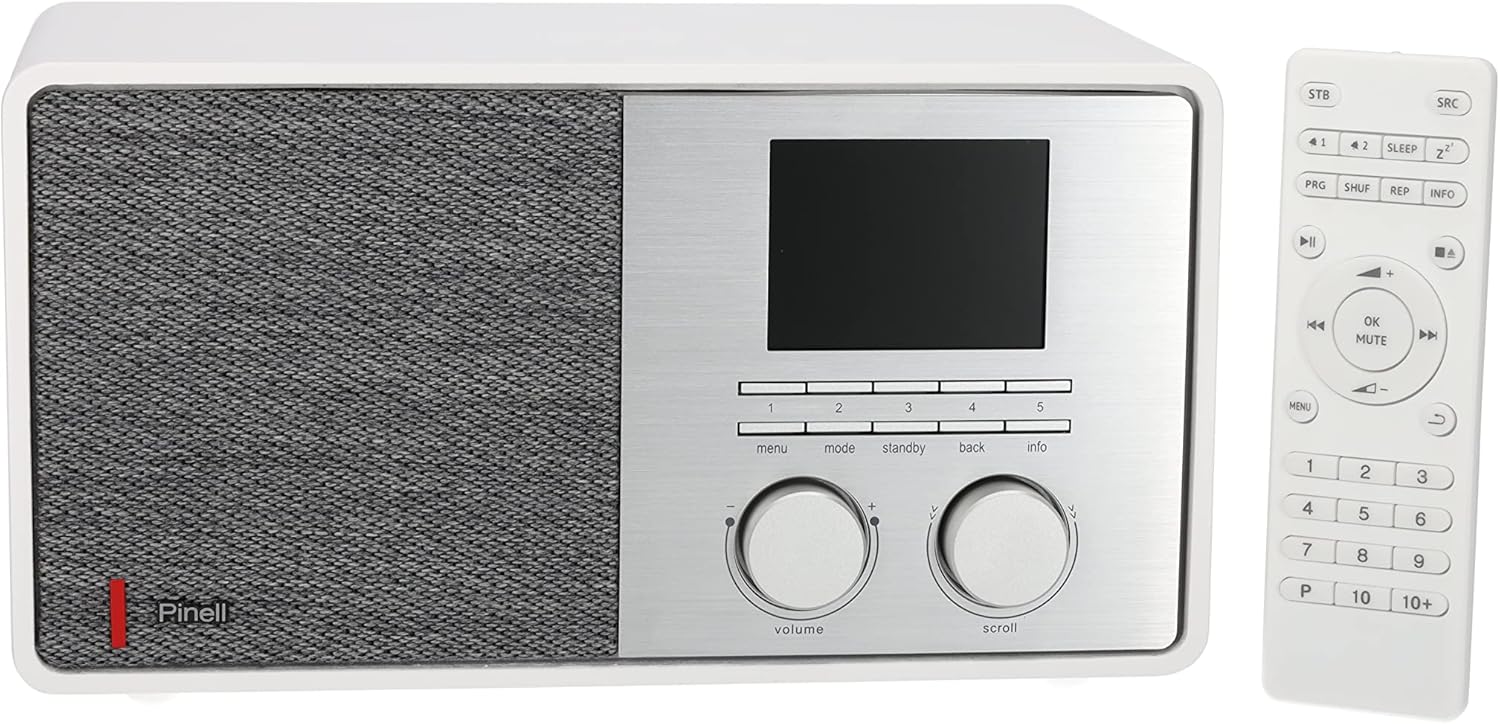
Figure 2.2: The Pinell Supersound 301 radio shown alongside its dedicated remote control.
Refer to the remote control layout for specific button functions, which mirror most of the front panel controls and add numerical input for presets and direct access.
2.3 Internet Radio
Access thousands of internet radio stations from around the world.
- Press the Mode button until "Internet Radio" is selected.
- Use the Scroll knob to browse stations by location, genre, or search.
- Press the Scroll knob to select a station and begin playback.
- To save a station as a preset, press and hold one of the Preset buttons (1-5) until the display confirms it's saved.
2.4 DAB+ and FM Radio
Enjoy digital and analog terrestrial radio broadcasts.

Figure 2.3: The DAB+ logo, representing Digital Audio Broadcasting Plus technology.
- Press the Mode button to select "DAB+" or "FM".
- For DAB+, the radio will automatically scan for available stations upon first use. For FM, use the Scroll knob to tune manually or press and hold to auto-scan.
- Use the Scroll knob to navigate through the list of available stations.
- To save a station as a preset, press and hold one of the Preset buttons (1-5).
2.5 Bluetooth Connection
Stream audio wirelessly from your Bluetooth-enabled devices.
- Press the Mode button to select "Bluetooth". The radio will enter pairing mode, indicated on the display.
- On your external device (e.g., smartphone), enable Bluetooth and search for available devices.
- Select "Pinell Supersound 301" from the list to pair. Once connected, you can play audio from your device through the radio.
2.6 Spotify Connect
Control your Spotify music directly from the Spotify app on your smartphone or tablet.

Figure 2.4: The Spotify Connect logo, indicating compatibility with Spotify's streaming service.
- Ensure your radio is connected to the same Wi-Fi network as your device running the Spotify app.
- Open the Spotify app on your device and play a song.
- Tap the "Devices Available" icon (usually a speaker or computer icon) at the bottom of the screen.
- Select "Pinell Supersound 301" from the list of available devices. Your music will now play through the radio, controlled by the Spotify app.
2.7 AUX Input
Connect external audio devices using a 3.5mm audio cable.
- Connect one end of a 3.5mm audio cable to the AUX IN port on the rear of the radio.
- Connect the other end to the headphone jack or audio output of your external device.
- Press the Mode button to select "AUX". Audio from your external device will now play through the radio.
2.8 Headphone Output
For private listening, connect headphones to the headphone jack on the rear of the unit. This will mute the main speaker output.
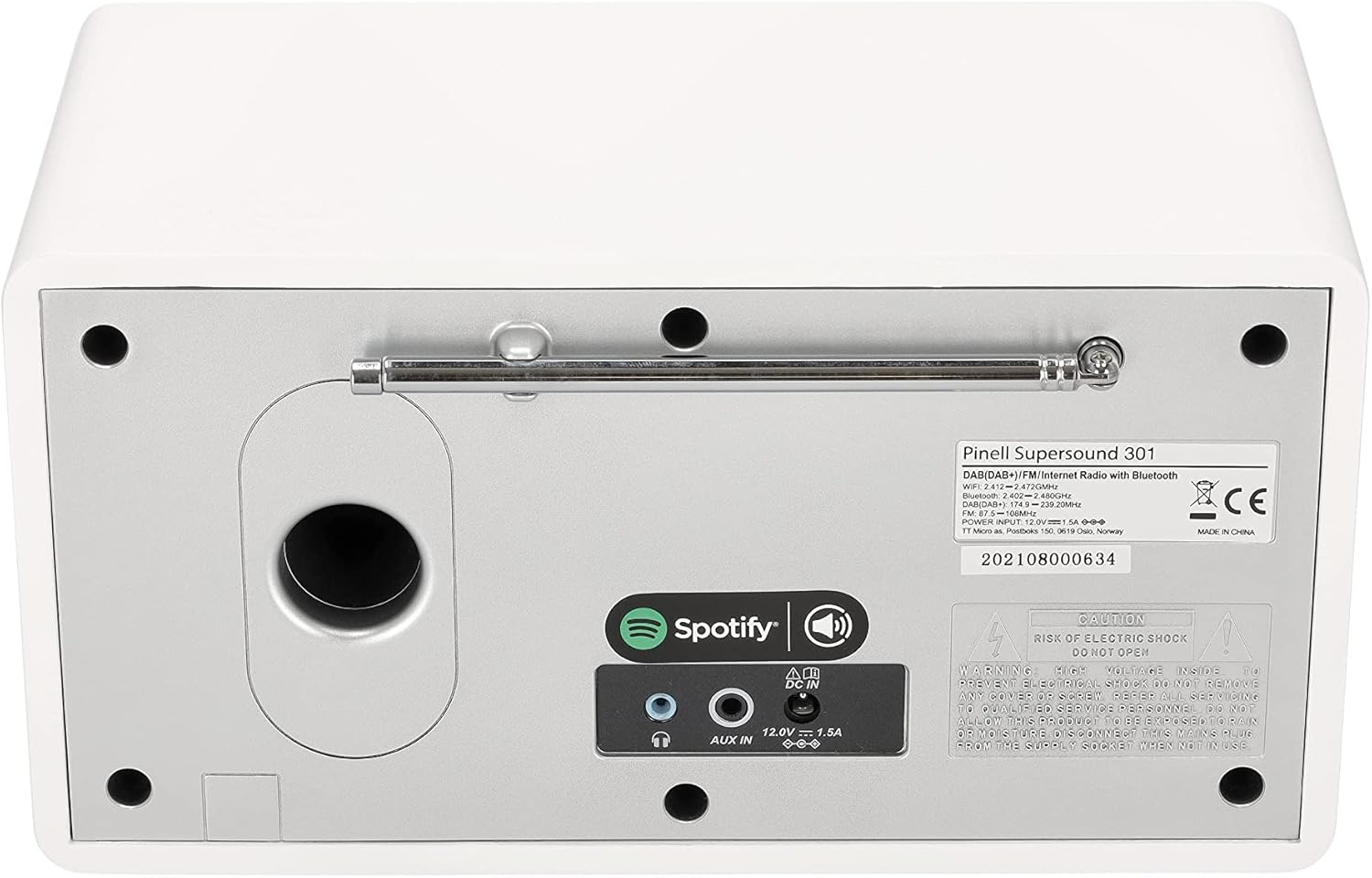
Figure 2.5: The rear panel of the Pinell Supersound 301, highlighting the AUX IN and headphone output ports.
3. Maintenance
3.1 Cleaning Instructions
To maintain the appearance and functionality of your radio:
- Always disconnect the power adapter before cleaning.
- Use a soft, dry cloth to wipe the exterior surfaces.
- For stubborn marks, lightly dampen the cloth with water. Avoid using abrasive cleaners, solvents, or chemical sprays, as these can damage the finish.
- Do not allow liquids to enter the unit.
3.2 General Care
- Avoid placing the radio in direct sunlight, near heat sources, or in areas with high humidity.
- Ensure adequate ventilation around the unit.
- Protect the unit from strong impacts or vibrations.
4. Troubleshooting
If you encounter issues with your Pinell Supersound 301, refer to the following common problems and solutions:
| Problem | Possible Cause | Solution |
|---|---|---|
| No power | Power adapter not connected or faulty outlet. | Ensure the power adapter is securely connected to the radio and a working power outlet. Try a different outlet. |
| No sound | Volume too low, muted, or incorrect source selected. | Increase the volume. Check if the radio is muted. Ensure the correct audio source (Internet Radio, DAB+, FM, Bluetooth, AUX) is selected. If headphones are connected, disconnect them. |
| Wi-Fi connection issues | Incorrect password, weak signal, or router issue. | Re-enter the Wi-Fi password carefully. Move the radio closer to the Wi-Fi router. Restart your router. |
| Poor radio reception (DAB+/FM) | Antenna not extended or poor signal area. | Fully extend and adjust the telescopic antenna. Try repositioning the radio. Perform a new station scan. |
| Bluetooth pairing failure | Device not in pairing mode, or too far away. | Ensure the radio is in Bluetooth pairing mode. Make sure your external device's Bluetooth is enabled and it's searching. Keep devices within close range. |
| Spotify Connect not working | Radio and device on different networks, or Spotify app issue. | Verify both the radio and your control device are connected to the same Wi-Fi network. Restart the Spotify app. |
4.1 Factory Reset
If problems persist, a factory reset may resolve them. This will erase all saved settings and presets.
- Navigate to the main Menu.
- Select System Settings (or similar).
- Choose Factory Reset and confirm your selection.
- The radio will restart, and you will need to go through the initial setup process again.
5. Specifications
| Feature | Detail |
|---|---|
| Brand | Pinell |
| Model Name | Supersound 301 |
| Model Number | BP004 |
| Color | White |
| Connectivity Technology | Wi-Fi, Bluetooth 4.0, AUX |
| Special Features | Internet Radio, Spotify Connect, DAB+, FM Tuner |
| Audio Output Power | 7 W (1-inch tweeter) |
| Supported Radio Bands | DAB+, FM |
| Power Source | Corded Electric (Power Adapter) |
| Compatible Devices | Headphones |
| Product Dimensions | 25L x 14.5W x 13.8H centimeters |
| Components Included | Internet Radio, Power Adapter, Remote Control with Batteries, User Manual |
| Software Updates Guaranteed Until | Information not available |
| Spare Parts Availability | Information not available |
6. Warranty Information
The Pinell Supersound 301 comes with a standard manufacturer's warranty. Please refer to the warranty card included in your product packaging or your purchase documentation for specific terms, conditions, and duration of the warranty.
Keep your proof of purchase (receipt or invoice) as it will be required for any warranty claims.
7. Customer Support
For further assistance, technical support, or service inquiries regarding your Pinell Supersound 301, please contact:
- Pinell Official Website: Visit the official Pinell website for FAQs, support resources, and contact information.
- Retailer Support: Contact the retailer from whom you purchased the product for local support and service options.


