
Introduction
This manual provides detailed instructions for the setup, operation, and maintenance of your Dcorn DMR-07 7-inch HDMI Digital Microscope. Designed for a wide range of applications, from coin inspection to circuit board repair, this microscope offers up to 1300X magnification and a 16MP camera for clear, detailed viewing. Please read this manual thoroughly before using the device to ensure proper functionality and longevity.
Package Contents
Verify that all items listed below are included in your package:
- 7-inch LCD Display Microscope
- Metal Base
- Metal Stand
- 3 Guidebooks (e.g., A Guide to Coin Collection, How to Solder)
- Wireless Remote Control
- HDMI Cable
- 32GB TF Card
- Light Barrier
- Gift Box
- Extension Tube (4.7 inches)
- Charger
- User Manual (this document)

Setup
1. Assembling the Stand and Microscope
- Attach the metal stand to the metal base. Secure it firmly using the provided knob.
- Mount the microscope unit onto the adjustable bracket on the metal stand. Ensure it is securely fastened.
- If extended working distance is required, insert the 4.7-inch extension tube between the microscope lens and the main body. This allows for a wider field of view, ideal for observing entire coins.
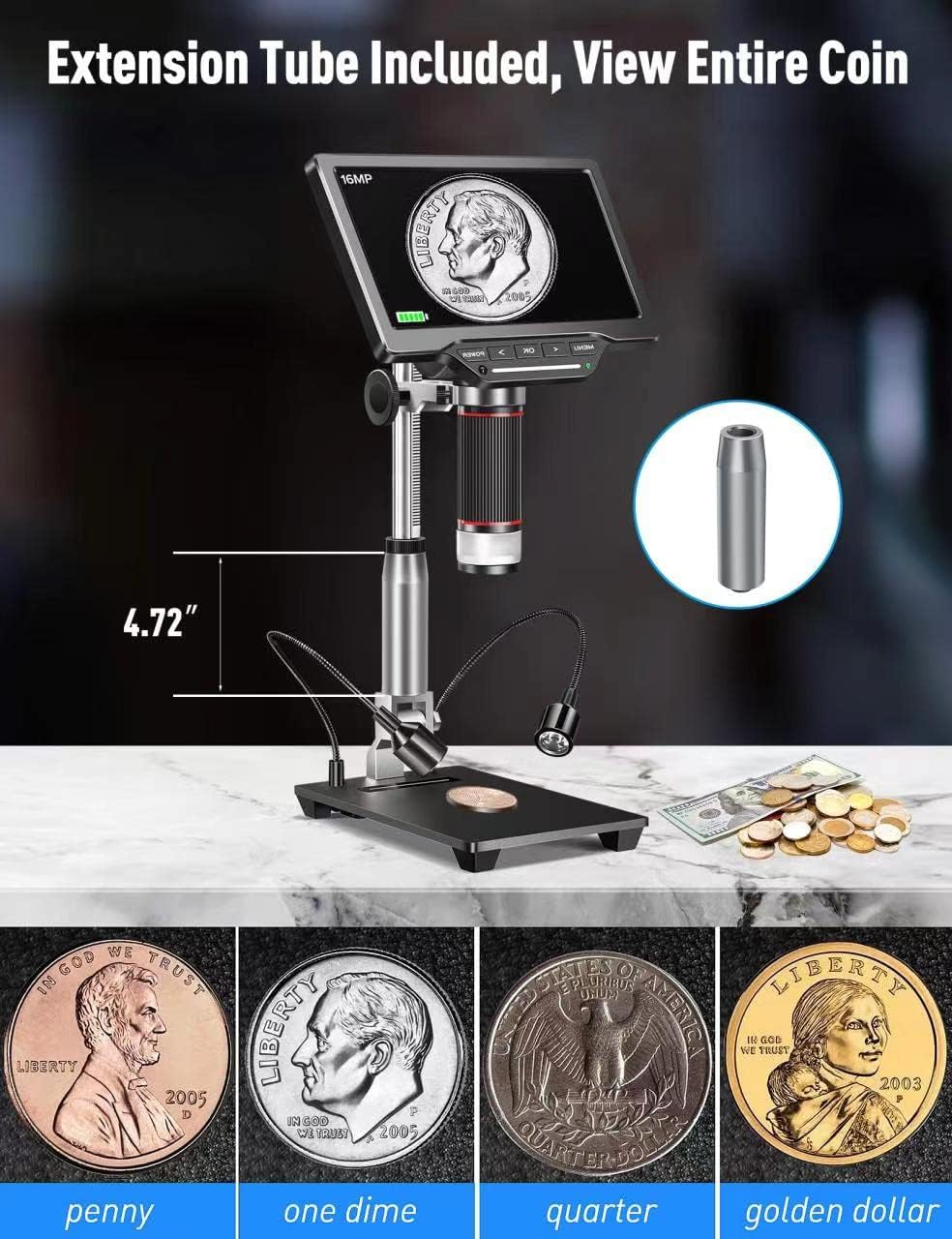
2. Connecting External LED Lights
The two external LED lights provide additional illumination for your specimens. Connect the Type-C end of the light cables to the USB output ports on the microscope base.
3. Powering On
Connect the power adapter to the microscope and a power outlet. Press the 'POWER' button on the microscope to turn it on. The 7-inch LCD display will illuminate.
4. Video: How to Install
Video 1: A step-by-step guide demonstrating the physical assembly of the Dcorn DMR-07 Digital Microscope, including attaching the stand, microscope unit, and optional extension tube.
Operating Instructions
1. Basic Viewing and Focusing
- Place the specimen on the observation platform.
- Adjust the height of the microscope unit using the knob on the stand until the specimen appears on the screen.
- Rotate the focus wheel on the microscope body to achieve a clear and sharp image.

2. Adjusting LED Lights
The microscope features built-in LEDs and two adjustable side lights. The side lights are controlled via touch-sensitive areas on the base.
- Built-in LEDs: These provide primary illumination.
- Side Lights: Touch the designated areas on the base to turn the side lights on/off and adjust their brightness. These are useful for reducing glare and enhancing contrast on reflective surfaces.
3. Video: 10 LEDs - Touch Control
Video 2: Demonstration of the touch-controlled 10 LED lighting system on the Dcorn DMR-07 Digital Microscope.
4. Capturing Photos and Videos
The microscope supports capturing still images and recording video footage directly to the included 32GB TF card.
- Use the 'OK' button on the microscope or the corresponding button on the wireless remote control to capture a photo or start/stop video recording.
- Navigate through the menu using the arrow buttons to select photo/video mode and adjust settings like resolution.


5. Connecting to PC and TV
The microscope offers HDMI and USB output for viewing on larger screens.
- HDMI Output: Connect the provided HDMI cable from the microscope's HD port to an HDMI input on a TV or monitor. This provides a direct, high-quality display.
- USB Output: Connect the provided USB cable from the microscope's USB port to a computer. The microscope can function as a UVC (USB Video Class) device, allowing you to view the live feed using standard camera software on your computer (Windows/Mac compatible).

6. Video: How to Connect to a PC
Video 3: A guide demonstrating how to connect the Dcorn DMR-07 Digital Microscope to a PC and view the live feed.
Maintenance
- Cleaning the Lens: Use the provided cleaning cloth or a soft, lint-free cloth to gently wipe the lens. For stubborn smudges, use a lens cleaning solution designed for optical devices.
- Cleaning the Screen: Wipe the LCD screen with a soft, dry cloth. Avoid using abrasive cleaners or solvents.
- General Care: Keep the microscope in a clean, dry environment. Avoid exposing it to extreme temperatures, humidity, or direct sunlight. When not in use, store it in its original packaging or a protective case.
Troubleshooting
- No Power: Ensure the power adapter is securely connected to both the microscope and a working power outlet. Check if the power button is pressed.
- Blurry Image: Adjust the focus wheel on the microscope body. Ensure the specimen is within the working distance of the lens. Clean the lens if necessary.
- No Image on External Display (HDMI/USB): Verify that the cables are correctly connected. For USB connection, ensure appropriate camera software is running on your computer and the microscope is selected as the input device.
- Lights Not Working: Check the connections of the external LED lights to the base. For touch-controlled lights, ensure you are touching the correct activation area.
- Cannot Capture Photos/Videos: Ensure the 32GB TF card is properly inserted and has sufficient free space. Check the menu settings to confirm the correct mode is selected.
Specifications
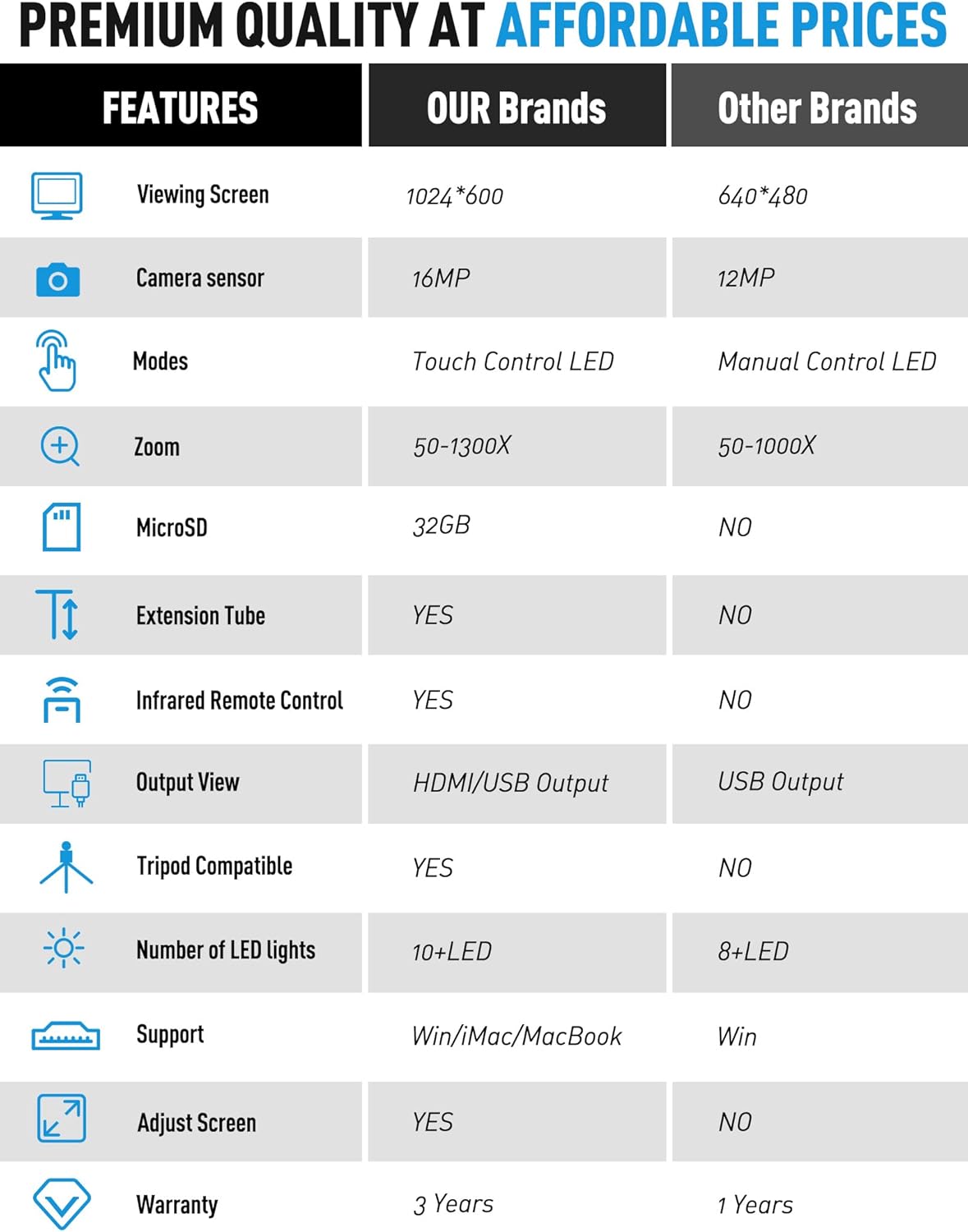
| Feature | Specification |
|---|---|
| Model | DMR-07 |
| Display Size | 7-inch LCD |
| Camera Sensor | 16MP |
| Magnification | Up to 1300X |
| Light Source | LED (Built-in & Touch Control Side Lights) |
| Output | HDMI, USB |
| Storage | MicroSD (32GB TF card included) |
| Extension Tube | 4.7-inch included |
| Remote Control | Wireless Infrared Remote Control |
| Compatible Devices | Laptop, Personal Computer, Television |
| Operating System Support | Windows, Mac |
| Color | Silver |
| Item Weight | 4.46 pounds |
| Package Dimensions | 11.18 x 10.94 x 3.86 inches |
Warranty Information
The Dcorn DMR-07 Digital Microscope comes with a 3-year warranty from the date of purchase. This warranty covers manufacturing defects and ensures the product meets its specified performance standards. Please retain your proof of purchase for warranty claims.
Customer Support
For any questions, technical assistance, or support regarding your Dcorn DMR-07 Digital Microscope, please contact our customer support team:
Email: support@dcornus.com
