
1. Introduction
The ADAM Audio A8H-R is a high-performance 3-way powered studio monitor designed for professional audio production environments. This monitor features an 8-inch Low-Frequency (LF) driver, a 3.5-inch Midrange driver, and an X-ART High-Frequency (HF) driver, delivering precise and detailed sound reproduction. Equipped with onboard Digital Signal Processing (DSP), the A8H-R allows for advanced room adaptation and voicing controls to optimize its performance in various acoustic settings. This manual provides essential information for the proper setup, operation, maintenance, and troubleshooting of your A8H-R studio monitor.
2. Safety Information
- Power Supply: Ensure the monitor is connected to a power outlet with the correct voltage as indicated on the unit. Always use a grounded power cord.
- Ventilation: Do not block any ventilation openings. Maintain adequate space around the monitor for proper airflow to prevent overheating.
- Moisture: Do not expose the monitor to rain, moisture, or liquids. Avoid placing objects filled with liquids on or near the unit.
- Placement: Place the monitor on a stable surface or stand to prevent it from falling. Avoid placing it near heat sources or in direct sunlight.
- Cleaning: Disconnect the power cord before cleaning. Use a dry, soft cloth for cleaning. Do not use liquid cleaners or aerosols.
- Servicing: Do not attempt to service the monitor yourself. Refer all servicing to qualified service personnel.
- Hearing Protection: Prolonged exposure to high sound pressure levels can cause permanent hearing damage. Use caution when operating the monitor at high volumes.
3. What's in the Box
Upon unpacking your ADAM Audio A8H-R studio monitor, please ensure all components are present and in good condition.
- ADAM Audio A8H-R Studio Monitor (Right)
- Power Cord
- Quick Start Guide (not included in this manual, but typically provided)
4. Setup
4.1 Physical Placement
Proper placement of your A8H-R monitor is crucial for optimal sound reproduction.
- Stereo Imaging: For stereo setups, position the monitors to form an equilateral triangle with your listening position.
- Height: The acoustic axis (typically between the tweeter and midrange driver) should be at ear level when you are in your primary listening position.
- Distance from Walls: Avoid placing monitors directly against walls or in corners, as this can exaggerate bass frequencies. If unavoidable, use the monitor's room adaptation controls to compensate.
- Isolation: Use isolation pads or stands to decouple the monitors from your desk or floor, reducing unwanted vibrations.

Image: An ADAM Audio A8H-R studio monitor integrated into a professional studio setup, demonstrating typical placement on a desk alongside a computer display and a mixing console.
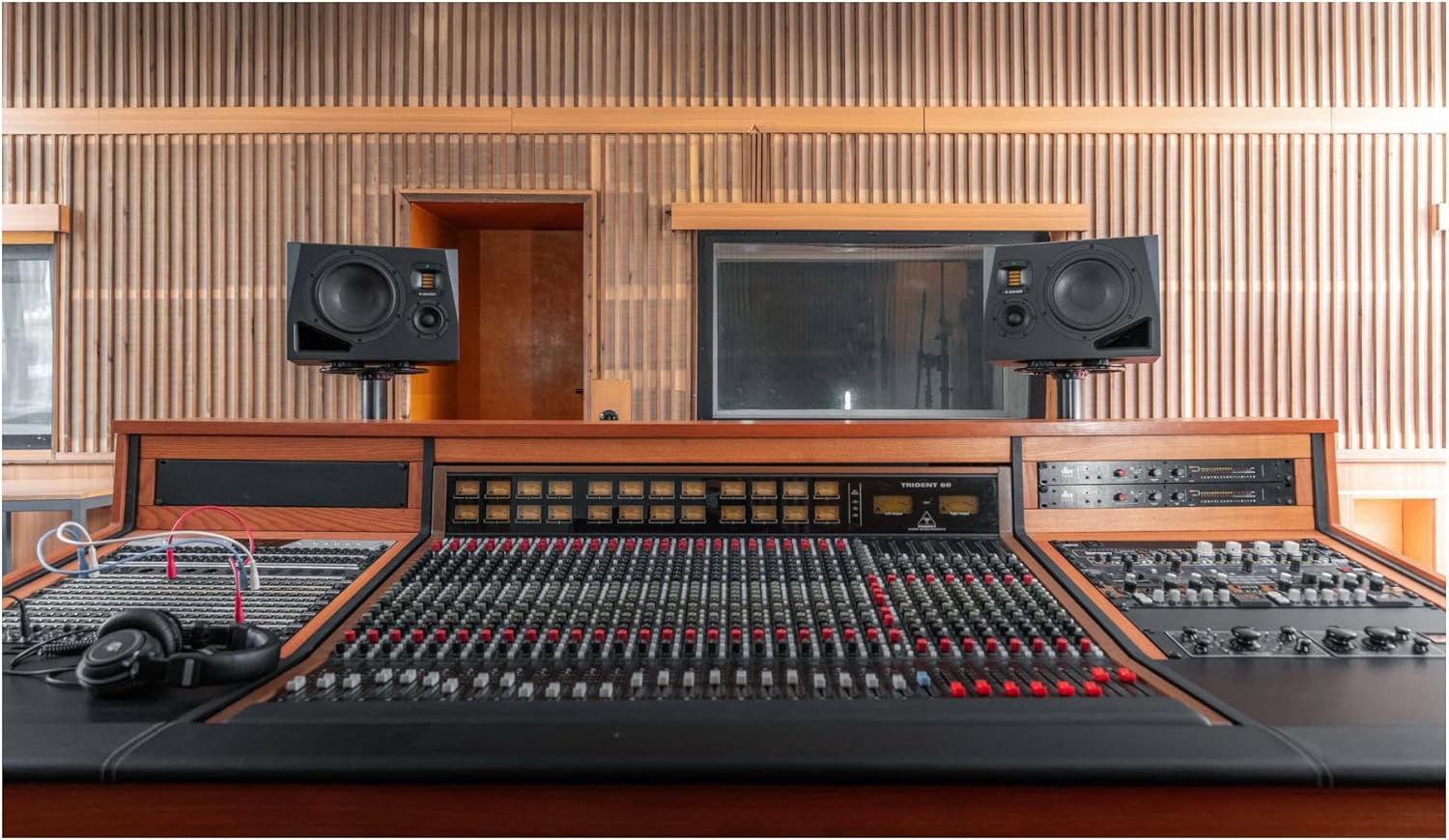
Image: A pair of ADAM Audio A8H studio monitors set up on dedicated stands, situated behind a comprehensive mixing console within a studio control room, illustrating a typical stereo monitoring arrangement.
4.2 Connections
The A8H-R monitor offers various input and control options on its rear panel.
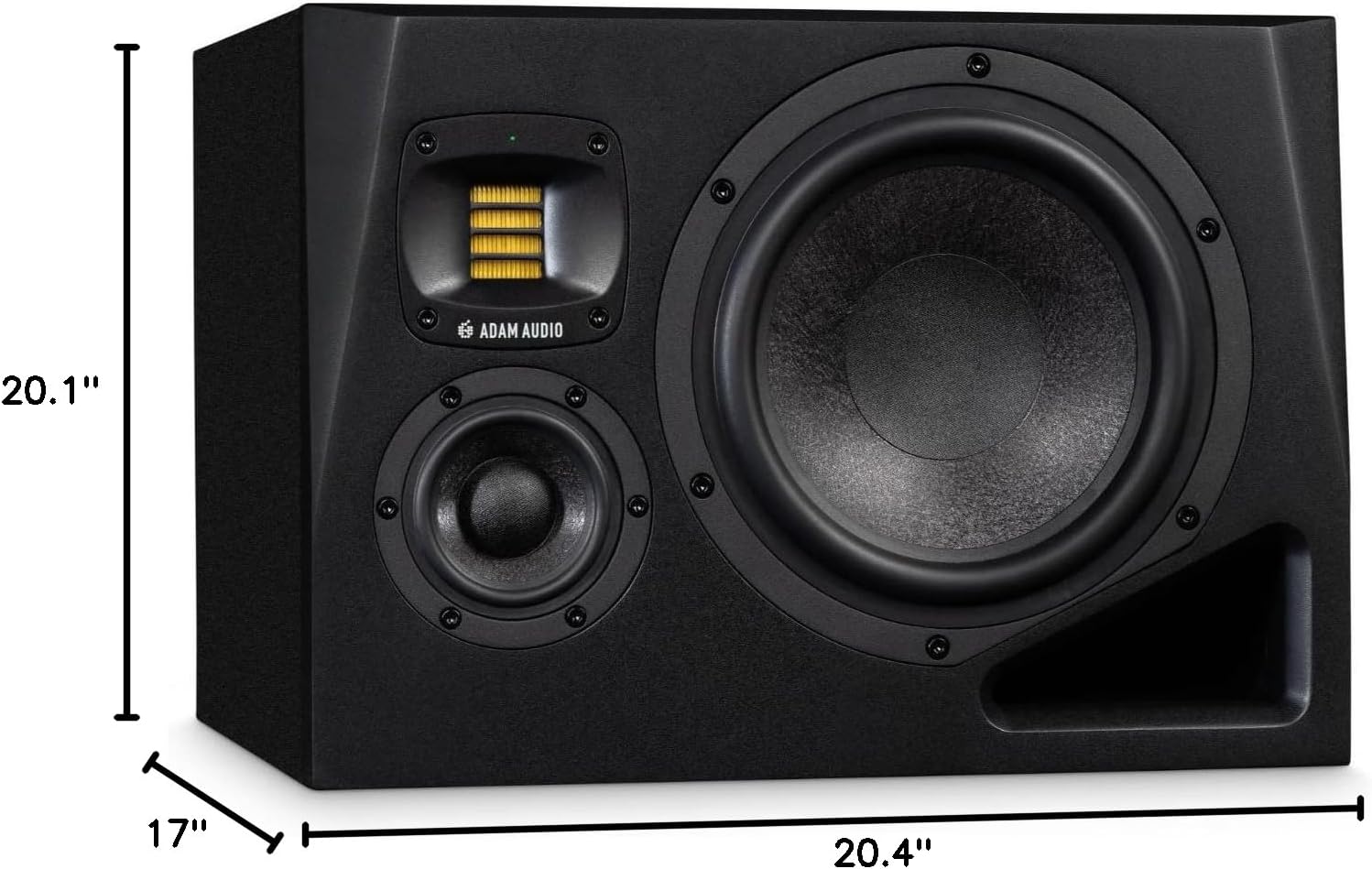
Image: Detailed view of the rear panel of the ADAM Audio A8H-R studio monitor, highlighting the audio input section with XLR and RCA connectors, the Ethernet port for remote DSP control, the main power input, and the array of knobs and switches for adjusting room adaptation (Bass, Desk, Presence, Treble) and voicing settings.
- Audio IN (XLR/RCA): Connect your audio source (e.g., audio interface, mixing console) to the monitor using either the balanced XLR input or the unbalanced RCA input. Use high-quality cables for optimal signal integrity.
- Input Select: Use the switch to select between XLR and RCA inputs.
- Ethernet Port: This port is used for remote control and configuration of the monitor's DSP functions via a network connection. Refer to the ADAM Audio website for software and detailed instructions on network control.
- Power Input: Connect the supplied power cord to the IEC power inlet. Ensure the power switch is in the OFF position before connecting.
4.3 Initial Power-On
- Ensure all audio connections are secure.
- Connect the power cord to the monitor and then to a grounded power outlet.
- Set the "Level" knob on the rear panel to its minimum position (fully counter-clockwise).
- Flip the main power switch to the ON position. The LED indicator on the front panel should illuminate.
- Gradually increase the "Level" knob to your desired listening volume.
5. Operating Instructions
5.1 Room Adaptation Controls
The A8H-R features advanced DSP controls on its rear panel to tailor the monitor's frequency response to your specific room acoustics.
- Bass: Adjusts the low-frequency response. Use to compensate for room modes or proximity to walls.
- Desk: Compensates for reflections from a mixing desk or console.
- Presence: Adjusts the mid-range clarity and presence.
- Treble: Adjusts the high-frequency response.
- Voicing: Selects different sonic profiles (e.g., "Pure" for a flat response, "UNR" for a more universal response, "Ext" for external control via Ethernet).
- Level: Controls the overall output volume of the monitor.
For precise room calibration, it is recommended to use measurement software and a calibrated microphone, or to consult the ADAM Audio documentation for detailed DSP control via the Ethernet port.
5.2 Input Selection
Use the "Input Select" switch on the rear panel to toggle between the XLR (balanced) and RCA (unbalanced) audio inputs based on your source connection.
6. Maintenance
6.1 Cleaning
- Always disconnect the monitor from the power supply before cleaning.
- Use a soft, dry, lint-free cloth to wipe the cabinet and drivers.
- Do not use abrasive cleaners, solvents, or waxes, as these can damage the finish or components.
- Avoid spraying liquids directly onto the monitor.
6.2 Storage
If storing the monitor for an extended period, ensure it is kept in a dry, temperature-controlled environment, away from direct sunlight and extreme temperatures. It is recommended to use the original packaging for protection during storage or transport.
7. Troubleshooting
If you encounter issues with your A8H-R monitor, refer to the following common troubleshooting steps.
| Problem | Possible Cause | Solution |
|---|---|---|
| No power / LED off | Power cord disconnected; Power switch off; Faulty outlet | Check power cord connection; Ensure power switch is ON; Test outlet with another device. |
| No sound output | Audio cable disconnected; Incorrect input selected; Source device off/muted; Monitor level too low | Check audio cable connections; Verify "Input Select" switch position; Ensure audio source is active and unmuted; Increase "Level" knob. |
| Distorted sound | Input signal too high; Monitor level too high; Faulty cable | Reduce output level from source device; Reduce "Level" knob on monitor; Try a different audio cable. |
| Humming or buzzing noise | Ground loop; Interference from other electronics; Faulty cable | Ensure all equipment is on the same electrical circuit; Try a ground loop isolator; Move monitor away from other electronics; Replace audio cables. |
If the problem persists after attempting these solutions, please contact ADAM Audio customer support or a qualified service technician.
8. Specifications
Key technical specifications for the ADAM Audio A8H-R 8-inch 3-Way Powered Studio Monitor.
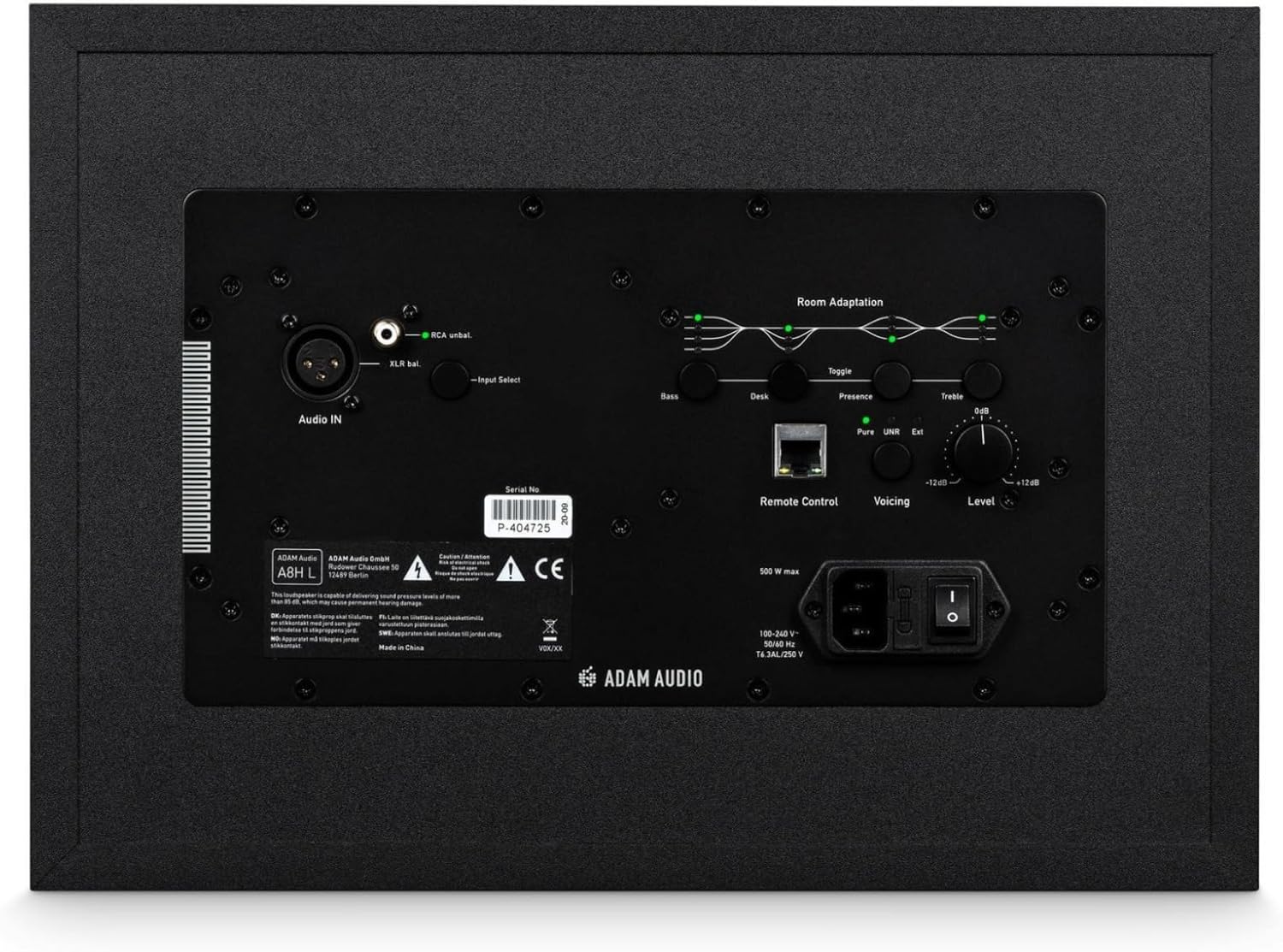
Image: Front perspective of the ADAM Audio A8H-R studio monitor, clearly indicating its physical dimensions: 20.1 inches in depth, 20.4 inches in width, and 17 inches in height.
| Feature | Detail |
|---|---|
| Model Name | A8H |
| Item Model Number | A8H-R |
| Speaker Type | 3-Way Powered Studio Monitor |
| LF Driver | 8 Inches |
| Midrange Driver | 3.5 Inches |
| HF Driver | X-ART HF Driver |
| Maximum Output Power | 500 Watts |
| Connectivity Technology | Ethernet (for DSP control), Wired (Audio Inputs) |
| Audio Inputs | XLR, RCA |
| Control Method | Touch (on-unit controls), Remote (via Ethernet) |
| Product Dimensions (D x W x H) | 20.1" x 20.4" x 17" |
| Item Weight | 37.5 Pounds |
| Power Source | Corded Electric |
| Signal-to-Noise Ratio | 80 dB |
| Recommended Uses | Professional Audio Production, Studio Use, Studio recording, mixing, and mastering; high-end home studio monitoring |
9. Warranty Information
The ADAM Audio A8H-R studio monitor comes with a Limited Warranty. For specific terms, conditions, and duration of the warranty, please refer to the warranty card included with your product or visit the official ADAM Audio website. Keep your proof of purchase for warranty claims.
10. Support
For further assistance, technical support, or to download the latest firmware and software for your A8H-R monitor, please visit the official ADAM Audio website:
www.adam-audio.com
You can also find more information and products from ADAM Audio on their Amazon store:
ADAM Audio Amazon Store
