1. Introduction
The THIRDREALITY Zigbee Contact Sensor is designed to monitor the open/closed status of doors, windows, cabinets, and other entry points in your home. This device integrates seamlessly with compatible Zigbee hubs and smart home ecosystems, providing real-time alerts and enabling automated routines for enhanced security and convenience. This manual provides detailed instructions for installation, operation, and maintenance.

Image 1.1: THIRDREALITY Zigbee Contact Sensor 2 Pack. This image shows the two components of the contact sensor, designed for monitoring doors and windows.
2. Key Features
- Zigbee Standard Compatible: Works with various Zigbee hubs and Echo devices with built-in Zigbee hubs, including Echo (4th Gen), Echo Plus (1st & 2nd Gen), Echo Show 8 Gen3, Echo Show 10 (Gen2 & Gen3), Echo Studio, Eero 6, Eero Pro 6, Home Assistant, SmartThings 2015/2018, Aeotec, Hubitat, Homey Bridge, Homey Pro, Third Reality Hub, and Third Reality Smart Bridge.
- Hassle-Free Setup: Quick installation and automatic device discovery with compatible Echo devices by saying "Alexa, discover devices."
- Long Battery Life: Uses two AAA 1.5V Alkaline batteries, providing up to 2 years of operation. Easy battery replacement.
- Alexa Routines Integration: Create custom routines in the Alexa app to trigger actions like turning on lights, sending alerts, or voice alarms when a door or window opens.
- Upgraded THIRDREALITY App & Skill Functions: When connected with a Third Reality Hub/Speaker, monitor battery levels and access historical records of movement detection.
- Multi-Smart Assistant Support: Enabled by Smart Bridge MZ1 (sold separately), integrates with Apple HomeKit, Google Home, and Amazon Alexa (Smart Speaker required) for comprehensive control and monitoring. Supports Over-The-Air (OTA) firmware updates.
3. Compatibility
The THIRDREALITY Zigbee Contact Sensor is designed for broad compatibility within Zigbee-enabled smart home ecosystems. It requires a compatible Zigbee hub or an Echo device with a built-in Zigbee hub to function.
Directly Compatible Devices:
- Amazon Echo (4th Gen), Echo Plus (1st Gen and 2nd Gen), Echo Show 8 Gen3, Echo Show 10 (Gen2 and Gen3), Echo Studio, Eero 6, Eero Pro 6
- Home Assistant (ZHA/Z2M)
- SmartThings (2015/2018), Aeotec Smart Home Hub
- Hubitat
- Homey Bridge, Homey Pro
- Third Reality Hub, Third Reality Smart Bridge
Note: For SmartThings users, scan the QR code in the quick start guide and follow the instructions to install the SmartThings driver. This list includes popular devices; some devices may not be listed or may require additional configuration.

Image 3.1: Visual representation of compatible Zigbee hubs and devices.
4. Setup and Installation
Follow these steps to set up and install your THIRDREALITY Zigbee Contact Sensor:
4.1. Battery Installation
The sensor comes with two AAA 1.5V Alkaline batteries pre-installed. If you need to replace them, gently open the sensor casing and insert new batteries, ensuring correct polarity.
4.2. Pairing with a Zigbee Hub
- Ensure your Zigbee hub (e.g., Amazon Echo with built-in hub, SmartThings Hub) is powered on and in discovery mode.
- For Echo devices, simply say, "Alexa, discover devices."
- The sensor will automatically enter pairing mode when batteries are first inserted or after a reset. The LED indicator on the sensor will blink during pairing.
- Once discovered, your hub will confirm the new device. You can then rename the sensor in your smart home app (e.g., "Front Door Sensor").
Video 4.1: This video demonstrates the pairing process and typical usage of the THIRDREALITY Door Sensor with an Amazon Echo device.
4.3. Mounting the Sensor
The contact sensor consists of two parts: a main sensor unit and a smaller magnet unit. They should be mounted on the door/window frame and the door/window itself, respectively, ensuring they are aligned and within the specified gap tolerance when closed.
- Placement: Mount the sensor on the door or window frame and the magnet on the moving part. Ensure the alignment marks on both parts face each other.
- Gap Tolerance: The sensor allows for a gap of up to 16mm (approximately 0.63 inches) between the two parts when the door/window is closed. For optimal performance, aim for a smaller gap.
- Surface: For best adhesion, clean the mounting surface thoroughly before applying the adhesive. Avoid installing the sensor on metal doors or windows, as this can interfere with its operation.

Image 4.2: This image illustrates the maximum allowable gap of 16mm between the two sensor components for proper detection.
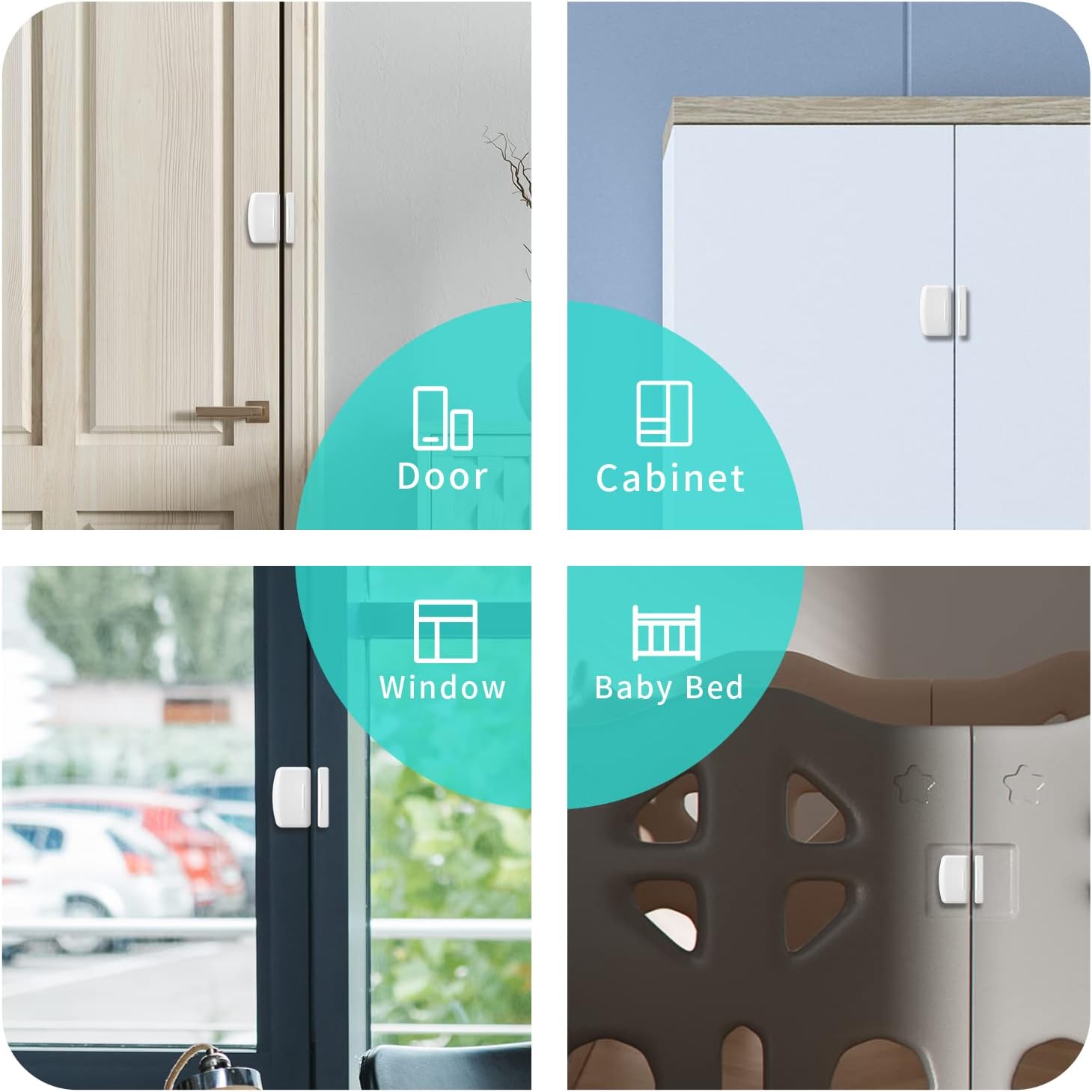
Image 4.3: Examples of where the contact sensor can be installed, including doors, cabinets, windows, and baby beds.
5. Operating the Sensor
Once installed and paired, the contact sensor will report its status (open or closed) to your smart home hub. This status can then be used to trigger various automated actions.
5.1. Real-time Monitoring
You can view the current status of your sensor through your smart home app (e.g., Alexa app, SmartThings app). The app will display whether the monitored entry point is open or closed.

Image 5.1: Screenshot of a smart home app showing the status of a door sensor.
5.2. Creating Routines with Alexa
Leverage the Alexa app to create powerful routines based on your sensor's status changes:
- Open the Alexa app and navigate to the 'Routines' section.
- Create a new routine and select your contact sensor as the trigger.
- Choose the trigger condition (e.g., 'When [Sensor Name] opens').
- Add actions, such as:
- Turning on smart lights.
- Sending a notification to your phone.
- Having Alexa make a voice announcement or alarm.

Image 5.2: An example of a voice alarm being triggered by the sensor, indicating a baby gate is open.
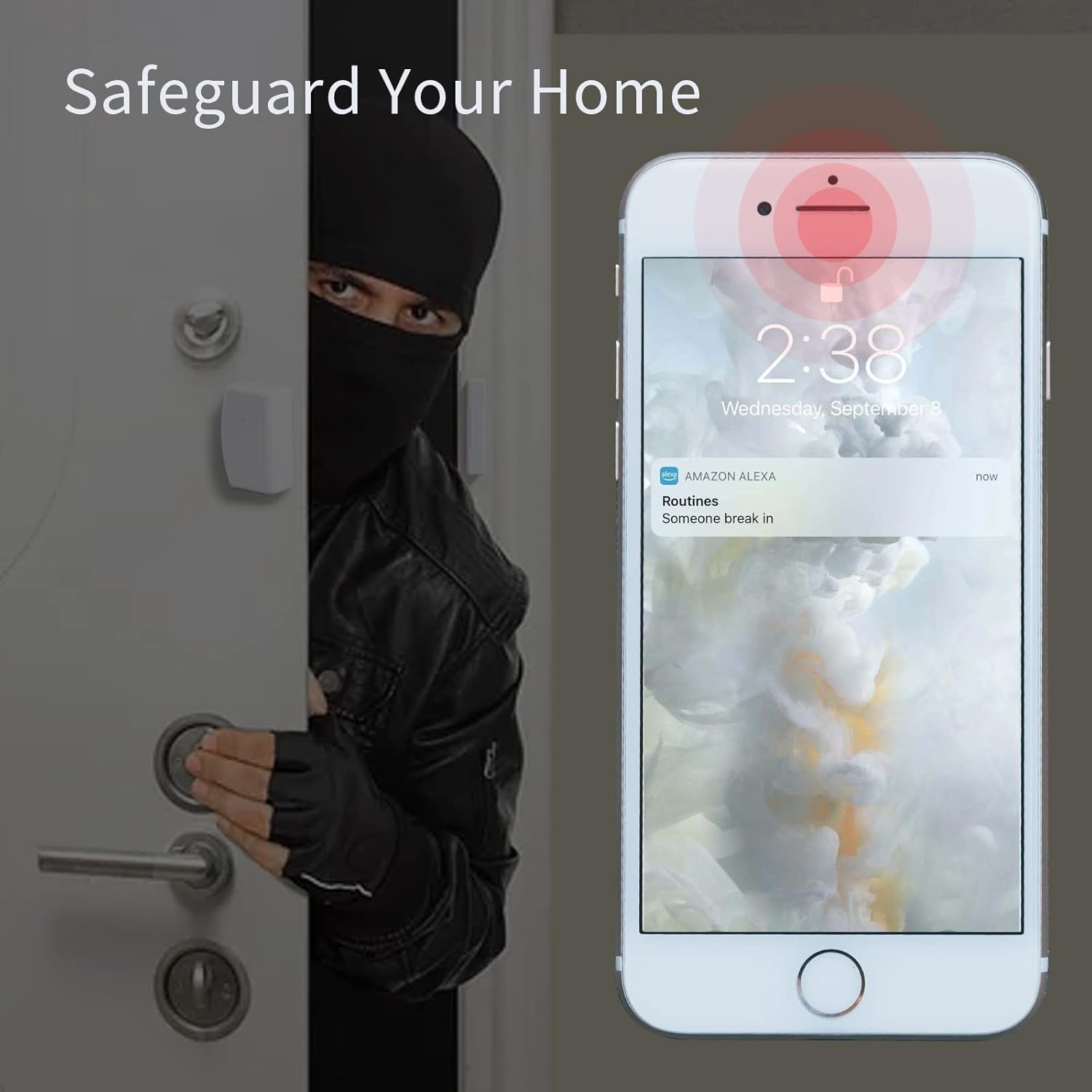
Image 5.3: A smartphone displaying an Alexa notification for a security alert triggered by the sensor.
Video 5.4: This video demonstrates how to set an 'Open Delay Time' for the door sensor using the THIRDREALITY Smart Bridge MZ1, delaying the reporting of the open status.
6. Maintenance
6.1. Battery Replacement
The sensor uses two AAA 1.5V Alkaline batteries, which can last up to 2 years depending on usage. When the battery level is low, you will receive a notification in the Third Reality app (if connected to a Third Reality Hub/Speaker) or your smart home app. To replace the batteries:
- Gently slide open the cover of the main sensor unit.
- Remove the old AAA batteries.
- Insert two new AAA 1.5V Alkaline batteries, ensuring correct polarity (+/-).
- Close the cover securely.

Image 6.1: The contact sensor shown alongside two AAA batteries, indicating the power source.
6.2. Cleaning
Wipe the sensor with a dry, soft cloth. Do not use liquid cleaners or abrasive materials.
7. Troubleshooting
If you encounter issues with your THIRDREALITY Zigbee Contact Sensor, refer to the following common solutions:
- Sensor Not Pairing:
- Ensure your Zigbee hub is in discovery mode.
- Check that the sensor batteries are correctly installed and have sufficient charge.
- Move the sensor closer to the Zigbee hub during the pairing process.
- Perform a factory reset on the sensor (refer to the quick start guide for specific instructions).
- Inconsistent Detection:
- Verify that the main sensor unit and magnet are properly aligned and within the 16mm gap tolerance when the door/window is closed.
- Ensure the sensor is not installed on a metal surface, which can interfere with the magnetic field.
- Check for any obstructions between the sensor and the magnet.
- Device Disconnects from Network:
- Ensure your Zigbee mesh network is robust. Consider adding Zigbee repeater devices (like smart plugs) between the sensor and the hub if they are far apart.
- Check for potential interference from other wireless devices.
- Replace the batteries if they are low.
- Physical Damage During Removal:
- The sensor is designed for secure mounting. If removal is necessary, exercise caution to prevent cracking, especially the magnet portion. Consider using alternative mounting methods like 3M Command Strips for easier repositioning.
8. Specifications
| Attribute | Detail |
|---|---|
| Brand | THIRDREALITY |
| Model Number | P1DSA2 |
| Dimensions (L x W x H) | 1.97 x 0.83 x 2.36 inches |
| Material | Metal |
| Item Weight | 4.6 ounces (0.13 Kilograms) |
| Style | Door Sensor 2 Pack |
| Measuring Range | Binary: Open - Closed |
| Mounting Type | Door Mount |
| Output Type | Digital |
| Sensing Distance | Up to 2 Meters (effective range for Zigbee communication) |
| Specific Uses | Contact Sensor for doors, windows, cabinets |
| Smart Home Compatibility | Zigbee Standard, compatible with various hubs (see Compatibility section) |
| Color | White |
| Power Source | Battery Powered |
| Voltage | 3 Volts (DC) |
| Battery Cell Type | Alkaline (AAA) |
| Batteries Included | Yes |
9. Warranty Information
Specific warranty details are not provided in the product information. Please refer to the manufacturer's official website or contact their customer support for comprehensive warranty terms and conditions.
10. Customer Support
For further assistance, technical support, or inquiries regarding your THIRDREALITY Zigbee Contact Sensor, please visit the official THIRDREALITY website or contact their customer service department. You can also refer to the THIRDREALITY Store on Amazon for additional resources and product information.


