
MeLE Quieter3Q
MeLE Quieter3Q Mini PC User Manual
Model: Quieter3Q
1. Introduction
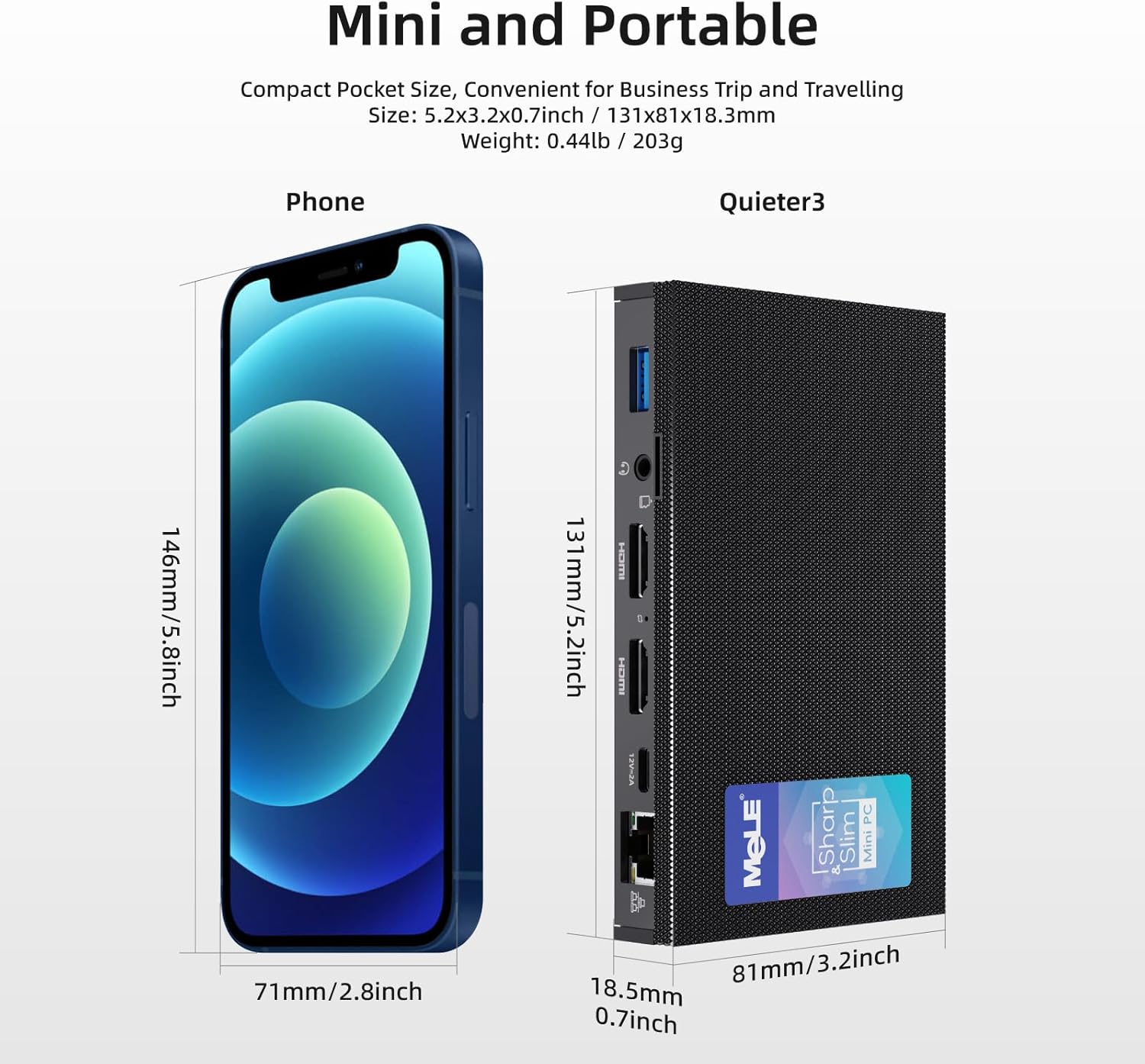
The MeLE Quieter3Q Mini PC is a compact and powerful computing device designed for various applications, including office work, education, home theater, and industrial IoT. This fanless mini PC features an Intel Celeron N5105 processor, 8GB DDR4 RAM, and a 128GB NVMe M.2 2280 SSD, running on Windows 11 Pro. Its small form factor allows for easy portability and flexible installation.
Key features include:
- Processor: Intel Celeron N5105 (up to 2.90 GHz) for efficient performance.
- Memory & Storage: 8GB RAM and 128GB ROM, expandable up to 5TB via M.2 SSD (SATA/NVMe 2280).
- Display: Supports 4K UHD @60 Hz output via HDMI 2.0 for high-definition visuals.
- Connectivity: Equipped with Wi-Fi 6.0 (802.11ax), Bluetooth 5.2, Gigabit Ethernet, and multiple USB 3.0 ports.
- Design: Fanless design for silent operation, Kensington lock slot for security, and support for Wake on LAN, PXE, Auto Power On, and RTC Wake.
2. Package Contents
Please check the box for the following items:
- 1x MeLE Quieter3Q Mini PC
- 1x User Manual
- 1x 12V 2A Power Adapter
- 1x VESA Mount Bracket
3. Product Overview (Ports and Components)
Familiarize yourself with the ports and components of your MeLE Quieter3Q Mini PC:
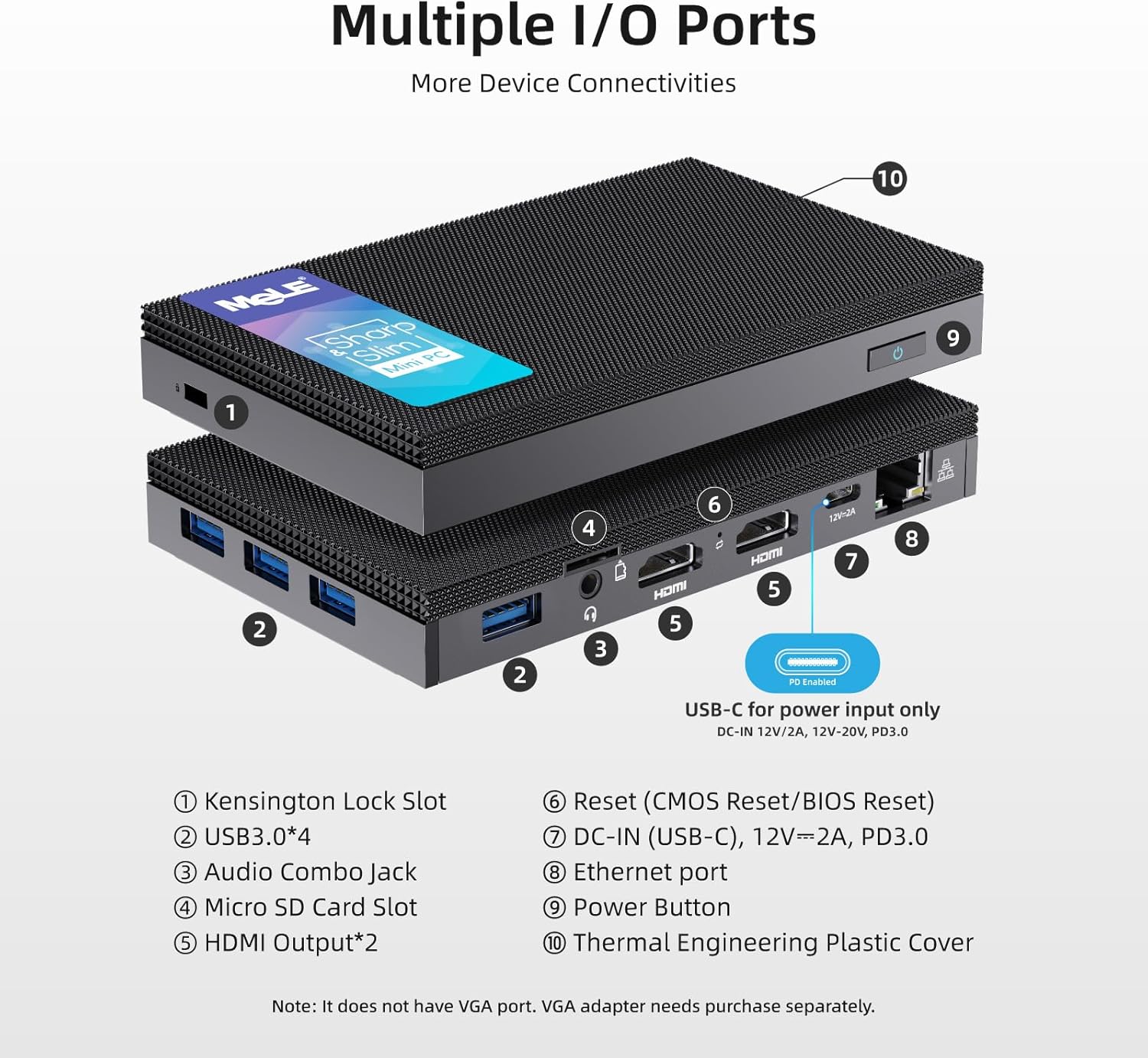
- Kensington Lock Slot: For securing the device.
- USB 3.0 Ports (x4): For connecting peripherals such as keyboards, mice, and external storage.
- Audio Combo Jack: For headphones or microphones.
- Micro SD Card Slot: For additional storage expansion.
- HDMI Output (x2): Supports dual 4K display output.
- Reset Button (CMOS Reset/BIOS Reset): For system reset or BIOS access.
- DC-IN (USB-C), 12V=2A, PD3.0: Power input port.
- Ethernet Port: For wired network connection (Gigabit Ethernet).
- Power Button: To turn the device on/off.
- Thermal Engineering Plastic Cover: The fanless design ensures silent operation.
4. Setup Guide
4.1 Initial Connection
- Connect to Display: Use an HDMI cable to connect the Mini PC to your monitor or TV. The device supports dual 4K displays.
- Connect Peripherals: Plug in your USB keyboard and mouse into the available USB 3.0 ports.
- Connect Power: Connect the 12V 2A power adapter to the DC-IN (USB-C) port on the Mini PC and then to a power outlet.
- Network Connection (Optional): For a wired connection, plug an Ethernet cable into the Ethernet port. For wireless, ensure your Wi-Fi network is available.
4.2 VESA Mount Installation
The MeLE Quieter3Q Mini PC can be mounted on the back of a VESA-compatible monitor for a clutter-free setup. The included VESA mount supports 70mm, 75mm, 80mm, 85mm, and 100mm mounting hole distances.
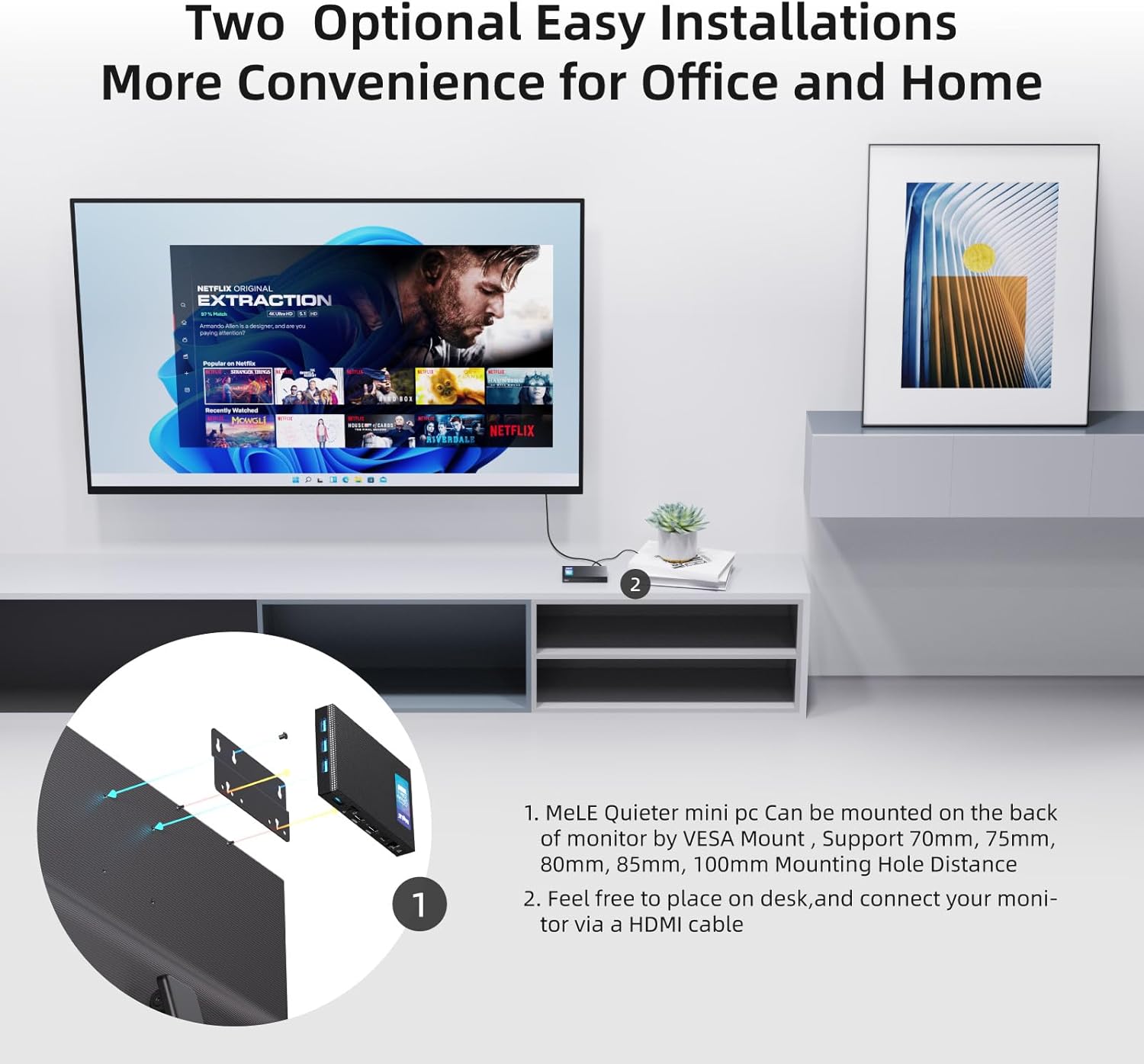
- Attach the VESA mount bracket to the back of your monitor using the appropriate screws.
- Slide the Mini PC onto the VESA mount bracket until it clicks securely into place.
5. Operating Instructions
5.1 Power On/Off
- To Power On: Press the Power Button (9 in Figure 2). The device will boot into Windows 11 Pro.
- To Power Off: Use the standard Windows shutdown procedure. Alternatively, press and hold the Power Button for a few seconds for a forced shutdown (not recommended for regular use).
5.2 Network and Connectivity
The Mini PC supports both wired and wireless network connections, along with Bluetooth for peripheral devices.

- Wi-Fi 6.0 (802.11ax): Connect to your wireless network through the Windows settings. Supports 2.4GHz and 5GHz bands.
- Bluetooth 5.2: Pair Bluetooth-enabled devices like headphones, speakers, or game controllers via Windows Bluetooth settings.
- Gigabit Ethernet: For a stable and high-speed wired internet connection, plug an Ethernet cable into the RJ45 port.
5.3 Storage Expansion
The Mini PC comes with 128GB of internal storage and can be expanded significantly.
- M.2 SSD Slot: The device includes an M.2 2280 slot for SATA or NVMe SSDs, allowing storage expansion up to 5TB (SSD not included).
- Micro SD Card Slot: Supports Micro SD cards up to 2TB for additional portable storage.

5.4 BIOS Settings and Advanced Features
- Accessing BIOS: To enter BIOS settings, press the power button and repeatedly press F7 or Delete during startup. Select "Enter Setup" and press Enter.
- Wake on LAN (WoL): Allows the PC to be woken up remotely over a network.
- PXE Boot: Enables booting from a network server.
- Auto Power On: Configures the PC to automatically power on after a power outage.
- RTC Wake: Schedules the PC to wake up at a specific time.
- These features can be configured within the BIOS settings.
6. Maintenance
The MeLE Quieter3Q Mini PC features a fanless design, which reduces dust accumulation and eliminates fan noise, contributing to its longevity and stable operation. To ensure optimal performance and extend the lifespan of your device, follow these general maintenance guidelines:
- Keep Clean: Regularly wipe the exterior of the Mini PC with a soft, dry cloth to remove dust. Avoid using liquid cleaners directly on the device.
- Ventilation: Ensure the device is placed in a well-ventilated area. Although fanless, proper airflow helps dissipate heat. Do not block the ventilation holes.
- Temperature: Operate the Mini PC within recommended temperature ranges. Avoid extreme heat or cold.
- Software Updates: Keep your operating system (Windows 11 Pro) and drivers updated to ensure security and optimal performance.
- Data Backup: Regularly back up important data to an external drive or cloud storage to prevent data loss.
7. Troubleshooting
7.1 Common Issues and Solutions
- Storage Capacity Displayed Incorrectly:
Issue: The 128GB eMMC storage may display as approximately 114GB on the computer.
Reason: This is due to the difference in how computer operating systems (1KB = 1024 bytes) and storage manufacturers (1KB = 1000 bytes) calculate storage capacity. The actual usable capacity is normal.
- 4K Performance Lagging:
Issue: 4K video playback or display performance may experience lag.
Reason: 4K display performance is influenced by various factors, including network speed, HDMI cable quality, monitor settings, graphics card, video decoding method, and video format/resolution. While the Mini PC features integrated graphics, demanding 4K content might require a more powerful processor and dedicated graphics card for smooth hardware decoding.
Solution: If 4K video lags, consider reducing the display resolution to 1080p for smoother video playback. Ensure you are using high-quality HDMI cables.
- No Display Output:
Issue: The monitor shows no signal after powering on the Mini PC.
Solution:
- Check if the HDMI cable is securely connected to both the Mini PC and the monitor.
- Ensure the monitor is set to the correct input source (HDMI 1, HDMI 2, etc.).
- Try a different HDMI cable or monitor if available.
- Ensure the power adapter is correctly connected and the power button is pressed.
- Device Not Powering On:
Issue: The Mini PC does not respond when the power button is pressed.
Solution:
- Verify the power adapter is firmly connected to both the device and a working power outlet.
- Test the power outlet with another device.
- If possible, try a different compatible 12V 2A power adapter.
8. Specifications
| Feature | Detail |
|---|---|
| Brand | MeLE |
| Model Number | Quieter 3Q 81E |
| Operating System | Windows 11 Pro, Linux, Windows 10 |
| CPU Model | Intel Celeron N5105 |
| CPU Speed | 2 GHz (Max 2.9 GHz) |
| Number of Processors | 4 |
| Graphics Coprocessor | Intel UHD Graphics |
| RAM Memory Installed Size | 8 GB LPDDR4 |
| Memory Speed | 2933 MHz |
| Storage Capacity | 128 GB (eMMC) |
| Hard Drive Technology | Embedded Multi Media Card (eMMC) |
| Storage Expansion | 1x M.2 2280 SSD slot (SATA/NVMe up to 5TB), Micro SD slot (up to 2TB) |
| Wireless Technology | Wi-Fi 6 (802.11ax), Bluetooth 5.2 |
| Ethernet | Gigabit Ethernet (RJ45) |
| USB Ports | 4x USB 3.0 |
| Video Output | 2x HDMI (4K@60Hz max resolution: 4096x2160 Pixels) |
| Audio Output | Audio Combo Jack |
| Power Consumption | 24 Watt |
| Dimensions | 6.4 x 15.5 x 10.9 cm |
| Cooling Method | Fanless (Air) |
| Special Features | USB-C function, Unlocked BIOS, Wake On LAN, PXE Boot, RTC Wake, Auto Power On |
9. Warranty and Support
9.1 Warranty Information
MeLE provides the following warranty and support for your Quieter3Q Mini PC:
- Free Replacement: 3 months free replacement.
- Warranty Period: 12 months warranty from the date of purchase.
- Lifetime Service: MeLE offers lifetime service for its products.
9.2 Customer Support
For technical assistance, service inquiries, or further support, please contact MeLE customer service:
- Email: Service@mele.cn
- Response Time: Customer service typically responds within 24 hours.
- Online Resources: Visit mele.cn for support, drivers, downloads, and community forums.
9.3 Safety Information
MeLE has a global partnership agreement with Microsoft, ensuring that Windows 10/11 Pro and Home OS are officially licensed. The manufacturing of MeLE products complies with international standards such as FCC, UL, UKCA, CE, GS, CCC, PSE, Giteki, and RCM.
Ask a question about this manual
Ask about setup, troubleshooting, compatibility, parts, safety, or missing instructions. Manuals+ will review the question and use this page’s manual context to help answer it.