
1. Introduction
This manual provides detailed instructions for the installation, operation, and maintenance of your WOSTOKE CarPlay Android Auto Navigation Stereo. Please read this manual thoroughly before using the product to ensure proper functionality and safety. This head unit is designed to enhance your driving experience with advanced navigation, multimedia, and connectivity features.
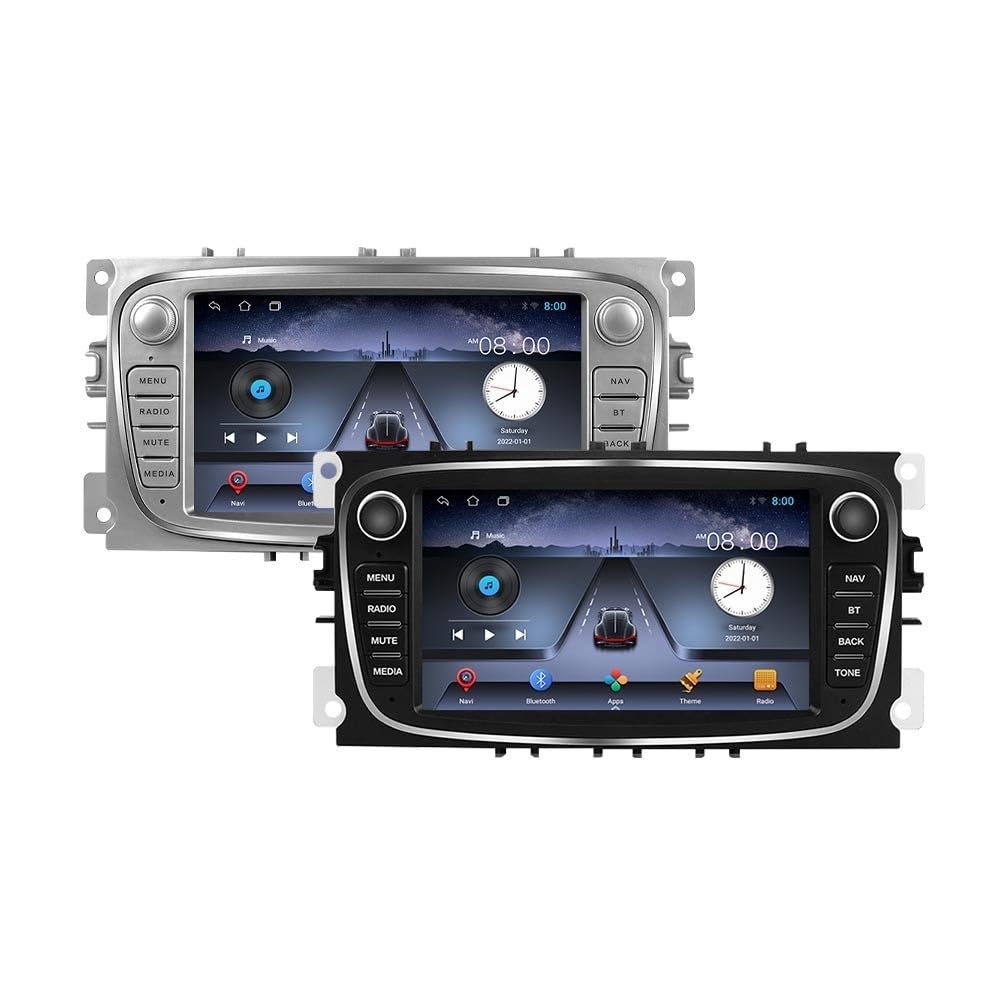
Figure 1.1: Front view of the WOSTOKE 7-inch CarPlay Android Auto Navigation Stereo head unit. It features a large touchscreen display, physical control buttons on both sides, and rotary knobs for power/volume and tuning/seek functions.
2. Compatibility
This WOSTOKE head unit is specifically designed for the following Ford vehicle models and years:
- Ford Focus 2008-2011
- Ford Focus II 2008-2011
- Ford S-Max 2008-2011
- Ford Mondeo 9 2008-2011
- Ford Galaxy II 2006-2011
- Ford C-Max 2008-2011
- Ford Kuga 2006-2011
Please verify the appearance of your original car radio and dashboard before installation to ensure compatibility.

Figure 2.1: Examples of compatible Ford car dashboards where the head unit can be installed. Images show dashboards for Ford Galaxy III 2006-2011, Ford Kuga 2008-2011, Ford Focus 2008-2011, Ford C-MAX 2008-2011, Ford Mondeo 2008-2011, and Ford S-MAX 2008-2011.

Figure 2.2: Visual representation of the head unit installed in both black and silver dashboard types, confirming fitment for specific Ford models and years.
3. Key Features
Your WOSTOKE navigation stereo comes equipped with a range of features designed for convenience and entertainment:
- CarPlay & Android Auto: Seamless integration with iOS and Android devices for navigation, music, calls, and messages via voice control.
- Navigation: Built-in GPS functionality with support for various map applications.
- 7-inch IPS Touchscreen: A responsive multi-touch display with 1024*600 pixel resolution for clear visuals and wide viewing angles.
- Multimedia Playback: Supports various audio and video formats, including 1080P hardware decoding.
- Bluetooth Connectivity: For hands-free calling and audio streaming from your mobile phone.
- Wi-Fi & Hotspot Sharing: Internal Wi-Fi for internet access and sharing your mobile hotspot.
- Steering Wheel Control (SWC): Compatibility with your vehicle's existing steering wheel controls for safe operation.
- USB Input: Supports USB devices for media playback and charging.
- Mirror Link: Connect and mirror your Android or iOS smartphone screen to the head unit.
- Rear View Camera Support: Compatible with aftermarket RCA type backup cameras.
- Operating System: Android system with Octa Core CPU, 2GB RAM, and 32GB ROM.
- Multi-language Support: OSD language options include English, French, German, Spanish, Italian, and more.

Figure 3.1: The 7-inch IPS display showcasing its 1024*600 pixel resolution, offering a larger visual angle, better color reproduction, and a more realistic picture. Various app icons are visible on the home screen, including Theme, CarMate, Dofan Play, Settings, Android GPS, APK installer, AUX, Bluetooth, Boot Animation, and Chrome.
4. Package Contents
Upon opening the package, please verify that all the following components are included:
- WOSTOKE Head Unit (Radio)
- Power Cable
- Canbus Decoder
- 2 x USB Cables
- GPS Antenna
- Camera Input Cable
- Quad Core Harness (or Octa Core Harness, depending on model)
- 4G Antenna (if applicable)

Figure 4.1: Visual representation of the typical package contents, including the main radio unit, power cable, Canbus box, USB cables, GPS antenna, camera input cable, and various wiring harnesses.
5. Setup and Installation
Installation of the head unit requires technical knowledge and should ideally be performed by a qualified professional. Incorrect installation can damage the unit or your vehicle's electrical system. Refer to your vehicle's service manual for specific dashboard disassembly instructions.
5.1. Pre-Installation Checks
- Ensure the vehicle's ignition is off and the battery's negative terminal is disconnected to prevent electrical shorts.
- Verify all package contents are present and undamaged.
- Confirm compatibility with your vehicle model and year.
5.2. Wiring Connections
Connect the provided wiring harnesses to the head unit and your vehicle's existing wiring. Pay close attention to the following connections:
- Power Cable: Connects the head unit to the vehicle's power supply.
- Canbus Decoder: Essential for integrating with your vehicle's CAN-BUS system, enabling features like steering wheel controls and ignition sensing.
- GPS Antenna: Mount the GPS antenna in a location with a clear view of the sky (e.g., on the dashboard or under the windshield) for optimal signal reception.
- USB Cables: Route the USB cables to an accessible location (e.g., glove compartment) for connecting USB devices.
- Camera Input: If installing a rear view camera, connect its video output to the camera input cable.
- Radio Antenna: Connect your vehicle's radio antenna to the head unit.
5.3. Mounting the Head Unit
Carefully insert the head unit into the dashboard opening, ensuring all wires are clear and not pinched. Secure the unit using the factory mounting brackets or screws.
5.4. Post-Installation
- Reconnect the vehicle's battery negative terminal.
- Turn on the ignition and power on the head unit.
- Perform initial setup and test all functions (radio, navigation, Bluetooth, steering wheel controls, camera).
6. Operating Instructions
The WOSTOKE head unit offers two primary operating methods: physical key operation and touchscreen operation.

Figure 6.1: Illustration of the two operating methods: Key Operation (using physical buttons and knobs) and Touch Operation (interacting directly with the IPS touchscreen). The image also highlights the two back interfaces for USB connectivity.
6.1. Basic Controls
- Power Button (PWR): Press to turn the unit on/off. Rotate for volume control.
- Mute Button: Mutes/unmutes audio output.
- Home Button: Returns to the main menu or home screen.
- Back Button: Navigates back to the previous screen or menu.
- Navigation (NAV) Button: Launches the navigation application.
- Bluetooth (BT) Button: Accesses Bluetooth settings and functions.
- Radio Button: Switches to the radio tuner.
- Media Button: Selects media sources (USB, Bluetooth audio).
- EQ Button: Accesses equalizer settings for audio adjustment.
- Seek/Play Knob: Rotate to seek radio stations or navigate menus. Press to play/pause media.
6.2. Touchscreen Operation
The 7-inch IPS touchscreen allows for intuitive control:
- Tap: Select items, open applications, or confirm actions.
- Swipe: Navigate through menus, home screens, or lists.
- Pinch-to-Zoom: Used in navigation maps or image viewing.
6.3. CarPlay & Android Auto
Connect your compatible iPhone or Android smartphone via USB to activate CarPlay or Android Auto. Follow the on-screen prompts to complete the setup. These features allow you to access phone functions, navigation, music, and messaging directly from the head unit's display, often with voice commands.
6.4. Navigation
Tap the NAV button or the navigation app icon on the home screen to launch the GPS navigation. Enter your destination, and the system will provide turn-by-turn directions. Ensure the GPS antenna is properly installed for accurate positioning.
6.5. Bluetooth Pairing
- Tap the BT button or the Bluetooth icon.
- Enable Bluetooth on your mobile phone and search for available devices.
- Select the head unit (e.g., "Car BT") from your phone's list and confirm the pairing code if prompted.
- Once paired, you can make/receive calls and stream audio.
6.6. Wi-Fi Connectivity
Access Wi-Fi settings from the main menu. Scan for available networks, select your desired network, and enter the password to connect. This enables internet access for apps and updates.
7. Maintenance
To ensure the longevity and optimal performance of your WOSTOKE head unit, follow these maintenance guidelines:
- Cleaning the Screen: Use a soft, lint-free cloth to gently wipe the touchscreen. For stubborn smudges, slightly dampen the cloth with water or a screen-cleaning solution. Avoid harsh chemicals or abrasive materials.
- Software Updates: Periodically check for software updates through the system settings or the manufacturer's website to ensure you have the latest features and bug fixes.
- Environmental Conditions: Avoid exposing the unit to extreme temperatures, direct sunlight for prolonged periods, or excessive moisture.
- Cable Management: Ensure all cables are securely connected and not pinched or damaged.
8. Troubleshooting
If you encounter issues with your head unit, refer to the following common problems and solutions:
| Problem | Possible Cause | Solution |
|---|---|---|
| Unit does not power on. | Loose power connection, blown fuse, vehicle battery issue. | Check power cable connections. Inspect vehicle fuses. Ensure vehicle battery is charged. |
| No audio output. | Volume muted, incorrect audio source, loose speaker wires. | Check volume level and mute status. Select correct audio source. Verify speaker wire connections. |
| GPS signal lost or inaccurate. | GPS antenna improperly installed or obstructed. | Ensure GPS antenna has a clear view of the sky. Check antenna connection. |
| Bluetooth pairing issues. | Bluetooth not enabled, device not discoverable, incorrect pairing code. | Ensure Bluetooth is enabled on both devices. Make phone discoverable. Re-enter pairing code. |
| Steering wheel controls not working. | Canbus decoder not connected or configured correctly. | Verify Canbus connection. Check head unit settings for SWC configuration. |
If the problem persists after attempting these solutions, please contact customer support for further assistance.
9. Specifications
| Feature | Detail |
|---|---|
| Display Size | 7 Inches |
| Resolution | 1024*600 Pixels (IPS) |
| Operating System | Android |
| CPU | Octa Core |
| RAM | 2GB |
| ROM (Internal Storage) | 32GB |
| Connectivity | USB, Bluetooth, Wi-Fi |
| Special Features | CarPlay, Android Auto, GPS Navigation, Touchscreen, Mirror Link, Steering Wheel Control |
| Audio Output Mode | Stereo |
| Voice Command | Touch Pad (referring to touchscreen interaction) |
| Item Weight | 3.3 pounds |
| Product Dimensions | 12.2 x 8.27 x 3.94 inches |
10. Warranty and Support
Your WOSTOKE head unit comes with a one-year warranty covering manufacturing defects. This warranty does not cover damage caused by improper installation, misuse, accidents, or unauthorized modifications.
For technical support, troubleshooting assistance, or warranty claims, please contact the seller directly. Your inquiries are always welcome.
Date First Available: April 6, 2022