
1. Introduction
This manual provides essential information for the installation, operation, and maintenance of your NVIDIA GeForce RTX 3090 Ti Founders Edition graphics card. Please read this manual thoroughly before proceeding with installation to ensure proper functionality and to prevent damage.
2. What's in the Box
Verify that all components are present and in good condition upon unboxing:
- NVIDIA GeForce RTX 3090 Ti Founders Edition Graphics Card
- Power Adapter Cable
3. Product Overview
The NVIDIA GeForce RTX 3090 Ti Founders Edition is a high-performance graphics processing unit designed for demanding computing tasks, including gaming, content creation, and professional applications. It features advanced cooling solutions and multiple display outputs.

Figure 3.1: Angled view of the NVIDIA GeForce RTX 3090 Ti Founders Edition graphics card, showcasing its dual-fan design and sleek black finish.

Figure 3.2: Rear view of the graphics card, showing the multiple display output ports (HDMI and DisplayPort) and the ventilation grille.
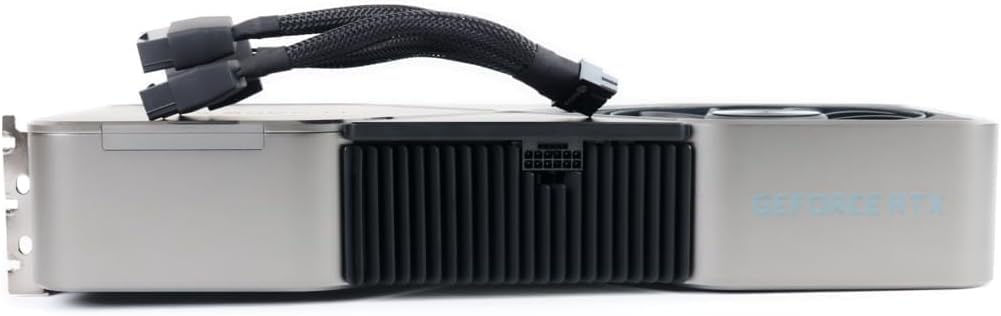
Figure 3.3: Side view of the graphics card with the 12-pin power adapter cable connected, illustrating the power input location.
4. Setup and Installation
Before installation, ensure your system's power supply unit (PSU) meets the recommended wattage for the RTX 3090 Ti. It is recommended to consult your motherboard's manual for PCIe slot compatibility and proper installation procedures.
- Power Off System: Completely shut down your computer and disconnect the power cable from the wall outlet.
- Open PC Case: Remove the side panel of your computer case to access the motherboard.
- Locate PCIe Slot: Identify an available PCIe x16 slot on your motherboard.
- Remove Slot Covers: Remove the necessary expansion slot covers from the back of your PC case that align with the chosen PCIe slot.
- Insert Graphics Card: Carefully align the graphics card with the PCIe slot and press down firmly until it is securely seated. Ensure the retention clip on the PCIe slot locks into place.
- Secure Card: Secure the graphics card to the PC case using screws or the case's retention mechanism.
- Connect Power: Connect the included power adapter cable to the graphics card's 12-pin power connector. Then, connect the other end(s) of the adapter cable to your PSU's PCIe power connectors (typically 8-pin or 6+2-pin). Ensure all connections are firm.
- Close PC Case: Replace the side panel of your computer case.
- Connect Display: Connect your monitor(s) to the display output ports (HDMI or DisplayPort) on the graphics card.
- Power On and Install Drivers: Reconnect the power cable and power on your system. Once the operating system loads, download and install the latest graphics drivers from the official NVIDIA website (nvidia.com/drivers).
5. Operating Instructions
Once installed and drivers are updated, your NVIDIA GeForce RTX 3090 Ti Founders Edition is ready for use. The card will automatically manage its performance based on the demands of applications and games. For optimal performance, ensure your operating system and games are up-to-date.
- NVIDIA Control Panel: Access the NVIDIA Control Panel (usually found in your system tray or desktop right-click menu) to customize display settings, 3D settings, and other graphics-related preferences.
- GeForce Experience: Install NVIDIA GeForce Experience for automatic driver updates, game optimization, and features like ShadowPlay for recording gameplay.
- Temperature Monitoring: Monitor the GPU temperature using third-party software to ensure it operates within safe limits, especially during prolonged high-load activities.
6. Maintenance
Regular maintenance helps ensure the longevity and optimal performance of your graphics card.
- Dust Removal: Periodically clean dust from the fans and heatsink using compressed air. Ensure the system is powered off and unplugged before cleaning. Hold the fan blades gently to prevent them from spinning rapidly during cleaning.
- Driver Updates: Keep your graphics drivers updated to the latest version from the official NVIDIA website.
- System Airflow: Ensure good airflow within your PC case to prevent heat buildup.
7. Troubleshooting
If you encounter issues, refer to the following common troubleshooting steps:
- No Display Output:
- Ensure the graphics card is fully seated in the PCIe slot.
- Verify all power cables are securely connected to the graphics card and PSU.
- Check that the monitor cable is connected to the graphics card, not the motherboard's integrated graphics port.
- Try a different display cable or monitor.
- Driver Issues / Crashes:
- Perform a clean installation of the latest NVIDIA drivers. Use Display Driver Uninstaller (DDU) in Safe Mode to remove old drivers before installing new ones.
- Check for conflicts with other software.
- Overheating:
- Ensure proper case airflow and fan operation.
- Clean dust from the graphics card's heatsink and fans.
- Verify ambient room temperature is not excessively high.
- Performance Issues:
- Ensure your system meets the minimum requirements for the applications/games you are running.
- Check for background processes consuming system resources.
- Verify that the graphics card is running at its expected clock speeds (can be monitored with third-party tools).
8. Specifications
Key technical specifications for the NVIDIA GeForce RTX 3090 Ti Founders Edition:
| Feature | Detail |
|---|---|
| Brand | NVIDIA |
| Model Number | 9001G1362505000 |
| Graphics Coprocessor | NVIDIA GeForce RTX 3090 |
| Graphics Card RAM Size | 24 GB |
| Max Screen Resolution | 3840x2160 |
| Video Output Interface | HDMI (and DisplayPort, implied by images) |
| Item Weight | 7.08 pounds |
| Product Dimensions (LxWxH) | 12 x 4 x 0.1 inches |
9. Warranty and Support
For warranty information and technical support, please refer to the official NVIDIA website or contact their customer service. Keep your proof of purchase for warranty claims.
- Protection Plans: Additional protection plans may be available from your retailer. For example, a 4-Year Protection Plan or a monthly Complete Protect plan.
- Return Policy: Standard return policies typically allow for refund/replacement within 30 days of purchase, subject to retailer terms.
- Official Support: Visit nvidia.com/support for drivers, FAQs, and contact options.