
1. Introduction
Thank you for choosing the Cromorc 5MP PTZ WiFi Outdoor Security Camera. This manual provides essential information for setting up, operating, and maintaining your security camera. Designed for comprehensive outdoor surveillance, this camera offers advanced features including 360° pan/tilt/digital zoom, 5MP HD resolution, color night vision, smart motion detection with humanoid tracking, and two-way audio communication. Please read this manual thoroughly before use to ensure proper installation and optimal performance.
2. Product Overview
Key Features:
- 5MP HD Image & Full Color Night Vision: Captures clear 2880*1620 resolution video with full-color imaging in low light using 10 high-tech lamp beads.
- PAN TILT ZOOM Control: Offers 355° horizontal rotation, 120° vertical tilt, and 5x digital zoom for wide area monitoring.
- Smart Tracking, Siren Alarm & Floodlight Alarm: Automatically tracks human and object movement, triggers siren/floodlight, and sends app alerts.
- Remote View and Two-way Audio: Live view and playback via the free Eseecloud APP/software on mobile, tablet, or computer. Features built-in speaker and microphone for two-way communication.
- IP66 Weatherproof: Durable construction suitable for outdoor use in various weather conditions.
- Flexible Storage: Supports TF card local recording or cloud storage (subscription may apply). Compatible with Cromorc Wireless Camera System.
Package Contents:
- Cromorc 5MP PTZ WiFi Outdoor Security Camera
- Power Adapter (for 24/7 non-stop surveillance)
- Mounting Hardware (screws, anchors)
- Quick Start Guide
3. Setup
3.1 Physical Installation
Choose a suitable outdoor location for your camera, ensuring it has a clear view of the area you wish to monitor and is within range of a power outlet. The camera is designed for wall mounting.
- Detach the mounting bracket from the camera body.
- Position the mounting bracket on the desired surface and mark the drill holes.
- Drill pilot holes and secure the mounting bracket using the provided screws and anchors.
- Attach the camera body to the secured mounting bracket.
- Connect the camera to a nearby power outlet using the included power adapter.

Figure 1: Camera connected to power, illustrating options for integration with a Cromorc Camera System or standalone use with the EseeCloud App.
3.2 App Installation & Connection
The Cromorc camera uses the free "Eseecloud" app for remote viewing and control. Download the app from your mobile device's app store (iOS or Android).
- Download and install the "Eseecloud" app on your smartphone or tablet.
- Register for an account and log in.
- Follow the in-app instructions to add your new WiFi camera. This typically involves scanning a QR code on the camera or manually entering device details.
- Ensure your phone is connected to your 2.4GHz WiFi network during the setup process.
Video: Guide on how to add the Cromorc camera to the EseeCloud APP for remote access and control.
4. Operating Instructions
4.1 Pan, Tilt, and Digital Zoom Control
Once connected to the Eseecloud app, you can remotely control the camera's viewing angle. Use the on-screen controls to pan (horizontal rotation up to 355°), tilt (vertical movement up to 120°), and digitally zoom (5x) to monitor a larger area without physical adjustment.
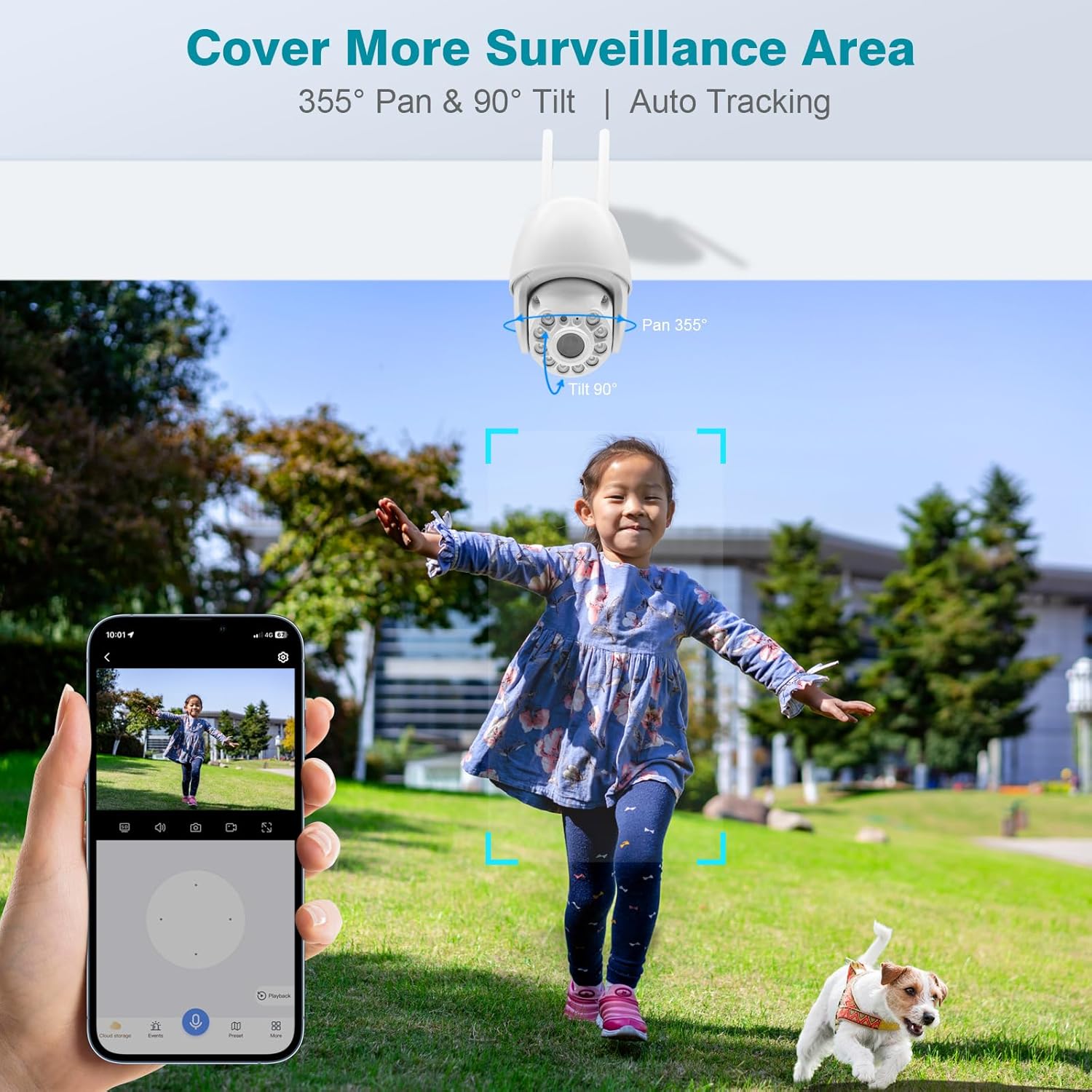
Figure 2: The camera's pan and tilt functionality allows it to track movement across a wide surveillance area.
Video: Demonstration of the Cromorc PT Camera's pan and tilt features, showcasing its remote control capabilities.
4.2 Smart Tracking, Siren & Floodlight Alarm
The camera features advanced motion detection and humanoid tracking. When motion is detected, especially human figures, the camera can automatically track the movement. You can configure the app to trigger a loud siren or flash dazzling white light (floodlight) in dark environments, and send instant alerts to your mobile device.

Figure 3: Illustrates the camera's effective warning system for detecting and deterring unauthorized activity.
Video: Overview of the camera's human detection, floodlight, siren alarm, and color night vision capabilities.
4.3 Color Night Vision
Equipped with 10 high-tech lamp beads, the camera can display full-color images even in extremely dark environments, providing clearer and more detailed surveillance footage at night compared to traditional black and white infrared night vision.
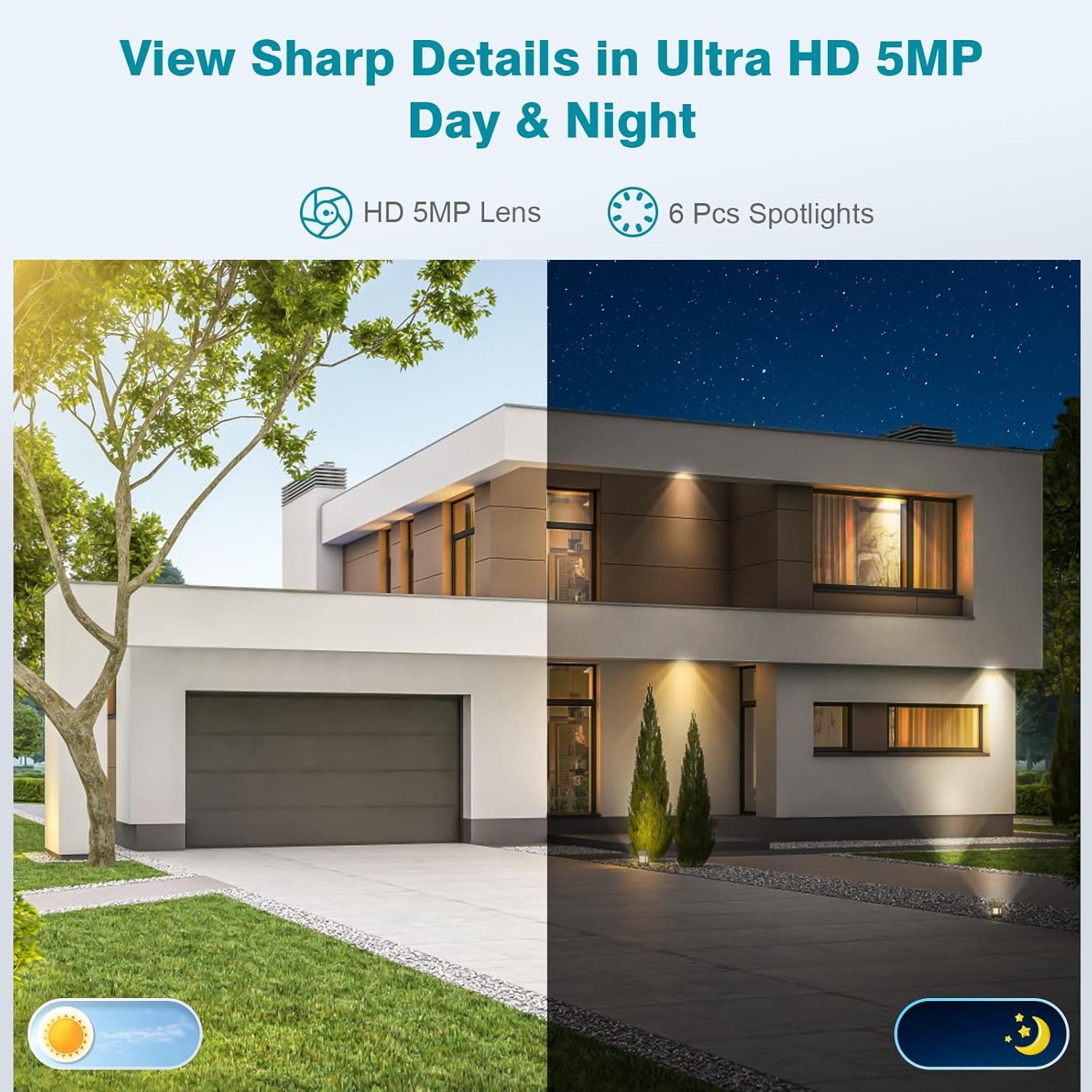
Figure 4: Comparison of day and color night vision, highlighting the camera's ability to capture sharp details in ultra HD 5MP resolution.
4.4 Two-Way Audio
The camera features a built-in speaker and microphone, enabling two-way audio communication. You can speak through the app to visitors, deter intruders, or communicate with family members or pets in the camera's vicinity.

Figure 5: Two-way audio feature for live communication, allowing interaction with people and pets anywhere.
4.5 Recording and Storage
The camera supports two primary storage methods:
- TF Card Local Recording: Insert a TF (microSD) card into the camera for continuous loop recording. This option does not require a subscription.
- Cloud Storage: For remote backup and access, you can opt for a cloud storage plan (subscription fees apply).
If the camera is added to a Cromorc surveillance system, separate TF card or cloud storage subscription fees may not be necessary as the system handles recording.
5. Maintenance
5.1 Weather Resistance
The Cromorc camera is rated IP66 weatherproof, meaning it is protected against dust ingress and powerful water jets. This makes it suitable for outdoor use in various weather conditions, including rain and snow.
Video: Short clip demonstrating the Cromorc camera's waterproof capabilities in an outdoor setting.
5.2 Cleaning and Care
- Regularly clean the camera lens with a soft, damp cloth to ensure clear image quality.
- Avoid using harsh chemicals or abrasive cleaners.
- Ensure the power adapter connection is secure and protected from moisture.
6. Troubleshooting
- No Power: Ensure the power adapter is securely connected to the camera and a working power outlet.
- No App Connection: Verify your mobile device is connected to a 2.4GHz WiFi network. Restart the camera and your router. Re-attempt the app connection process.
- Poor Image Quality: Check for dirt or obstructions on the camera lens. Ensure adequate lighting, especially for night vision. Verify your internet connection speed.
- Motion Detection Issues: Adjust motion detection sensitivity settings in the Eseecloud app. Ensure the detection area is correctly configured.
- PTZ Control Unresponsive: Check app connectivity and ensure the camera has a stable WiFi signal.
7. Specifications
| Feature | Specification |
|---|---|
| Brand | Cromorc |
| Model | B09X44W6GG |
| Video Capture Resolution | 5 MP (2880*1620) |
| Viewing Angle | 360 Degrees (355° Horizontal, 120° Vertical) |
| Zoom Type | Digital Zoom (5x) |
| Night Vision | Color Night Vision (10 high-tech lamp beads) |
| Connectivity Technology | Wireless (Wi-Fi) |
| Connectivity Protocol | Wi-Fi |
| Power Source | Corded Electric (12 Watt-hours) |
| Indoor/Outdoor Usage | Outdoor |
| International Protection Rating | IP66 |
| Special Features | Motion Sensor, Night Vision, PTZ Technology, Two-Way Audio, Humanoid Tracking, Floodlight & Siren Alarm |
| Item Dimensions L x W x H | 7.7 x 6.9 x 4.8 inches |
| Item Weight | 1.68 pounds |
8. Warranty & Support
For product support, please refer to the contact information provided in the Eseecloud app or on the manufacturer's official website. This product is typically covered by a 30-day return policy through the retailer. Extended protection plans may be available for purchase separately.