
1. Introduction
This manual provides detailed instructions for the setup, operation, and maintenance of your blurams A31 2K Indoor Security Camera. This device is designed to enhance home security, monitor pets, and provide peace of mind through advanced features such as 2K resolution, 360° coverage, two-way audio, and smart detection capabilities.

Image: Two blurams A31 2K Indoor Security Cameras.
2. Package Contents
Verify that all items are present in your package:
- blurams A31 2K Indoor Security Camera
- Power Adapter
- USB Cable
- Mounting Accessories (screws, wall anchors, mounting plate)
- Quick Start Guide
3. Product Overview
The blurams A31 camera offers a range of features for comprehensive indoor monitoring:
- 2K Resolution: Provides clear and detailed video footage.
- 360° Coverage: Pan and tilt functionality allows for a full view of the room.
- Motion Tracking: Automatically follows detected movement.
- Two-Way Audio: Communicate with individuals or pets through the camera.
- IR Night Vision: Clear video capture in low-light or dark conditions.
- Privacy Mode: Physically conceals the lens for privacy.
- Smart AI Detection: Identifies human, motion, and abnormal sound events.
- Local & Cloud Storage: Supports microSD card (up to 128GB, sold separately) and cloud storage options.
- Smart Integration: Compatible with Alexa and Google Assistant.
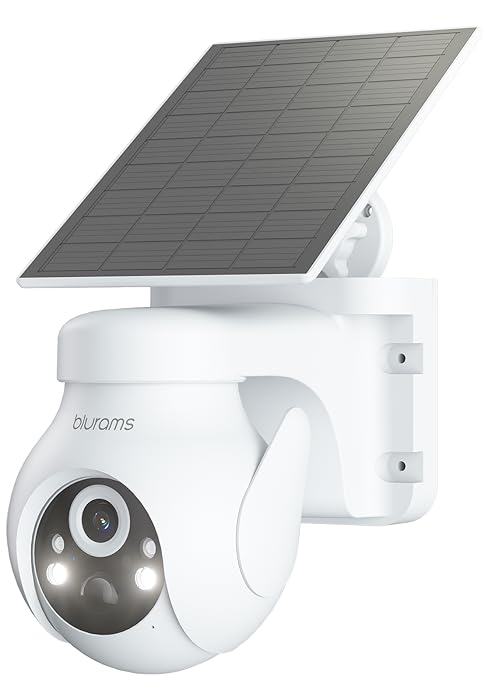
Image: Key features of the blurams A31 camera.
4. Setup Guide
4.1. Download the blurams App
- Scan the QR code provided in the Quick Start Guide or search for 'blurams' in your mobile device's app store (Google Play Store for Android, Apple App Store for iOS).
- Download and install the blurams app.
- Create an account or log in if you already have one.
4.2. Power On the Camera
- Connect the USB cable to the camera's power port.
- Plug the power adapter into a standard electrical outlet.
- Wait for the camera's indicator light to flash blue, indicating it is ready for connection.
4.3. Connect to Wi-Fi
- Open the blurams app and tap the '+' icon to add a new device.
- Select your camera model (A31) from the list.
- Follow the on-screen instructions to connect your phone to your home 2.4GHz Wi-Fi network. Note: The camera only supports 2.4GHz Wi-Fi.
- The app will generate a QR code. Hold your phone's screen approximately 4-8 inches (10-20 cm) in front of the camera lens until you hear a prompt indicating successful scanning.
- Once connected, the camera's indicator light will turn solid blue.
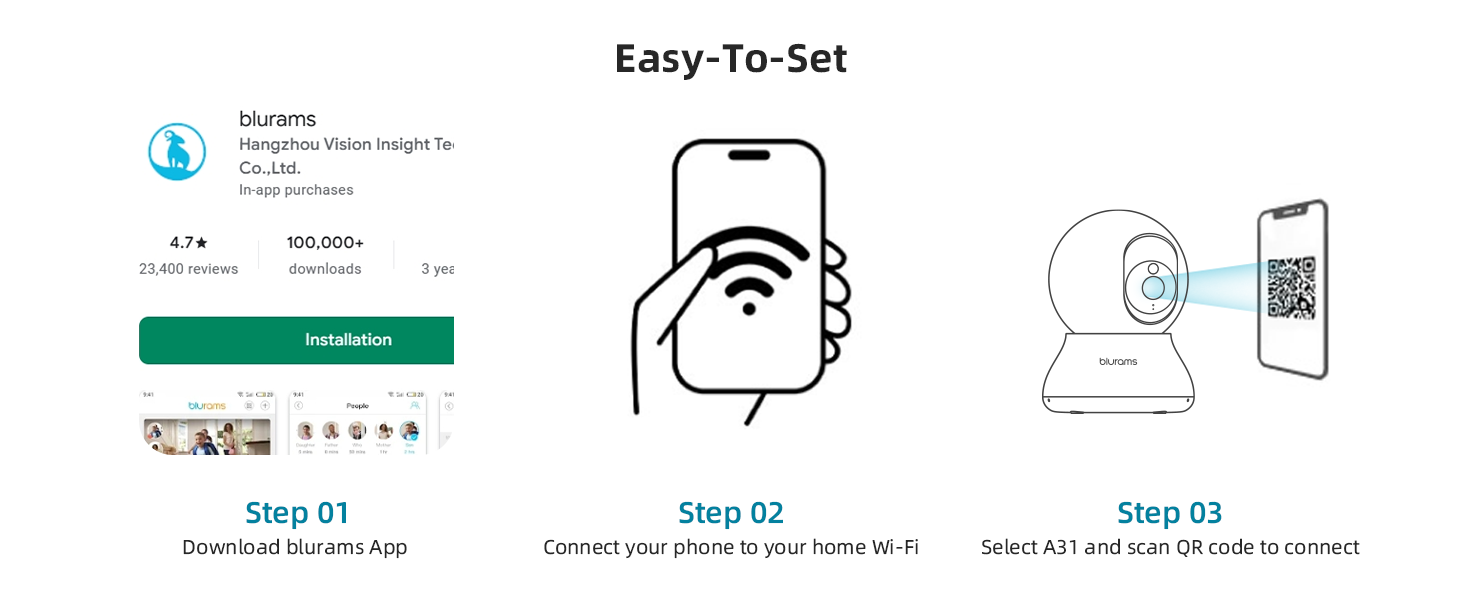
Image: Easy setup steps for the blurams A31 camera.
4.4. Mounting the Camera
The blurams A31 can be placed on a flat surface or mounted to a ceiling. Use the included mounting plate and screws for ceiling installation. Ensure the camera is positioned to cover your desired monitoring area.
5. Operating Instructions
5.1. Live View and 360° Pan/Tilt
Access the live feed from your camera through the blurams app. Use the on-screen controls to remotely pan (horizontal rotation) and tilt (vertical movement) the camera lens to achieve a 360° view of your environment.

Image: The camera provides a 360° full view of the room.
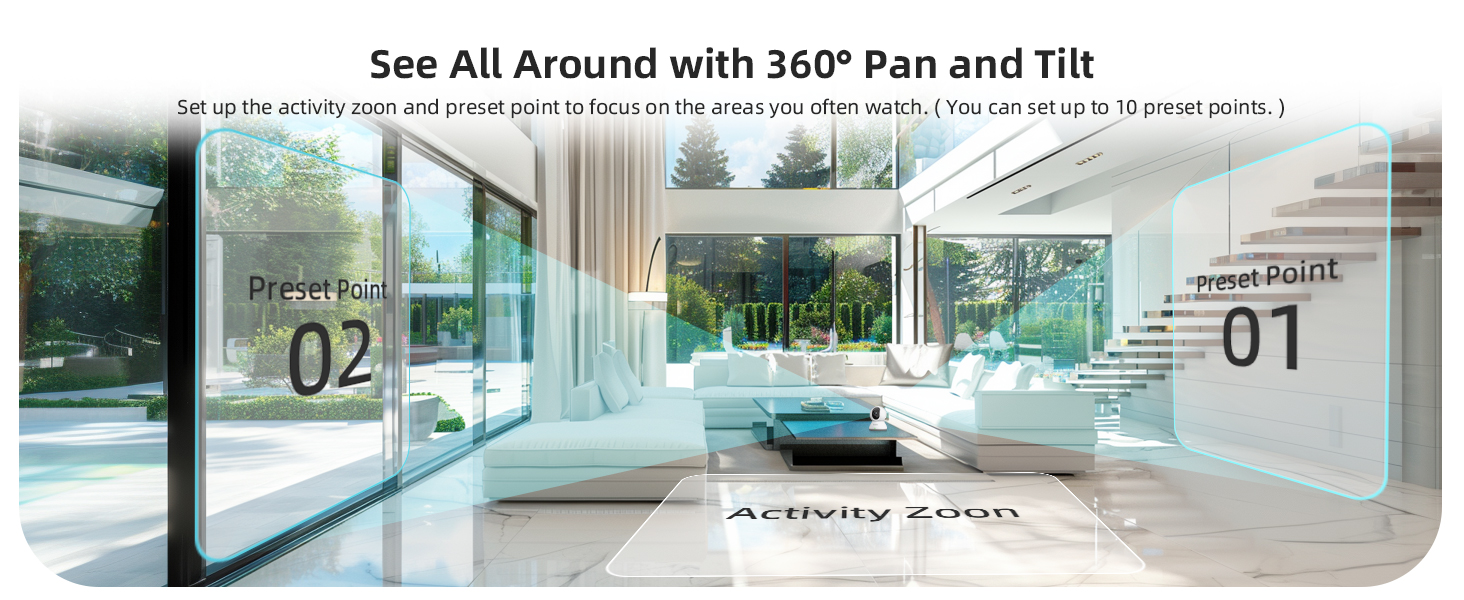
Image: Setting up activity zones and preset points for 360° pan and tilt.
5.2. Two-Way Audio
Utilize the two-way audio feature to speak through the camera and hear responses. This is useful for communicating with family members, pets, or deterring unwanted visitors. Tap the microphone icon in the app's live view to activate.
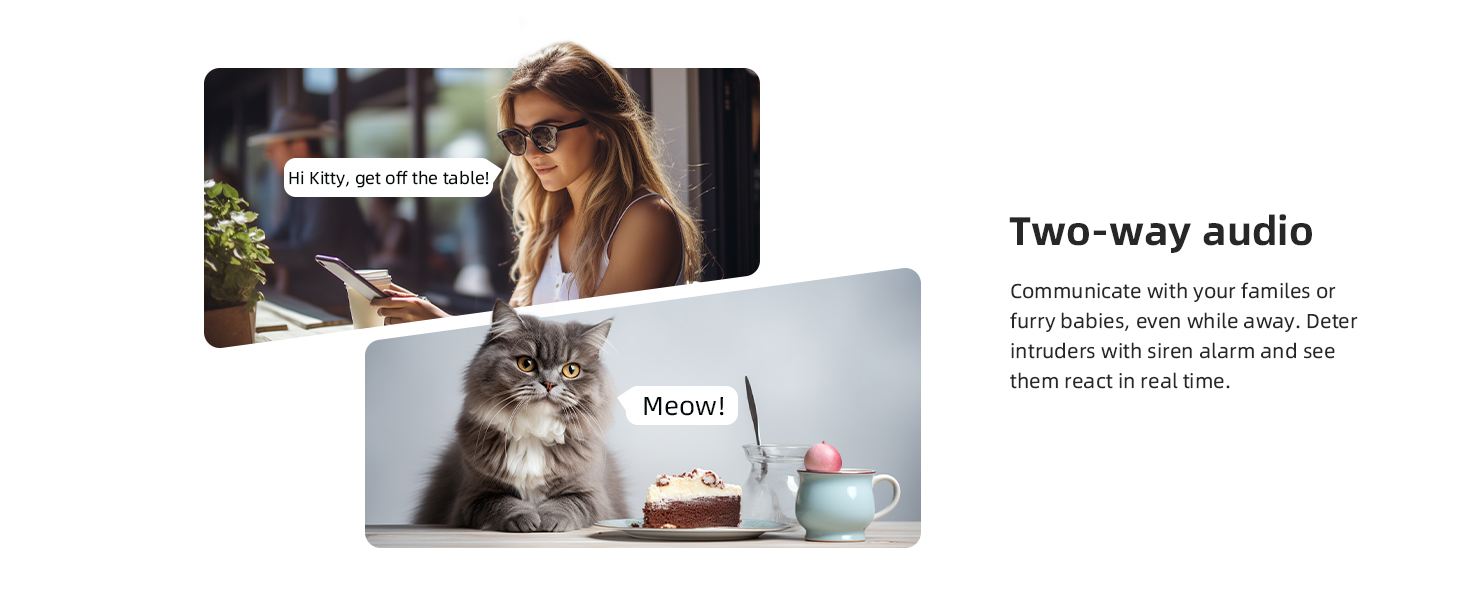
Image: Two-way audio communication with the camera.
5.3. Motion Tracking and AI Detection
The camera can automatically detect and track motion. When motion is detected, the camera will follow the subject and send instant alerts to your phone. Advanced AI detection distinguishes between human, pet, and abnormal sound events, reducing false alarms.
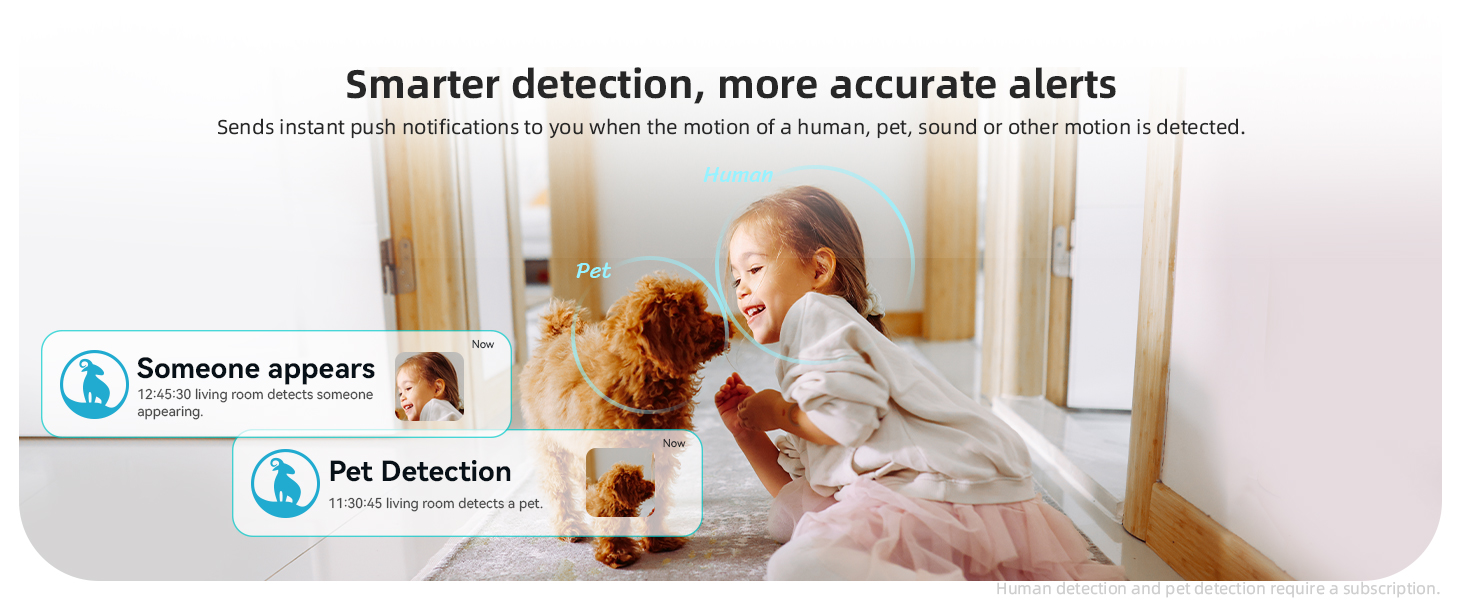
Image: Smarter detection provides more accurate alerts for human and pet activity.
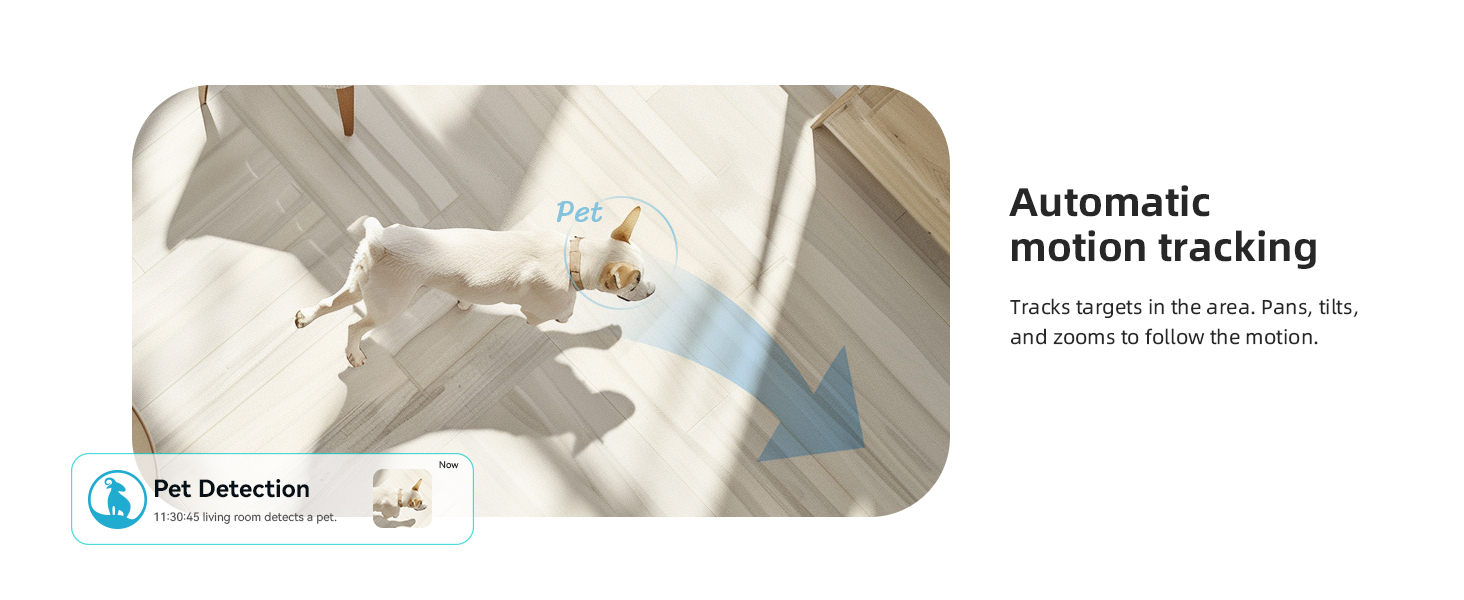
Image: Automatic motion tracking follows targets in the area.
5.4. Night Vision
The integrated IR-CUT function enables the camera to capture clear videos and photos from day to night, even in dim or completely dark conditions. The night vision range is up to 33 feet (10 meters).
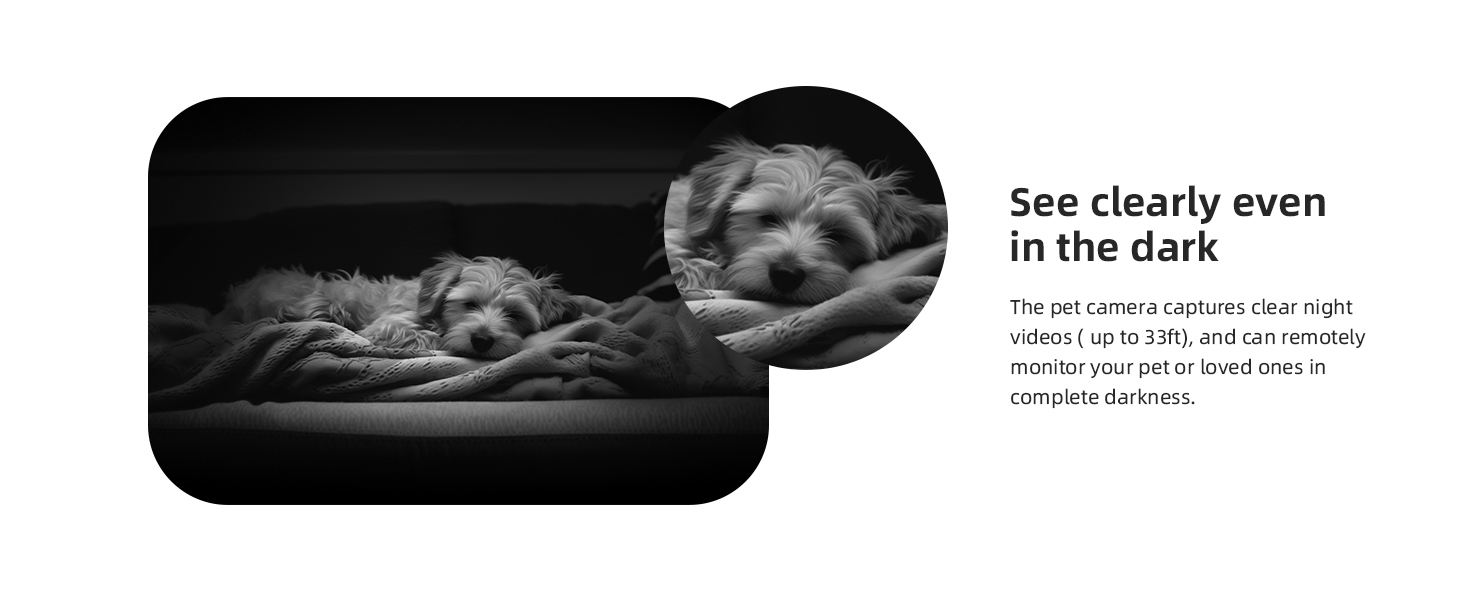
Image: Clear night vision allows monitoring even in complete darkness.
5.5. Privacy Mode
To protect your privacy, activate the privacy mode through the blurams app. This feature physically rotates the camera lens to conceal it, ensuring no video is recorded or streamed during this period. You can also schedule privacy mode activation times.
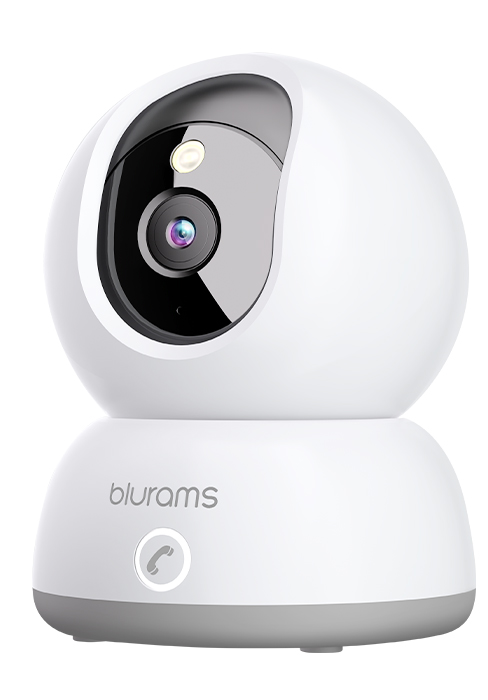
Image: Privacy protection with sleep mode, allowing scheduled camera deactivation.
5.6. Storage Options
The blurams A31 supports two storage methods:
- Local Storage: Insert a microSD card (up to 128GB, not included) into the camera's designated slot for continuous recording.
- Cloud Storage: Optional cloud service provides 24/7 continuous video recording (CVR) and stores 12-second event videos for 24 hours without subscription. Subscription plans are available for extended cloud storage.
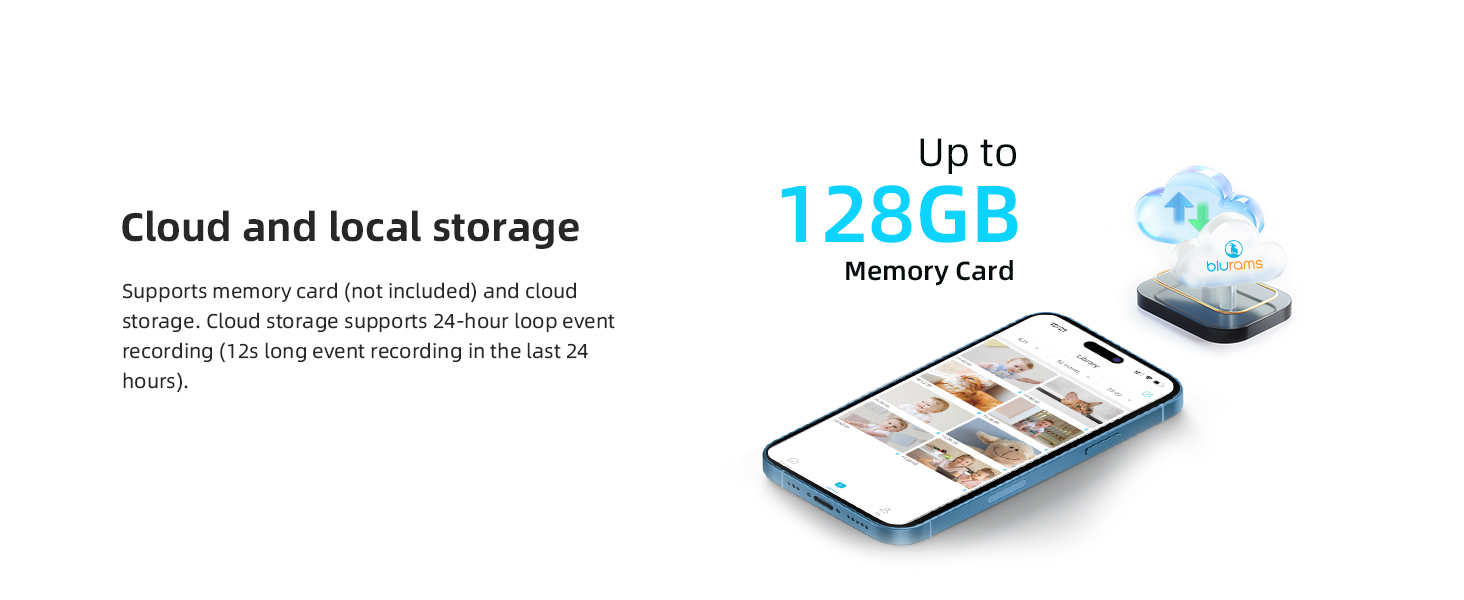
Image: Cloud and local storage options for video recording.
5.7. Smart Integration
Integrate your blurams A31 camera with smart home ecosystems:
- Amazon Alexa: Use voice commands to view the live stream on compatible Alexa devices with a screen.
- Google Assistant: View the live stream on Google Assistant-enabled devices with a screen using voice commands.
- IFTTT: Connect with other smart devices and services to create automated routines.
5.8. Device Sharing
Share access to your camera's live feed and recorded events with family members through the blurams app. This allows multiple users to monitor the same location simultaneously.

Image: Device sharing allows multiple family members to monitor the camera.
6. Maintenance
6.1. Cleaning the Camera
To maintain optimal image quality, periodically clean the camera lens with a soft, dry, lint-free cloth. Avoid using harsh chemicals or abrasive materials.
6.2. Firmware Updates
Ensure your camera's firmware is always up to date. The blurams app will notify you of available updates. Follow the in-app instructions to perform updates, which can improve performance and add new features.
6.3. Network Stability
A stable 2.4GHz Wi-Fi connection is crucial for consistent camera performance. Ensure your router is within range and there are no significant obstructions that could interfere with the signal.
7. Troubleshooting
If you encounter issues with your blurams A31 camera, refer to the following common solutions:
- Camera Offline: Check the power connection and Wi-Fi signal. Restart the camera and your router. Ensure the camera is within range of your 2.4GHz Wi-Fi network.
- Unable to Connect: Verify your Wi-Fi password is correct. Ensure your phone is connected to a 2.4GHz network during setup. Reset the camera (refer to the Quick Start Guide for reset button location) and try the setup process again.
- Poor Video Quality: Ensure the lens is clean. Check your internet connection speed. If using Wi-Fi, try moving the camera closer to the router.
- No Alerts: Check app notification settings on your phone and within the blurams app. Ensure motion detection is enabled and activity zones are correctly configured.
- Two-Way Audio Issues: Ensure your phone's microphone is enabled for the blurams app. Check the camera's volume settings in the app.
For further assistance, consult the FAQ section within the blurams app or contact customer support.
8. Specifications
| Feature | Detail |
|---|---|
| Model Name | A31 |
| Indoor/Outdoor Usage | Indoor |
| Video Capture Resolution | 1440p (2K) |
| Connectivity Technology | Wired (Power), Wi-Fi (Data) |
| Wireless Communication Technology | Wi-Fi (2.4GHz only) |
| Power Source | AC/DC (5 watts) |
| Controller Type | Amazon Alexa, Google Assistant |
| Mounting Type | Ceiling Mount |
| Special Features | Night Vision, Motion Sensor, 2-Way Audio, HD Resolution, Cry Detection, Barking Detection, Portable |
| Product Dimensions | 3.2 x 4.3 x 3.2 inches |
| Item Weight | 1.43 pounds |
| Storage Support | Up to 128GB MicroSD card (not included) |
| International Protection Rating | IP65 |
9. Warranty and Support
9.1. Warranty Information
Your blurams A31 camera is covered by a standard manufacturer's warranty. Please refer to the warranty card included in your package or visit the official blurams website for specific terms and conditions regarding warranty coverage and duration.
9.2. Customer Support
For technical support, product inquiries, or warranty claims, please contact blurams customer service through the following channels:
- blurams App: Access the 'Help' or 'Support' section within the app for FAQs and direct contact options.
- Official Website: Visit www.blurams.com for support resources, contact information, and product registration.


