
ASWEE P6
ASWEE Smart Watch User Manual
Model: P6 | Brand: ASWEE
1. Introduction
Thank you for choosing the ASWEE Smart Watch. This device is designed to enhance your daily life by providing convenient access to communications, health monitoring, and fitness tracking. Featuring a 1.83-inch HD touchscreen, Bluetooth calling capabilities, and a wide array of sports modes, your ASWEE Smart Watch is a versatile companion for both men and women. This manual will guide you through the setup, operation, and maintenance of your new smartwatch.

Figure 1: ASWEE Smart Watch Overview
The ASWEE Smart Watch is equipped with advanced sensors for 24/7 heart rate and sleep monitoring, a step counter, and support for over 123 sports activities. Its IP67 waterproof rating ensures durability for various environments, including workouts and outdoor adventures. Enjoy seamless connectivity with your Android or iOS smartphone for notifications, music control, and weather updates.
2. What's in the Box
Please check the contents of your package to ensure all items are present:
- ASWEE Smart Watch (P6)
- Charging Cable
- User Manual
- Watch Band
3. Setup
3.1 Initial Charging
Before first use, fully charge your ASWEE Smart Watch. Connect the magnetic charging cable to the charging points on the back of the watch and plug the USB end into a standard USB power adapter (not included). A full charge typically takes approximately 2 hours.
3.2 App Installation and Pairing
To unlock the full functionality of your smartwatch, download and install the 'Keep Health' app on your smartphone.
- Scan the QR code provided in the quick start guide or search for 'Keep Health' in your phone's app store (App Store for iOS, Google Play Store for Android).
- Install the 'Keep Health' app.
- Open the app and create an account or log in.
- Ensure Bluetooth is enabled on your smartphone.
- In the 'Keep Health' app, navigate to the 'Device' section and select 'Add Device'.
- The app will search for nearby devices. Select 'ASWEE P6' from the list of found devices.
- Follow the on-screen prompts to complete the pairing process. You may need to confirm a pairing request on both your phone and the watch.

Figure 2: Keep Health App Interface
4. Operating
4.1 Basic Navigation
The ASWEE Smart Watch features a full touch screen for easy navigation:
- Swipe Up/Down: Scroll through menus and notifications.
- Swipe Left/Right: Access quick functions or different data screens (e.g., heart rate, steps, weather).
- Tap: Select an item or confirm an action.
- Press and Hold: On the watch face, press and hold to change watch faces.
4.2 Bluetooth Calling
Once paired with your smartphone, you can make and answer calls directly from your watch:
- Answering Calls: When a call comes in, the watch will vibrate and display the caller ID. Tap the green phone icon to answer.
- Making Calls: Access the 'Call' function on your watch to dial numbers or select contacts from your synced phonebook.
4.3 Smart Notifications
Receive real-time alerts for calls, messages, and app notifications directly on your wrist. Ensure notification permissions are enabled in the 'Keep Health' app and your phone settings.
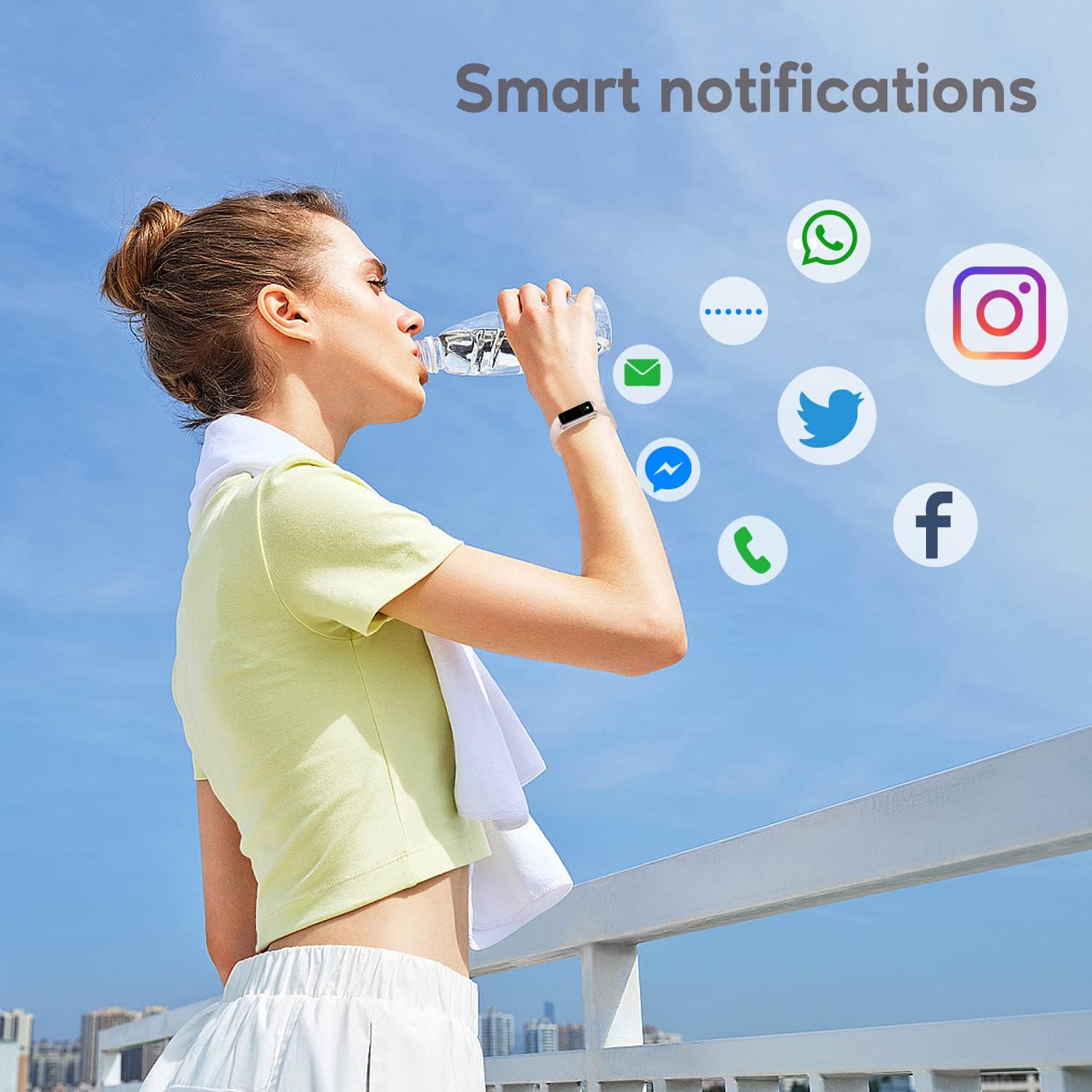
Figure 3: Smart Notifications
4.4 Sports Modes
The watch supports over 123 sports modes to track your workouts. Select your desired activity from the 'Sports' menu to record data such as heart rate, calories burned, and distance.

Figure 4: Key Features Overview
4.5 Health Monitoring
Your ASWEE Smart Watch continuously monitors key health metrics:
- Heart Rate: Provides 24/7 heart rate monitoring. View real-time data on the watch or detailed trends in the app.
- Sleep Monitoring: Tracks your sleep patterns, including deep, light, and REM sleep stages. Review your sleep quality score and duration in the 'Keep Health' app.
- Step Counter: Automatically tracks your daily steps, distance, and calories burned.
- Female Cycle Tracking: For women, the watch can help track menstrual cycles and log symptoms through the app.

Figure 5: Heart Rate Monitor in Use

Figure 6: Sleep Monitoring Feature
4.6 Custom Watch Faces
Personalize your watch by choosing from a variety of pre-installed watch faces or uploading your own photos and designs via the 'Keep Health' app.

Figure 7: Customizable Watch Faces
4.7 Camera Control
Use your smartwatch as a remote shutter for your phone's camera. Open the camera function in the 'Keep Health' app and tap the camera icon on your watch to take a photo.

Figure 8: Camera Remote Control
5. Maintenance
5.1 Water Resistance
The ASWEE Smart Watch is IP67 waterproof, meaning it is resistant to splashes, rain, and brief immersion in water. It is suitable for daily use, hand washing, and light rain. However, it is not recommended for hot showers, saunas, or diving, as steam and hot water can damage the seals.

Figure 9: Water Resistance
5.2 Cleaning and Care
To maintain your watch's appearance and functionality:
- Wipe the watch and strap regularly with a soft, dry cloth.
- If necessary, use a slightly damp cloth for cleaning, then dry thoroughly.
- Avoid using harsh chemicals, abrasive cleaners, or solvents.
- Keep the charging contacts clean and dry to ensure proper charging.
6. Troubleshooting
6.1 Watch Won't Connect or Keeps Disconnecting
If you experience connectivity issues:
- Ensure your phone's Bluetooth is turned on.
- Verify the watch and phone are within the maximum Bluetooth range (8-10 meters). Obstacles can affect connection.
- If issues persist, delete the watch's Bluetooth serial number from the 'Keep Health' app, then uninstall and reinstall the app. Repeat the pairing process.
6.2 Watch Not Receiving Message Notifications
If notifications are not appearing on your watch:
- Confirm your phone is successfully connected to the watch in the 'Keep Health' app.
- Check your phone's settings: Go to phone settings > find the 'Keep Health' app > turn on 'Notifications' permission.
- Within the 'Keep Health' app, ensure the 'notification' function is enabled for the specific apps you wish to receive alerts from.
- If the problem continues, delete the watch's Bluetooth serial number from the 'Keep Health' app, then uninstall and reinstall the app.
7. Specifications
| Feature | Detail |
|---|---|
| Brand | ASWEE |
| Model Number | P6 |
| Screen Size | 1.83 Inches (HD Touch Screen) |
| Operating System | Wear OS 3.0 |
| Connectivity Technology | Bluetooth |
| Battery Capacity | 240 Milliamp Hours (up to 7 days heavy use, 25 days standby) |
| Water Resistance | IP67 |
| Special Features | Touchscreen, Lightweight, Activity Tracker, Daily Workout Memory, Phone Call |
| Product Dimensions | 1.2 x 1.5 x 25 cm; 80 g |
8. Warranty and Support
ASWEE products are manufactured to high quality standards. For any issues or inquiries regarding your ASWEE Smart Watch, please refer to the warranty information provided at the time of purchase or contact ASWEE customer support through the official website or your retailer. Please have your model number (P6) and purchase details ready when contacting support.
Related documentsP6


Ask a question about this manual
Ask about setup, troubleshooting, compatibility, parts, safety, or missing instructions. Manuals+ will review the question and use this page’s manual context to help answer it.