1. Introduction
This manual provides detailed instructions for the setup, operation, and maintenance of your Rapoo E9700M Wireless Keyboard. Please read this manual thoroughly before using the product to ensure proper functionality and to prevent damage.

Image 1.1: The Rapoo E9700M Wireless Keyboard. This image shows the keyboard from an angled perspective, highlighting its slim profile and dark gray finish.
2. Package Contents
Verify that all items are present in the package:
- Rapoo E9700M Wireless Keyboard
- USB-C Charging Cable
- Nano USB Receiver (typically stored in the keyboard's battery compartment)
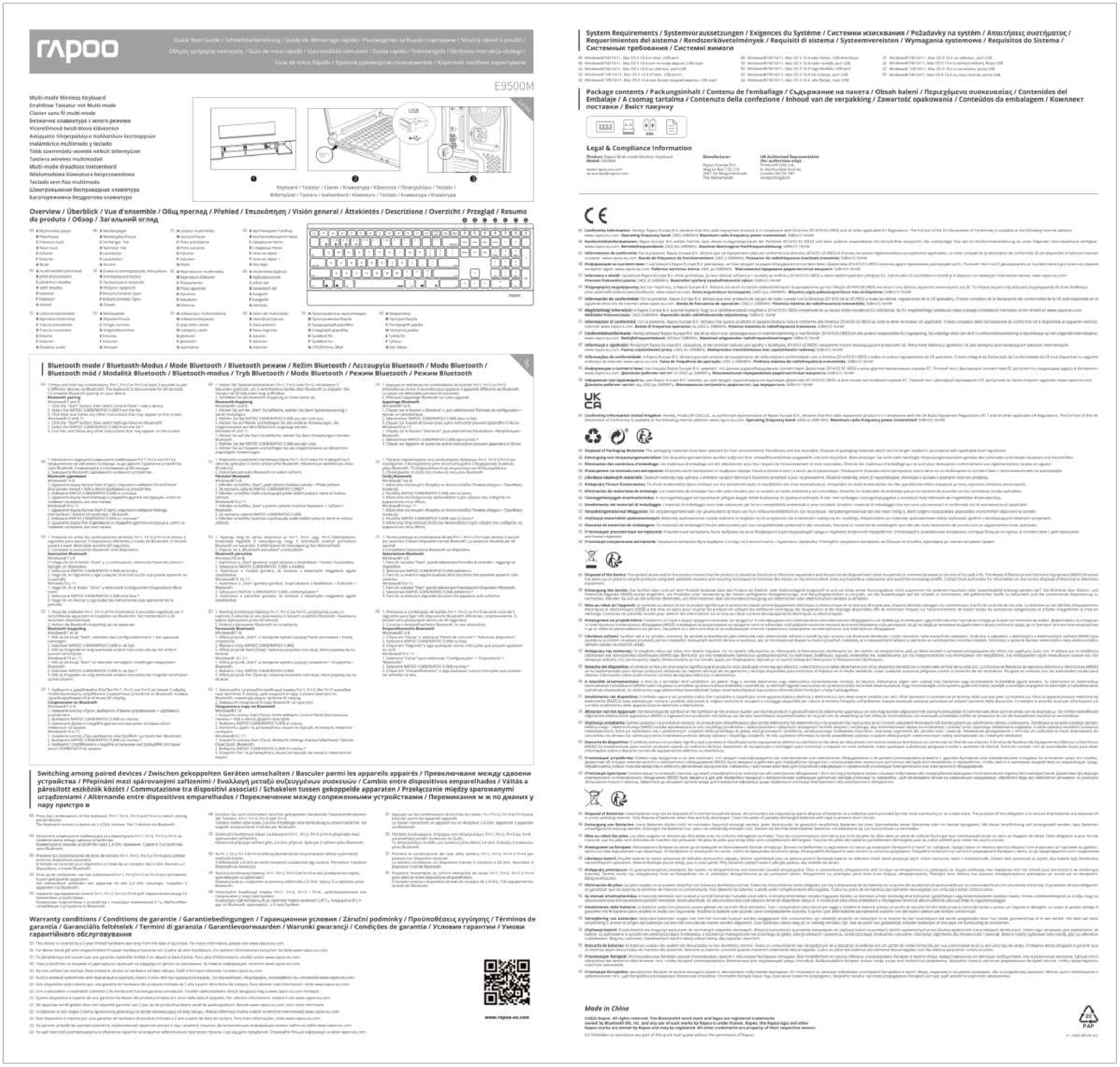
- Quick Start Guide (this document serves as a comprehensive guide)
3. Features
- Multi-Mode Wireless Connectivity: Supports Bluetooth 3.0, 5.0, and 2.4 GHz for stable transmission up to 10 meters.
- Smart Switching: Automatically pairs and connects to multiple devices, allowing one-click switching.
- Ultra-Slim Design: Constructed with an aluminum alloy for stability and durability.
- Rechargeable Battery: Integrated eco-friendly lithium battery eliminates the need for disposable batteries.
- Multimedia Hotkeys: Dedicated keys for quick access to multimedia functions.
- DE-Layout QWERTZ: German keyboard layout.
4. Setup
4.1. Charging the Keyboard
Before initial use, fully charge the keyboard. Connect the supplied USB-C cable to the keyboard's charging port and the other end to a USB power source (e.g., computer USB port, USB wall adapter).
- The charging indicator light will illuminate during charging.
- The light will turn off or change color once fully charged.
4.2. Connecting via 2.4 GHz Wireless
- Locate the Nano USB receiver, typically stored in a compartment on the underside of the keyboard.
- Plug the Nano USB receiver into an available USB port on your computer.
- Turn on the keyboard using the power switch (usually located on the side or back).
- Press the Fn + 4 key combination to activate 2.4 GHz mode. The corresponding indicator light will blink.
- Your computer should automatically detect and install the necessary drivers. The keyboard is ready for use.

Image 4.2: Top-down view of the Rapoo E9700M keyboard, showing the German (DE-Layout QWERTZ) key arrangement. Note the function keys with blue icons for connectivity modes.
4.3. Connecting via Bluetooth
The keyboard supports two Bluetooth channels (Bluetooth 1 and Bluetooth 2).
- Turn on the keyboard using the power switch.
- Press Fn + 1 for Bluetooth 1 or Fn + 2 for Bluetooth 2. The corresponding indicator light will blink slowly.
- To enter pairing mode, press and hold Fn + 1 or Fn + 2 for 3 seconds until the indicator light blinks rapidly.
- On your device (PC, Mac, smartphone, tablet), open Bluetooth settings and search for new devices.
- Select "Rapoo E9700M" from the list of available devices.
- Follow any on-screen prompts to complete the pairing process. The indicator light will stop blinking once connected.
4.4. Switching Between Connected Devices
The Rapoo E9700M allows seamless switching between up to three connected devices (one 2.4 GHz and two Bluetooth devices).
- Press Fn + 1 to switch to Bluetooth device 1.
- Press Fn + 2 to switch to Bluetooth device 2.
- Press Fn + 4 to switch to the 2.4 GHz wireless connection.
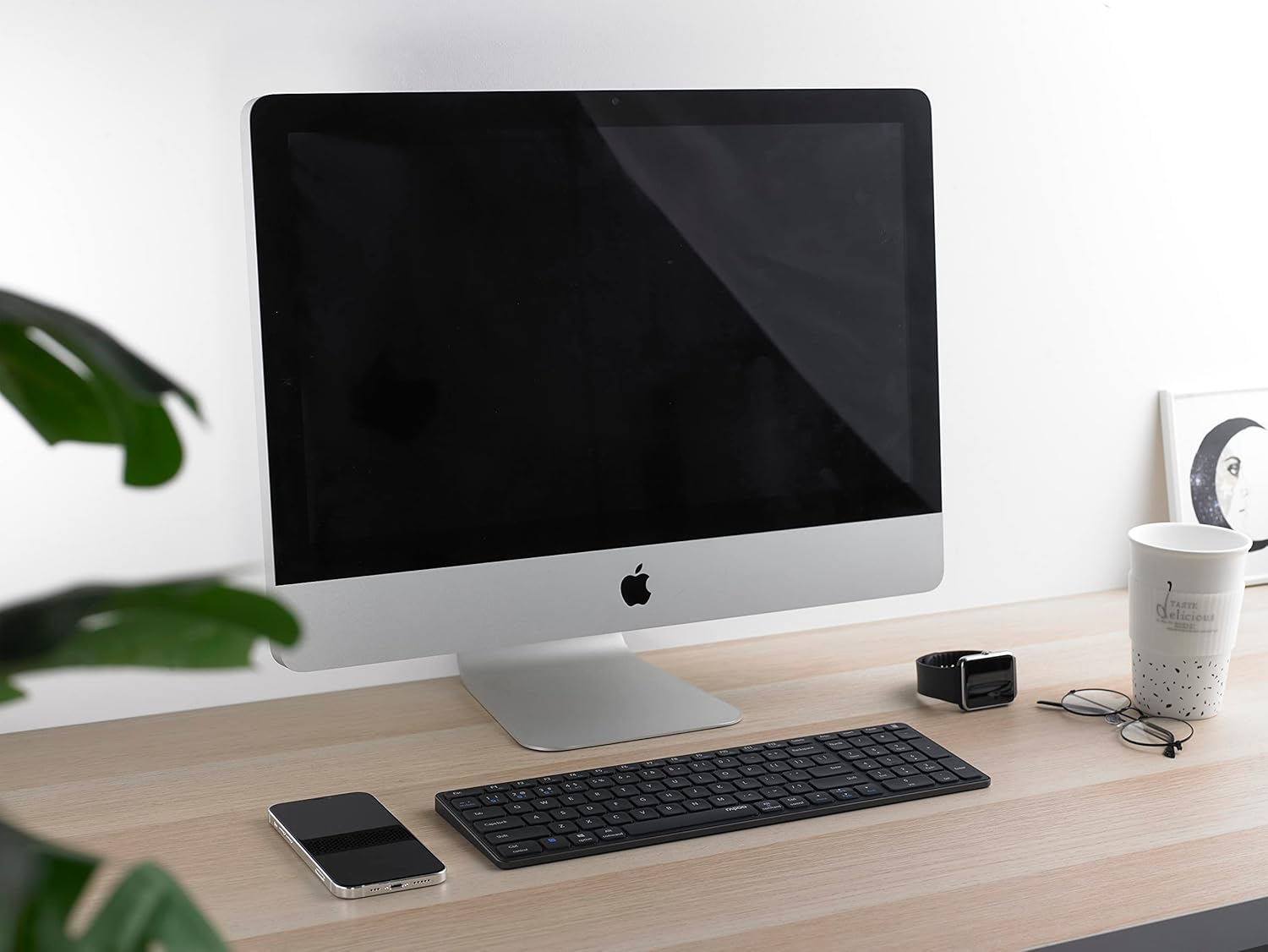
Image 4.4: The Rapoo E9700M keyboard positioned on a desk next to an iMac, demonstrating its compatibility with macOS devices.
5. Operating Instructions
5.1. Multimedia Hotkeys
The keyboard features multimedia hotkeys for quick access to various functions. These keys are typically activated by pressing the Fn key simultaneously with the corresponding function key (F1-F12).
| Key Combination | Function |
|---|---|
| Fn + F1 | Media Player |
| Fn + F2 | Volume Down |
| Fn + F3 | Volume Up |
| Fn + F4 | Mute |
| Fn + F5 | Previous Track |
| Fn + F6 | Next Track |
| Fn + F7 | Play/Pause |
| Fn + F8 | Stop |
| Fn + F9 | Home Page |
| Fn + F10 | |
| Fn + F11 | My Computer |
| Fn + F12 | Favorites |
5.2. Indicator Lights
The keyboard has indicator lights to show connection status and battery level:
- Bluetooth 1/2/4 (2.4G) Indicator: Blinks slowly when searching for connection, blinks rapidly when in pairing mode, solid when connected.
- Caps Lock Indicator: Illuminates when Caps Lock is active.
- Battery Status Indicator: Illuminates when charging, blinks when battery is low.
6. Maintenance
To ensure the longevity and optimal performance of your Rapoo E9700M keyboard, follow these maintenance guidelines:
- Cleaning: Use a soft, dry cloth to wipe the surface of the keyboard. For stubborn dirt, slightly dampen the cloth with water or a mild, non-abrasive cleaner. Avoid excessive moisture.
- Storage: Store the keyboard in a cool, dry place away from direct sunlight and extreme temperatures.
- Avoid Liquids: Do not expose the keyboard to liquids. In case of accidental spills, immediately power off the keyboard and allow it to dry completely before reuse.
- USB Receiver: When not in use, store the Nano USB receiver in its designated compartment within the keyboard to prevent loss.

Image 6.1: The underside of the Rapoo E9700M keyboard, showing the smooth aluminum finish and regulatory markings. The USB receiver compartment is typically located here.
7. Troubleshooting
If you encounter issues with your keyboard, refer to the following common problems and solutions:
- Keyboard not responding:
- Ensure the keyboard is powered on.
- Check battery level and charge if necessary.
- Verify the correct connection mode (2.4 GHz, Bluetooth 1, or Bluetooth 2) is selected using Fn + 1/2/4.
- For 2.4 GHz, ensure the Nano USB receiver is securely plugged into a working USB port.
- For Bluetooth, ensure Bluetooth is enabled on your device and the keyboard is paired. Try re-pairing if necessary.
- Try connecting to a different USB port or device to rule out port/device issues.
- Lag or intermittent connection:
- Reduce the distance between the keyboard and your device (maximum 10 meters).
- Remove any obstacles that might interfere with the wireless signal (e.g., large metal objects).
- Avoid using the keyboard near other strong wireless interference sources (e.g., Wi-Fi routers, other wireless devices).
- Ensure the keyboard is fully charged.
- Keys not working or typing incorrectly:
- Clean the keyboard to remove any debris that might be obstructing the keys.
- Restart your computer/device.
- If using Bluetooth, try unpairing and re-pairing the keyboard.
8. Specifications
| Feature | Detail |
|---|---|
| Brand | Rapoo |
| Model | E9700M |
| Connectivity Technology | Bluetooth 3.0, Bluetooth 5.0, 2.4 GHz Wireless (USB-C, WLAN) |
| Compatible Devices | Laptop, PC, Smart TV, Gaming Console, Smartphone, Tablet |
| Keyboard Description | Multimedia |
| Special Feature | Multimedia Hotkeys, Rechargeable Battery |
| Color | Dark Grey |
| Style | Classic |
| Material | Aluminum |
| Included Components | Keyboard, USB-C Cable, Nano USB Receiver |
| Layout | DE-Layout (QWERTZ) |
9. Warranty and Support
Rapoo products are designed with quality and reliability in mind. For warranty information and technical support, please refer to the warranty card included with your product or visit the official Rapoo website. Keep your proof of purchase for warranty claims.
For further assistance, please contact Rapoo customer support through their official channels.