
1. Introduction
This manual provides comprehensive instructions for the installation, configuration, and operation of your TP-Link EAP620 HD Omada WiFi 6 AX1800 Wireless Gigabit Access Point. The EAP620 HD is designed for high-density deployment, offering robust Wi-Fi 6 connectivity for business environments.
Please read this manual thoroughly before using the device to ensure proper setup and optimal performance. Keep this manual for future reference.
2. Product Overview
The TP-Link EAP620 HD is an AX1800 Ceiling Mount Wi-Fi 6 Access Point, part of the Omada Software Defined Networking (SDN) platform. It is engineered to deliver ultra-fast Wi-Fi 6 speeds and high-density connectivity, making it suitable for environments with numerous connected devices.

Image 2.1: Front view of the TP-Link EAP620 HD Access Point, a white circular device with the TP-Link logo in the center and a small LED indicator at the bottom.
Key Features:
- Ultra-Fast True Wi-Fi 6 Speeds: Achieves dual-band Wi-Fi speeds up to 1800 Mbps using 1024-QAM and Long OFDM Symbol technology.
- High-Density Connectivity: Utilizes OFDMA and MU-MIMO to increase network capacity by up to 4 times compared to Wi-Fi 5 in high-density environments.
- Ultra-Slim Design: Compact and elegant design for discreet installation in various settings.
- Integrated into Omada SDN: Seamlessly integrates with the Omada Software Defined Networking platform for centralized management of access points, switches, and gateways.
- Cloud Access & Omada Compatibility: Supports remote cloud access and management via the Omada app, allowing control from anywhere, anytime.
- Advanced Wireless Technologies: Includes Mesh WiFi, Seamless Roaming (requires Omada SDN controllers), Band Steering, Load Balancing, Airtime Fairness, and Beamforming.
- Multiple Powering Options: Supports 802.3at PoE+, 48V/0.5A Passive PoE, and 12V/1A DC power supply for flexible deployment.

Image 2.2: A graphic illustrating the speed comparison between EAP620 HD (Wi-Fi 6) and a standard AC EAP (Wi-Fi 5), showing 5GHz speeds of 1201 Mbps and 2.4GHz speeds of 574 Mbps for the EAP620 HD.

Image 2.3: A diagram showing Mesh Technology and Seamless Roaming, where multiple access points provide continuous Wi-Fi coverage across different areas of a building, allowing devices to automatically switch to the strongest signal.
3. Package Contents
Verify that your package contains all the items listed below. If any item is missing or damaged, please contact your reseller.
- EAP620 HD Access Point
- Power Adapter (12V/1.5A DC)
- Ceiling / Wall Mounting Kits
- Installation Guide
4. Setup and Installation
The EAP620 HD offers flexible installation options, including ceiling mount, wall mount, or desktop placement. It can be powered via Power over Ethernet (PoE+) or a DC power adapter.
4.1 Powering the Device
The EAP620 HD supports the following power options:
- 802.3at PoE+: Connect an Ethernet cable from a PoE+ compliant switch or PoE injector to the EAP's Ethernet port. This method provides both power and data over a single cable.
- 48V/0.5A Passive PoE: Use a compatible Passive PoE adapter (e.g., TP-Link Model: TL-PoE4824G) to supply power.
- 12V/1A DC Adapter: Connect the provided 12V/1.5A DC power adapter to the DC jack on the EAP and plug it into a power outlet.
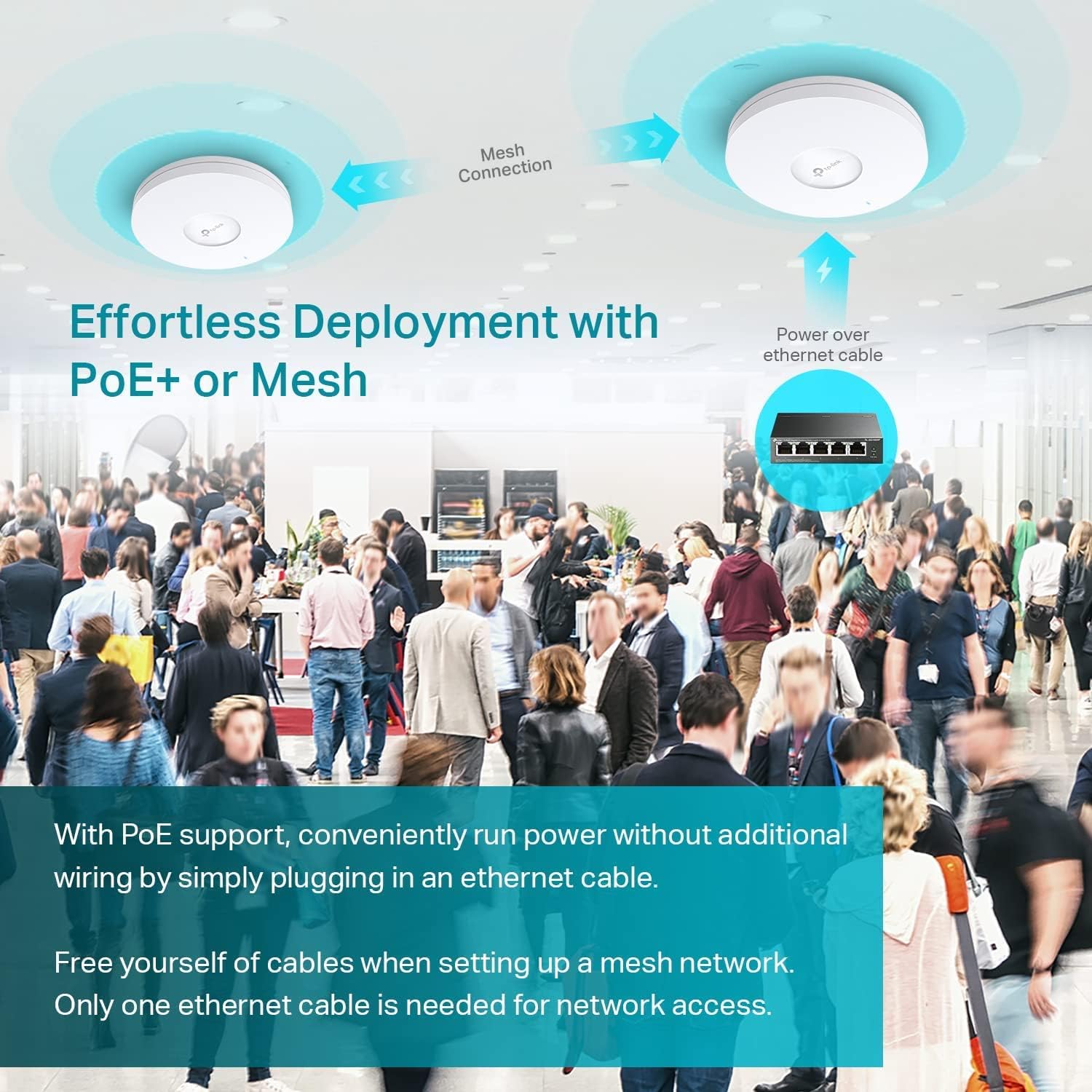
Image 4.1: An illustration demonstrating Power over Ethernet (PoE+) deployment, where an Ethernet cable from a PoE+ switch provides both power and data to the access point, simplifying installation.

Image 4.2: A rear view of the EAP620 HD, showing the 12V/1A DC power input and the Ethernet port which also supports 48V/0.5A Passive PoE, along with its dimensions (160mm diameter, 33.6mm height).
4.2 Mounting the Device
Refer to the included Installation Guide for detailed steps on how to use the ceiling/wall mounting kits to securely install the EAP620 HD.
5. Operating Instructions
The EAP620 HD can be managed in standalone mode or integrated into the Omada SDN platform for centralized control.
5.1 Standalone Mode
For standalone operation, you can configure the EAP directly via its web interface. Connect a computer to the EAP's Ethernet port (or to the network where the EAP is connected) and access its default IP address (refer to the Installation Guide for the default IP and login credentials).
5.2 Omada SDN Integration
For advanced management and seamless integration with other network devices, the EAP620 HD is designed to work with the Omada SDN platform. This platform offers multiple control options:
- Omada Hardware Controller: A dedicated hardware device for managing your Omada network.
- Omada Software Controller: Software that can be installed on a PC or server for network management.
- Cloud-based Controller: Provides remote management capabilities without the need for on-premises hardware. Contact TP-Link for details on cloud-based controller options.
The Omada app provides convenient mobile access for managing your network from anywhere, anytime. Download the Omada app from your device's app store.

Image 5.1: A diagram illustrating the Omada SDN platform, showing how Omada Access Points, Jetstream Switches, and Omada Security Gateways are integrated and managed through a Unified Management Interface, with options for Hardware Controller, Software Controller, and Cloud Access.

Image 5.2: A visual representation of the Omada Cloud Solution, demonstrating centralized management of a network across different sites using a web interface and the Omada mobile app, with various Omada devices connected.
For devices compatible with SDN firmware, refer to the 'From the manufacturer – Q&A' section or the TP-Link website for more information.
6. Maintenance
To ensure the longevity and optimal performance of your EAP620 HD, consider the following maintenance practices:
- Firmware Updates: Regularly check the TP-Link website for the latest firmware updates. Updating the firmware can improve performance, add new features, and fix security vulnerabilities.
- Cleaning: Keep the device clean and free from dust. Use a soft, dry cloth to wipe the exterior. Avoid using liquid cleaners or aerosols.
- Environmental Conditions: Ensure the device is operated within its specified temperature and humidity ranges. Avoid placing it near heat sources or in direct sunlight.
- Network Monitoring: Utilize the Omada SDN platform or app to monitor network health and device status, addressing any issues proactively.
7. Troubleshooting
If you encounter issues with your EAP620 HD, consider the following general troubleshooting steps:
- No Power: Verify that the power adapter is securely connected to the EAP and a power outlet, or that the PoE+ connection is active and functioning correctly.
- No Internet Access: Check the Ethernet cable connection to your router or switch. Ensure your internet service is active and other devices can access the internet.
- Poor Wi-Fi Performance:
- Ensure the EAP is centrally located and free from obstructions.
- Check for interference from other wireless devices.
- Verify that the latest firmware is installed.
- If using Omada SDN, check network statistics for potential bottlenecks or client issues.
- Cannot Access Management Interface: Ensure your computer is on the same network segment as the EAP. Try clearing your browser's cache or using a different browser. Verify the EAP's IP address.
For more detailed troubleshooting or persistent issues, please refer to the official TP-Link support website or contact their technical support.
8. Specifications
| Attribute | Value |
|---|---|
| Product Dimensions | 6.3 x 6.3 x 1.32 inches |
| Item Weight | 13.4 ounces |
| ASIN | B09WV3X1N7 |
| Item model number | EAP620 HD_V3 |
| Manufacturer | TP-Link |
| Brand | TP-Link |
| Model Name | EAP620 HD_V3 |
| Special Feature | Beamforming, Remote Access |
| Frequency Band Class | Dual-Band |
| Wireless Communication Standard | 802.11ax (Wi-Fi 6) |
| Compatible Devices | Personal Computer |
| Recommended Uses For Product | Business |
| Connectivity Technology | Ethernet |
| Color | White |
9. Warranty and Support
Your TP-Link EAP620 HD is backed by a 5-year warranty. This warranty covers defects in materials and workmanship under normal use. For warranty claims or technical assistance, please contact TP-Link support.
Free technical support is available from 6am to 6pm PST, Monday to Friday.
For additional resources, including the full User Guide (PDF) and frequently asked questions, please visit the official TP-Link website or refer to the provided User Guide (PDF).


