1. Introduction
The AUSDOM Trucker Bluetooth Headset is designed to provide clear and stable communication, especially in noisy environments. Featuring AI-powered noise cancellation, extended battery life, and multipoint connectivity, this headset is ideal for home office work, call centers, and on-the-go professionals.
Its lightweight design and comfortable earcups ensure prolonged wear without discomfort. The rotatable boom microphone offers flexibility and includes a convenient mute function.
2. What's in the Box
- 1 x Mono Wireless Headset
- 1 x Type C Charging Cable
- 1 x USB-A to USB-C Converter
- 1 x Carry Bag
- User Manual

Image: Contents of the AUSDOM headset package.
3. Product Features
3.1 AI-Powered Noise Cancelling
The headset incorporates AI Voip Fence technology and dual microphones to effectively block out up to 95% of environmental background noise. This ensures your voice is transmitted clearly and smoothly, making it ideal for noisy environments like call centers or busy offices.

Image: Demonstrates the 95% noise cancellation capability of the headset.

Image: Visual representation of how VoipFence Technology reduces background noise.
3.2 Advanced Bluetooth 5.1 Technology
Equipped with Bluetooth 5.1 and a Qualcomm QCC3020 chip, the headset offers improved transmission speed, low latency, and enhanced stability. This allows for a seamless listening and communication experience.

Image: Internal view highlighting the advanced Bluetooth 5.1 and Qualcomm chip.
3.3 Multipoint Connectivity
Connect the headset to two Bluetooth devices simultaneously, such as a cellphone and a laptop. This feature allows for seamless switching between devices, ensuring you never miss important calls or notifications.

Image: Illustration of the headset's multipoint connectivity with a laptop and a smartphone.
3.4 All-Day Comfort & Design
Weighing only 75 grams (2.6 oz), this headset is designed for lightweight comfort during long working hours. It features soft, breathable earcups and a 270° rotatable boom microphone for flexible positioning on either ear.

Image: Detailed view of the headset's comfortable design elements and controls.

Image: Demonstrates the 270-degree rotatable microphone for use on either ear.
3.5 Long Battery Life
Enjoy up to 32 hours of talk time and 50 hours of music playtime on a single charge. A quick 5-minute charge provides approximately 2 hours of standby time.
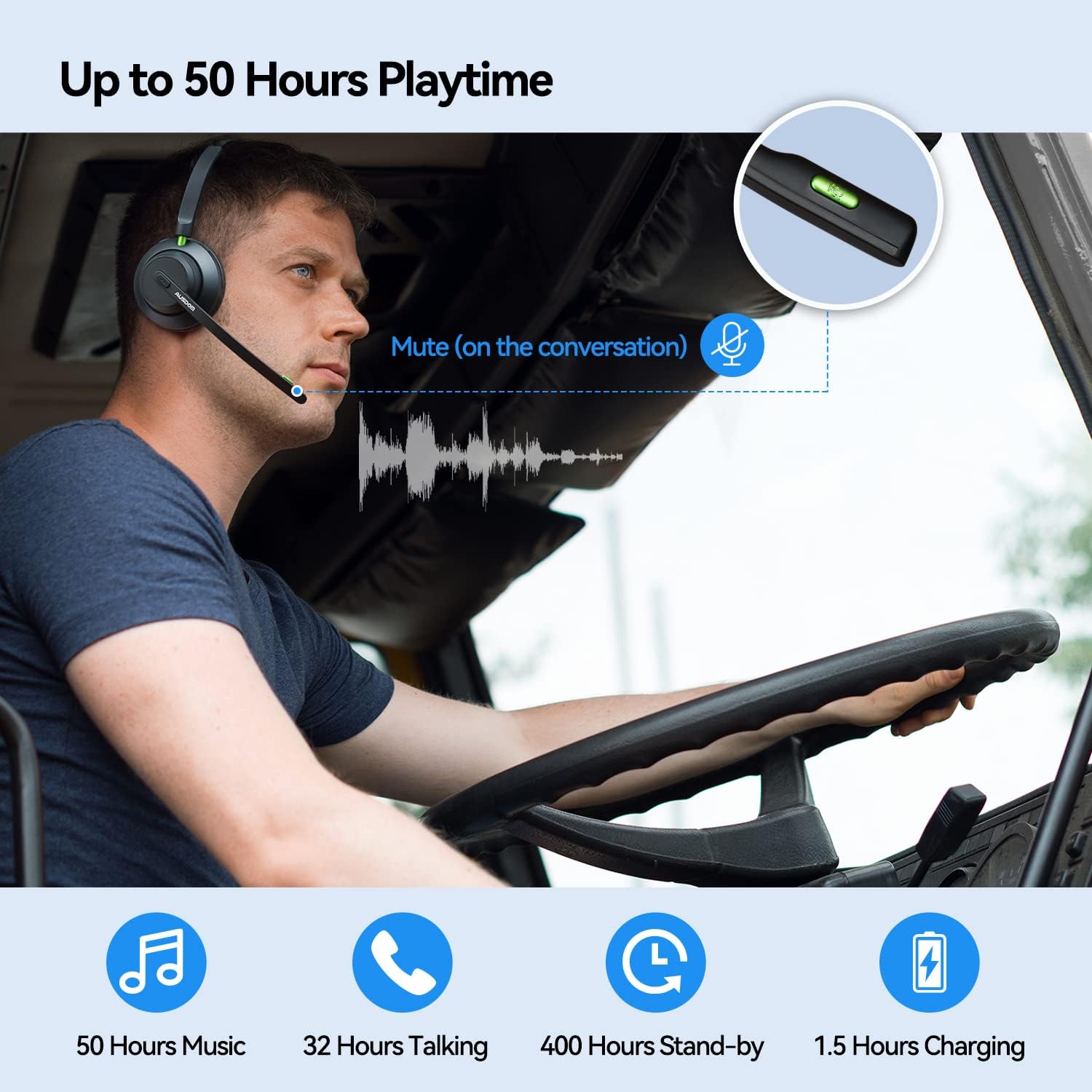
Image: Illustrates the long battery life during use, showing 50 hours music, 32 hours talking, 400 hours standby, and 1.5 hours charging.
4. Setup Guide
4.1 Initial Charging
Before first use, fully charge the headset using the provided Type-C charging cable and USB-A to USB-C converter. Connect the cable to the USB-C port on the headset and a power source (e.g., computer USB port, wall adapter). The LED indicator will show charging status.
4.2 Pairing with a Device
To pair the headset with your device:
- Ensure the headset is charged and turned off.
- Press and hold the Power/Bluetooth Button for 4 seconds until the LED indicator flashes red and green alternately. This indicates pairing mode.
- On your device (smartphone, laptop, etc.), enable Bluetooth and search for available devices.
- Select "AUSDOM Voipfocus Connect" from the list of found devices.
- Once connected, the LED indicator will turn solid blue or flash slowly, and you will hear a confirmation tone.

Image: Visual guide for connecting the headset to multiple devices.
4.3 Connecting to a Second Device (Multipoint)
After successfully pairing with the first device, turn off Bluetooth on the first device. Then, put the headset back into pairing mode and connect it to the second device. Once connected, re-enable Bluetooth on the first device. The headset will automatically connect to both devices, allowing you to switch between them seamlessly.
5. Operating Instructions
5.1 Controls Overview
The headset features intuitive controls for easy management of calls and audio playback:
- Power/Bluetooth/Call Button: Used for powering on/off, entering pairing mode, answering/ending calls, and playing/pausing music.
- Volume + / Next Song: Press to increase volume; long press for next song.
- Volume - / Previous Song: Press to decrease volume; long press for previous song.
- Microphone Mute Button: Toggles microphone mute during calls.
- LED Indicator: Shows power, pairing, and connection status.
- USB-C Port: For charging the headset.

Image: Detailed diagram of the headset's control buttons.
5.2 Making and Receiving Calls
Once connected, you can use the headset for calls. Press the Power/Bluetooth/Call Button to answer an incoming call or end an ongoing call. Use the Mute Button on the microphone boom to mute or unmute your voice during a conversation.

Image: Demonstrates the microphone mute function during a call.
5.3 Audio Playback
When not on a call, the headset can be used for music playback. Use the Volume +/- buttons to adjust the volume or skip tracks. Press the Power/Bluetooth/Call Button to play or pause music.
5.4 Official Product Video
Video: An official overview of the AUSDOM A2301 Trucker Bluetooth Headset with Microphone, showcasing its features and design.
6. Maintenance
To ensure the longevity and optimal performance of your AUSDOM headset, follow these maintenance guidelines:
- Cleaning: Use a soft, dry cloth to clean the headset. Do not use harsh chemicals or abrasive materials.
- Storage: Store the headset in the provided carry bag when not in use to protect it from dust and scratches. Avoid storing in extreme temperatures or high humidity.
- Battery Care: To preserve battery life, avoid fully discharging the headset frequently. Charge it regularly, even if not in constant use.
- Water Resistance: This product is not water resistant. Avoid exposure to liquids.
7. Troubleshooting
If you encounter issues with your headset, please refer to the following common solutions:
- Headset not turning on: Ensure the headset is fully charged.
- Cannot pair with device: Make sure the headset is in pairing mode (flashing red and green). Check that Bluetooth is enabled on your device and that the headset is within range. Try restarting both the headset and your device.
- No audio or poor audio quality: Check the volume levels on both the headset and your connected device. Ensure the headset is properly connected and not too far from the device.
- Microphone not working: Ensure the microphone is not muted. Check microphone settings on your connected device.
- Connection issues with PC (Windows 10): Some users have reported connectivity challenges with Windows 10. Ensure your PC's Bluetooth drivers are up to date. If issues persist, try pairing with another device to confirm headset functionality.
8. Specifications
| Feature | Detail |
|---|---|
| Model Name | AUSDOM Voipfocus Connect (A2301N) |
| Connectivity Technology | Wireless (Bluetooth 5.1) |
| Bluetooth Range | Up to 15 meters (49 feet) |
| Battery Life (Talk Time) | 32 Hours |
| Battery Life (Music Playtime) | 50 Hours |
| Charging Time | 1.5 Hours |
| Item Weight | 75 Grams (2.65 ounces) |
| Microphone | AI Noise Cancelling, 270° Rotatable |
| Ear Placement | On Ear |
| Control Type | Volume Control, Call Control, Mute Button |
| Compatible Devices | iPhone, Android cell phones, laptops, computers, PC, and all Bluetooth-enabled devices |
| Material | Leather, Plastic, Stainless Steel |
| Frequency Range | 20Hz-20kHz |
9. Warranty and Support
AUSDOM products are designed for quality and reliability. For specific warranty information, please refer to the documentation included with your purchase or visit the official AUSDOM website.
For technical support, product inquiries, or customer service, please contact AUSDOM directly:
- Official Website: www.ausdom.com
- Email Support: support@ausdom.com
You can also visit the official AUSDOM store on Amazon for more product information and support resources: AUSDOM Amazon Store


