
ASHATA ASHATAwtf0rkq94y554-12
ASHATA M9 Smart Instant Language Translator User Manual
Model: ASHATAwtf0rkq94y554-12
1. Introduction
The ASHATA M9 Smart Instant Language Translator is a portable device designed to facilitate communication across different languages. It supports a wide range of online and offline languages, photo translation, and real-time two-way voice translation. This manual provides essential information on setting up, operating, maintaining, and troubleshooting your device.
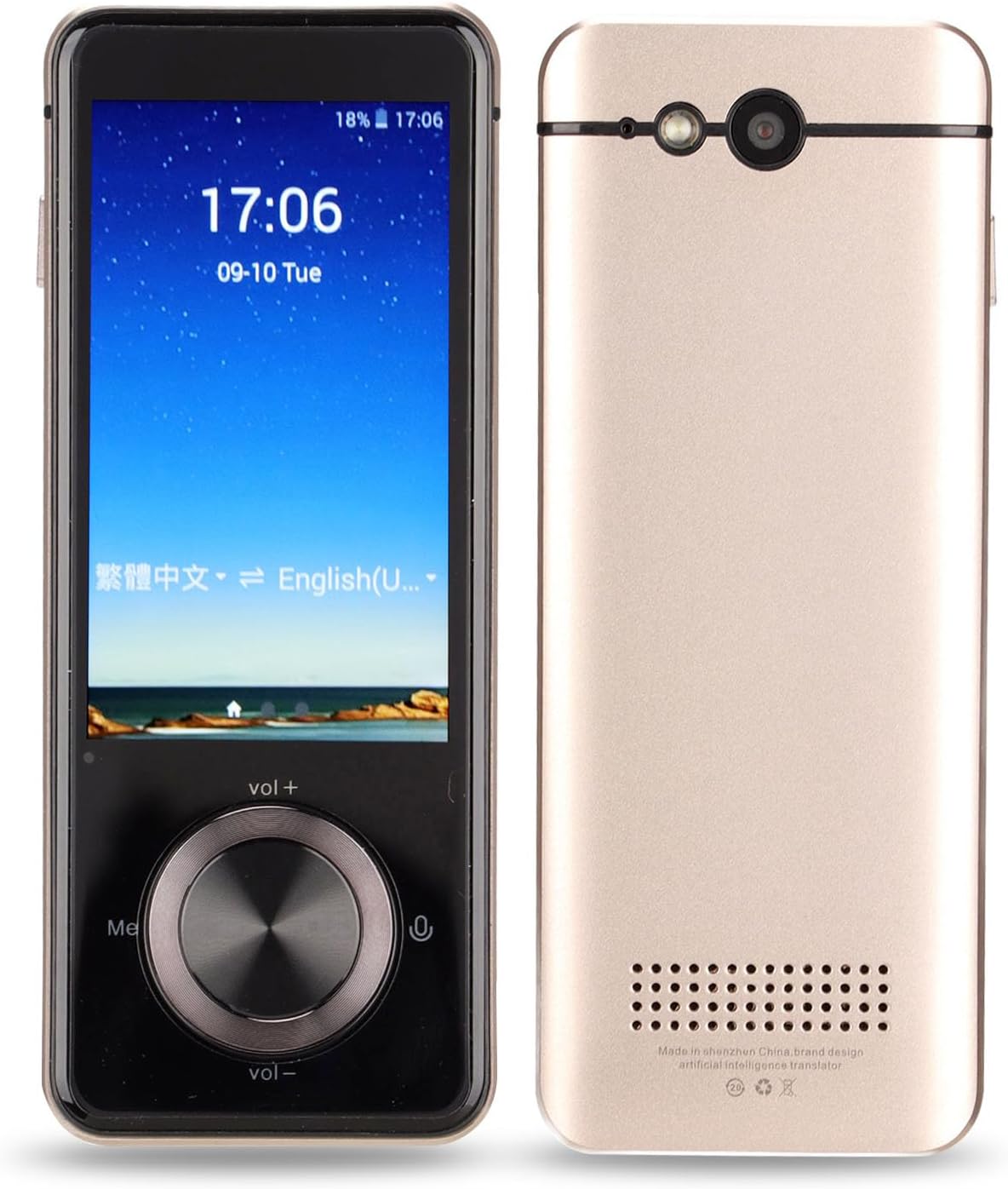
Figure 1.1: Front and back view of the ASHATA M9 Smart Instant Language Translator. The front features a 3-inch touchscreen and a circular control dial. The back shows the camera lens and speaker grille.
2. Product Overview
Key Features:
- Online Translation: Supports 109 languages and dialects with 99% accuracy.
- Offline Translation: Supports 12 major languages without internet connection (requires pre-downloaded packages).
- Photo Translation: 5-megapixel camera with autofocus and flashlight supports 43 languages.
- Real-Time Two-Way Translation: Provides instant voice and text translation on a 3.0-inch touchscreen.
- Long Battery Life: Built-in 1500mAh lithium battery offers up to 8 hours of continuous translation and 7 days in sleep mode.
- Connectivity: Wi-Fi and Bluetooth support.

Figure 2.1: The ASHATA M9 translator highlighting its capabilities, including 109 online languages, real-time two-way translation, 12 offline languages, and 43 photography languages.

Figure 2.2: An illustration of the translator's practical functions, including support for 137 languages, 10 countries offline translation, 43 online photo translation, 2.4G WiFi connection, translation collection, 2-way translation, touchscreen interface, and real-time translation.
3. Setup
3.1 Charging the Device
Before first use, fully charge the translator. Connect the provided USB cable to the device's charging port and a compatible USB power adapter (not included). The charging indicator will show the charging status.

Figure 3.1: The ASHATA M9 translator shown alongside its USB charging cable, indicating the connection point for power.

Figure 3.2: A close-up view of the translator's charging port, illustrating the connection of a USB-C cable for charging the 1500mAh lithium battery.
3.2 Powering On/Off
- To Power On: Press and hold the power button (usually located on the side) until the screen illuminates.
- To Power Off: Press and hold the power button, then select 'Power Off' on the screen.
3.3 Wi-Fi Connection
For online translation features, connect the device to a Wi-Fi network.
- From the home screen, tap on the 'Settings' icon.
- Select 'Wi-Fi' and turn it on.
- Choose your desired network from the list and enter the password if prompted.

Figure 3.3: The translator demonstrating its Wi-Fi connectivity, essential for accessing online translation services.
3.4 Language Settings
Set the device's system language for navigation.
- Go to 'Settings' and then 'Language'.
- Select your preferred system language from the available options.

Figure 3.4: The translator supports 19 system languages, allowing users to navigate the device in their preferred language.
4. Operating Instructions
4.1 Real-Time Two-Way Voice Translation
This mode allows for instant spoken translation between two languages.
- From the main screen, select the 'Translate' or 'Two-Way Translation' option.
- Choose the source and target languages.
- Press and hold the corresponding microphone button (usually indicated by different colors or symbols for each language).
- Speak clearly into the device. Release the button when finished speaking.
- The device will translate and speak the translation aloud, also displaying it on the screen.
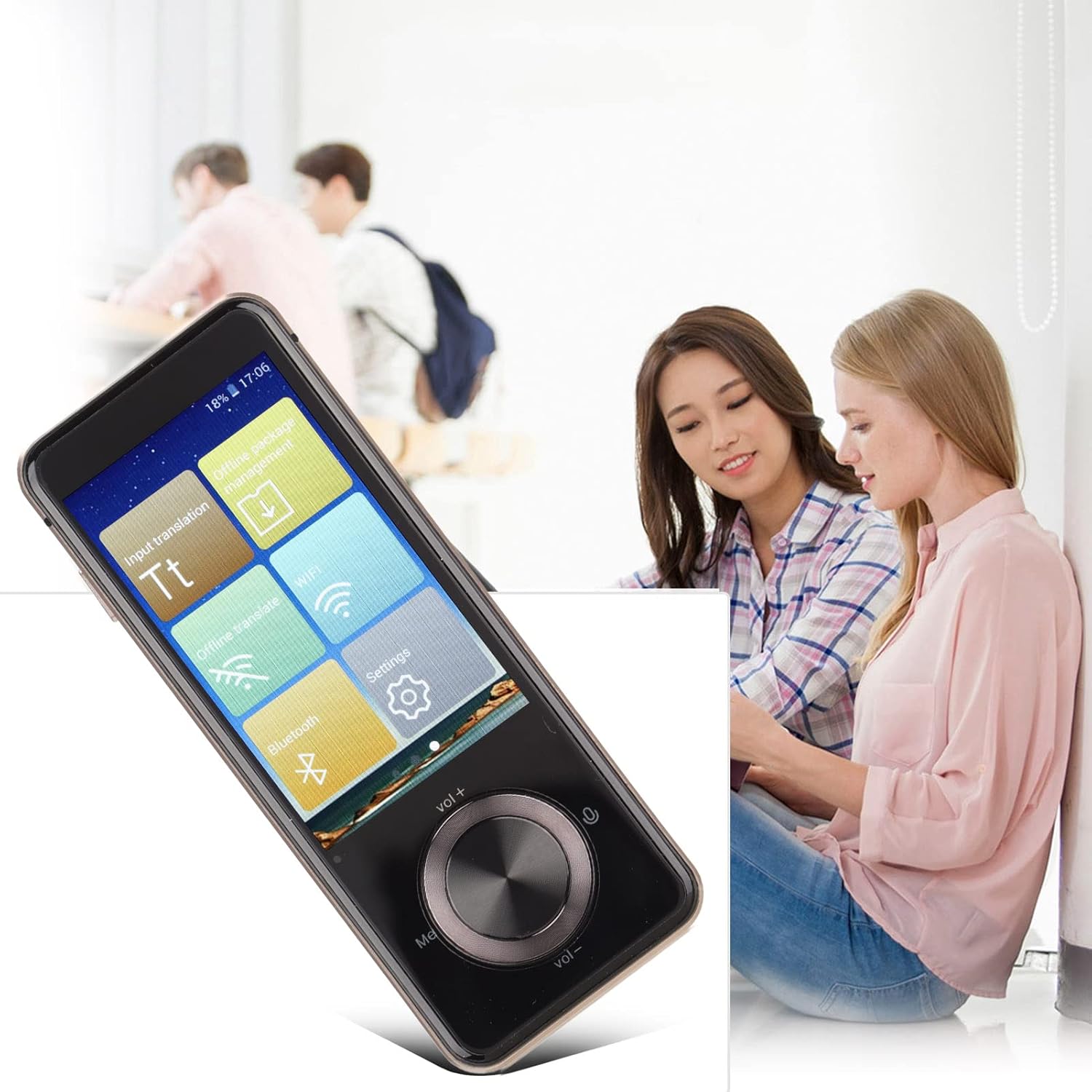
Figure 4.1: The translator's screen displaying various application icons, including options for input translation, offline package management, Wi-Fi, settings, Bluetooth, and offline translate.

Figure 4.2: An illustration of the real-time two-way translation feature, showing speech bubbles representing spoken input and translated output.
4.2 Offline Translation
To use translation without an internet connection, you must first download the necessary language packages.
- Ensure you are connected to Wi-Fi.
- Navigate to 'Offline Package Management' in the settings or main menu.
- Select the language pairs you wish to download for offline use.
- Once downloaded, you can use the 'Offline Translate' function similar to online translation.

Figure 4.3: The translator supports offline global translation, allowing use in areas without internet access after downloading language packs.
4.3 Photo Translation
Translate text from images using the built-in camera.
- Select the 'Photo Translation' option from the main menu.
- Point the camera at the text you wish to translate. Ensure good lighting and focus.
- Tap the capture button.
- The device will process the image and display the translated text on the screen.
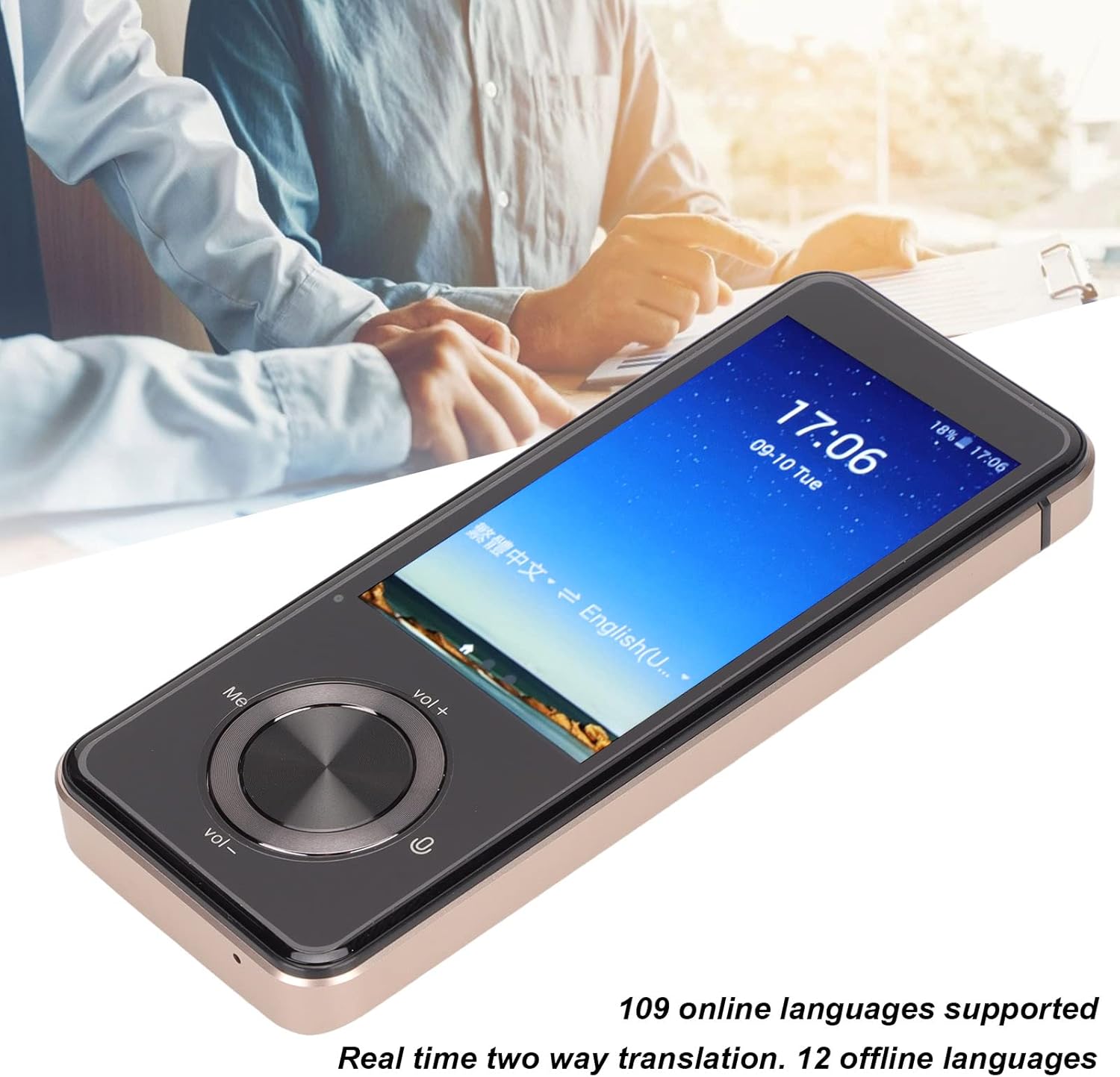
Figure 4.4: The translator's screen showing translated text, demonstrating its photo translation capability.

Figure 4.5: The translator supports 43 online photography languages, allowing users to translate text from signs, menus, and documents by simply taking a picture.
4.4 Recording Function
The device may include a recording function for capturing audio.
- Locate the 'Recording' application on the device.
- Tap to start recording.
- Tap again to stop and save the recording.
5. Maintenance
5.1 Cleaning the Device
- Use a soft, dry, lint-free cloth to clean the screen and body of the translator.
- Do not use liquid cleaners, aerosols, or abrasive solvents.
5.2 Storage
- Store the device in a cool, dry place away from direct sunlight and extreme temperatures.
- Avoid dropping or subjecting the device to strong impacts.
6. Troubleshooting
Common Issues and Solutions:
| Problem | Possible Cause | Solution |
|---|---|---|
| Device does not power on. | Low battery; device frozen. | Charge the device for at least 30 minutes. Perform a forced restart (refer to device specific instructions if available). |
| Translation is inaccurate. | Poor internet connection; unclear speech; incorrect language selection. | Ensure stable Wi-Fi connection. Speak clearly and at a moderate pace. Verify correct source and target languages are selected. |
| Cannot connect to Wi-Fi. | Incorrect password; out of range; network issue. | Double-check Wi-Fi password. Move closer to the Wi-Fi router. Restart the router and the translator. |
| Offline translation not working. | Offline language package not downloaded. | Connect to Wi-Fi and download the required offline language packages from 'Offline Package Management'. |
7. Specifications
| Feature | Detail |
|---|---|
| Model Number | ASHATAwtf0rkq94y554-12 |
| Display | 3.0-inch Touchscreen |
| Camera | 5 Megapixels (with autofocus and flashlight) |
| Battery Capacity | 1500mAh Lithium Battery |
| Online Languages | 109 |
| Offline Languages | 12 |
| Photo Translation Languages | 43 |
| Connectivity | Wi-Fi, Bluetooth |
| Item Weight | 8.1 ounces (approx. 230 grams) |
| Package Dimensions | 6.3 x 3.54 x 1.97 inches (approx. 16 x 9 x 5 cm) |
| Manufacturer | ASHATA |
| Country of Origin | China |
8. Warranty and Support
8.1 Warranty Information
This product is covered by a standard manufacturer's warranty. Please refer to the product packaging or purchase documentation for specific warranty terms and duration. Keep your proof of purchase for warranty claims.
8.2 Customer Support
For technical assistance, troubleshooting, or warranty inquiries, please contact ASHATA customer support through the retailer where the product was purchased or visit the official ASHATA website for contact information.
Ask a question about this manual
Ask about setup, troubleshooting, compatibility, parts, safety, or missing instructions. Manuals+ will review the question and use this page’s manual context to help answer it.